page:4
Guide
Setting
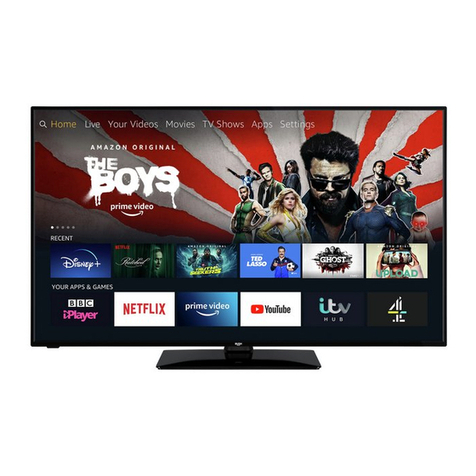
It displays "Recently accessed or used content
It will display the "Apps and Games" which downloaded Launch these Apps. from any screen
with TV set in ON condition or TV is in standby, by pressing these hot keys
Press to open the LIVE TV programs guide
Access Quick setting menu
Recent
The Fire TV Remote App is not designed to play games. Some games might work, but performance will vary.
Play/Pause
CH+/CH-
Press the rewind button once to skip 10 seconds backward Press and
hold the rewind button to continue navigating backward in the video.
Additional presses allow you to cycle through the available speed options.
Stand By
Alexa
Select
Back
Rewind
Turns TV power ON or OFF, when your TV is OFF the LED indicator on the
front of the Tv will light up
Hold down to turn on the ALEXA- enable microphone and start voice
input. Release the button to end voice input. with ALEXA, you can use
your voice to search for content control playback, and much more.
(ALEXA Voice service requires Amazon account)
Confirm a selection
volume +/-
Increase(+) or Decrease (-) the TV volume
Returns you to the Home screen from any screen on your Fire TV device.
Presents various functions and settings depending on which screen you are
accessing.
Start, Resume, or Play back of USB contains or internet video streaming
Mute
Home
Menu
Forward
Return to the previous screen
Mute or Unmute the audio of TV
Press the forward button once to skip 10 seconds forward. Press and hold the
forward button to continue navigating forward in the video. Additional presses
allow you to cycle through the available speed options.
To navigate channel UP or Down
action Move UP, DOWN, LEFT or RIGHT
Navigation