manuals.online logo
Brands
  1. Home
  2. •
  3. Brands
  4. •
  5. Analog way
  6. •
  7. Music Mixer
  8. •
  9. Analog way Pulse 2 User manual

Analog way Pulse 2 User manual

This manual suits for next models

5

Popular Music Mixer manuals by other brands

Denon DN-HC5000 - Serato ITCH Hardware/Software... Service manual

Denon

Denon DN-HC5000 - Serato ITCH Hardware/Software... Service manual

Yamaha WC42260 owner's manual

Yamaha

Yamaha WC42260 owner's manual

Vertiv KMMLED156 Quick installation guide

Vertiv

Vertiv KMMLED156 Quick installation guide

Yamaha EMX3000 user manual

Yamaha

Yamaha EMX3000 user manual

Mackie Onyx Analogue Mixer brochure

Mackie

Mackie Onyx Analogue Mixer brochure

Peavey S-32 Sanctuary Series Operation guide

Peavey

Peavey S-32 Sanctuary Series Operation guide

Rane MP 4 Operator's manual

Rane

Rane MP 4 Operator's manual

True T9 Touchscreen Console owner's manual

True

True T9 Touchscreen Console owner's manual

Studiomaster Air Pro 24 instruction manual

Studiomaster

Studiomaster Air Pro 24 instruction manual

Yamaha MV802 owner's manual

Yamaha

Yamaha MV802 owner's manual

Roland SoundCanvas SC-8820 owner's manual

Roland

Roland SoundCanvas SC-8820 owner's manual

Roland M-160 owner's manual

Roland

Roland M-160 owner's manual

Yamaha MR1642 Operation manual

Yamaha

Yamaha MR1642 Operation manual

Pioneer DJM 909 - Battle Mixer W/Effects operating instructions

Pioneer

Pioneer DJM 909 - Battle Mixer W/Effects operating instructions

Veeder-Root TLS-350 Series System setup manual

Veeder-Root

Veeder-Root TLS-350 Series System setup manual

Alto APM80.QUAD user manual

Alto

Alto APM80.QUAD user manual

Omnitronic PM-211 user manual

Omnitronic

Omnitronic PM-211 user manual

SoundCraft B400 user guide

SoundCraft

SoundCraft B400 user guide

manuals.online logo
manuals.online logoBrands
  • About & Mission
  • Contact us
  • Privacy Policy
  • Terms and Conditions

Copyright 2025 Manuals.Online. All Rights Reserved.

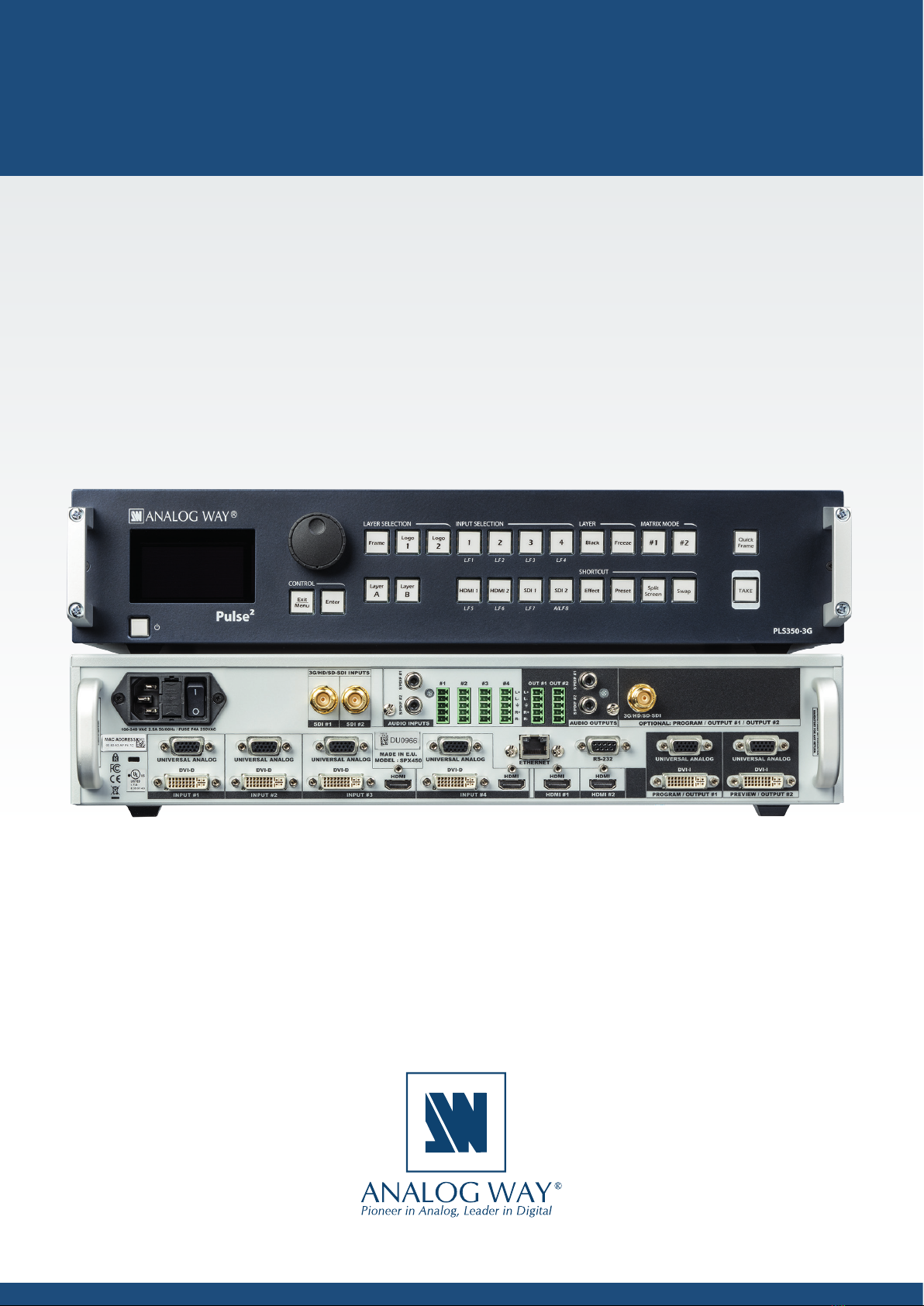
Pulse2/ Pulse2-3G / Pulse2-H
Ref. PLS350 / PLS350-3G / PLS350-H
USER MANUAL
Informaon contained in this document, in parcular data, pictures, informaon, trademarks and logos are exclusive
property of Analog Way and are protected by copyrights and other intellectual property rights.
2014, Analog Way, all rights reserved – 11/2017
Consequently, any representaon and/or reproducon, in part or in full, is prohibited and would be considered a
violaon of Analog Way’s copyright and other intellectual property rights.
Visual representaons (diagrams, photos, icons, pictograms, screenshots, spare parts, etc.) are not contractual.
Specicaons subject to change without prior noce.
THANK YOU
1. TRADEMARKS
3. TERMS AND DEFINITIONS
2. INTRODUCTION
4. HARDWARE SPECIFICATIONS
4.1 








4.1.1 English
4.1.2 French
4.1.3 Italian
4.1.4 German
4.1.5 Spanish
4.5.1 Signal descripons
4.5.2 Supported video formats
4.5.3 Computer formats
4.5.4 Input Computer formats
4.5.5 Output Computer formats
4.7.1 Standard output
4.7.2 Video output
4.8.1 Serial interface
4.8.2 LAN interface
4.8.3 HDBaseT LAN interface
4.8.4 IR and Serial HDBaseT interface
7
8
7
9
9
14
15
17
14
15
20
21
22
By following these simple steps you will be able to obtain the most from your powerful Pulse² / Pulse2-3G /
Pulse2-H (Pulse2) and its many features.

4.10.1 Input HDCP detecon
4.10.2 Output HDCP detecon
4.10.3 Keys’ checking
4.10.4 Output management
4.10.5 HDCP Classicaon
4.10.6 Status
24
4
5. CONNECTING THE PULSE²
6. CONTROLLING THE PULSE²
7. OPERATING THE PULSE² FROM THE RCS²
8. OPERATING THROUGH THE FRONT PANEL
5.1 
6.1 
7.1 
8.1 
6.2 
7.2 Setup
7.3 Edit
7.4 Live
6.3 
5.1.1 Rear panel Pulse2- Ref. PLS350
5.1.2 Front panel Pulse2- Ref. PLS350
5.1.3 Rear panel Pulse2- Ref. PLS350-3G
5.1.4 Front panel Pulse2- Ref. PLS350-3G
5.1.5 Rear panel Pulse2-H - Ref. PLS350-H
5.1.6 Front panel Pulse2-H - Ref. PLS350-H
6.3.1 Setup
6.3.2 Edit
6.3.3 Live
7.2.1 Mode
7.2.2 Audio
7.2.3 Screens
7.2.4 Preview
7.2.5 Misc
7.2.6 Output management
7.2.7 Input management
7.2.8 Logo/frame management
7.2.9 Audio management
7.2.10 Service management
7.2.11 Control management
7.3.1 Layer management
7.3.2 Layer adjustments
7.3.3 Eects
7.3.4 Background Frame
7.3.5 Preset load and save management
8.1.1 Menu navigaon
8.1.2 Home menu
8.1.3 Operang modes
8.1.4 Reseng default values
8.1.5 Pulse² color codes
25
31
34
53
25
31
34
53
31
34
46
51
33
5
8.2 
8.3 
8.2.1 Source Input selecon
8.2.2 Input selecon sengs
8.2.3 Source Output selecon
8.2.4 Output selecon sengs
8.2.5 Preview features
8.2.6 Preview Id
8.2.7 Working with layers
8.2.8 Working with layers funcons
8.2.9 Opening transions and closing live layers
8.2.10 Layer adjustment menu
8.2.11 Layers with transions & borders
8.2.12 Capturing frames
8.2.13 Working with frames
8.2.14 Opening transions & closing sll layers (logos or frames)
8.2.15 Frame input setup menu
8.2.16 Frames as layer
8.2.17 Capturing logos
8.2.18 Capturing an animated logo
8.2.19 Logos input setup menu
8.2.20 Working with logos
8.2.21 Logos as layer
8.2.22 Creang presets
8.2.23 Working with presets
8.2.24 Working with audio
8.2.25 Special features
8.3.1 Source Input selecon
8.3.2 Input selecon sengs
8.3.3 Working with layers
8.3.4 Source Output selecon
8.3.5 Output selecon sengs
8.3.6 Working with nave Matrix mode
8.3.7 Working with Cut, Fade or Transions
8.3.8 Working with presets in Matrix mode
8.3.9 Working with Mirror modes
54
68
10. APPLICATIONS NOTE AND TIPS
9. MAINTENANCE AND SUPPORT
10.1 HDCP
9.1 
77
76
77
76
8.4 Menu tree 70
10.2 HDBaseT™ 78
6
11. WARRANTY
12. CONTACT INFORMATION
13. APPENDICES
11.1 
13.1 
11.2 
13.2 
11.3 
80
81
82
80
82
80
82
80
7
1. Trademarks
1. TRADEMARKS
2. INTRODUCTION
The terms HDMI, HDMI High-Denion Mulmedia Interface and the HDMI logo are trademarks or registered
trademarks of HDMI Licensing LLC in the United States and other countries.
HDBaseT™ and the HDBaseT Alliance logo are trademarks of HDBaseT Alliance.
Thank you for choosing the Analog Way Pulse². Before you start seng up your Pulse² for the rst me,
please read through all of the documentaon to become familiar with its powerful features. The Pulse² can
be used in several conguraons, which results in a versale video producon tool for live event staging and
xed installaon applicaons.
8
3. Terms and denions
3. TERMS AND DEFINITIONS
BACKGROUND: a “Background” is a source, typically originang from a computer. Pulse² enables you to work
with sll (frame) background — visually in back of all other sources.
LAYER: a “layer” is an image display element (such as a PIP window, Key, logo or Background) that has a visual
priority — either in front (or in back) of another layer. 1 frame non-resizable, up to 2 live layers resizable and
2 logos available on the Pulse².
PIP: a “PIP” (Picture In Picture) is a picture, typically of reduced size, which is posioned over another
background image or other PIPs. PIPs can be reposioned, reduced, enlarged and displayed with borders.
PIPs can overlap, depending on their visual priority. Pulse² oers various slides, wipes, and fades for dynamic
PIP entrances and exits. A “ying” PIP is also possible using vercal, horizontal, or diagonal movement. A PIP
is considered as a layer.
FRAME: a “frame” is a full screen image which is selected from one of the sll frames you can capture. A
frame can be captured in ash memory from any video or computer source plugged into the machine.
LOGO: a “logo” is a part of a screen image that can be captured in ash memory from any video or computer
source, by keying or image cut-out. A logo can be posioned anywhere on the screen.
KEYING: “Key” is an electronic process whereby a video image is electronically superimposed over another
source or background, by dynamically removing a poron of the rst image. For example, removing all content
of a certain color (such as green or blue) is called a Chroma Key, and removing content based on its brightness
or luminance levels is called a (Luma Key). Keys are typically used for tles, logos and special eects. Pulse²
allows you to key a live source (such as a camera shot with green or blue background, or a tle with a black
background) over any other source or sources.
SEAMLESS: Clean transion with no glitch or loss of sync while switching between two sources. For example,
fading through black to another source is a seamless transion.
TRUE SEAMLESS: Clean seamless transions with no glitch or freeze between two sources. For example,
crossfading from source to source is a true seamless transion.
RCS²: Remote Control Soware used to control, set up, and operate the device.
QUICK FRAME: The “Quick Frame” feature allows the instant display of a stored frame above all layers.
9
4.1.1 English
4. HARDWARE SPECIFICATIONS
For opmal use of this device, read all safety and operang instrucons before use. Keep the safety and
operang instrucons for future reference. Please follow all of the warnings on this product and its operang
instrucons.
• WARNING: To prevent the risk of electric shock and re, do not expose this device to rain, humidity or
intense heat sources (such as heaters and direct sunlight). Slots and openings in the device are provided for
venlaon and to avoid overheang. Make sure the device is never placed near a texle surface that could
block the openings. Also keep away from excessive dust, vibraons and shocks.
• POWER: Only use the power supply indicated on the device of the power source. Devices equipped with
a grounding plug should only be used with a grounding type outlet. In no way should this grounding be
modied, avoided or suppressed. Connecon of equipment to main supply must be aer branch circuit
breaker of the building installaon.
• POWER CORD: The device is equipped with a detachable power cord. To remove mains, switch o the
device and disconnect the power cord at appliance coupler.
 The power cord constutes the only mean to completely disconnect the equipment from the main
power.

- The equipment connected to the network must have a release system easily accessible and located
outside the unit.
- Unplug the power cord; do not pull on the power cord but always on the plug itself.
- The outlet should always be near the device and easily accessible.
- Power supply cords should be routed so that they are not likely to be walked on or pinched by items
placed upon or against them.
If the power supply cord is damaged, unplug the device. Using the device with a damaged power supply cord
may expose your device to electric shocks or other hazards. Verify the condion of the power supply cords
once in a while. Contact your dealer or service center for replacement if damaged.
• CONNECTIONS: All inputs and outputs (except for the power input) are Safety Extra Low Voltage (SELV)
circuits as dened in UL/IEC 60950-1.
• SERVICING: Do not aempt to service this product yourself by opening or removing covers and screws
since it may expose your device to electric shocks or other hazards. Refer all problems to qualied service
personnel. You may lose warranty when you open the unit.
• OPENINGS: Never push objects of any kind into this product through the openings. If liquids have been
spilled or objects have fallen into the device, unplug it immediately and have it checked by a qualied
technician.
4.1 

10
4.1.2 French
Pour une ulisaon opmale de cet appareil, nous vous conseillons de bien lire toutes les consignes de sécurité
et de fonconnement avant ulisaon. Conservez les instrucons de sécurité et de fonconnement an de
pouvoir les consulter ultérieurement. Respectez toutes les consignes marquées dans la documentaon, sur le
produit et sur ce document.
• ATTENTION : An de prévenir tout risque de choc électrique et d’incendie, ne pas exposer cet appareil à la
pluie, à l’humidité ou à des sources de chaleur intense.
• INSTALLATION : Veillez à assurer une circulaon d’air susante pour éviter toute surchaue à l’intérieur de
l’appareil. Ne placez pas l’appareil sur ou à proximité d’une surface texle suscepble d’obstruer les orices de
venlaon. N’installez pas l’appareil à proximité de sources de chaleur comme un radiateur ou une poche d’air
chaud, ni dans un endroit exposé au rayonnement solaire direct, à des poussières excessives, à des vibraons
ou à des chocs mécaniques. Ceci pourrait provoquer un mauvais fonconnement et un accident.
• ALIMENTATION : Ne faire fonconner l’appareil qu’avec la source d’alimentaon indiquée sur l’appareil.
Les appareils doivent être obligatoirement connectés sur une source équipée d’une mise à la terre ecace.
En aucun cas cee liaison de terre ne devra être modiée, contournée ou supprimée. Raccordement des
équipements à l’alimentaon principale doit être postérieur au disjoncteur de branchement de l’installaon
électrique du bâment.
• CORDON D’ALIMENTATION : Les appareils sont équipés d’un cordon d’alimentaon détachable. La mise
hors tension se fait sur appareil éteint en débranchant ce cordon de l’appareil.
 le cordon d’alimentaon constue le seul moyen de débrancher l’appareil totalement de
l’alimentaon secteur. Pour être certain que l’appareil n’est plus alimenté, ce cordon doit être
débranché de la prise murale.

- Le matériel relié à demeure au réseau, doit avoir un disposif de seconnement facilement accessible
qui doit être incorporé à l’extérieur de l’appareil.
- Débrancher le cordon d’alimentaon de la prise murale si vous prévoyez de ne pas uliser l’appareil
pendant quelques jours ou plus.
- Pour débrancher le cordon, rez-le par la che. Ne rez jamais sur le cordon proprement dit.
- La prise d’alimentaon doit se trouver à proximité de l’appareil et être aisément accessible.
- Ne laissez pas tomber le cordon d’alimentaon et ne posez pas d’objets lourds dessus.
Si le cordon d’alimentaon est endommagé, débranchez-le immédiatement de la prise murale. Il est
dangereux de faire fonconner un appareil avec un cordon endommagé ; un câble abîmé peut provoquer un
risque d’incendie ou un choc électrique. Vériez le câble d’alimentaon de temps en temps. Contactez votre
revendeur ou le service après-vente pour un remplacement.
• CONNEXIONS : Toutes les entrées et sores (exceptée l’entrée d’alimentaon) sont des circuits de très
basse tension de sécurité (TBTS) tels que dénis dans UL / IEC 60950-1.
• RÉPARATION ET MAINTENANCE : L’ulisateur ne doit en aucun cas essayer de procéder aux opéraons de
dépannage, car l’ouverture des appareils par retrait des capots ou de toutes autres pièces constuant les
boîers ainsi que le dévissage des vis apparentes à l’extérieur, risquent d’exposer l’ulisateur à des chocs
électriques ou autres dangers. Contactez le service après-vente, votre revendeur ou adressez-vous à un
personnel qualié uniquement. L’ouverture de l’appareil provoque la perte de la garane.
• OUVERTURES ET ORIFICES : Les appareils peuvent comporter des ouvertures (aéraon, fentes, etc...),
veuillez ne jamais y introduire d’objets et ne jamais obstruer ses ouvertures. Si un liquide ou un objet
pénètre à l’intérieur de l’appareil, débranchez immédiatement l’appareil et faites-le contrôler par un
personnel qualié avant de le remere en service.
