USER GUIDE
4
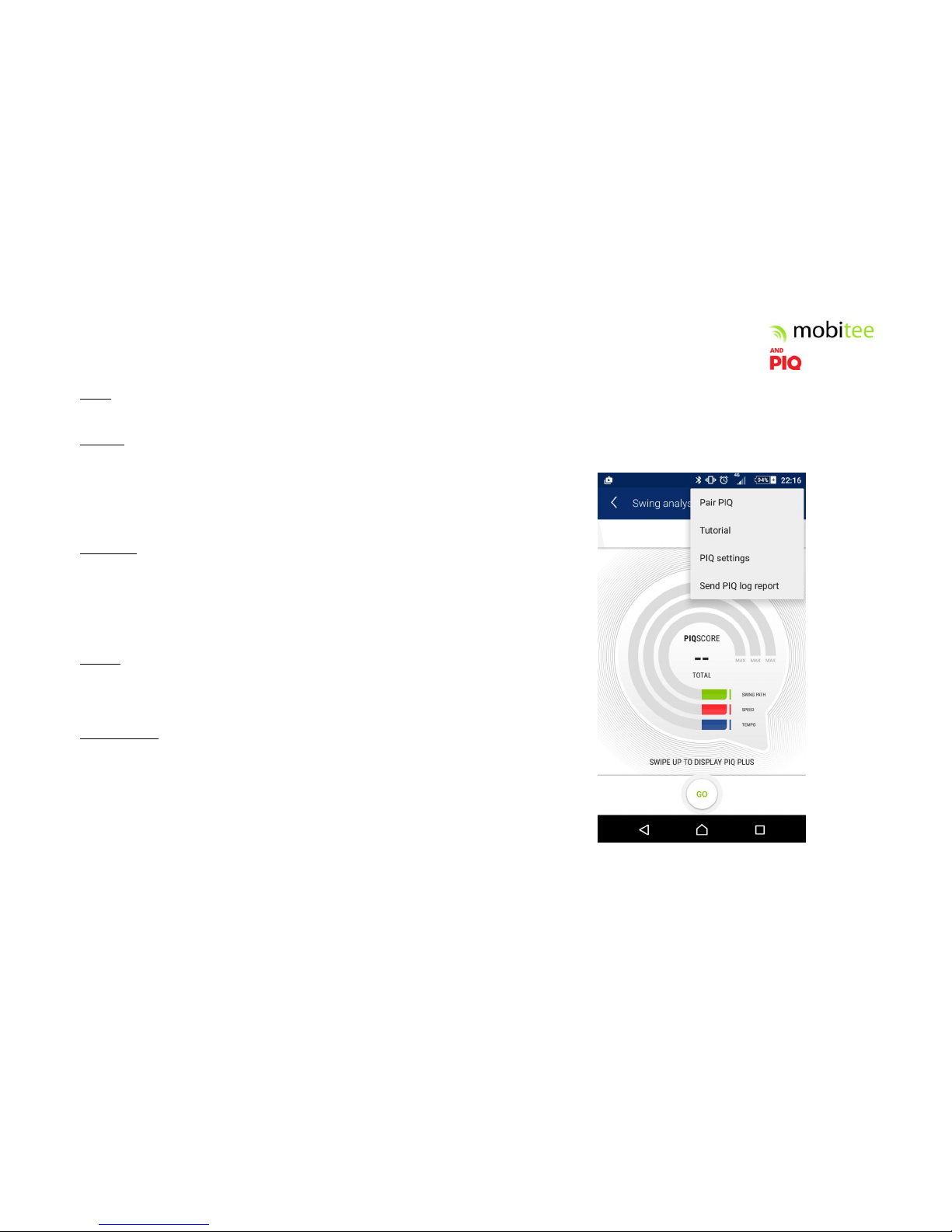
Mobitee and PIQ: Play Golf
To get the full offering of Mobitee and PIQ on the course, click on “Play
Golf”. By default, the app will detect on which course you are playing or
the nearest one. Select ‘stroke play game for 1 player’. You can also set
your round manually if you want to change those settings.
You will land on the first aerial view of
the course you have selected. When
you’re connected to PIQ, a red ‘Q’is
visible at the bottom of the screen. If
the BLE connection is lost, Q will be
grey. Ensure you have turned ON PIQ,
bring it closer to your smartphone and
click on Q sign if connection still
doesn’t work.
On this view the star indicates your
best shot already completed on this
hole. You can try to overdrive it.
Use Shot Track to visualize holes already completed.
Score can be used to edit your score.
Distance To The Green
Once ready on first hole tee box, just
click on your sensor’s red button and
you will see the remaining distance to
the green displayed on your glove.
Keep your mobile phone in your pocket -
take it out only to get distances to
hazards, to change the distance setting
by selecting the front, middle or back of
the green on top left of the screen or to
manually modify the hole selection.
If GPS value is not accurate enough or not available (check your GPS
smartphone status), you will see message ‘waiting for GPS’ on PIQ sensor.
Wait for a few seconds and try again. In that case, distance highlighted in
your application will be red or orange instead of green.
If your PIQ is disconnected from your smartphone (we advise you to keep
your smartphone in your pocket to prevent any connection issue), you will
see a blue LED blinking on PIQ. Please check Bluetooth status on your
smartphone.