TABLE OF CONTENTS
1 2 3
1. INTRODUCTION…………………..........................................................2
2. SAFETY PRECAUTIONS...................................................................2
3. FRONT, BACK AND SIDE VIEW OF POSPAD.....................................3
4. TURNING ON THE POSPAD.............................................................3
5.
LOGGING OUT OF THE AUTO-PLAY APK AND ACCESS ANDROID MENU..4
6. MAIN ANDROID OS HOME SCREEN...............................................5
7. SMART SOFTWARE X-FILER............................................................7
7.1 Password Seng……………………………………………………….7-8
7.2 Setup the default APK......................................................9
7.3 Setup the full screen mode..............................................9
7.4 Back buon lock funcon..............................................10
7.5 Auto power on/off.........................................
.................10
7.6 Moon sensor funcon..................................................11
7.7 Loop video playback funcon.........................................12
7.8 Scrolling Text...................................................................13
7.9 Log funcon....................................................................13
7.10 Auto content update by USB key....................................14
8. TECHNICAL SPECIFICATIONS...................................................14-15
4 5 6 7
PD156T
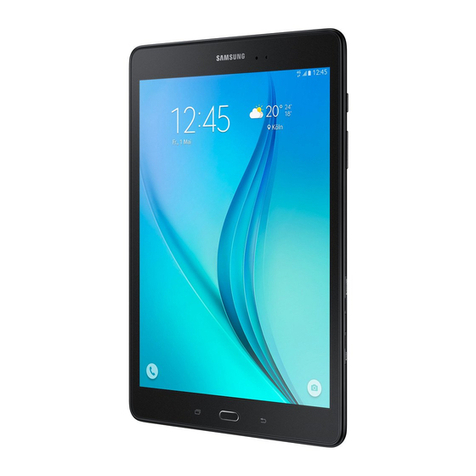
POSPADTM Android Retail Tablets
10.1”|15.6”|18.5”|21.5”|32”|42”|47”|55”
OPERATING MANUAL
The best Android tablet built for digital signage use
Please keep this operang manual for future reference
1. Introducon
Especially designed for retail market, the POSPAD 15.6" (PD156T) is an
Android 4.1.1 system based, 15.6" digital signage player with capacive
touch panel, built-in Wi-Fi and oponal 3G connecon.
Main Features
(1) 15.6” IED panel with built-in stereo speakers
(2) Capacive Mul Touch Panel
(3) RK3066 dual core Cortex A9 CPU 1.6Ghz, quad-core GPU Mali 400
(4) Android OS 4.1.1
(5) I/O ports: 1 x RJ45,2 x USB 2.0,1 x USB 1.0,1 x HDMI out,1 x
earphone,1 x SD card slot, 1 x DC 12V Jack,1 x 3G SIM card slot
(6) With oponal front camera and 3G data module
(7) With integrated smart soware X-FILER
Specificaons are subject to change without noce.
2. Safety Precauons
(1) The unit is for indoor use only.
(2) To reduce the risk of fires or electric shock, do not expose the unit
to rain or moisture.
(3) Do not block the venlaon holes on the back of unit at any me.
(4) Do not subject the unit to severe shocking
(5) Prevent any foreign maer falling into the external slot.
(6) Do not open the case of the unit. There is a risk of electric shock,
and there are no user serviceable parts inside. Opening the case
will void your warranty.
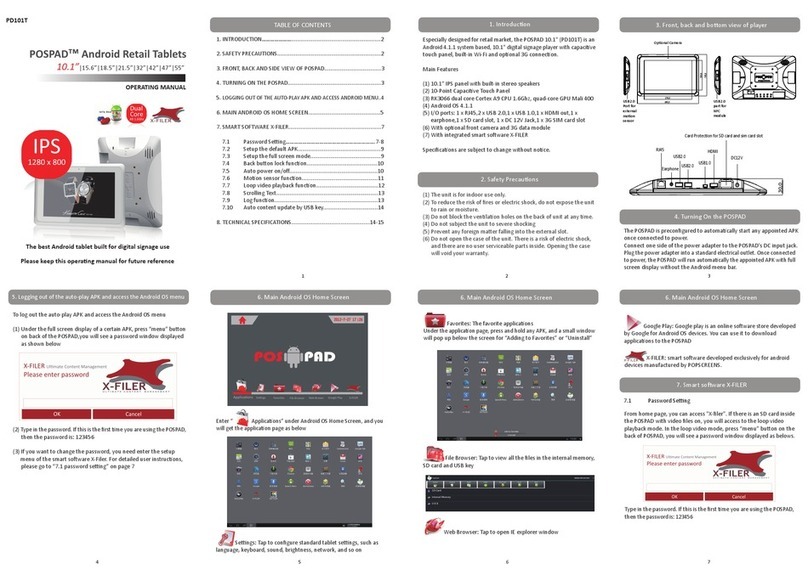
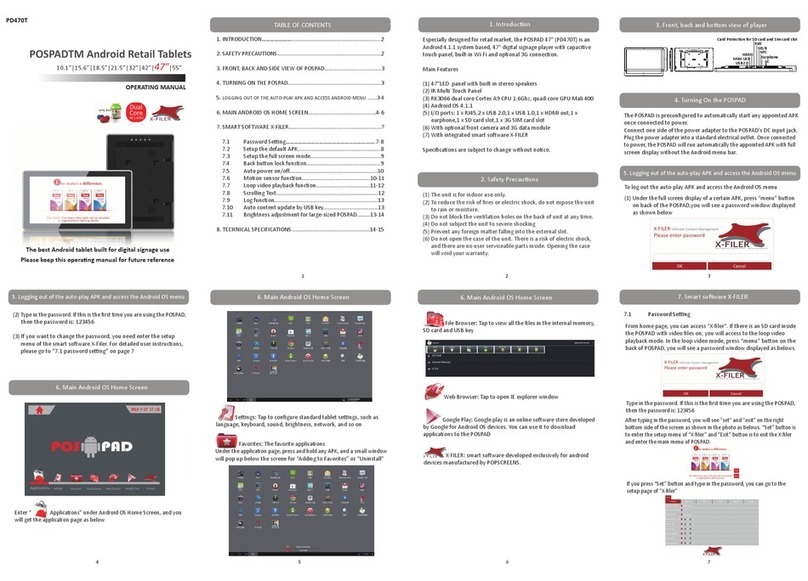
3. Front, back and boom view of player
4. Turning On the POSPAD
The POSPAD is preconfigured to automacally start any appointed APK
once connected to power.
Connect one side of the power adapter to the POSPAD’s DC input jack.
Plug the power adapter into a standard electrical outlet. Once connected
to power, the POSPAD will run automacally the appointed APK with full
screen display without the Android menu bar.
5. Logging out of the auto-play APK and access the Android OS menu
To log out the auto-play APK and access the Android OS menu
(1) Under the full screen display of a certain APK, press “menu” buon
on back of the POSPAD, you will see a password window displayed
as shown below
(2) Type in the password. If this is the first me you are using the POSPAD,
then the password is: 123456
(3) If you want to change the password, you need enter the setup
menu of the smart soware X-Filer. For detailed user instrucons,
please go to “7.1 password seng” on page 7
6. Main Android OS Home Screen
Enter “ Applicaons” under Android OS Home Screen, and you
will get the applicaon page as below
Sengs: Tap to configure standard tablet sengs, such as
language, keyboard, sound, brightness, network, and so on
Favorites: The favorite applicaons
Under the applicaon page, press and hold any APK, and a small window
will pop up below the screen for “Adding to Favorites” or “Uninstall”
File Browser: Tap to view all the files in the internal memory,
SD card and USB key
Web Browser: Tap to open IE explorer window
X-FILER: smart soware developed exclusively for android
devices manufactured by POPSCREENS.
Google Play: Google play is an online soware store developed
by Google for Android OS devices. You can use it to download
applicaons to the POSPAD
7. Smart soware X-FILER
7.1 Password Seng
6. Main Android OS Home Screen 6. Main Android OS Home Screen
194,5
345,2
397,4
247,6
VESA 75*75
75,0
MENU
BRI+
BRI-
VOL+
VOL-
NFC MS/B
Wi-Fi Antenna 3G Antenna
RJ45 Earphone
USB2.0
DC12V
HDMI
Card Protecon for SD card and Sim card slot
USB2.0
MINIUSB NFC
MS/B
47,0
From home page, you can access "X-filer". If there is an SD card inside
the POSPAD with video files on, you will access to the loop video
playback mode. In the loop video mode, press “menu” buon on the
back of POSPAD, you will see a password window displayed as belows.
Type in the password. If this is the first me you are using the POSPAD,
then
the password is: 123456