manuals.online logo
Brands
  1. Home
  2. •
  3. Brands
  4. •
  5. Askey
  6. •
  7. Wireless Router
  8. •
  9. Askey Singtel RT5703W User manual

Askey Singtel RT5703W User manual

Other Askey Wireless Router manuals

Askey RAC2V1K User manual

Askey

Askey RAC2V1K User manual

Askey SAX1V1K User manual

Askey

Askey SAX1V1K User manual

Askey Verizon ASK-RTL108 User manual

Askey

Askey Verizon ASK-RTL108 User manual

Popular Wireless Router manuals by other brands

NETGEAR Zing user guide

NETGEAR

NETGEAR Zing user guide

Proroute GEM420 user manual

Proroute

Proroute GEM420 user manual

ICP DAS USA WF-2000 Series Faq

ICP DAS USA

ICP DAS USA WF-2000 Series Faq

SMC Networks 7904WBRA-N FICHE user guide

SMC Networks

SMC Networks 7904WBRA-N FICHE user guide

Hamlet HRDSL300N user manual

Hamlet

Hamlet HRDSL300N user manual

Icidu NI-707517 Quick installation guide

Icidu

Icidu NI-707517 Quick installation guide

Hawking HWRGM1A user manual

Hawking

Hawking HWRGM1A user manual

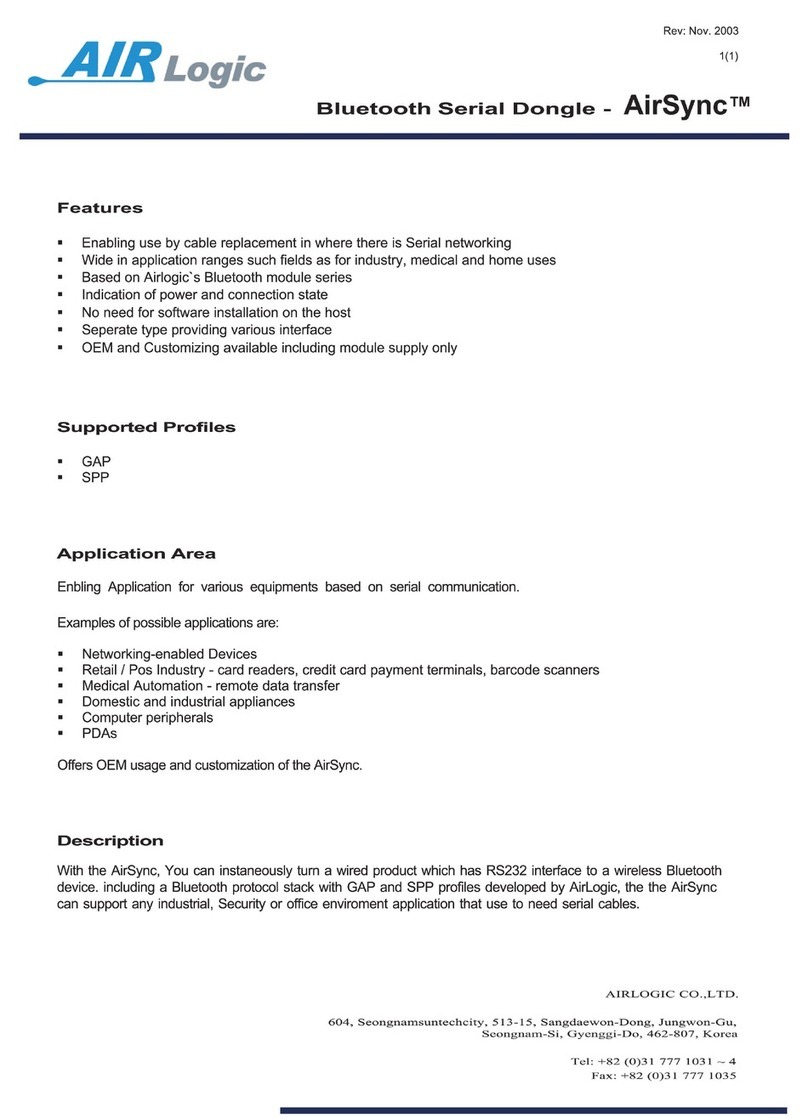
Airlogic AirSync Class 1 Features

Airlogic

Airlogic AirSync Class 1 Features

Samsung WCH730B user manual

Samsung

Samsung WCH730B user manual

NETGEAR PowerLINE WiFi 1000 Series quick start

NETGEAR

NETGEAR PowerLINE WiFi 1000 Series quick start

TRENDnet TEW-211BRP user manual

TRENDnet

TRENDnet TEW-211BRP user manual

Cisco Valet M10 user guide

Cisco

Cisco Valet M10 user guide

Alloy WLF2454AP-S user guide

Alloy

Alloy WLF2454AP-S user guide

TELEFONICA USB Adapter quick start guide

TELEFONICA

TELEFONICA USB Adapter quick start guide

TP-Link TL-WR542G user guide

TP-Link

TP-Link TL-WR542G user guide

Hama 53120 Operating	 instruction

Hama

Hama 53120 Operating instruction

Asus RT-N10P user guide

Asus

Asus RT-N10P user guide

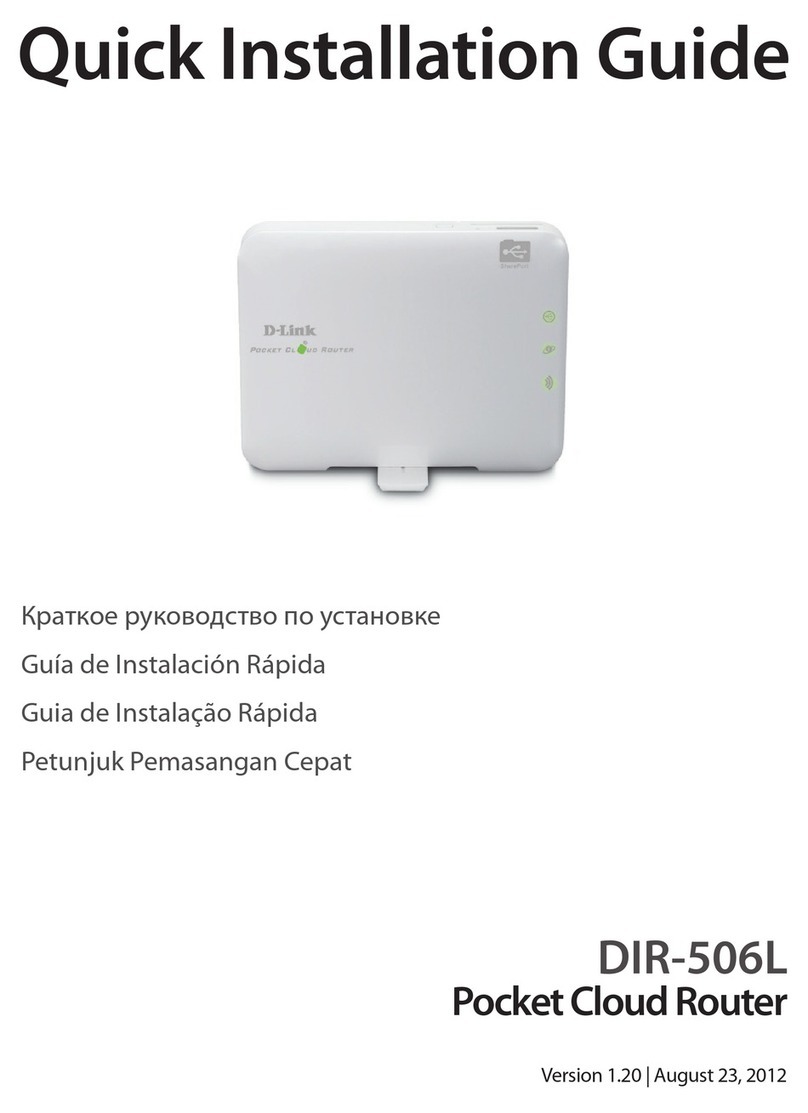
D-Link DIR-506L Quick installation guide

D-Link

D-Link DIR-506L Quick installation guide

manuals.online logo
manuals.online logoBrands
  • About & Mission
  • Contact us
  • Privacy Policy
  • Terms and Conditions

Copyright 2025 Manuals.Online. All Rights Reserved.

Your quick and easy step-by-step
guide to setting up your
Fibre Broadband at home.
POWERED BY ASKEY
RT5703W WiFi
Singtel Wi-Fi 6 Router
What’s in the box Overview
Router x 1 Quick Installation Guide x 1
Quick
Installation
Guide
POWERED BY ASKEY
RT5703W WiFi
Singtel Wi-Fi 6 Router
Quick
Installation
Guide
Power Cable x 1 Ethernet Cable x 1
Ethernet Cable For
Connecting Device
to Router
Power LED
WPS Button
LAN Ports
WAN Port
USB 3.0 Port
Reset Button
ON / OFF
Power
Internet LED
LAN LED
Mesh LED
FRONT VIEW BACK VIEW
Installing your Router Installing your Router Optimal Placement
There are 2 different set-ups in a Singtel Fibre Broadband Home.
Please check your equipment name to confirm the type of set up.
1. If you are using Optical Network Terminal, please
set up your Wi-Fi 6 Router as per the below diagram.
2. If you are using Optical Network Router, please
set up your Wi-Fi 6 Router as per the below diagram.
1. Insert the Power Adapter into the Wi-Fi Router’s
Power Port and plug it into the power outlet.
2. Connect one end of the Ethernet cable to the LAN
1 port on the ONT or ONR and the other to the
WAN port of the Router.
3. Power up the Router and wait for the internet LED
to light up.
4. Connect your computer or mobile device to the Router
via Wi-Fi using the Username and Password printed on
the device label or use the ethernet cable to connect
your computer to the Router’s LAN port.
1. Router should be placed at a central location
within the home, and preferably unobstructed.
2. For optimal connection to eliminate Wi-Fi dead
spots, consider adding Singtel Wi-Fi 6 Mesh
Extender to the home network. Speak to a Singtel
representative to learn more.
LED
Power
White ON
Red ON
Red Flashing
Off
White/Red alt. Flashing
White Flashing
White ON
White Flashing
Red ON
Off
White ON
Off
White ON
Off
White Flashing
Router device is ready
System failure
Router is booting up
Power off
Firmware upgrade
Factory Reset
WAN connection is functioning OK
Obtaining IP address
Internet connection failure
No internet link
Ethernet connection established
No LAN connection on the port
Mesh Network Connection
No mesh connectivity
Mesh Pairing
Internet
LAN
Mesh
LED behaviour Device status
How to Configure
your Wi-Fi settings:
Troubleshooting Steps if you encounter
connectivity issues
LED Indicator
1. Turn off and turn on your Wi-Fi on your handphone
or device to reset the Wi-Fi connection.
2. If issue persists, reboot the router.
Scan here for
detailed instructions.
Fibre
Termination Point
Fibre
Termination Point
Optical Network Terminal (ONT)
Optical Network Router (ONR)
Singtel TV Set-Top Box
Singtel TV Set-Top Box Wi-Fi 6 Router
Wi-Fi 6 Router
Router
Mesh
Extender
(Optional)
Mesh
Extender
(Optional)