Refunds (if available)
•
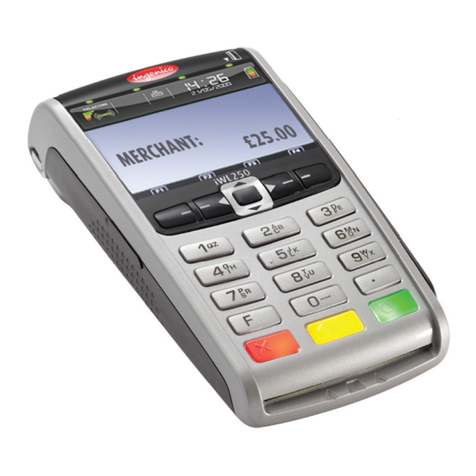
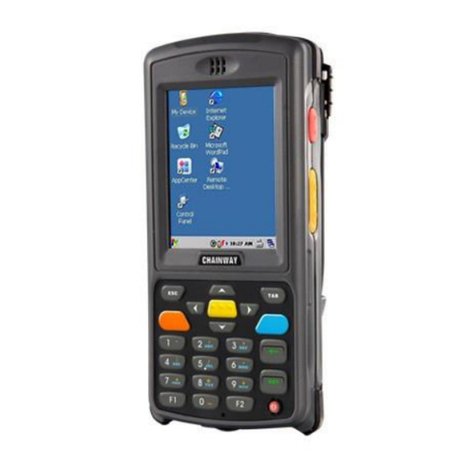
Press the yellow key to enter the Transaction Menu.
•
Scroll down usingthe# key andselect Refund.If you
scroll down too far, scroll backupusingthe
*
key.
•
Enter the Manager passcode for the terminal and then
press OK.
•
Key in the amount and pressOK.
•
You will thenbe prompted for the customer to enter their
card to complete the refund.
•
Once authorised, receipts will start to print. The first copy
isthe merchant (your)copy.Please ensure that you check
therefund has been authorised andremove the receipt.
•
Press the OK key to print the Cardholder receipt.
Transactions with Tips (if enabled)
•
If this functionality has been activated on your terminal
•
the terminal will prompt you to enter a gratuity amount
during the saleprocess.
•
The customer can enter their desired Tip amount and
pressOKto confirm,or theycanpress OKto enter a£0.00
Tip.
•
You will now be prompted to continue with
Contactless/Chip
&
Pintransaction,asabove.
Having Trouble? We are here to HELP!
Call our terminal support Helpdesk on:
01933 201 298
Monday to Saturday: 08:00 to 23:00
Sundays
&
Bank Holidays: 10:00 to 17:00
Closed on Christmas Day
(Please ensureyouhaveyourMerchant
ID
tohand
before calling theHelpdesk)
Reversals
(available up to 30 seconds after transaction)
•
Press the yellow key to enter the Transaction Menu.
•
Scroll down using the# Key to 'Reverse Last
Transaction' and press OK.
•
When prompted, enter the Manager passcode and
press OK.
•
Whenprompted to confirm the Reversal, press OK.
•
Once accepted, receipts will start to print. The first copy
is the merchant (your) copy. Please ensure that you
check the reversal has been accepted and remove the
receipt.
•
If the customer requires a receipt, press the OK key to
print a Cardholder receipt.
•
If thecustomer does not require areceipt,press the
Red Key to returnto the idle screen
Keyed Transactions (if enabled)
•
Key in amount and press OK (greenkey).
•
When prompted to
'Insert, tap or swipe card',
simply
keyinthe customer's longcard numberandpress OK.
•
Key in Expiry Date and pressOK.
•
Keyin CV2andpressOK.(Thisisthelast
3
digitsonthe
back of the card).
•
If prompted, enter the house number from their
address andthe numbers from their postcode (note
theseitemscan beskipped e.g.if thereisnohouse
number in theiraddress).
•
The device will then go onlineto authorise (or decline)
the transaction.
•
Once authorised, receipts will start to print.The first
copyisthe merchant (your) copy.Please ensure that
you check the transaction has been authorised and
remove the receipt.
•
If asignature isrequired,havethe customer signthe
receipt and return it to you.
•
Press the OK key to print the Cardholder receipt.
•
Ifthe customer does not require a receipt, press the
Red Keyto return to the idle screen
End of Day
•
Press the yellow key to enter the TransactionMenu.
•
Scroll to the End of Day option using the# key and press
OK.
•
Enter the Manager passcode for the terminal and then
press OK.
•
Press OK to complete the End of Day submission.
•
The terminal willprint yourEnd of Dayreport.
•
Ifyouhaveanyissues with your Endof Day report (For
example, 'not reconciling') please call your acquirer.
Switching Communications Method
•
From the idle screen, press the yellow key.
•
From the Transaction Menu,scrolldownto Connectivity
using the# key,andpress OK.
•
Fromthe ConnectionStatusscreen,pressOKto switch
communications.
•
Press OK key again to proceed.
•
Theterminal willnow restart.
•
Whenthe terminal has restarted it will ask you to select
your preferred commstype.
•
Use the# key to scroll down to your preferred comms
type andpress OK.