Celestron Course PRO Elite 44876 User manual
GOLF GPS
MODEL 44876 / 44877
USER’S GUIDE

www.celestronGolf.com
GET TO KNOW YOUR COURSEPRO ELITE
KEYS
1. Power/Menu Key
2. 5 Way Navigation Key Pad
(Edges are directional.
Center button is “Select”)
3. Page Key
ICONS
A. Satellite Signal Strength
B. Golf Course Name
C. Real Time Display
D. Hole and Par Information
E. Battery Strength
F. Distance to Green Information
A D
C
BE
F
1 3
2

www.celestronGolf.com
DETAILS OF YOUR COURSEPRO ELITE
MAIN FEATURES
>> 20,000+ course maps available online
for download
>> 5 FREE course map downloads included
with your purchase
>> Stores up to 100 course maps
>> 2.2” Full transflective color (TFT) LCD screen;
sunlight readable, 240x320 pixels / 260K
>> Backlight option for viewing in low light
>> Powered by Lithium Ion 1100maH rechargeable
battery; 8-10 hours of life per charge
>> Water resistant to IXP6 industry standard
>> WAAS enabled and SiRF Star III sensitivity
for better signal strength
>> Green View screen shows the distance
to front, center and back of green
>> Green Edit function allows you to change the
front, center and back distance to green
>> Shot Distance calculator allows you to
measure distance for any shot
>> Scorecard feature allows you to track
your score
>> Create New Course function gives ability
to map your own course
>> Course Edit function allows you to add hazards
such as sand traps and water to existing
course map
>> Time displayed on LCD screen
>> Choice of 12 languages
>> Belt Clip and Soft Storage bag included
>> Mini USB cable included
>> 2 Year Warranty on components
>> Dimensions: 2.30” x 4.6” x 1”
>> Weight: 6 oz.
#44876 #44877

www.celestronGolf.com
CHARGE YOUR COURSEPRO ELITE
> Using the included USB cable, plug your CoursePro Elite into an open
USB port on your computer
> Charge time is about 4 to 5 hours
> A full charge will last 8 to 10 hours
NEW USER SETUP
> Log onto www.celestronGolf.com
> Locate and select one of the New User buttons
> Download the latest software
> Create an account and register your CoursePro Elite
> Choose your payment options
DOWNLOAD COURSE MAPS
>> Log onto www.celestronGolf.com and select the ‘Download Courses’ button
>> The Course Download window will load
>> If you are not already signed on, you will be prompted to log in
>> In the search window, type the name of the course you would like to download
or browse through the list to find your course
>> Once the course is located, click the course map icon for your course
>> Depending on your payment plan and the number of courses you may have
already downloaded, you may be prompted to pay for the course
>> Follow the on screen instructions to pay for the course and verify your payment
>> Once verified, the download will begin
>> Once completed you will be prompted to save the course map file to a folder
on your computer
GET STARTED
www.celestronGolf.com
>> Turn on your CoursePro Elite (remember to press and hold the ON button for at
least 3 seconds) and using the mini USB cable, connect it to your computer
>> Open the Course Map Manager software by double clicking the icon on
your desktop
>> If your CoursePro Elite isn’t automatically recognized, click CONNECT [Figure 1]
>> Once your CoursePro Elite is recognized and syncs up with the Course Map
Manager, select ADD COURSE [Figure 2], then OPEN [Figure 3]
>> Browse to your saved folder and select the course map you would like to add
>> The course map will download to your CoursePro Elite and show up in the
MY COURSE window in the Course Map Manager interface
>> Repeat these steps to add more course maps
ADD COURSE MAPS TO YOUR
COURSEPRO ELITE
Figure 2
Figure 1
Figure 3

www.celestronGolf.com
> PRESS and HOLD the POWER button for at least 3 seconds.
This screen will appear as your CoursePro Elite
attempts to link to a satellite signal.
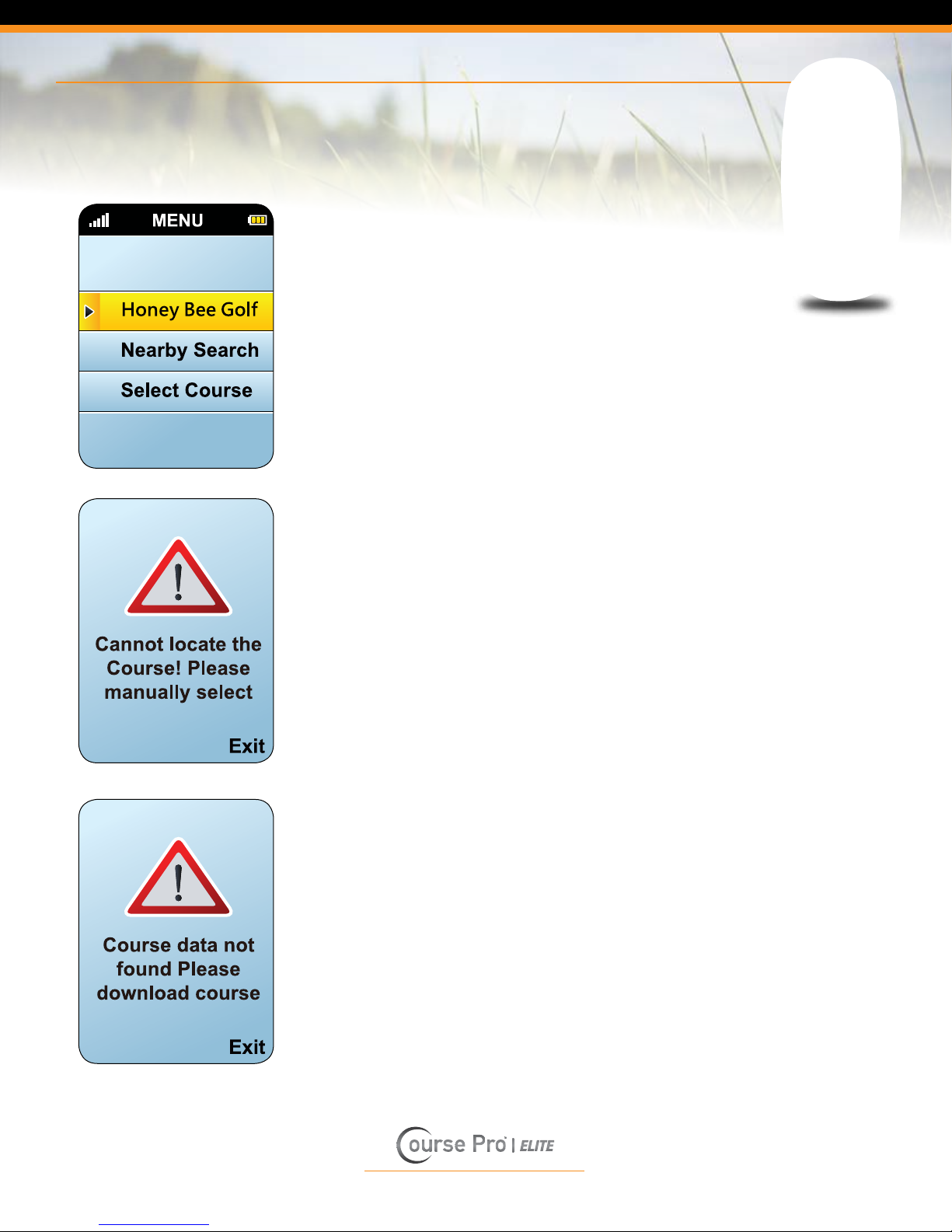
Once the satellite signal is locked in, this menu screen
will appear. PRESS the upper or lower point on the
ring of the 5 WAY NAVIGATION key to scroll through
your choices. PRESS the CENTER button of the
5 WAY NAVIGATION key to select the
PLAY GOLF choice.
Your CoursePro Elite will auto search for a local
course for you. You can stop the auto search by
pressing the PAGE key.
PLAY GOLF
www.celestronGolf.com
PLAY GOLF
Once the auto search is complete, your screen will
display the local course along with choices to select
another nearby search or to select your course
manually. To select the displayed course, PRESS
the CENTER button of the 5 WAY NAVIGATION
key. PRESS the upper or lower point on the ring of
the 5 WAY NAVIGATION key to scroll through your
choices and select your choice by again pressing the
CENTER button.
If the course map cannot be found, this screen
will be displayed, and you will be returned to the
PLAY GOLF screen.
If your CoursePro Elite has no course maps
downloaded to its internal memory, this screen will be
displayed. See steps above for downloading course
maps and saving them to your CoursePro Elite.

www.celestronGolf.com
PLAY GOLF
Once you have selected the course you want to play,
the START window will appear. The name of the course
you selected will be displayed. PRESS the left and right
points of the 5 WAY NAVIGATION key to scroll to your
preferred starting hole. PRESS the CENTER button
to select.
The Green View window will appear displaying
information about this hole.
GREEN VIEW INFORMATION:
> Hole Number [A]
> Par for the Hole [B]
> Name of Course [C]
> Distance to the back, center
and front of the green [D]
> Real time [E]
> Your round running time [F]
You are now ready to tee off.
AC
EF
B
D
www.celestronGolf.com
OTHER FEATURES
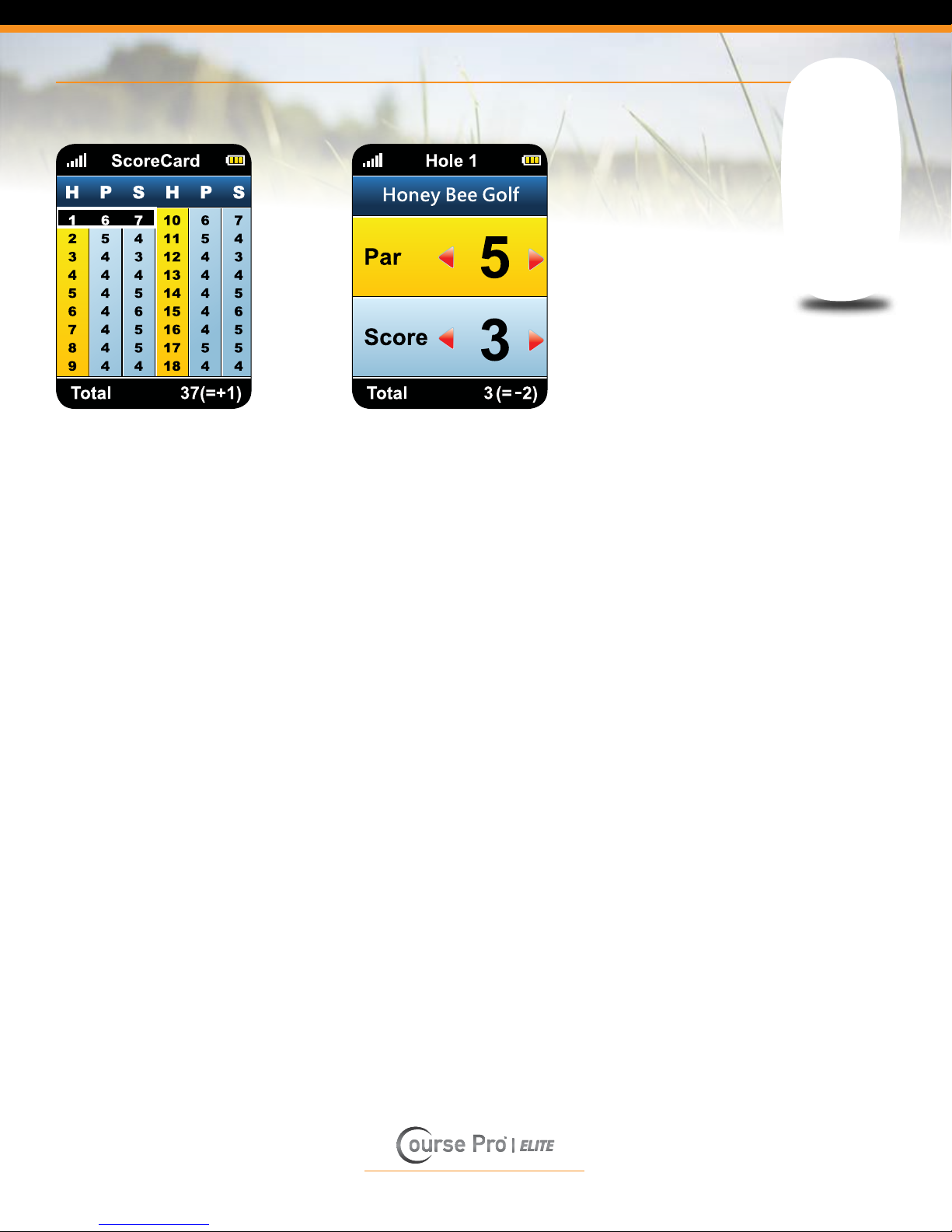
I. SCORECARD PAGE
SCORECARD
MAIN PAGE HOLE DETAIL WINDOW
To access the Scorecard page from the Green
View window, PRESS the right edge of your 5
WAY NAVIGATION key.
The Scorecard is a tool that will enable you to
track your score and edit the par rating of any
hole. Once you are in the Scorecard main page
window, the hole that you are currently playing will
be highlighted. To enter a score or change the par
of this hole, PRESS the CENTER button of the 5
WAY NAVIGATION key to open up the Hole Detail
window. To change information on any other hole,
PRESS the bottom and top edge of your 5 WAY
NAVIGATION key to highlight the desired hole
and PRESS the CENTER button to open up the
HOLE DETAIL window.
In the Hole Detail window, the hole number and
name of the course are displayed at the top. Your
total score and cumulative par information for the
round are displayed at the bottom.
The par number is displayed above the score
and is highlighted in yellow. To change the
par, PRESS the right/left edge of your 5 WAY
NAVIGATION key to increase or decrease the
displayed number. To add your score, PRESS
the bottom edge of your 5 WAY NAVIGATION
key to scroll down to ‘score’ and use the 5 WAY
NAVIGATION key right/left edges to increase or
decrease the number. You will notice that when
you adjust the score for the hole, your total score
for the round will change. When satisfied with
your changes, PRESS the CENTER button to
return to the main scorecard window. PRESS the
left edge of your 5 WAY NAVIGATION key to
return to the Green View page, or PRESS the
right edge to go to the next feature page – the
Shot Distance page.
www.celestronGolf.com
OTHER FEATURES
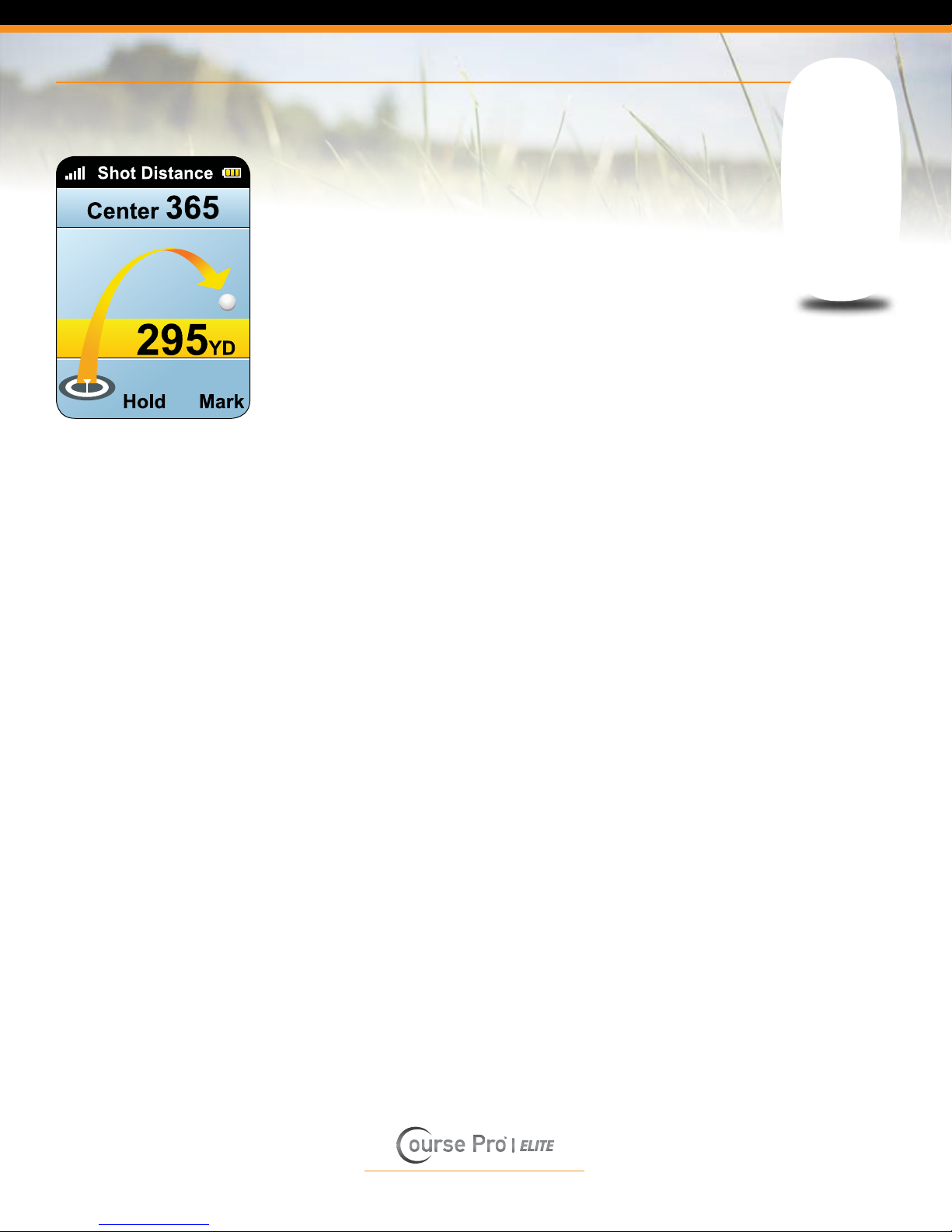
II. SHOT DISTANCE PAGE
The Shot Distance page allows you to measure
the distance of any of your shots easily and
precisely. Before teeing off or taking any shot,
PRESS and HOLD the PAGE key until the
displayed distance in the yellow band is reset to
“0”. You are now ready to hit away. After hitting
away, and as you move towards your ball’s new
position, your CoursePro Elite will be calculating
the distance. When you arrive at your ball’s new
position, look at your CoursePro Elite screen.
The number displayed in the yellow band has now
changed to represent the distance that your ball
has traveled. PRESS the CENTER button of the
5 WAY NAVIGATION key to lock this number in.
This number will remain until you want to measure
your shot distance again. Repeat the same steps
to measure your next shot or PRESS the left
edge of the 5 WAY NAVIGATION key to return
to the Scorecard page or PRESS the right edge
to go to the Edit Course page.
This manual suits for next models
2
Table of contents
Other Celestron GPS manuals