m_5547_2547_dm_5606_quick_V0.9
CABLE DEFAULT VALUES ADJUST FOCAL LENGTH & FOCUS (For motorized-lens models only)
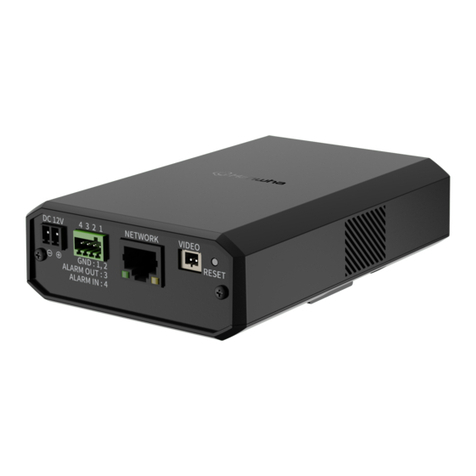
Cable Description
Power cable DC12V power supply.
RJ45 network
cable* Connect it to a RJ45 cable.
GND Used with external alarm device
connection or hardware reset.
RESET
Reserved for hardware reset.
Remove the insulating coating of
the wire, and twist it with the GND
wire together to reset the camera
to ifs factory values.
Alarm-in** Reserved for hardware reset.
Remove the insulating coating of
the wire, and twist it with the GND
wire together to reset the camera
to ifs factory values.
Alarm-out**
Line-in** Colored as blue, used to connect
to a microphone for audio input.
Line-out** Colored as green, used to connect
to a speaker for audio output.
* For PoE (IEEE802.3af) installation, make sure your network cable
has the maximum cable resistance of 20Ω, such as CAT.5e or
CAT.6 cables, to conform to the standard of IEEE802.3af.
** Optional
IP address 192.168.1.10
Port number 88
User name admin
Password admin
It’s strongly recommended to change the
default user name and password before using
the camera to keep your account safe.
To change the default account, log into the
camera, and go to Config. General
Account. You can create a new account and
remove the default one if needed.
To remotely adjust focal length and focus of the camera, access the camera from Internet Explorer.
Note: The default camera IP address is 192.168.1.10, the port number is 88, and the user name and
password are both admin.
To search the IP address and port number, you could download our IP scan tool from
www.surveillance-download.com/user/m5547.swf
In the tab of “Live View”, you’ll see the icons in the control panel area as below:
/
Zoom Tele /
Zoom Wide
Click to zoom in on the image to the largest / zoom
out on the image to its original size.
/
Max Zoom Tilt /
Max Zoom Wide Click to zoom in / out the image.
/ Focus Far / Near Click to adjust the focus of the image.
Note: You can also adjust the focal length and the focus by accessing to the NVR with PTZ controlling. For
more detail, please refer to the NVR manual.
INSERT A MICRO SD CARD (For selected models only) WATERPROOF KIT
The data originally saved in the micro SD card (if any) will be removed after inserting it to the camera.
The camera doesn’t support hot-swapping. Please insert or remove the microSD card with power
disconnected.
Step1: With the front cover removed, find the microSD card slot in the camera.
Step2: Follow the direction in the figure below to insert the MicroSD card properly:
Note: It’s recommended to use a pair of tweezers for inserting / removing MicroSD card.
Step 3: Screw back the front cover.
Note: Please do put the rubber gasket back on the right position in case of water penetration.