Jasco RM24993 User manual

Universal Remote
Instruction Manual
RM24993
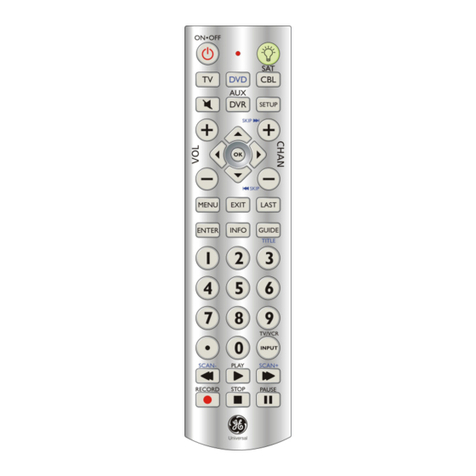
SAT
DVD
AUX
CBL
VCR
TV
ENTER
INPUT

2
Congratulations on your purchase of the RM24993
Universal Remote Control. The RM24993 is one
of the most easy to use remote controls available
today. With the RM24993, juggling multiple remote
controls is a thing of the past! Your RM24993
controls up to seven devices, including the most
popular brands of TV, VCR, DVD, SAT, CBL, and
audio equipment.
Note: Some functions from your original remote
may not be controlled by this remote. Use the
original remote, if available, to control such
functions. Sometimes buttons other than described
in these instructions may actually perform the
function. For example, the CHAN and VOL
buttons might be used to navigate through menu
choices. We recommend you experiment with the
remote to identify if such situations pertain to your
equipment.
The RM24993 is easy to use, easy to program,
and it gives you total control—at the touch of your
ngertips!
Table of Contents
Setup ..................................................................... 3
Battery Installation ............................................ 3
Battery Saver .................................................... 3
Code Saver ...................................................... 3
Code Setup ...................................................... 3
Button Functions.................................................... 4
DVD Functions ................................................. 6
SAT Functions .................................................. 6
Code Entry............................................................. 7
Direct Code Entry ............................................. 7
Code Search .................................................... 8
Using Your Remote................................................ 9
Code Identication ............................................ 9
Shifted Functions ............................................ 10
Controlling Devices with Power On and Off ... 10
Controlling Combo Devices ............................ 10
VCR/DVD/DVR Punch-Through ..................... 10
Volume/Mute Control and Punch-Through ..... 11
All Volume/Mute Control to any one Mode ..... 11
Setting any Mode for its own Volume/Mute .... 12
Sleep .............................................................. 13
Troubleshooting ................................................... 14

3
Battery Installation
1. On the back of the remote, push down on the
tab and lift the cover off.
2. Match the batteries to the + and - marks inside
the battery case, then insert 2 AAA Alkaline
batteries.
3. Press the battery cover back into place.
Battery Saver
Your remote automatically turns off if the buttons
are depressed more than 30 seconds. This will
save your batteries should your remote get stuck in
a place where the buttons remain depressed (e.g.,
between the sofa cushions).
Code Saver
You will have up to 10 minutes to change the
batteries in your remote without losing codes you
have programmed. However, do not press any
buttons until batteries are installed in the remote.
If buttons are pressed without batteries in the
remote, all codes will be lost.
Code Setup
The SETUP button is used to setup the remote.
You can either setup the remote using the code
for your brand of product, from the code tables (on
separate sheet), or you can search through the
library of codes until you nd a code that works
for your product. Please refer to “Programming
with Code Search” page 9 for more information
on using the code search feature to learn how
to search through the library of codes for your
products. NOTE: You can store any kind of code
under any mode (except TV). I.E. you can store
a VCR code under the CABLE button, or a DVD
code under the VCR button, etc. However, you can
only store TV codes under the TV button.
Setup

4
VOLUME UP/DOWN
Changes the volume
level of the product,
normally the TV.
MUTE Turns off the
TV sound while the
picture remains.
OK Selects menu
items for the device
you are controlling.
RECORD, PLAY, STOP,
REW, FF, PAUSE VCR
control buttons operate your
VCR even when the remote
is set to operate the TV.
Also operates DVD Scan
-/+. Note the VCR keys also
control DVD when in DVD
Mode.
Some buttons on the remote might have functions that
are referred to by different names on the device you
are controlling. E.G. LAST may be called RECALL,
or ENTER may be called DISPLAY. These differences
depend on the brand and model of your product. Also,
this remote can only operate features that exist on your
product. E.G., your product must have LAST ability for
the LAST button to operate this feature.
TV, DVD, etc. Selects prod-
uct to be operated.
Button Functions
INPUT
For some TVs, press
repeatedly to select
from available viewing
sources (antenna, cable
box, VCR, etc.).
SETUP For setup.
SHIFT Accesses
shifted functions.
PREV. CH Returns to
the previously selected
channel.

5
NUMBERS
Enter numbers for direct
channel selection. Some
products require ENTER
to be pressed after chan-
nel selection.
ON-OFF Turns
device On or Off.
CHANNEL Up/Down
Changes the channels.
Button Functions, cont.
Note: The REC button must be pressed TWICE to record
from your VCR. For some brands of VCRs, you might
need to press the REC button once, then press it again
for three seconds.
INFO button brings up
DVD Display or Control
Menu for Chapter/Track/
Title number, Time re-
maining/elapsed indica-
tion, system information,
etc.
MENU
Selects the on-screen
menu.
ENTER
For some TV models,
used after direct chan-
nel number
entry to immediately
change to the
selected channel.
Red Indicator
Lights when any
button is pressed.
SLEEP enables
the remote to turn
off your TV after a
period of 1 to 99
minutes.
EXIT Exit On-Screen
Menus and/or Return
to previous On-Screen
selection.

6
CHAN+ and CHAN- buttons perform the “Page+”
and “Page-” function for on-screen Guide Menus
used by some Satellite systems.
INFO button brings up Satellite Display screen for
current Channel and system information.
MENU brings up the Satellite Menu screen - use
with the UP, DOWN, LEFT & RIGHT navigation
buttons.
OK button is used for on-screen Menu selection.
EXIT button is used to Exit or Clear on-screen
Menu displays.
INPUT button performs the Satellite TV/SAT
function.
This remote controls many DVD functions. The
descriptions may vary from your original remote
descriptions.
REW and FF buttons control the speed of Fast
Forward and Reverse Playback respectively.
CHAN+/CHAN- buttons respectively locate the
succeeding or preceding Chapters or Tracks on a
disc.
INFO button brings up DVD Display or Control
Menu for Chapter/Track/Title number, Time remain-
ing/elapsed indication, system information, etc.
MENU brings up the DVD disc Menu screen - use
with the UP, DOWN, LEFT & RIGHT navigation
buttons.
OK button is used for on-screen Menu selection.
Note some DVD players require the Play button to
be used.
EXIT Exit On-Screen Menus and/or Return to pre-
vious On-Screen selection.
PLAY button is used to start Disc playback and for
Menu selection on some DVD players.
STOP button stops Disc playback.
PAUSE button pauses Disc playback - press PLAY
to resume.
INPUT brings up the DVD Players Setup Menu.
Note, not all DVD Players support all the functions
described above.
DVD Functions
SAT Functions

7
Direct Code Entry
Write your codes down here for easy reference
later.
1. Press and hold the SETUP button until
the red indicator stays on, then release
the SETUP button.
2. Press and release the desired mode
button (TV, VCR, etc.). The red indicator
blinks, then stays lit.
3. Enter the 4 digit code
from the code tables
(on separate sheet).
Note: after a valid
code entry, the red
indicator turns off. For
an invalid code, the
red indicator ashes.
4. With your device on, press ON/
OFF. If the device turns off, no
further programming is required.
Note: If some buttons do not
operate your equipment, try one of
the other codes for your brand.
Device Device stored Code
TV TV
DVD
CBL/SAT
VCR/AUX

8
Code Search
If your device does not respond after you have
tried all the codes for your brand, or if your brand is
not listed, try searching for your code by following
these steps.
1. Manually turn on the device (TV, VCR, etc.) to
be controlled.
2. Press and hold the SETUP button until
the red indicator stays on, then release
the SETUP button.
3. Press and quickly release the desired
mode button (TV, VCR, etc.). The red
indicator blinks off once.
4. Press the CHANNEL UP button
repeatedly (up to 300 times)
until the device to be controlled
changes channel. The red
indicator blinks off with each
5. Press and release ENTER to install the
code.
Most users will store VCR codes under the VCR button,
Cable codes under CABLE, etc. If (for example) you
want to store a VCR code under CABLE, rst follow
the procedure for Direct Code Entry (page 8) and press
CABLE in step 2 of Direct Code Entry, then enter ANY
VCR code in step 3 of Direct Code Entry. Then follow the
steps above for Code Search.
Note: If the device does not have a CHANNEL UP
button, use PLAY (VCR only) or POWER instead.
Code Search starts from the currently stored three digit
number under that mode. Sometimes the rst code
that “works” with your device may only allow limited
functionality (e.g. the MENU button might not work).
There may be a code that performs more functions.
Continue the code search process until the best code is
found.
button press. If you accidentally overshoot the
code required, press the CHANNEL DOWN
button to backtrack through the library until the
device changes channel. Pressing CHANNEL
UP changes direction to forward again.

9
Code Identication
The Code Identication Feature allows you to
identify the 4 digit library code stored under your
device key. For example, if you want to nd out
what 4 digit code is stored under your TV device
key, follow the six steps below:
1. Press and hold the SETUP button until
the red indicator stays on. Release the
SETUP button.
2. Press and release the desired mode
button (TV, VCR, etc.). The red
indicator blinks, then stays lit.
3. Press and release the SETUP button.
The red indicator blinks once and
remains lit.
4. To nd the rst digit for
the code stored under the
mode key pressed in step
2, press each numeric
key from 0-9 in turn. The
number that causes the
indicator light to blink is
the rst digit in your code.
5. To nd the second digit, repeat step 4.
6. Repeat step 4 again to nd the third and fourth
digits. This time the red indicator turns off and
stays off.

10
Using Your Remote
SHIFT
Press SHIFT (Setup) prior to the shifted key func-
tion e.g., for,
MENU - press and release SHIFT (Setup) then
MENU (Info).
UP - press and release SHIFT then UP (Chan+).
DOWN - press and release SHIFT then DOWN
(Chan-).
LEFT - press and release SHIFT then LEFT (Vol-).
RIGHT - press and release SHIFT then RIGHT
(Vol+).
OK - press and release SHIFT then OK (Mute).
EXIT - press and release SHIFT then EXIT
(Sleep).
The red indicator blinks for each keypress.
Controlling Devices with Separate
Power On and Off Buttons
Some GE, RCA and ProScan models require
you to press the device button for more than one
second to turn the device on and the POWER
button to turn the device off.
Controlling Combo Devices
Some Combo devices (e.g. TV/VCR, TV/DVD,
DVD/VCR, etc.) will require you to set up two
different Mode buttons to control both parts of the
Combo device. For example, if you have a TV/
DVD Combo, you might need to set up one code
under the TV button to control the TV part AND a
separate code (under any other Mode button) to
control the DVD part.
VCR/DVD Punch-Through
This remote allows the 6 VCR transport buttons
(i.e. PLAY, PAUSE, STOP, FF, REWIND, and
REC) to Punch-Through control from any Mode
programmed with TV, SAT or Cable codes to the
last VCR, or DVD programmed Mode you used.
This feature will not operate if the programmed
TV, SAT or Cable code has its own VCR transport
button control e.g. a TV Combo, SAT/PVR, etc.
Table of contents
Other Jasco Universal Remote manuals