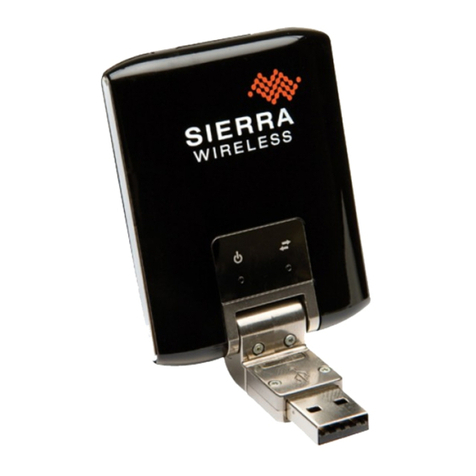
LG AD600 User manual

AD600
Quickstart
Please use this Quickstart to get a brief overview of the
major features and services available with your new
USBConnect AD600 and your DataConnect service.
Or take advantage of our interactive web tutorial
available at:
for the most complete and up-to-date information
available for setting up and using your new
device and services. These online tutorials include step-
by-step instructions and screen shots to assist as well as
providing an easy search function.

What’s in the Box?
The following items are included in the box:
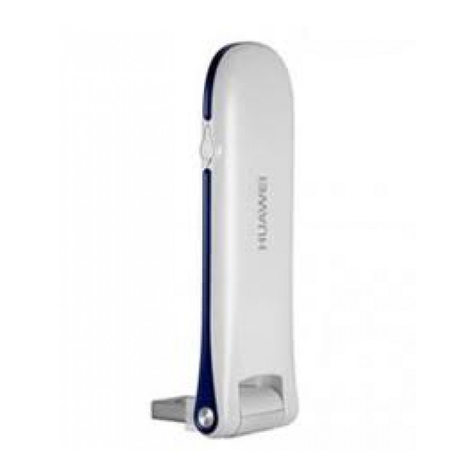
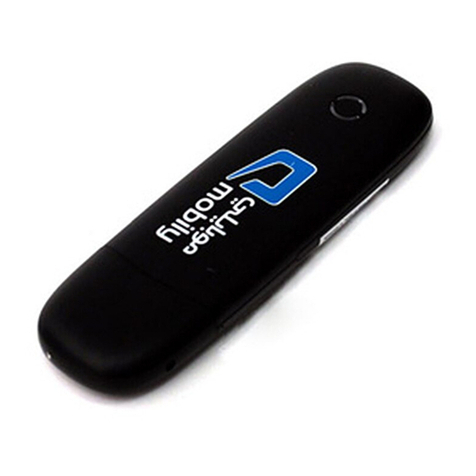
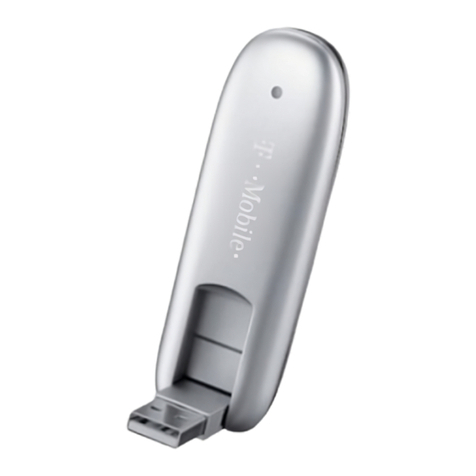
USBConnect AD600
Quickstart
USB Extension Cable
(Use is optional)
Connectivity Software CD

Getting Started
Insert the SIM Card
1. Press thumbs firmly on cover with LG logo and slide forward to remove cover.
2. Insert the SIM card into SIM slot in the direction indicated on the slot (notched corner
to the top right). Push the SIM card completely into slot until it’s fully inserted.
3. Replace the cover and slide up until it clicks into place.
Insert the device into your laptop
1. Open the USB connection part of the device.
2. Insert the device into an available USB port.

1. After you insert the AD600 into the laptop for the first time, the
Communication Manager (ACM) software automatically starts and guides
you through the installation process.
2. Once installation is complete, restart your laptop when prompted.
1. Double-click the ACM shortcut icon installed
on your desktop.
2. Wait while the connection to the
network initiates.
Install the software
Connect to the Mobile Network and access
the Internet
Windows 7, Vista, and XP
Note: The following steps will establish the initial connection in about 3 minutes.
Future connections will occur more quickly.
AT&T Communication Manager
Off On
List Networks Find a Hotspot
Mobile
Wi-Fi
Ready: ‘Closed’
Monthly Usage
Days Remaining 22
Session Usage 25.980 MB
Off On
Connected
File
Mobile No. (012) 345-6789 VPN
Connections Tools Help
AT&T Communication Manager
Off On
List Networks Find a Hotspot
Mobile
Wi-Fi
Ready: ‘Closed’
Monthly Usage
Days Remaining 22
Session Usage 25.980 MB
Off On
Connected
File
Mobile No. (012) 345-6789 VPN
Connections Tools Help
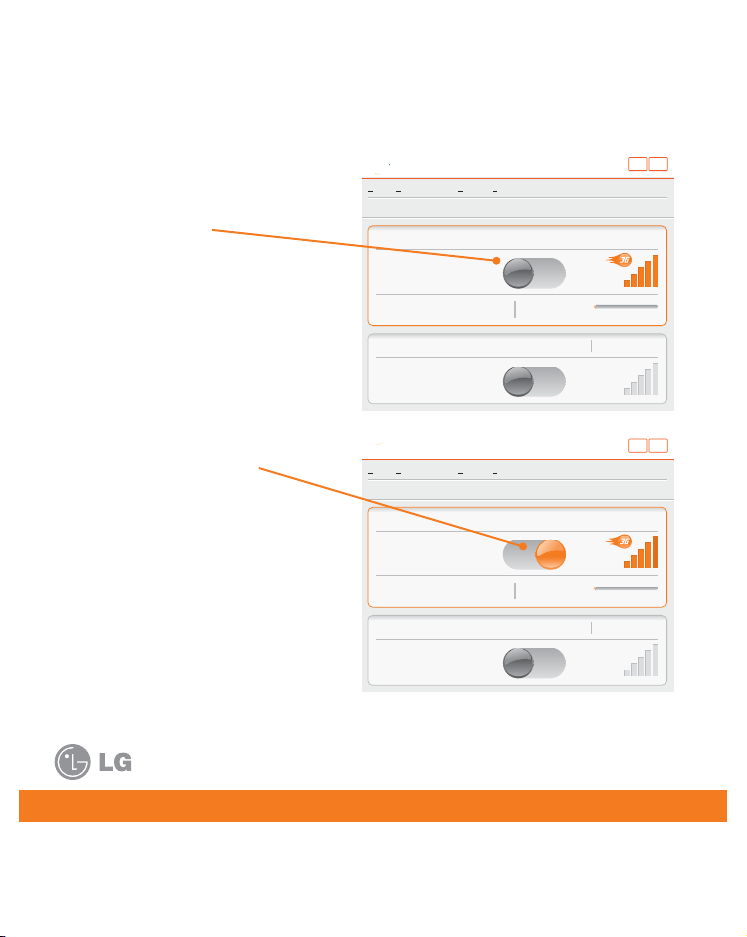
3. Click the gray
button once.
Once connected, the
button turns orange
and moves to the right.
4. Open your browser and
access the Internet. Click
the button (from step 3)
once to end your session.

To make the best use of your DataConnect service, please take some time to
familiarize yourself with the following features of the ACM application.
AT&T Communication Manager
Off On
List Networks Find a Hotspot
Mobile
Wi-Fi
Ready: ‘Closed’
Monthly Usage
Days Remaining 22
Session Usage 25.980 MB
Off On
Connected
File
Mobile No. (012) 345-6789 VPN
Connections Tools Help
Mobile
network
interface
Wi-Fi
network
interface
Mobile number
3G
indicator
Connection
status
Real time
session meter
Carrier
Monthly
usage
meter
Signal
strength
87
9
6
1
5
4
3
2
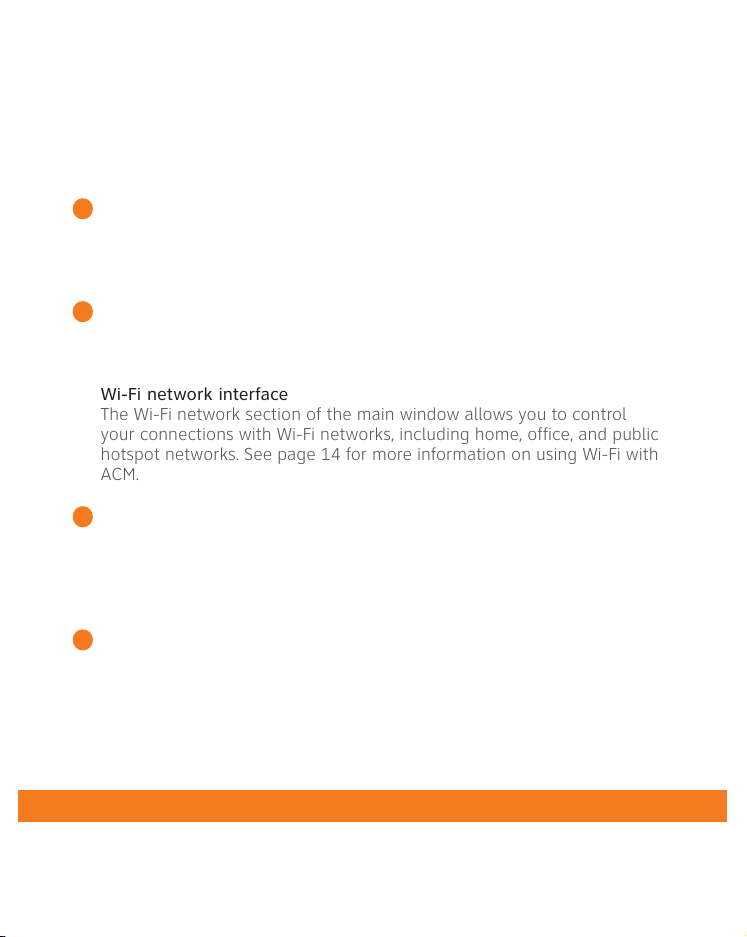
Using Communication Manager
Mobile number
This number is the mobile number associated with your device and
account. You will need this number to access your myWireless account
and to get support from.
Mobile network interface
The Mobile network portion of the main window allows you to control
your connection to mobile networks worldwide.
Wi-Fi network interface
The Wi-Fi network section of the main window allows you to control
your connections with Wi-Fi networks, including home, office, and public
hotspot networks. See page 14 for more information on using Wi-Fi with
ACM.
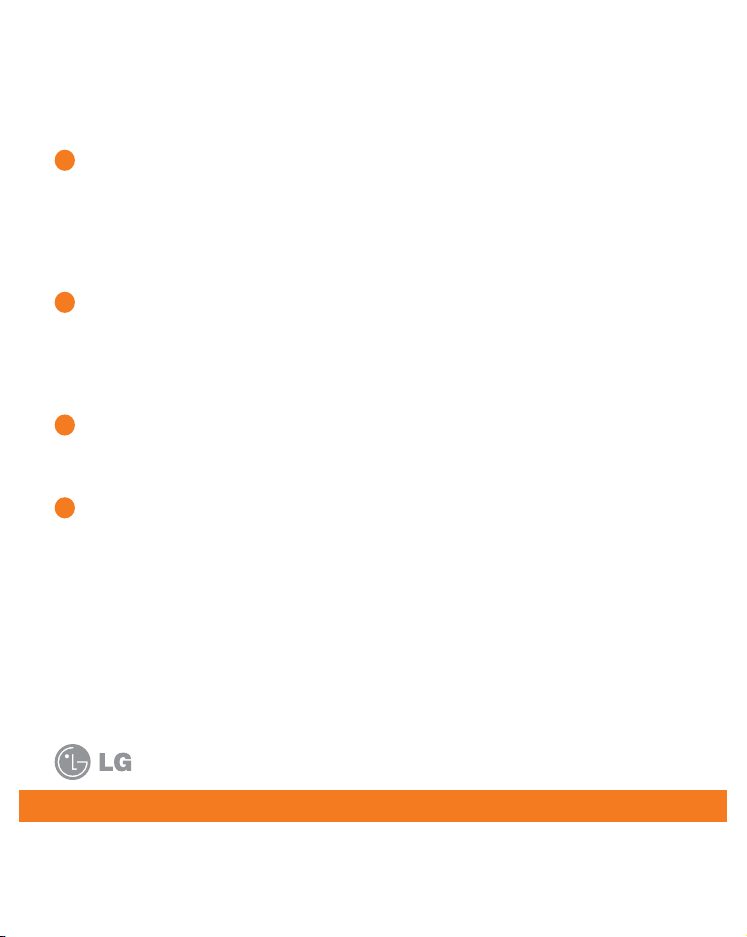
Usage Meter
The Usage meter shows your monthly estimated usage including the
current session. Your monthly usage is shown in comparison to your total
allowed usage for your billing cycle. The number of days left in the billing
cycle is shown as well.
Signal strength
This indicator shows the strength of the wireless signal that you are
receiving.
1
2
3
4
5
6
7
8
9
3G Indicator
This indicator appears when the 3G network is available. The
3G network is available in almost all major metropolitan areas and
provides the highest data transfer rates. When 3G networks are not
available, ACM will automatically connect to EDGE (also known as 2G)
networks.
Real time session meter
When connected to a mobile network, the session meter will show how
much data you are using for this connection session. This data usage is
added in real time to your total estimated monthly usage shown on the
Usage Meter.
Connection status
This indicator provides the connection status such as “Initializing,” “Ready
to Connect,” “Connecting,” etc.
Carrier
This indicator shows which wireless network your device is associated
with. For example, if you are connected to Mobile Network, the
wireless carrier indicator reads
Other manuals for AD600
1
Table of contents