K6860356
08-09-07 10 of 15
Vehicle Vin must be updated with the sales code of the added accessory in order to enable system
functionality. Using the DealerCONNECT website and a StarSCAN diagonstic tool, complete the
procedure below:
• Log on to https://dealerconnect.chrysler.com
• In the “Vehicle Option” screen under the “Global Claims System” category in the “Service” tab, enter
vehicle VIN and add sales code(s) noted below as a “Dealer Installed Option”.
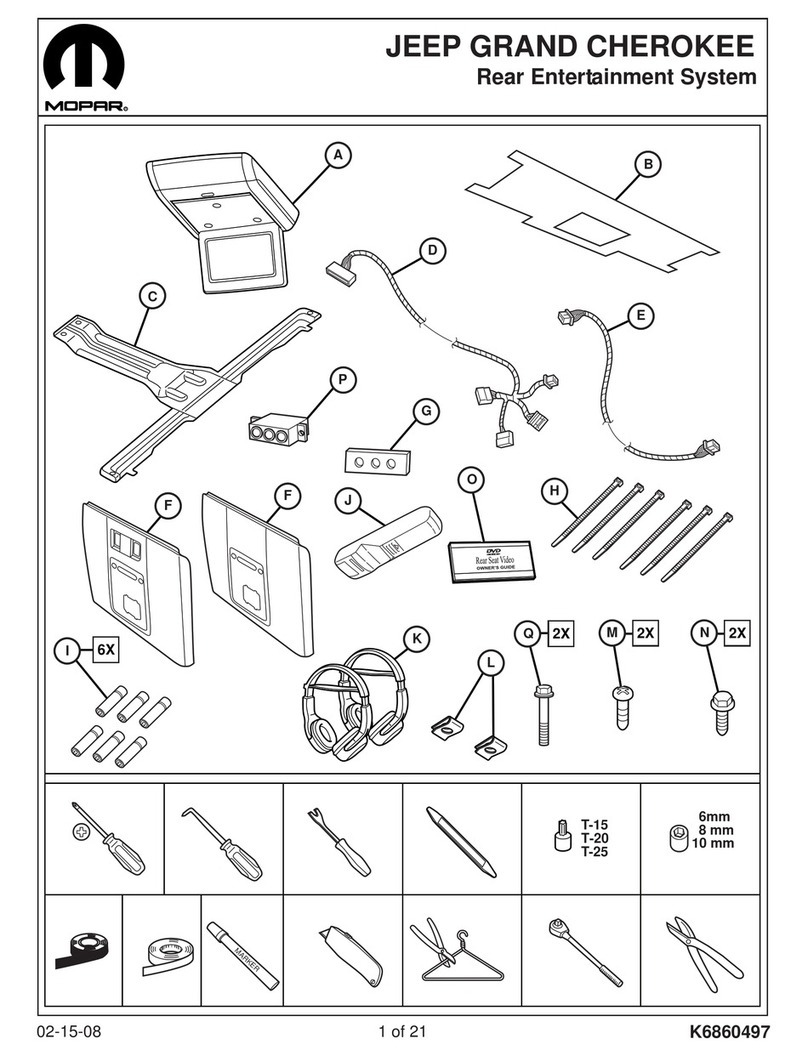
XRV (Rear Seat Video System)
• Confirm that the new sales code has been successfully added to the VIN.
• With the StarSCAN diagnostic tool connected to both the internet (via Ethernet port or wireless
connection) and the vehicle, follow the steps below:
IN THE INITIAL START UP SCREEN
• PRESS------------ VEHICLE PREPARATION
• TOGGLE DOWN AND HIGHLIGHT---- RESTORE VEHICLE CONFIGURATION
• PRESS------- START
• PRESS------- NEXT
• IF NECESSARY, SELECT PROPER VEHICLE LINE AND MODEL YEAR AND PRESS--- NEXT
• CONFRIM CORRECT SELECTION AND PRESS--- NEXT
• ENTER VEHICLE VIN USING ON -SCREEN KEYBOARD OR CONFIRM THAT AUTO-FILLED VIN
PLATE AND PRESS----- NEXT
• PRESS------- OK
• ENTER USER ID, PASSWORD AND DEALER CODE USING ON-SCREEN KEYBOARD AND
PRESS------- OK
• WAIT FOR VEHICLE CONFIGURATON DATA TO BE DOWNLOADED AND THEN PRESS-- NEXT
• PRESS------ NEXT
• CONFIRM THAT VEHICLE CONFIGURATION HAS BEEN PROGRAMMED SUCCESSFULLY
• NOTE ON-SCREEN INSTRUCTIONS AND PRESS-------- FINISH
35