manuals.online logo
Brands
  1. Home
  2. •
  3. Brands
  4. •
  5. Philips
  6. •
  7. Projection TV
  8. •
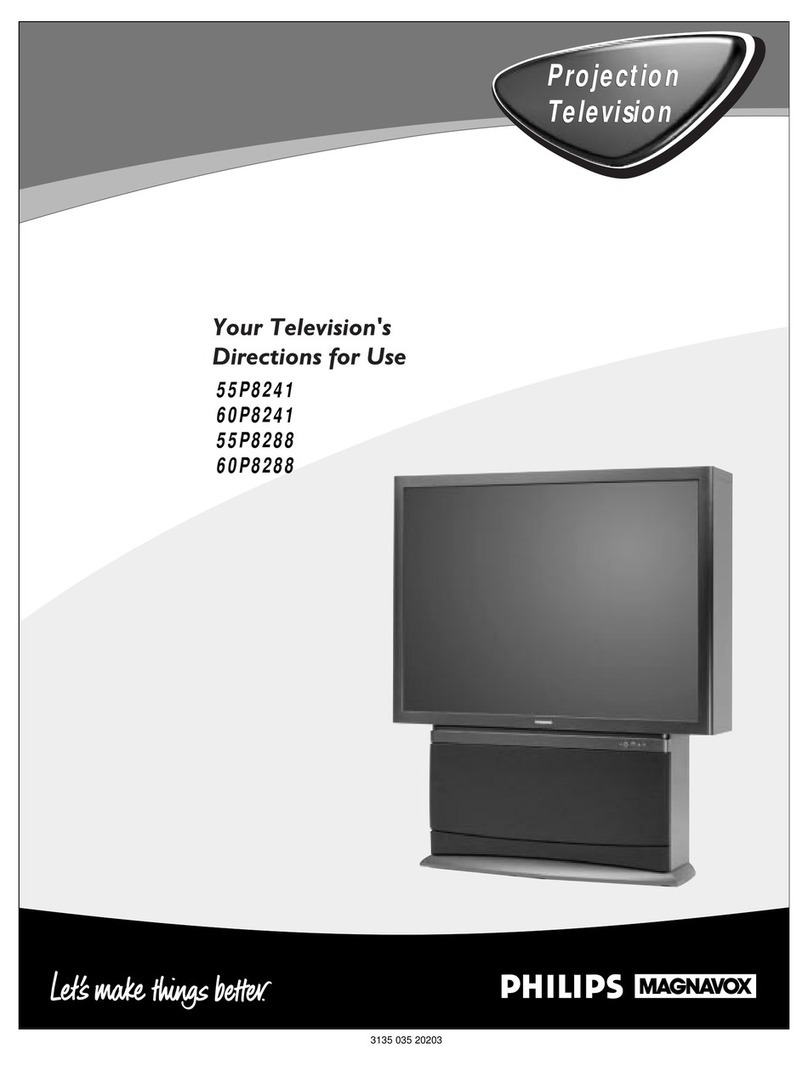
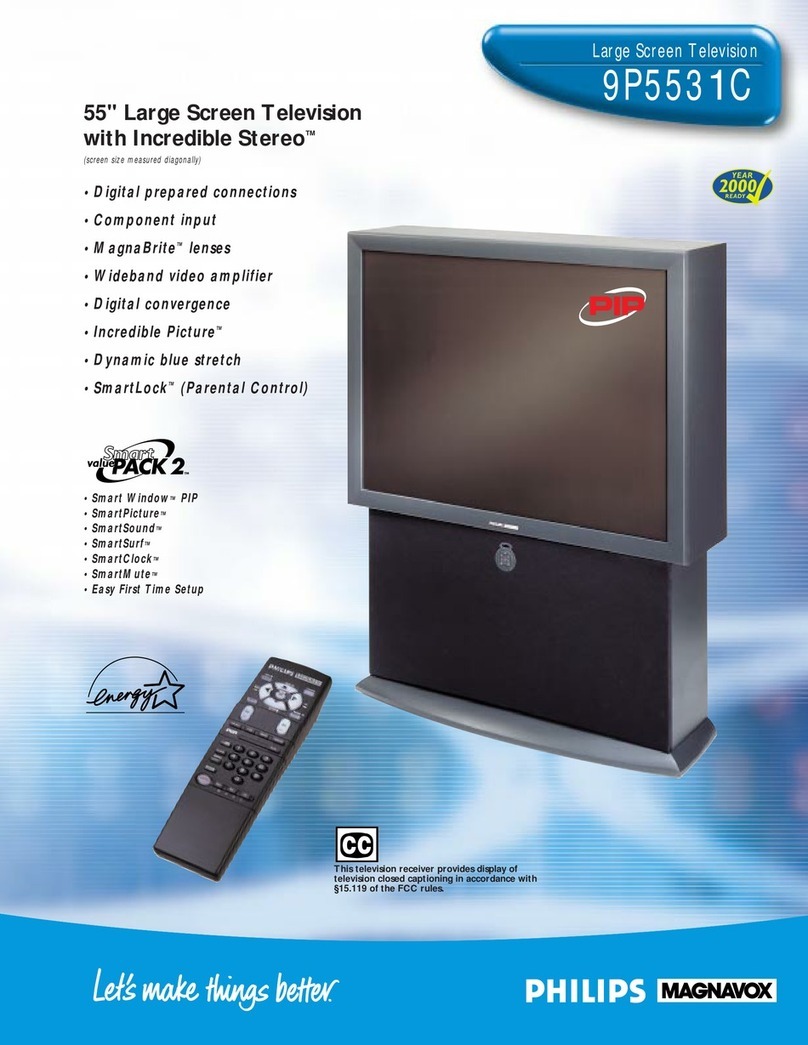
  9. Philips Magnavox 9P5040CI User manual

Philips Magnavox 9P5040CI User manual

This manual suits for next models

3

Other Philips Projection TV manuals

Philips 54XP43C/37 User manual

Philips

Philips 54XP43C/37 User manual

Philips MX5472C User manual

Philips

Philips MX5472C User manual

Philips Magnavox 7P6030W User manual

Philips

Philips Magnavox 7P6030W User manual

Philips 46PP9302 User manual

Philips

Philips 46PP9302 User manual

Philips 50P 8341 Manual

Philips

Philips 50P 8341 Manual

Philips 60P916 User manual

Philips

Philips 60P916 User manual

Philips Magnavox 9P5044C User manual

Philips

Philips Magnavox 9P5044C User manual

Philips 64PH9905 User manual

Philips

Philips 64PH9905 User manual

Philips 48UP910 User manual

Philips

Philips 48UP910 User manual

Philips Magnavox 7P6030W Operating manual

Philips

Philips Magnavox 7P6030W Operating manual

Philips 50PL9220D/37E User manual

Philips

Philips 50PL9220D/37E User manual

Philips 46PP9501 User manual

Philips

Philips 46PP9501 User manual

Philips 51PP9100D-37B - Hook Up Guide User manual

Philips

Philips 51PP9100D-37B - Hook Up Guide User manual

Philips 28PW5408 User manual

Philips

Philips 28PW5408 User manual

Philips 51PP9100D - Hook Up Guide User manual

Philips

Philips 51PP9100D - Hook Up Guide User manual

Philips Projection Television User manual

Philips

Philips Projection Television User manual

Philips 46PW9527 Manual

Philips

Philips 46PW9527 Manual

Philips 64PP 9901 User manual

Philips

Philips 64PP 9901 User manual

Philips 60P 9161 User manual

Philips

Philips 60P 9161 User manual

Philips 43PP8421 Manual

Philips

Philips 43PP8421 Manual

Philips MAGNAVOX TP4830 User manual

Philips

Philips MAGNAVOX TP4830 User manual

Philips 60PP 9601 User manual

Philips

Philips 60PP 9601 User manual

Philips 43PP9202 Manual

Philips

Philips 43PP9202 Manual

Philips 55I WIDESCREEN PROJECTION HDTV MONITOR... User manual

Philips

Philips 55I WIDESCREEN PROJECTION HDTV MONITOR... User manual

Popular Projection TV manuals by other brands

Sony KDF-46E3000 - Bravia 3lcd Micro Display High Definition... operating instructions

Sony

Sony KDF-46E3000 - Bravia 3lcd Micro Display High Definition... operating instructions

Samsung ST-43T6P Owner's instructions

Samsung

Samsung ST-43T6P Owner's instructions

Toshiba ColorStream TP50G60 owner's manual

Toshiba

Toshiba ColorStream TP50G60 owner's manual

Mitsubishi Electric WD-65734 Specification sheet

Mitsubishi Electric

Mitsubishi Electric WD-65734 Specification sheet

Optoma EP652A user manual

Optoma

Optoma EP652A user manual

Hitachi 51F510 operating guide

Hitachi

Hitachi 51F510 operating guide

RCA P52950 user guide

RCA

RCA P52950 user guide

JVC I'Art Pro AV-48P776 Brochure & specs

JVC

JVC I'Art Pro AV-48P776 Brochure & specs

Samsung SP43T8HPX/XEC Service manual

Samsung

Samsung SP43T8HPX/XEC Service manual

Sony GRAND WEGA KDF-55XS955 operating instructions

Sony

Sony GRAND WEGA KDF-55XS955 operating instructions

Magnavox 51MP392H - 51" Widescreen Hd Ready Tv owner's manual

Magnavox

Magnavox 51MP392H - 51" Widescreen Hd Ready Tv owner's manual

Sony KP-46WT520 - Wide Screen Projection Tv Service manual

Sony

Sony KP-46WT520 - Wide Screen Projection Tv Service manual

Toshiba 42HM66 - 42" Rear Projection TV owner's manual

Toshiba

Toshiba 42HM66 - 42" Rear Projection TV owner's manual

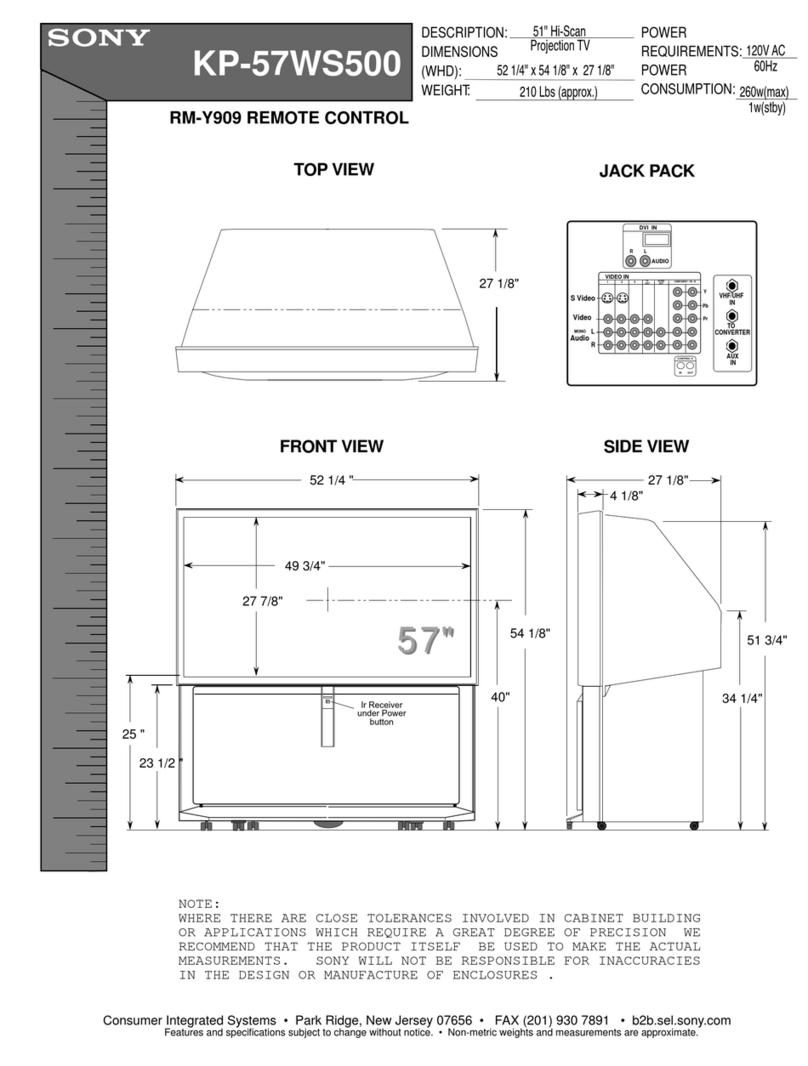
Sony KP-57WS500 - 57" Hi-scan 1080i™ 16:9 Projection... Dimensions

Sony

Sony KP-57WS500 - 57" Hi-scan 1080i™ 16:9 Projection... Dimensions

Hitachi 51S715 operating guide

Hitachi

Hitachi 51S715 operating guide

Samsung HC-P5256W Owner's instructions

Samsung

Samsung HC-P5256W Owner's instructions

Sony Grand Wega KDF-42E2000 operating instructions

Sony

Sony Grand Wega KDF-42E2000 operating instructions

Sony KP-51DS1U Service manual

Sony

Sony KP-51DS1U Service manual

manuals.online logo
manuals.online logoBrands
  • About & Mission
  • Contact us
  • Privacy Policy
  • Terms and Conditions

Copyright 2025 Manuals.Online. All Rights Reserved.

Instructions for use
9P5040C I
9P5540C I
9P6040CI
9P6440C I
MAGNAVOX
Once your PHILIPS MAGNAVOX purchase is registered, you're eligible to receive all the privileges of
owning a PHILIPS MAGNAVOX product. So complete and return the Warranty Registration Card
enclosed with your purchase at once. And take advantage of these important benefits.
Congratulations on your purchase,
and welcome to the "family!" PHILIPS
Dear PHILIPS MAGNAVOX product owner:
Thank you for your confidence in PHILIPS MAGNAVOX. You've selected one of the best-built, best-
backed products
available today. And we'll do everything in our power to keep you happy with your purchase for many
years to come.
As a member of the PHILIPS MAGNAVOX "family," you're entitled to protection by one of the most
comprehensive warranties and outstanding service networks in the industry.
What's more, your purchase guarantees you'll receive all the information and special offers for which
you qualify, plus easy access to accessories from our convenient home shopping network.
And most importantly you can count on our uncompromising commitment to your total satisfaction.
All of this is our way of saying welcome-and thanks for investing in a PHILIPS MAGNAVOX product.
Sincerely,
Robert Minkhorst
President and Chief Executive Officer
P.S. Remember, to get the most from your PHILIPS
MAGNAVOX product, you must return your
Warranty Registration Card within 10 days. So
please mail itto us right now!
Know these
safetysymbo/s
_t_, This "boltof lightning" indicatesuninsulatedmaterial withinyour traitwhich may causean
electricalsh_"k. For the safetyof everyonein your household,please do not removethe product
covering.
,_, The =exclamationpoint_callsattenSon1ofeaturesforwhichyou shouldread the enclosed
literatureclosely1opreventoperatingand maintenanceproblems.
WARNING: TO PREVENT FIRE OR SHOCK HAZARD, DO NOT EXPOSE THIS EQUIPMENT
TO RAIN OR MOISTURE.
CAUTION: To prevent electric shock, match wide blade of plug to wide slot, and fully insert.
ATTENTION: Pour _,_iter les choca electdques, intToduire la lame la plus large de la fiche darts la
borne correspondante de la prise et pousser jusqu'as fond.
SAFETYINSTRUCTIONS- Readbeforeoperatingequipment
Thisproductwasdesignedandmanufacturedto meetstrict qualityand 11. Power-CordProtection- Powersupplycordsshouldberoutedso
safetystandards.Thereare,however,someinstallationand operation thattheyarenotlikelyto bewalkedonor pinchedbyitemsplaced
precautionswhichyoushouldbeparticularlyawareof. uponor againstthem, payingparticularattentionto cordsand
plugs,conveniencereceptacles,andthepointwheretheyexitfrom
1. ReadInstructions- Allthesafetyandoperatinginstructionsshould
bereadbeforetheapplianceisoperated.
2. RetainInstructions- Thesafetyandoperatinginstructionsshould
beretainedforfuturereference.
3. HeedWarnings- Allwarningsontheapplianceandintheoperating
instructionsshouldbeadheredto.
4. FollowInslructions- All operatingand useinstructionsshouldbe
followed.
5. WaterandMoisture- Theapplianceshouldnot beusednearwater
- for example,neara bathtub,washbowl,kitchensink,laundrytub,
in awetbasementorneara swimmingpool,etc.
6. CartsandStands-Theapplianceshouldbeusedonlywitha cartor
standthatis recommendedbythemanufacturer.
8A. _ An applianceand cart combination shouldbe moved
with care. Quick stops, excessiveforce, and uneven
surfacesmaycausetheapplianceandcart combination
to overturn.
6B. Tilt/Stability -All televisions must complywith recommended
internationalglobalsafetystandardsfor tilt and stabilityproperties
ofits cabinetdesign.
Donotcompromisethesedesignstandardsbyapplyingexces-
sivepullforceto thefront, ortop, ofthecabinetwhichcould
ultimatelyoverturntheproduct.
Also,do notendangeryourself,or children,byplacingelec-
tronicequipment]toyson thetop ofthecabinet.Suchitems
couldunsuspectinglyfallfromthetop ofthesetandcause
productdamageand/orpersonalinjury.
7. Wallor CeilingMounting- Theapplianceshouldbemountedto a
wallorceilingonlyasrecommendedbythemanufacturer.
8. Ventilation-Theapplianceshouldbesituatedsothat its locationor
positiondoesnot interferewith its properventilation.Forexample,
theapplianceshouldnotbe situatedon a bed,sofa,rug,or similar
surfacethat may block the ventilation openings;or, placedin a
built-ininstallation,suchasa bookcaseor cabinetthatmayimpede
theflow ofair throughtheventilationopenings.
9. Heat-Theapplianceshould be situatedawayfrom heatsources
such as radiators, heat registers, stoves, or otherappliances
(includingamplifiers)that produceheat.
10. PowerSources- Theapplianceshould be connectedto a power
supplyonlyofthetypedescribedin theoperatinginstructionsor as
markedontheappliance.
theappliance.
12. Cleaning-Theapplianceshouldbecleanedonlyas recommended
bythemanufacturer.
13. PowerLines- An outdoorantennashould be locatedawayfrom
powerlines.
14. OutdoorAntennaGrounding- If anoutsideantennaisconnectedto
thereceiver,be surethe antennasystemis groundedso asto
providesomeprotectionagainstvoltagesurgesand builtupstatic
charges.
Section810 oftheNationalElectricCode,ANS]/NFPANo.70-1984,
providesinformationwithrespectto propergroundingofthemats
and supportingstructuregroundingof the lead-inwire to an
antennadischargeunit,sizeof groundingconnectors,locationof
antenna-dischargeunit,connectionto groundingelectrodesand
requirementsforthegroundingelectrode.SeeFig.below.
15. Non-usePeriods- Thepowercordof the applianceshould be
unpluggedfromtheoutletwhenleft unusedfor a longperiodof
time.
16. ObjectandLiquid Entry- Careshouldbetakensothatobjectsdo
not fall and liquidsare notspilled intotheenclosurethrough
openings.
17. DamageRequiringService-Theapplianceshouldbe servicedby
qualifiedservicepereonnetwhen:
A. Thepowersupplycordortheplughasbeendamaged;or
B. Objects havefallen, or liquid has been spilled into the
appliance;or
C. Theappliancehasbeenexposedtorain;or
D. Theappliancedoesnotappearto operatenormallyorexhibits
amarkedchangein performance;or
E. Theappliancehasbeendropped,ortheenclosuredamaged.
18. Servicing- The usershouldnot attemptto servicethe appliance
beyondthat described in the operating instructions. All other
servicingshouldbereferredtoqualifiedservicepersonnel.
Notetothe CA'iVsysteminstaller:Thisreminderisprovidedtocallthe
CATVsysteminstaller'sattentionto A_icle820-40 of the NEC that
providesguidelinesforpropergroundingand,in particular,specifiesthat
the cableground shallbe connectedto the grounding system of the
building,asclosetothepointof cableentryaspractical.
ExampleofAntennaGrounding
asperNEC- National ElectricCode
GROUND CLAMP ANTENNALEADIN WIRE
ANTENNADISCHARGEUNITINECSeCX_0"_e-_O_
GROUNDINGCONDUCTORS(NZCSeC_ke_0-21)
GROUNDCLAMPS
"---"q''"_ POWER SERVICEGROUNDINGELECTRODESYSTEM (Ec MT Z',*0e_H)
ELECTRICSERVICEEQUIPMENT

Welcome/Product Registration ................... 2
Safety/Precautions ..................................................... 3
Table of Contents ....................................................... 4
Features, Model and Cabinet Information ................. 5
[] On-Screen Features
PICTURE MENU
<'Adjusting Color, Brightness, Sharpness,
Tint, and Picture Controls ................................... 6
<'Using the Clearview Control ............................... 7
<'Adjusting the TV's Convergence Control ........... 8
<'Using the Flesh Correction Control .................... 9
FEATURES MENU
<"Selecting a Picture Source ................................ 10
<'Setting the TV for Closed Captioning ............... 11
<'Setting the TV for Cable or Antenna Signals....12
<'Adding Channels in Memory (Automatically). 13
<'Adding Channels in Memory (Manually) ......... 14
<'Setting the TV Clock ......................................... 15
<'Alarm Timer ...................................................... 16
<'Using the Sleep Timer Control ......................... 17
<"Adjusting the Channel Display Control ............ 18
<'Using the Time/Channel Reminder Control...... 18
<'Using Parental Control/Content Advisory:
•Code Setup/Blocking Channels ............... 19-20
• Content Advisory - Movie Ratings ......... 21-22
• Parental Guidelines ....................................... 23
•Blocking Options/Review Settings ............... 24
<'Using the Channel Label Control ...................... 25
<'Using the Language Selection Control .............. 26
SOUND MENU
<'Adjusting Bass, Treble, and Balance Sound
Controls ............................................................. 27
<'Setting the Bass Boost Control ........................ 27
<'Setting the TV for Stereo and SAP Programs ..28
<'Using the Incredible Stereo Control ................. 29
<'Using the Volume Display Control ................... 30
<'Using the TV Speaker OrdOff Control with
the Audio Output jacks ..................................... 31
<'Surround Sound Speaker Connections and
Variable Audio Output Control ........................ 32
<'Using the TV's Audio/Video Input and
Output Jacks ............................................... 33-37
jRemote Control Operation
Setting the Smart Picture Control .......... 38-39
Using the Smart Sound Control .................. 40
Using the Smart Surf Control .................................. 41
Setting the TV Remote to Work Optional Accessory
Devices:
Direct Entry/Code Number Method .............. 42-43
Search and Identify Method ................................ 44
Remote Control Direct Entry Code Lists ......45-46
Using the Remota's VCR buttons ............................ 47
[_] Picture-In-Picture (PIP)
How to Use PIP (Connections) ............. 48-49
How to Use PIP with the TV Remote ...................... 50
Selecting the Picture Source for PIP........................ 51
Adjusting Picture-in-Picture Color and Tint............ 52
More PIP Connections (Cable Converter) ............... 53
I_l General Information
TV Help Menu ........................................... 54
Tips if Something Isn't Working ............................. 55
Glossary of TV Terms ............................................. 56
Index ........................................................................ 57
Factory Service Locations ........ :......................... 58-59
Warranty .................................................................. 60
Use the simple Set-Up Guide (supplied with
Copyright © 1999 Philips Consumer Electronics Company. All rights reserved.
First Time Set Up -automatically sets the TV for
local channels, the correct picture signal (antenna or
cable), and assists in the setting of TV's Smart Clock
feature.
Infrared Remote Control - operates your TV set and
a variety of wireless remote control VCRs, Cable TV
Converters, and other accessory equipment.
Standard TV broadcast (VHF/UHF) or Cable TV
(CATV) channel capability.
Closed Captioning - allows the viewer to read TV
program dialogue or voice conversations as on-screen
text.
Automatic Programming of channels - for quick and
easy selection of favorite stations available in your
area.
Picture-ln-Picture (PIP) -can show a TV program
and the direct video output from an accessory (VCR,
etc.) onto the TV screen at the same time.
Parental Control for "Censoring" -this feature can
block out channels to keep children from watching
undesirable programming. Parental Guideline and
Movie Rating settings can also be used as part of the
new Content Advisory Data system available with TV
programming.
Stereo-TV -with a built-in audio amplifier and a twin
speaker system, reception of TV programs in both
broadcast stereo sound or (SAP) bilingual broadcast
are available.
Twin Antenna (A/B) Inputs - for easy displaying of
two separate signal sources on the 'IV. An A/B button
on the remote control switches the TV's Main screen
between the two Antenna (A & B) Input options.
Audio/Video Jacks - for direct connections with
VCRs (and other accessories) for quality TV picture
and sound playback.Component Video Input
connectors are also available for high fidelity color
and picture resolution when using digital video soume
material, such as DVD.
Surround Sound - this TV set contains external;
audio speaker connections for a more dynamic sound
fffect.
Sleep-Timer - automatically turns the TV OFF at
_reset time intervals.
Smart Button - for the control of TV Sound and the
Picture levels. Use the Smart Button on the remote to
quickly adjust Smart Sound (to select various audio
modes matched to specific types of TV programming);
Smart Picture (for programmed video level
adjustments on a variety of program sources); and
Smart Surf (for quick one button channel selection of
up to 10 of your favorite channels).
Digital Ready -Projection Television capable of
connecting to both the current analog television
signals of today as well as interfacing with new
upcoming digital source playback products and
devices. This TV includes multiple signal connectors
(Component Video, S-Video, Composite Video)
which give you a variety of equipment playback
options for digital set top boxes, satellite receivers,
cable boxes, and other digital devices.
While there may exist some digital devices with
connections not available on this television, you
should be adequately prepared for the vast majority of
product> uoming onto the digital consumer
electromc3 market. Note: You should always use the
connection output on digital devices that gives the
highest lexcl of picture quality possible. As listed
above the Component Video (or Y PB PR) input
delivers the _'st color and picture reproduction;
follox_ cd b3 S-Video; and then Composite Video. In
addition t,, the above listed inputs, your television also
includes the standard 75ohm cable signal connector
for usc s__th antennas or analog cable boxes.
As ._ou unpack your "IV please note that the
follox_tn_ items have been included with your set:
• Or, hers Manual
Satct._ Tip Information
Factory Service Center Locations
• Wa,'rant._ Registration Card
• Remote ControITransmitter
• Batteries for Remote Control Use
Please take a few minutes to complete your
registration card. The serial number for the TV is
on the back of the set.
Refer to the back of this manual for instructions
on the cleaning and care of the TV.
End-of-Life disposal
Your new projection television and its packaging
contain materials that can be recycled and reused.
Specialized companies can recycle your product
to increase the amount of reusable materials and
minimize the amounts which need to be properly
disposed.
Your product also uses batteries which should not
be thrown away when depleted, but should be
handed in and disposed of as small chemical
waste. I
Please find out about the local regulations on how
to dispose of your old television, batteries, and
packaging materials whenever you replace
existing equipment.
TpO adjust your TV color and
ieture controls, select a TV
channel and follow the steps shown
below:
COLOR, TINT, or
SHARPNESS picture control.
With the PICTURE MENU on
screen, move the REDAhigblight
with the MENU (M) _ buttons.
Then press the MENU button.
Press the (+) or (-) buttons to
ust the selected control.
<_ Press the STATUS button to
clear the screen.
Remember. When the bar
ii scale is centered, control
settings are at normal mid-range
tle'vels.
i
: BRIGHTNESS Press (-) or (+) until
dark parts of the picture show good
detail.
PICTURE Press (-) or (+) until
whitest parts of the picture are as
bright as you prefer.
COLOR Press(-) or (+)to add or
eliminate color.
T.....,!]_Press (-) or (+) to obtain
natural skin tones. (Also see Flesh
Correction on page 9 for more
information).
Press (-) or (+) to
improve detail in the picture.
(M) button to view additional
feature heading. For
Example: Tint, Brightness,
IPicture, etc.
Clwearview is a sharpness feature
hich smoothes out
background snow (or picture noise)
without losing picture image detail
or crispness.
<_ Select CLEARVIEW control.
With the PICTURE MENU on
screen, move the RED highlight
with the MENU (M)ql_ buttons.
Then press the MENU button.
<_ Press the MENU AY buttons
to move the RED highlight. Press
the MENU button to select (t,J) the
ENHANCED mode.
<_ Press the STATUS button to
clear the screen.0
PICTURE MENU
[]
C_linvergence is the correct
sing up of the red and blue
light paths on the TV screen.
NOTE: If no color fringing (see
Smart Help) shows, then no
Convergence adjustments are
necessa_ for your TV.
<_ Select CONVERGENCE
control.
With PICTURE MENU (2 of 2) on
screen, move the REDhighlight
with the MENU (M)4_ buttons.
Then press the MENU button.
_ If there is RED or BLUE color
fringing on the White cross, press
the MENU button to continue.
<_ Press the MENU _1. buttons
to move the red or blue cross
directly over the white cross on the
TV screen.
The red or blue cross is properly
adjusted when it is completely
merged with the white cross. (No
color appears around the edge of
the white cross).
_Press the STATUS button to
clear the screen when convergence
adjustments are complete.
@
Remember. Convergence
=ihas been set at the factory for
best viewing, but if one or more of
the (red or blue) colors appear
around the edges of objects (color
fringing) follow the steps given in
this section.
PI_ruRE MENU
i, i ,a •
20_2_
If there is RED or BLUE
fringeontheWHITEcross,
usethis adjustmentto
impr_=_ctura.
press "M"m Continue
-oP-
Press ")" to Return
NOTE: Adjustments for "Multi-Point" on- MULTI-POINT CONVERGENCE
screen color fringing can aJso be made as part
of the TV's Cortvergence control system.
Follow the TV's on-screen menu directions to
select individual screen areas that can be
re.adjusted and sat for varying red/blue color
fringing conditions. These multi-point settings
can then be "Saved" to memory for the
specific areas oftbe TV screen (or Faatory
Settings for convergence can be recalled and
put back into place for use).
z777
+ + E+:+
I++++ +++++
+ + c+3+ +
+++++i
Use the Flesh Correction
ontrol to keep skin tone hues
(or facial tint)from varying from
TV channel to TV channel.
_ Select FLESH
CORRECTION control.
With PICTURE MENU (2 of 2) on
screen, move the RED highlight
with the MENU (M)4_ buttons.
Then press the MENU button.
_Press the MENU AY buttons
to move the RED highlight. Press
the MENU button to turn (/,,") the
FLESH CORRECTION control
ON.
_Press the STATUS button to
clear the screen.
O
-- PICTUI:_ MENU
_i, ,(, i ,i, ,k,
20F2_
FLESH
[]
[]
The picture for the TV can come
hrough either the ANTENNA
plug or the AUDIO/VIDEO INput
jacks (on the rear of the TV). The
Picture Source control simply tells
the TV which one of these picture
sources it is to show on the TV
screen.
i<_l s Select PICTURE SOURCEELECT control.
I With the FEATURES MENU on
screen, move the RED.highlight
with the MENU (M) 45_, buttons.
Then press the MENU button.
<_ Press the MENU A.V buttons
to move the RED highlight. Press
the MENU button to turn the
desired PICTURE SOURCE
control ON (_,").
ANT A or B- for a picture signal
coming from either the ANT(enna)
A or B Input plugs on the TV.
AUX 1 VIDEO- for a picture
signal coming from the AUX 1
Video Input jack on the rear of the
TV.
AUX 1Y1_ PR- for picture
signals coming from the component
(Y Pa PR) luminance and color
input jacks on the rear of the TV.
AUX 2 VIDEO- for a picture
signal coming from the AUX 2
Video Input jack on the rear of the
TV.
SIDE VIDEO- for a picture signal
coming from the Video Input jack
on the right side panel of the TV.
<_ Press the STATUS button to
i clear the scree_
Note: A "S-VIDEO I" (or 2) Input
will appear as a PICTURE SOURCE
SELECT(ion) in place of the AUX I
V[DEO (or AUX 2VIDEO) position
when the S-VIDEO plugs(on the rear
of the TV) are connected. Sc_ page 35
for operating details on S-VIDEO.
Remember, the Auxiliary
Input modes (ALrX 1
VIDEO, etc.) must have a
compatible video signal source
properly connected (to the INPUT
plug on the rear of the TV), or the
TV screen will be blank.
10