PATROL II LCD User's Manual Rev.D 2011-04-01
Page 7of 25
To configure new connected reader, click
Configure
button in
Readers
tab.
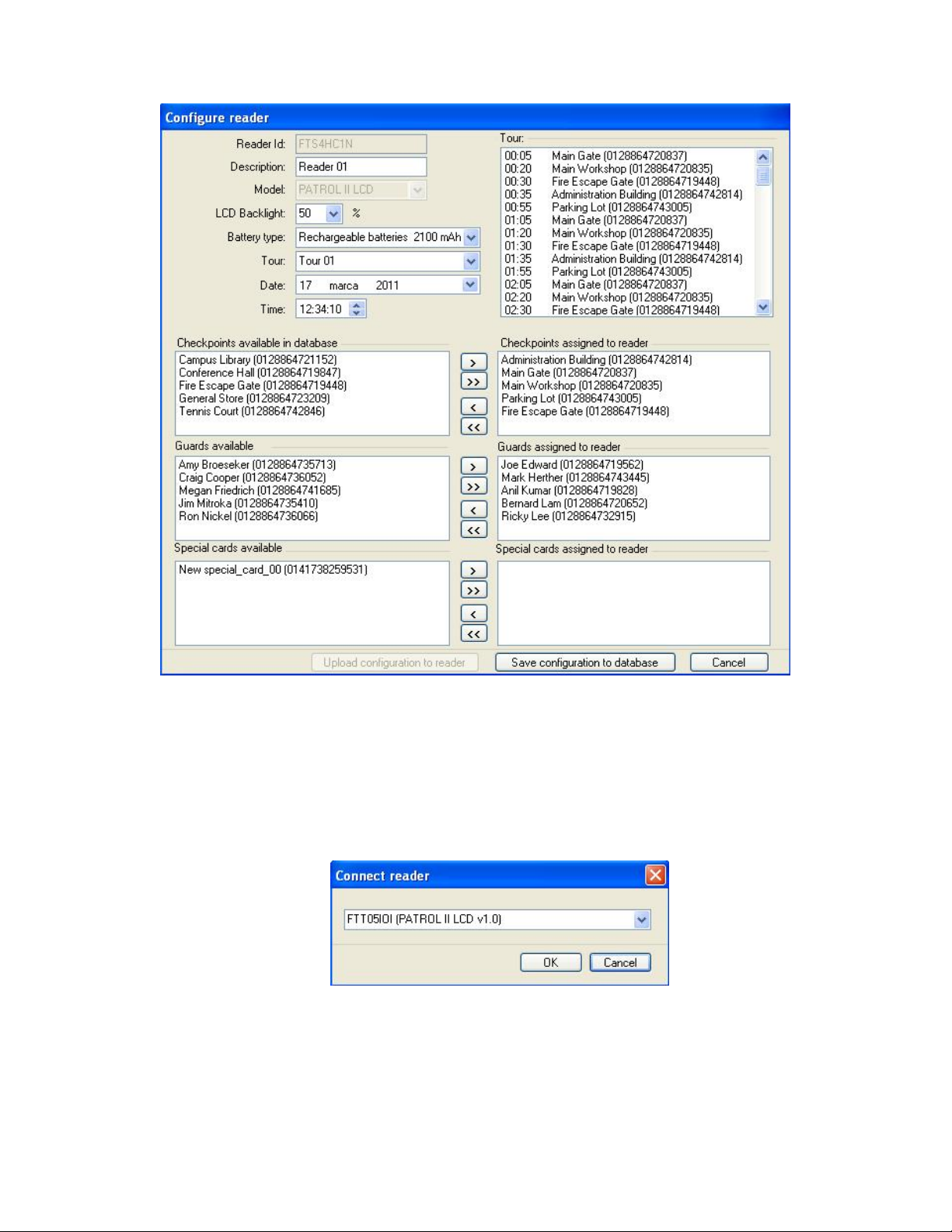
Configure reader
window will appear (Fig.2). In this window define all available parameters: name of the reader, LCD
backlight intensity, type of batteries, date & time.
In order to fully prepare the device to service, define additionally checkpoints, guards and also
assign one of available tours. Assigning these parameters to reader is possible only if they have
been previously defined in the system. If there are no checkpoints or guards it is necessary to
define them in first step, and then getting back to readers configuration. Sending settings to reader
can be done using
Upload configuration to reader
button.
After installation software does not contain any readers. Changing reader’s settings can be done in
the same way as new one’s configuration. Only fields in
Configure reader
window can be modified.
Readers
tab does not allow to change any settings.
Battery and LCD configuration
Factory new reader is delivered with two 2100 mAh rechargeable batteries which are its default
setup. Eventually, it can be configured for 1000 mAh NiMh or ordinary disposal (single use) ones.
Prior to replacement of batteries reader must be configured for the new ones.
Note: If you place non-rechargeable batteries and connect reader to USB port or AC charger this
will cause battery damage.
The LCD display has backlight which intensity can be adjusted from 0 to 100%. The LCD backlight
consumes significant amount of energy which have strong influence on number of read cycles
without necessity to recharge batteries. If LCD backlight is configured to 0% reader can provide up
to 8.000 read cycles while when set to 100% it is reduced to 3.000 cycles only. In most cases the
25% LCD backlight level is enough for good visibility in a dark.
Note: The number of read cycles presented above are average values achieved on new, fully
charged 2100 mAh NiMh batteries.
Battery type as well as LCD backlight setting can be done in
Configure reader
window (Fig.2)
.
Note : In order to save changes in configuration it is essential to send them to reader using
command
Upload configuration to reader
in reader configuration window..
Checkpoints configuration
Each checkpoint must have individual ID number (code) and optionally name, comment and
picture. The name of the checkpoint is displayed on LCD and is presented in the event screen of
the
Patrol Master
software. If no name has been defined or checkpoint is unknown reader will
display and register its ID code only.