
RPC Electronics YagTracker User manual
YagTracker
Mobile APRS Terminal and Tracker
User’s Manual
Firmware V1.45 - REV A.

Table of Contents
1. Introduction
2. Package Contents
3. Basic Device Overview
a. User Interface
b. LCD Layout
c. Rotary Encoder Functions
4. Features
a. Screens
b. Menus
c. On-Screen Keyboard
d. Beacon Histograph
5. Interface Connections
a. Power
b. Radio
c. GPS
6. Getting Started
a. Powering up for the First Time
b. Mobile Setup
c. Home/Fixed Setup
7. Modem Setup
a. Transmit Audio
b. Receive Audio
8. Messaging
a. Initiate a Message
b. View a Message
c. Message Chat
9. Advanced Features
a. Station List Sorting and Filtering
b. GPS Data View and Waypoint Output
c. Track Back
d. Map Callsign View

e. Friend List
f. SmartBeaconing
g. Fill-In/Relay Digipeater
h. KISS Modem Mode
i. NMEA/KISS Dual Mode
j. System Information
k. Map Screen Range Rings
l. Map Screen Detailed Information
10. Firmware Updating

1. Introduction
Thank you for purchasing a YagTracker! The YagTracker is a full featured APRS
Tracker and Terminal device meant to take the place of a laptop computer in many
mobile APRS applications. The YagTracker started out as a personal project of Remi
Bilodeau VE2YAG. It has since turned into a robust and feature-rich device suited for
even the most demanding mobile APRS user that wishes to have a visual presentation
of the APRS network activity at their fingertips.
The YagTracker compares in many ways to the Kenwood RC-D710 and is a great
alternative at a much smaller price.
2. Package Contents
Upon opening the package, you will find the following items:
● YagTracker: APRS Terminal
● CD-ROM Containing this manual and other useful files
● Mating DB9 Male connector
● DB9 Hood Kit
3. Basic Device Overview
a. User Interface
The YagTracker has a very simple user interface to eliminate the need for multiple
buttons, knobs and other controls. Learning some simple methods with the rotary
encoder will allow you to navigate the YagTracker’s screens, menus and other functions
with just a spin of of your fingers.
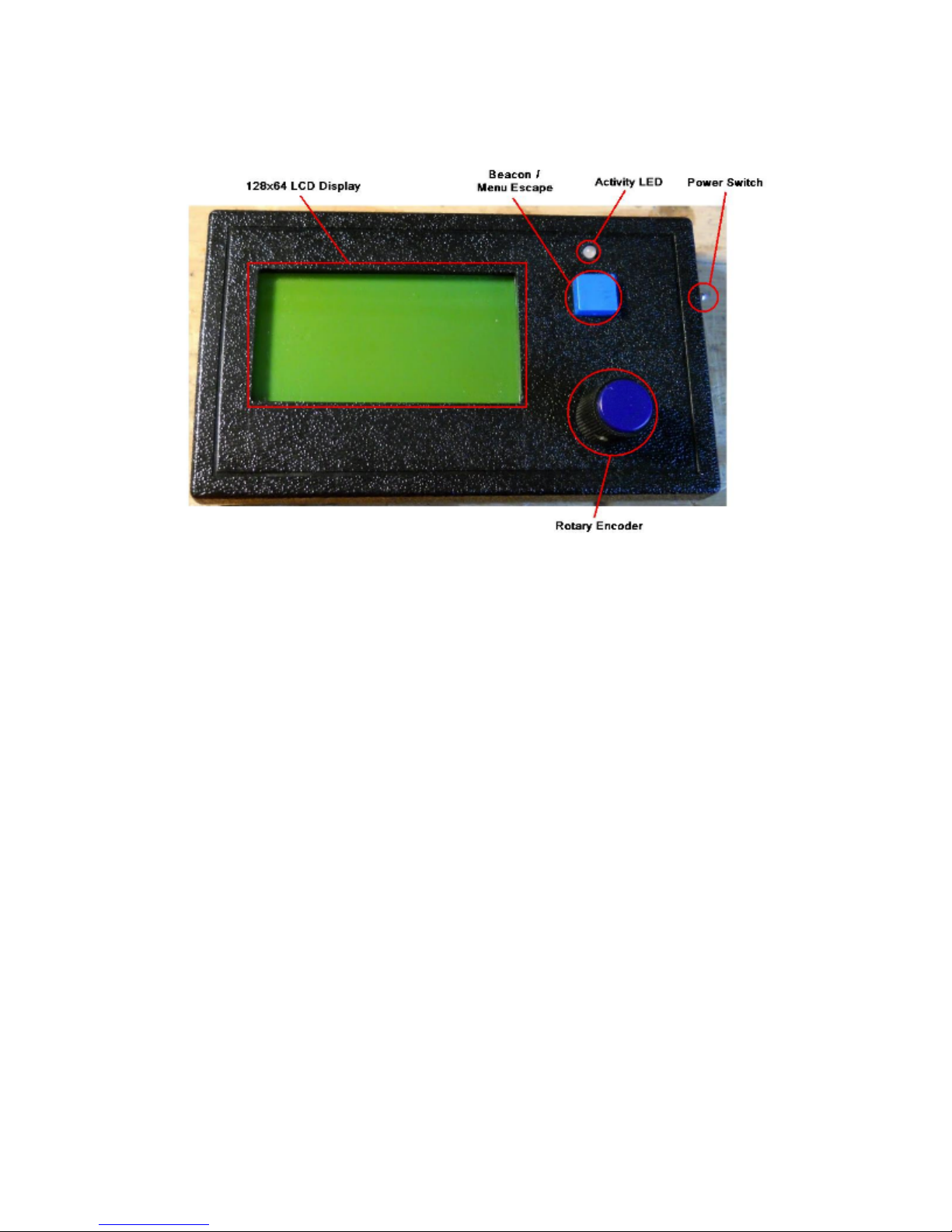
●The Power switch is a micro toggle switch slightly recessed just above the
interface connector. It’s easy enough to get to when powering the unit on or off
and at the same time stays out of your way to avoid accidental switching.
●The LCD Display is a 128x64 pixel graphical display utilizing the industry
standard KS0108 controller.
●The Beacon/Escape button is a quick way to fire off a position packet when in
any screen or use it to exit out of pop-up and setup menus
●The Rotary Encoder is a detent-less (no clicking) rotary control that is used to
switch through screens, menu options, select keys on the on-board keyboard,
control sliders and zoom in/out.
●The Activity LED has tri-color function. It uses GREEN to indicate a received
packet, RED to indicate transmitting of a packet and ORANGE to indicate the
digipeat of your own packet.

b. LCD Layout - Home Screen
c. Rotary Encoder Functions
The rotary encoder is a detent-less (no clicking) encoder with a built-in momentary
switch. Pushing in the on the knob will activate this switch. You will hear and feel a
small “click” when doing this. The momentary switch is used for selecting items in
menus or giving “OK” to a menu selection or setting. When using the rotary function,
there are two basic methods:
1. Rotate Normally - This is typically used when going through menu choices, adjusting
settings and/or scrolling through things like the station list.
2. Rotate with the Button - To do this, you must push in the knob and then turn it while
holding the knob in. This is used for switching from screen to screen.

4. Features
This section of the manual will cover the many features of the YagTracker, including
screen views, menus and other major features useful to the user.
a. Screens
There are currently five screens implemented in the YagTracker firmware. These
screens are:
Home
Station List
Tracking
Chat Messaging
Map Plot
Raw Packet Monitor

b. Menus
There are two kinds of menus used in the YagTracker firmware:
Pop-Up: These menus are activated while on one of the main screens by pushing in
the rotary encoder switch momentary. If a menu is available, it will pop up in a small
window. You can then rotate the rotary encoder to select an item, then click the rotary
encoder button one time to select the item. You may exit the menu by pressing the
Beacon/Escape button momentarily.
Full Screen: These menus are accessed by first using the Pop-Up menu method on
any of the main screens and selecting the Main Menu item in the pop-up menu. This
will bring up a full screen menu with Icons. Selecting an icon and clicking the rotary
encoder’s button will open up the menu associated with the icon.
c. On-Screen Keyboard
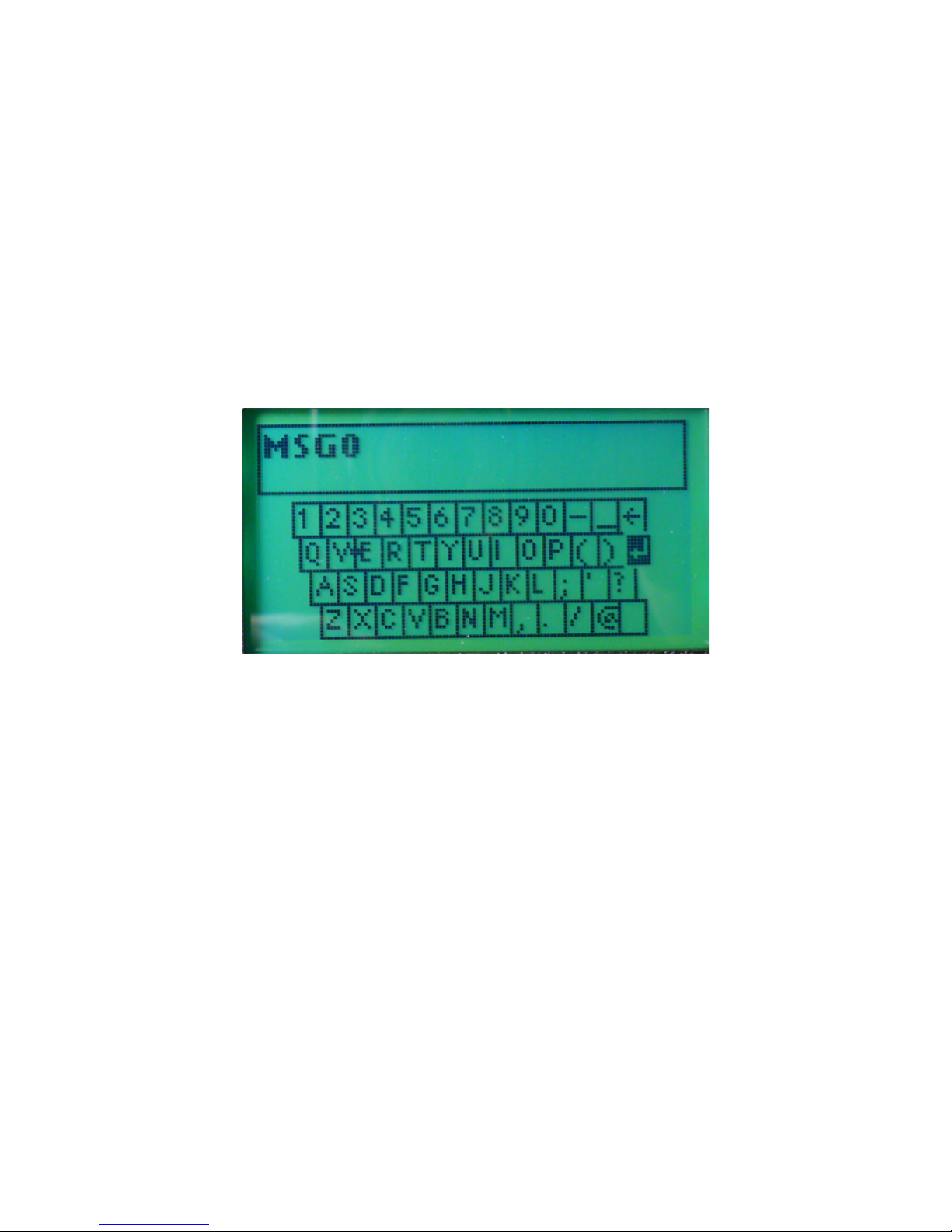
The method of inputting text on the YagTracker is a compromise between having a full
keyboard and rotating through the alphabet for every single character. Once familiar
with how the on-screen keyboard works, you should find it fairly easy to enter text into
the YagTracker.
When scrolling around the keyboard, it will automatically jump from one line of keys to
the next. Using this to your advantage, you can navigate the keyboard very quickly. To
jump from one row to another quickly, hold in the rotary encoder and turn the encoder.
The cursor will jump up or down one row, depending on which way you turn it.

d. Beacon Histograph
The Beacon Histograph is a very useful tool to determine how well you and others are
utilizing the local network digipeaters. The Beacon Histograph keep a running log of the
digipeat count per packet of both your own beacons and other’s in the local network.
The display shows the last sixteen packets for each.
Your History
→
Other’s History
←
● The digipeat count is based on the pixel width of each row:
Zero Pixels -No Digipeat Received
One Pixel - Single Digipeat Received
Three Pixels - Two Digipeats received
Five Pixels - Three Digipeats received
Seven Pixels - Four Digipeats received
● Each packet will shift the graph up one row. The bottom row will be replaced
with a blank row. Upon receiving a digipeat or more, this row will be updated to
reflect this.
Table of contents

















