PRODUCT MANUAL e Original Camstick Pro : SB-DVR80
Page 7
www.SafetyBasement.com Phone: 877-345-2336 Fax: 888-236-2524
SET THE TIMESTAMP
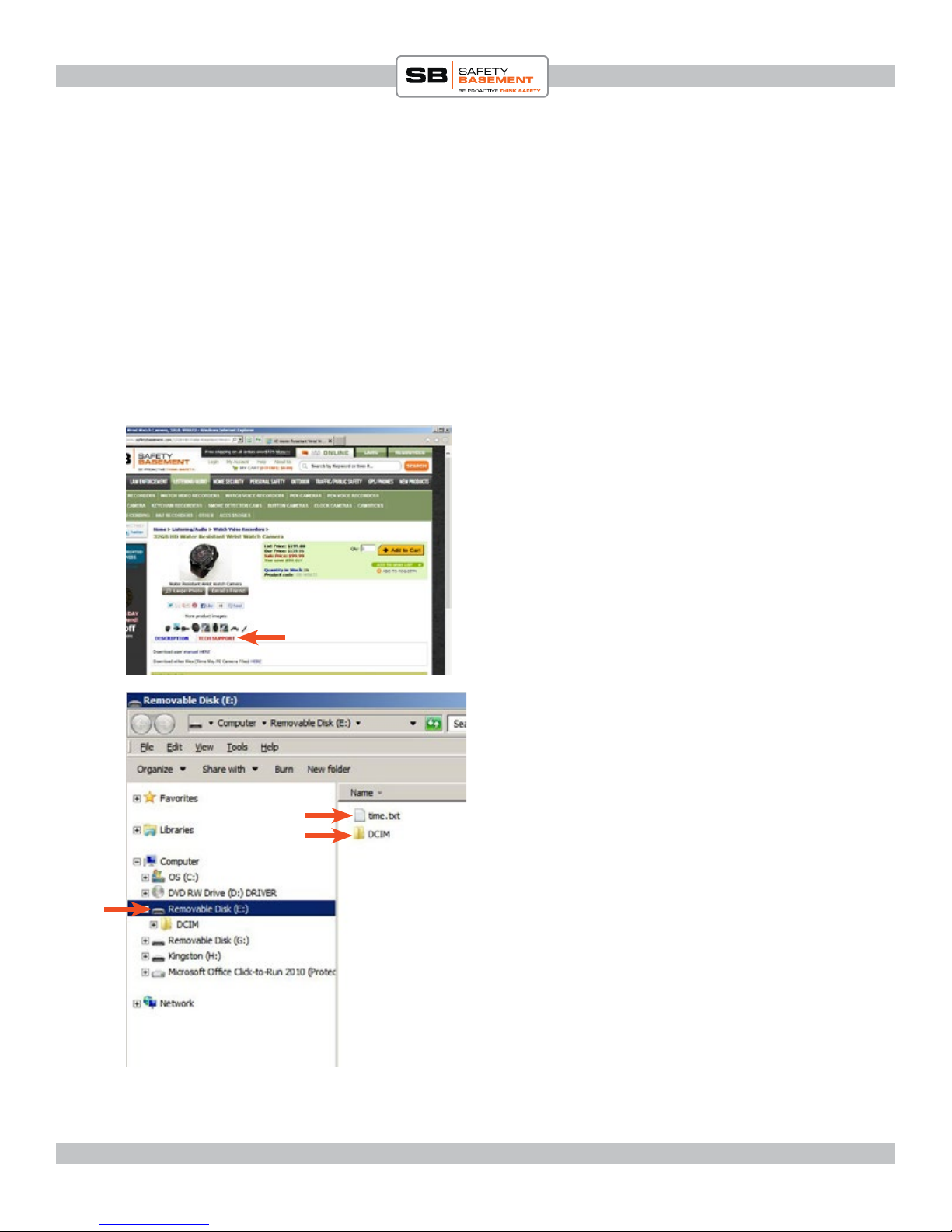
When your camera connects to your PC,
it will appear as an External Drive or
Removable Disk, such as shown here.
You should see the TIME.TXT le, which is
generated by the camera automatically. You
will need to edit this le to show the correct
date and time.
DOUBLE-CLICK the TIME.TXT le.
A standard text editor should open the le.
In Windows, this would be Notepad. On a
Mac, it would be TextEdit.
Carefully edit the time shown to the correct
YEAR/MONTH/DAY/
HOUR:MINUTE:SECONDS;Y
e punctuation must be exact for the time
le to work properly. ere are NO spaces.
Use “Y” at the end to activate the
timestamp on your videos. Use “N” to
disable the onscreen timestamp.
SAVE this le. Exit your text editor.
You must activate the camera for the new
time to be set.
Right-click on the drive letter and EJECT.
Turn OFF your camera. Unplug from the
USB cable. Turn the camera back on. Your
time is now set.
If the time is not correct or set in your
videos, please repeat these steps.