manuals.online logo
Brands
  1. Home
  2. •
  3. Brands
  4. •
  5. Samsung
  6. •
  7. CD Player
  8. •
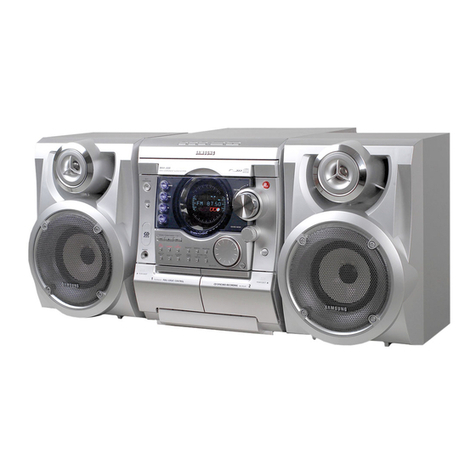
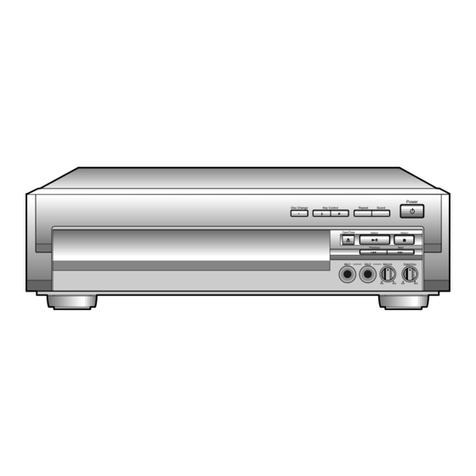
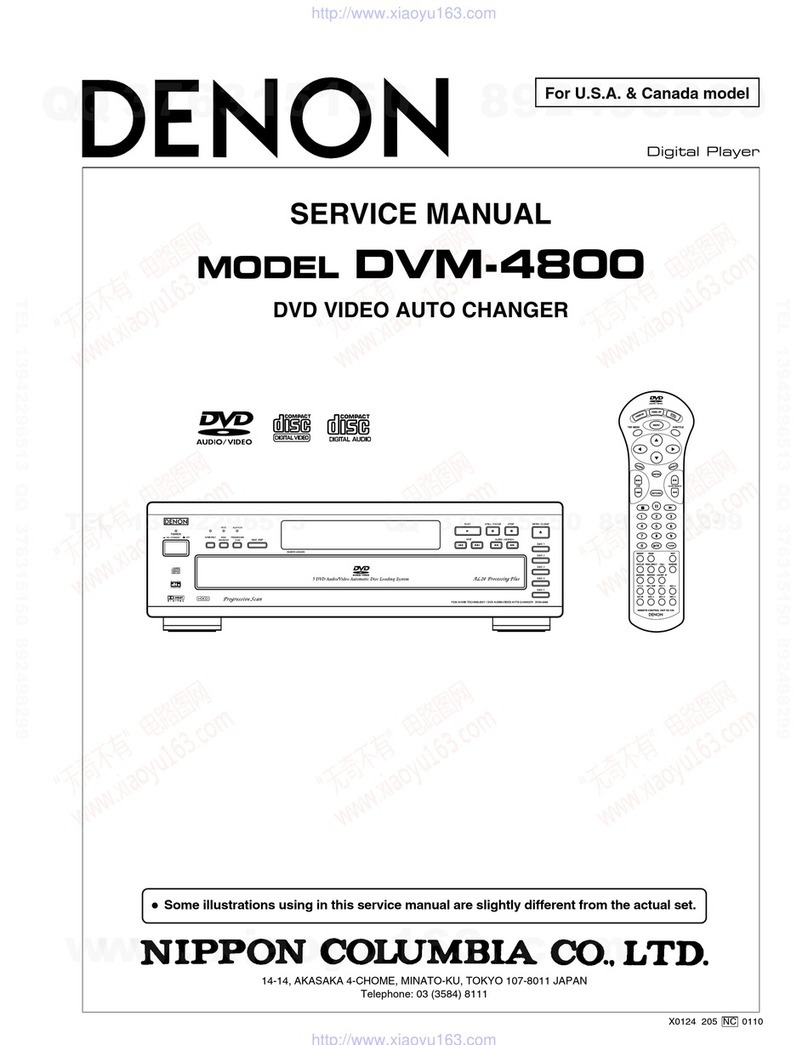
  9. Samsung DVD-C647P User manual

Samsung DVD-C647P User manual

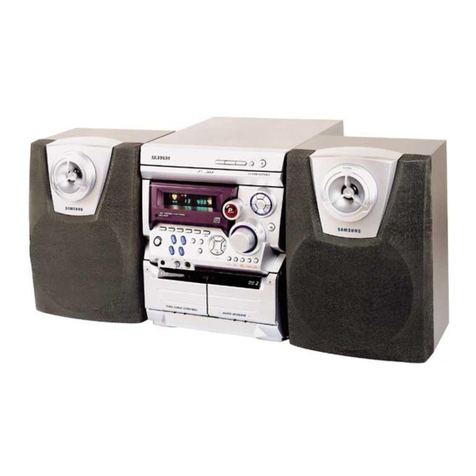
Other Samsung CD Player manuals

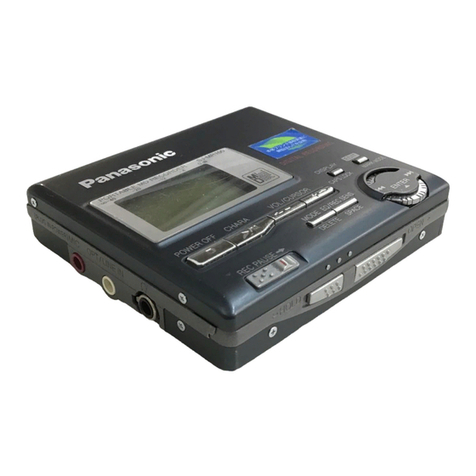
Samsung yePP MCD-CM600 User manual

Samsung

Samsung yePP MCD-CM600 User manual

Samsung Z-10MM User manual

Samsung

Samsung Z-10MM User manual

Samsung RCD-695 User manual

Samsung

Samsung RCD-695 User manual

Samsung RCD-M70 User manual

Samsung

Samsung RCD-M70 User manual

Samsung DVD-C5050N User manual

Samsung

Samsung DVD-C5050N User manual

Samsung MCD-HM920 User manual

Samsung

Samsung MCD-HM920 User manual

Samsung BD-J7500 User manual

Samsung

Samsung BD-J7500 User manual

Samsung MX-C630D User manual

Samsung

Samsung MX-C630D User manual

Samsung MAX-C570 User manual

Samsung

Samsung MAX-C570 User manual

Samsung MCD-SF85 User manual

Samsung

Samsung MCD-SF85 User manual

Samsung MCD-SM55 User manual

Samsung

Samsung MCD-SM55 User manual

Samsung MAX-J530 User manual

Samsung

Samsung MAX-J530 User manual

Samsung Z-100MS User manual

Samsung

Samsung Z-100MS User manual

Samsung MAX-C550T User manual

Samsung

Samsung MAX-C550T User manual

Samsung MCD-SM55 User manual

Samsung

Samsung MCD-SM55 User manual

Samsung yePP MCD-CF550 User manual

Samsung

Samsung yePP MCD-CF550 User manual

Samsung Z-48Q User manual

Samsung

Samsung Z-48Q User manual

Samsung MCD-SM60 User manual

Samsung

Samsung MCD-SM60 User manual

Samsung MCD-CM300 User manual

Samsung

Samsung MCD-CM300 User manual

Samsung DVD-C639P User manual

Samsung

Samsung DVD-C639P User manual

Samsung MCD-SM60 User manual

Samsung

Samsung MCD-SM60 User manual

Samsung MAX-B450 User manual

Samsung

Samsung MAX-B450 User manual

Samsung RCD-M30G User manual

Samsung

Samsung RCD-M30G User manual

Samsung yePP MCD-CM150 Mounting instructions

Samsung

Samsung yePP MCD-CM150 Mounting instructions

Popular CD Player manuals by other brands

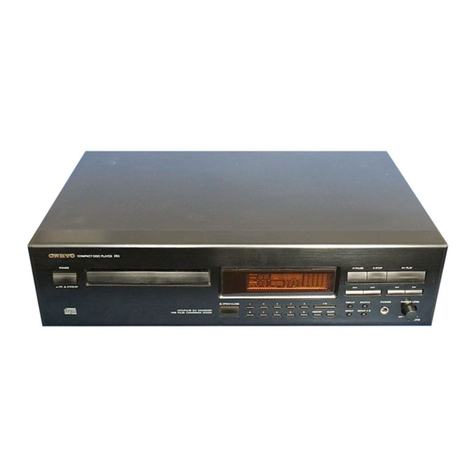
Arcam CD23 Handbook

Arcam

Arcam CD23 Handbook

Sanyo MCD-Z1F Service manual

Sanyo

Sanyo MCD-Z1F Service manual

JVC RC-ST3SL instructions

JVC

JVC RC-ST3SL instructions

Technics SL-P9066 operating instructions

Technics

Technics SL-P9066 operating instructions

Marantz HD-CD1 quick start guide

Marantz

Marantz HD-CD1 quick start guide

Sony DVP-FX850 Service manual

Sony

Sony DVP-FX850 Service manual

Philips AZ1140 Instrukcja obs?ugi

Philips

Philips AZ1140 Instrukcja obs?ugi

Alpine 7909 owner's manual

Alpine

Alpine 7909 owner's manual

JVC CH-X350 instructions

JVC

JVC CH-X350 instructions

RCA RP-7923 instruction manual

RCA

RCA RP-7923 instruction manual

Pioneer DEH-P3550MP XM Operation manual

Pioneer

Pioneer DEH-P3550MP XM Operation manual

Philips Shockproof AX2102 brochure

Philips

Philips Shockproof AX2102 brochure

Philips CD582 user manual

Philips

Philips CD582 user manual

Philips AZ 6821 operating manual

Philips

Philips AZ 6821 operating manual

Lasonic MSU-2020 user manual

Lasonic

Lasonic MSU-2020 user manual

Denon DCD-1420 Service manual

Denon

Denon DCD-1420 Service manual

Panasonic SJ-MR100 operating instructions

Panasonic

Panasonic SJ-MR100 operating instructions

Onkyo DX-7210 instruction manual

Onkyo

Onkyo DX-7210 instruction manual

manuals.online logo
manuals.online logoBrands
  • About & Mission
  • Contact us
  • Privacy Policy
  • Terms and Conditions

Copyright 2025 Manuals.Online. All Rights Reserved.

5 Disc DVD Changer
DVD-C647P
AK68-00354D
AU
ENG-3ENG-2
Precautions
1. Setting up
* Refer to the identification label located on the back
panel of your player for its proper operating voltage.
* Install your player in a cabinet with adequate
ventilation holes. (7~1 cm) Do not block ventilation
holes on any of the components for circulation of air.
* Do not push the disc tray by the hand.
* Do not stack components.
* Be sure to turn all components off before moving the
player.
* Before connecting other components to this player, be
sure to turn them off.
* Be sure to remove the disc and turn off the player
after use, especially if you don’t use it for a long time.
2. For your safety
* This product utilizes a laser. Use of controls or
adjustments or performance of procedures other than
those specified herein may result in hazardous
radiation exposure.
* Do not open covers and do not repair yourself.
Refer servicing to qualified personal.
3. Caution
* Your player is not intended for industrial use but for
domestic purposes. Use of this product is for
personal use only.
* Do not put any container filled with liquid or any small
metal objects on the player.
* Exterior influences such as lightning and static
electricity can affect normal operation of this player.
If this occurs, turn the player off and on again with the
POWER button, or disconnect and then reconnect the
AC power cord to the AC power outlet. The player will
operate normally.
* When condensation forms inside the player due to
sharp changes in temperature, the player may not
operate correctly. If this occurs, leave the player at
room temperature until the inside of the player
becomes dry and operational.
4. Disc
* Do not clean record-cleaning sprays, benzene,
thinner, or other volatile solvents that may cause
damage to the disc surface.
* Do not touch the disc’s signal surface. Hold by the
edges or by one edge and the hole in the center.
* Wipe the dirt away gently; never wipe a cloth back
and forth over the disc.
5. Environmenta info
* The battery used in this product contains chemicals
that are harmful to the environment.
* So, dispose of batteries in the proper manner,
according to federal, state, and local regulations.
CAUTION : USE OF ANY CONTROLS,
ADJUSTMENTS, OR PROCEDURES OTHER
THAN SPECIFIED HEREIN MAY RESULT IN
HAZARDOUS RADIATION EXPOSURE.
STANDBY/ON LOADINGPLAY
EZ VIEW
STANDBY/ON LOADINGPLAY
EZ VIEW
STANDBY/ON LOADINGPLAY
EZ VIEW
1
2
STANDBY/ON LOADINGPLAY
EZ VIEW
3
4
5
Before you start
Insta Batteries in the Remote
1. Open the battery cover on the back of the
remote.
2. Insert two AAA batteries. Make sure that the
polarities (+ and -) are aligned correctly.
3. Replace the battery cover.
If remote doesn’t operate proper y:
• Check the polarity + - of the batteries (Dry-Cell)
• Check if the batteries are drained.
• Check if remote sensor is blocked by obstacles.
• Check if there is any fluorescent lighting nearby.
Remote Contro Batteries for
Remote Contro
(AAA Size)
User’s Manua Video/Audio Cab e
Table of Contents
Accessories Setup
Precautions . . . . . . . . . . . . . . . . . . . . . . . . . . .2
Before you start . . . . . . . . . . . . . . . . . . . . . . . .3
General Features . . . . . . . . . . . . . . . . . . . . . . .4
Disc Type and Characteristics . . . . . . . . . . . . .5
Description-Front Panel . . . . . . . . . . . . . . . . . .6
Display Indicators . . . . . . . . . . . . . . . . . . . . . .7
Description-Rear Panel . . . . . . . . . . . . . . . . . .8
Tour of the Remote Control . . . . . . . . . . . . . . .9
Connections
Choosing a Connection . . . . . . . . . . . . . . . . .1
Basic Functions
Playing a Disc . . . . . . . . . . . . . . . . . . . . . . . .12
Operating the Disc Changer . . . . . . . . . . . . . .13
Using the Search & Skip Functions . . . . . . . .13
Using the Display Function . . . . . . . . . . . . . . .14
Using the Disc and Title Menu . . . . . . . . . . . .15
Using the Function Menu . . . . . . . . . . . . . . . .15
Repeat Play . . . . . . . . . . . . . . . . . . . . . . . . . .16
Program Play & Random Play . . . . . . . . . . . .16
Slow Repeat Play . . . . . . . . . . . . . . . . . . . . .17
Advanced Functions
Adjusting the Aspect Ratio (EZ View) . . . . . . .17
Selecting the Audio Language . . . . . . . . . . . .18
Selecting the Subtitle Language . . . . . . . . . . .19
Changing the Camera Angle . . . . . . . . . . . . .19
Using the Instant Replay/Skip Function . . . . .2
Using the Bookmark Function . . . . . . . . . . . .2
Using the Zoom Function . . . . . . . . . . . . . . . .21
Clips Menu for MP3/WMA/JPEG . . . . . . . . . .22
Folder Selection . . . . . . . . . . . . . . . . . . . . . . .22
MP3/WMA Play . . . . . . . . . . . . . . . . . . . . . . .23
Picture CD Playback . . . . . . . . . . . . . . . . . . .24
Changing Setup menu
Using the Setup Menu . . . . . . . . . . . . . . . . . .25
Setting Up the Language Features . . . . . . . . .25
Setting Up the Audio Options . . . . . . . . . . . . .27
Setting Up the Display Options . . . . . . . . . . . .28
Setting Up the Parental Control . . . . . . . . . . .3
Reference
Troubleshooting . . . . . . . . . . . . . . . . . . . . . . .32
Specifications . . . . . . . . . . . . . . . . . . . . . . . .33
ENG-5ENG-4
Disc Type and Characteristics
Disc Markings P ay Region Number
~
DIGITAL
SOUND
STEREO
PAL
Play Region Number
PAL broadcast system in U.K, France,
Germany, etc.
Dolby Digital disc
Stereo disc
Digital Audio disc
DTS disc
MP3 disc
Both the DVD player and the discs are coded by region.
These regional codes must match in order for the disc to
play. If the codes do not match, the disc will not play.
The Region Number for this p ayer is described on the
rear pane of the p ayer.
This DVD player is capable of playing the following types of discs with the corresponding
logos:
DVD Changer
The DVD Changer holds 5 discs and provides full
random play with fast disc changes when press and
hold NUMBER button.
Exce ent Sound
Dolby Digital, a technology developed by Dolby
Laboratories, provides crystal clear sound reproduction.
Screen
Both regular and widescreen(16:9) pictures can be
viewed.
S ow Motion
An important scene can be viewed in slow motion.
Programmed P ay
You can program tracks to play in desired order.
(CD)
Parenta Contro
The parental control allows users to set the level
necessary to prohibit children from viewing harmful
movies such as those with violence, adult subject
matter, etc.
Various On-Screen Menu Functions
You can select various languages (Audio/Subtitle)
and screen angles while enjoying movies.
Progressive Scan
Progressive scanning creates an improved picture
with double the scan lines of a conventional
interlaced picture.
EZ VIEW
Easy View can convert Letter Box images to full
screen viewing on your conventional TV.
Digita Photo Viewer (JPEG)
You can view Digital Photos on your TV.
Repeat
You can repeat a song or movie simply by pressing
the REPEAT button.
MP3/WMA
This unit can play discs created from MP3/WMA files.
Instant Rep ay
This function is used to replay the previous
1 seconds of the movie from the current position.
Instant Skip
This function skips playback ahead 1 seconds.
Note
* Discs which cannot be played with this player.
• DVD-ROM • DVD-RAM
• CD-ROM • CDV
• CDI
• HD layer of super Audio CD
• CDGs play audio only, not graphics.
* Ability to play back may depend on recording
conditions.
• DVD-R, +R • CD-RW
• DVD+RW, -RW
* It may not play CD-R, CD-RW and DVD-R in all
cases due to the type of disc or condition of the
recording.
COPY PROTECTION
Many DVD discs are encoded with copy
protection. Because of this, you shou d on y
connect your DVD p ayer direct y to your TV, not
to a VCR. Connecting to a VCR resu ts in a
distorted picture from copy-protected DVD discs.
This product incorporates copyright protection
technology that is protected by methods claims of
certain U.S. patents and other intellectual property
rights owned by Macrovision Corporation and other
rights owners. Use of this copyright protection
technology must be authorized by Macrovision
Corporation, and is intended for home and other
limited viewing uses only unless otherwise
authorized by Macrovision Corporation.
Reverse engineering or disassembly is prohibited.
PROGRESSIVE SCAN OUTPUTS (525p/625p)
General Features
“CONSUMERS SHOULD NOTE THAT NOT ALL
HIGH DEFINITION TELEVISION SETS ARE FULLY
COMPATIBLE WITH THIS PRODUCT AND MAY
CAUSE ARTIFACTS TO BE DISPLAYED IN THE
PICTURE, IN CASE OF 525 OR 625 PROGRESSIVE
SCAN PICTURE PROBLEMS, IT IS RECOMMEND-
ED THAT THE USER SWITCH THE CONNECTION
TO THE ‘STANDARD DEFINITION’ OUTPUT.
IF THERE ARE QUESTIONS REGARDING OUR TV
SET COMPATIBILITY WITH THIS MODEL 525p AND
625p DVD PLAYER, PLEASE CONTACT OUR
CUSTOMER SERVICE CENTER.”
12 Cm
8 Cm
Single-sided 24 min.
Double-sided 48 min.
Single-sided 8 min.
Double-sided 16 min.
Audio
+
Video
• DVD contains excellent sound and
video due to Dolby Digital and
MPEG-2 system.
• Various screen and audio functions
can be easily selected through the
on-screen menu.
Disc Types (Logos) Recording Types Disc Size Max. P aying Time Characteristics
DVD
12 Cm
8 Cm
74 min.
2 min.
Audio
+
Video
• Video with CD sound, VHS
quality & MPEG-1 compression
technology.
VIDEO-CD
12 Cm
8 Cm
74 min.
2 min.
Audio
• CD is recorded as a Digital
Signal with better audio quality,
less distortion and less
deterioration of audio quality
over time.
AUDIO-CD
ENG-7ENG-6
Description-Front Panel
Front Pane Contro s
1. STANDBY / ON ( )
• Use to turn your player on and off (standby).
2. DVD CHANGER (TRAY)
• Press OPEN/CLOSE to open and close the disc
changer.
3. FRONT DISPLAY
• Operation indicators are displayed here.
4. REMOCON RECEIVER
5. OPEN/CLOSE ( )
• Press to open and close the disc tray.
6. PLAY/PAUSE ( )
• Begin or pause disc play.
7. STOP ( )
• Stops disc play.
8. DISC SKIP
• Use to skip a disc in order.
9. DISC EXCHANGE
• Press this button when you want to change a
disc without stopping playback of the current
disc.
STANDBY/ON
DISC SKIP DISC EXCHANGE
156789
234
Display Indicators
Front Pane Disp ay
1. Tray number / Chapter / Track Indicator
2. Play / Pause / Forward play
3. Disc type indicator
4. Displays various messages concerning operations such as PLAY, STOP, LOAD, ...
no DISC : No disc loaded.
OPEN : The disc tray is open.
LOAD : Player is loading disc information.
5. Disc indicator
• Indicates all the discs being in tray.
1 2 3 4 5
23
41
5
ENG-9ENG-8
6. STOP Button ( )
7. MENU Button
• Brings up the DVD player’s setup menu.
8. RETURN Button
• Returns to a previous menu.
9. DISC SKIP Button
• Use to skip a disc in order.
10. SUBTITLE Button
11. OPEN/CLOSE ( ) Button
• To open and close the disc tray.
12. CLEAR Button
• Use to remove menus or status displays from the
screen.
13. INSTANT REPLAY Button
• This function is used to replay the previous 1
seconds of the movie from the current position.
14. INSTANT SKIP Button
• This function skips playback ahead 1 seconds.
15. PLAY/PAUSE Button ( )
• Begin/Pause disc play.
16. INFO Button
• Displays the current disc mode.
17. DISC MENU Button
• Brings up the Disc menu.
18. ENTER/DIRECTION Button
(UP/DOWN or LEFT/RIGHT Buttons)
• This button functions as a toggle switch.
19. EZ VIEW Button
• Easy View can convert Letter Box images to full
screen viewing on your conventional TV.
20. REPEAT Button
• Allows you to repeat play a title, chapter, track, or
disc.
21. ANGLE Button
• Use to access various camera angles on a DVD.
22. AUDIO Button
• Use this button to access various audio functions
on a disc.
DVD Function Buttons
1. DVD POWER Button
• Turns the power on or off.
2. NUMBER Buttons
3. PROG Button
• Allows you to program a specific order.
4. STEP Button
• Advances play one frame at a time.
5. SEARCH/SKIP Buttons ( / , / )
• Allows you to search forward/backward through
a disc. Use to skip the title, chapter or track.
Tour of the Remote Control
111
12
13
14
15
16
17
18
19
2
21
22
2
3
4
5
6
7
8
9
1
Description-Rear Panel
COAXIAL
DIGITAL
AUDIO OUT
OPTICAL
A
U
D
I
O
V
I
D
E
O
R - AUDIO - L VIDEO S-VIDEO
Rear Pane
1. DIGITAL AUDIO OUT JACKS
• Use an optical digital cable to connect to a
compatible Dolby Digital receiver.
Use to connect to an A/V Amplifier that contains
a Dolby Digital or DTS decoder.
2. DIGITAL AUDIO OUT JACKS
• Use a coaxial digital cable to connect to a
compatible Dolby Digital receiver.
Use to connect to an A/V Amplifier that contains
a Dolby Digital or DTS decoder.
3. ANALOG AUDIO OUT JACKS
• Connect to the Audio input jacks of your
television, audio/video receiver.
4. VIDEO OUT JACK
• Use a video cable to connect to the Video input
jack on your television.
• The Video Output in Setup Menu must be set to
the Component (I-Scan) or S-Video.
5. S-VIDEO OUT JACK
• Use the S-Video cable to connect this jack to
the S-Video jack on your television for a higher
picture quality.
• The Video Output in Setup Menu must be set to
the S-Video.
6. COMPONENT VIDEO OUT JACKS
• Use these jacks if you have a TV with
Component Video in jacks. These jacks provide
Pr, Pb and Y video. Along with S-Video,
Component Video provides the best picture
quality.
• If Component (P-Scan) Video Output is selected
in Setup Menu, progressive scan mode will
work.
• If Component (I-Scan) Video Output is selected
in Setup Menu, interlaced scan mode will work.
Important Note
Important Note
• Consult your TV User’s Manual to find out if your
TV supports Progressive Scan.
If Progressive Scan is supported, follow the TV
User’s Manual’s instructions regarding Progressive
Scan settings in the TV’s menu system.
• If Component (P-Scan) Video Output is selected in
Setup Menu, Video(Composite) and S-Video will
not work.
• See page 29 to get more information on how to
use the Setup Menu.
123456
ENG-11ENG-10
Choosing a Connection
Connection to a TV (For Video)
TV (Normal, Widescreen, Projection, etc..)
Method 1
DVD Player + TV with Video Input Jack
(The Video Output in Setup Menu must be set to the S-Video or Component (I-Scan).)
Method 2
DVD Player + TV with S-Video Input Jack
(The Video Output in Setup Menu must be set to the S-Video.)
Method 3
DVD Player + TV with Component Video Jacks
(The Video Output in Setup Menu must be set to the Component (I-Scan).)
Method 4
DVD Player + TV with Progressive Scan Jacks.
(The Video Output in Setup Menu must be set to the Component (P-Scan).)
• If you want to convert Video Output to the Progressive Scan, you have to first connect Video or S-Video on
your TV. Then select Component (P-Scan)(48 p) out of Video Output in Setup Menu. Within 1 seconds,
change the TV’s external input to 525p(48 p or Component) and select “Yes” (See Page 29).
• If Component (P-Scan) Video Output is selected in Setup Menu, Video(Composite) and S-Video will not work.
Important Note
Important Note
• Consult your TV User’s Manual to find out if your TV supports Progressive Scan.
If Progressive Scan is supported, follow the TV User’s Manual’s instructions regarding Progressive Scan
settings in the TV’s menu system.
• Depending on your TV, the Method of connection may differ from the illustration above.
R - AUDIO - L VIDEO S-VIDEO
Good
picture
Better
picture
Best
picture
Optimum
picture
Basic Audio
AV Cable S-Video
Cable
OR OR
Video
Cables
Audio Output
Jacks
Video Output
Jack
S-Video
Jack
Component Video
Jacks
(Inter ace)
Component Video
Jacks
(Progressive)
TV
DVD
P ayer
Method 1 Method 2 Method 3 Method 4
Choosing a Connection
The following shows examples of connections commonly used to connect the DVD player with a TV
and other components.
Before Connecting the DVD P ayer
• Always turn off the DVD player, TV, and other components before you connect or disconnect any cables.
• Refer to the owner’s manual of the additional components you are connecting for more information on those
particular components.
Connection to an Audio
Method 1 Method 2
R - AUDIO - L
COAXIAL
DIGITAL
AUDIO OUT
OPTICAL
Ana og Audio Out Digita Audio Out
2ch Amp ifier
Audio Input Jacks
Do by Digita Decoder
Digita Audio Input Jack
AUDIO
SYSTEM
DVD
P ayer
OR
ENG-13ENG-12
Playing a Disc
Before P ay
• Turn on your TV and press the TV/VIDEO button
to select the video mode.
• Turn on your Audio System and select AUX, CD or
DVD.
After plugging in the player, the first time you press
the DVD POWER button, this screen comes up :
If you want to select the language, press a
NUMBER button. (This screen will only appear
when you plug in the player for the first time.)
P ay
1. Press the OPEN/CLOSE button.
The STANDBY indicator light goes out and the tray
opens.
2. Place a disc gently into the tray with the disc’s
label facing up.
3. Press the PLAY/PAUSE ( ) button or
OPEN/CLOSE button to close the disc tray.
4. Stopping Play
Press the STOP ( ) button during play.
5. Removing Disc
Press the OPEN/CLOSE button.
6. Pausing Play
Press the PLAY/PAUSE ( ) or STEP button on the
remote during play.
- Screen stops, no sound.
- To resume, press the PLAY/PAUSE ( ) button once
again.
7. Step Motion Play (Except CD)
Press the STEP button on the remote during play.
- Each time the button is pressed, a new frame will
appear.
- No sound is heard during STEP mode.
- Press the PLAY/PAUSE ( ) to resume normal play.
(You can only perform step motion play in the forward
direction.)
8. Slow Motion Play (Except CD)
Press and hold the button on the remote during
PAUSE or STEP mode. Press again and you can select
slow motion play for 1/8, 1/4 and 1/2 of normal speed.
- No sound is heard during slow mode.
- Press the PLAY/PAUSE ( ) to resume normal play.
- Reverse slow motion play will not work.
RESUME function
When you stop disc play, the player remembers
where you stopped, so when you press the
PLAY ( ) again, it will pick up where you left off.
(unless the disc is removed or the player is
unplugged, or if you press the STOP ( ) button
twice.)
Note
Note
• If the player is left for 5 minutes in pause mode, it
will stop.
• If the player is left in the stop mode for more than
3 minutes, the power will automatically shut off.
(Automatic Power-Off Function)
• If the player is left in the stop mode for more than
one minute without any user interaction, a screen
saver will be activated. Press the PLAY ( )
button to resume normal play.
• This icon indicates an invalid button press.
Using the Search & Skip Functions
During play, you can search quickly through a
chapter or track or use the skip function to
jump to the next selection.
Searching through a Chapter or Track
Press the or button on the remote for more
than 1 second and press again to search at a faster
speed on a DVD, VCD or CD.
Skipping Tracks
During play, press the or button.
• When playing a DVD, if you press the button, it
moves to the next chapter. If you press the button, it
moves to the beginning of the chapter. One more press
makes it move to the beginning of the previous chapter.
• When playing a VCD 2. in Menu Off mode, a VCD 1.1 or
a CD, if you press the button, it moves to next track.
If you press the button, it moves to the beginning of
the track. One more press makes it move to the beginning
of the previous track.
• When playing a VCD 2. in Menu Off mode, if a track
exceeds 15 minutes when playing a VCD and you press
the button, it moves forward 5 minutes.
If you press the button, it moves backward 5 minutes.
Note
Note
* When playing a VCD 2. , you can choose MENU
ON or MENU OFF by using the DISC MENU
button.
Operating the Disc Changer
The DVD Changer holds 5 discs and provides
full random play with fast disc changes when
press and hold NUMBER button.
Exchanging Discs
Exchange allows you to change up to 4 discs
except the disc currently playing.
1. Press the DISC EXCHANGE button on the front
of the player when in the play mode.
The tray opens with two slots available for you to
load or change discs.
2. Press the DISC SKIP button on the remote or on
the front of the player to turn the platter to the
other two slots. And load or change the third and
fourth discs.
• To change all the discs, first press the STOP
button, then the OPEN/CLOSE and DISC SKIP
buttons.
3. Press the DISC EXCHANGE or OPEN/CLOSE
button on the front of the player to close the disc
tray.
Using the DISC SKIP function
Use the Disc Skip function to change to another
disc currently in the disc platter.
1. While in play or stop mode, press the DISC SKIP
button. The platter turns clockwise to the next
available disc.

Disc Exchange
Disc Skip
DVD
VCD
CD
2X, 8X, 32X, 128X
4X, 8X
2X, 4X, 8X
ENG-15ENG-14
Using the Disc and Title Menu
Using the Disc Menu
1. During the playback of a DVD disc, press the
MENU button on the remote.
2. Select Disc Menu using the UP/DOWN buttons,
then press the RIGHT or ENTER button.
Using the Tit e Menu
1. During the playback of a DVD disc, press the
MENU button on the remote.
2. Select Tit e Menu using the UP/DOWN buttons,
then press the RIGHT or ENTER button.
Note
Note
• Depending on the disc, the Title and Disc Menus
may not work.
• Title Menu will only be displayed if there are at
least two titles in the disc.
• You can also use the Disc Menu, using the DISC
MENU button on the remote.
• In VCD 2. , the DISC MENU button is used to
select Menu On or Menu Off mode.
To access the desired title when there is
more than one in the disc.
For example, if there is more than one
movie on a DVD, each movie will be
identified.
Most DVD discs are recorded in
chapters so that you can quickly find a
specific passage (similar to tracks on an
audio CD).
Allows playback of the film from a
desired time. You must enter the starting
time as a reference.
Refers to the language of the film
soundtrack. In the example, the
soundtrack is played in English 5.1CH.
A DVD disc can have up to eight
different soundtracks.
Refers to the subtitle languages
available in the disc.
You will be able to choose the subtitle
languages or, if you prefer, turn them off
from the screen.
A DVD disc can have up to 32 different
subtitles.
Note
Note
* When in VCD 2. mode (MENU ON mode), this
function does not work. (See page 13)
Tit e
Chapter
Time
Audio
Subtit e
Using the Display Function
When P aying a DVD/VCD/CD
1. During play, press the INFO button on the
remote.
2. Use the UP/DOWN buttons to select the desired
item.
3. Use the LEFT/RIGHT buttons to make the
desired setup and then press the ENTER button.
• You may use the number buttons of the remote
control to directly access a title, chapter or to
start the playback from the desired time.
4. To make the screen disappear, press the INFO
button again.
DVD
Tit e
Time
Audio
Chapter
Subtit e
01
02
0:00:13
ENG 5.1CH
Off
ENTER
CD
Track
Time
01
0:00:48
ENTER
DVD
VCD
Track
Time
01
0:00:48
ENTER
VCD
CD
Using the Function Menu
1. Press the MENU button during playback.
2. Use the UP/DOWN buttons to highlight Function,
then press the RIGHT or ENTER button.
3. Function selection screen appears: Info, Zoom,
Bookmark, Repeat and EZ View.
- Info (See Page 14)
- Zoom (See Page 21)
- Bookmark (See Page 2 ~21)
- Repeat (See Page 16)
- EZ View (See Page 17~18)
4. Use the UP/DOWN button to highlight one of the
5 functions. Then press the RIGHT or ENTER
button to access the function.
Note
Note
• You can also directly select these functions using
their respective buttons on the remote.
ENG-17ENG-16
Program Play & Random Play
Program P ay (CD)
1. Press the PROG button.
2. Use the LEFT/RIGHT buttons to select
PROGRAM. Press the ENTER button.
3. Use the LEFT/RIGHT/UP/DOWN buttons to
select the first track to add to the program.
Press the ENTER button. The selection numbers
appear in the Program Order box.
4. Press the PLAY/PAUSE ( ) button.
The disc will be played in programmed order.
Random P ay (CD)
1. Press the PROG button.
2. Use the LEFT/RIGHT buttons to select RANDOM.
Press the ENTER button.
Note
Note
• Depending on the disc, the Program and Random
Play functions may not work.
• PROGRAM/RANDOM playback cannot be used if
the disc contains more than two types of file
extensions.
• This unit can support a maximum of 2
programmed tracks.
• While in playback mode, press the CLEAR button
on the remote control to cancel Programmed Play
or Random Play.
This feature allows you slowly to repeat
scenes containing sports, dancing, musical
instruments being played etc. so you can
study them more closely.
When p aying a DVD/VCD
1. During play, press the PLAY/PAUSE ( )
button.
2. Press and hold the button on the remote
during PAUSE or STEP mode. Press again and
you can select slow motion play for 1/8, 1/4 and
1/2 of normal speed.
3. Press the REPEAT button on the remote.
Repeat screen appears.
4. Select Chapter, Title or A-B using the
LEFT/RIGHT buttons.
• Press ENTER at the point where you want the repeat
play to start (A). The B is automatically highlighted.
• Press ENTER at the point where you want the repeat
play to stop (B).
• A-B REPEAT does not allow you to set point (B) until at
least 5 seconds has elapsed after point (A) has been
set.
5. Press ENTER.
6. To return to normal play, press REPEAT again,
then press the LEFT/RIGHT buttons to select Off.
Press ENTER.
Note
Note
• The disc will play from A to B repeatedly at the
speed you chose.
• To terminate the function, press the ‘CLEAR’
button.
PROGRAM RANDOM
PROGRAM RANDOM
PROGRAM 01
Track
05 06 07 08
09 10 11 12
13 14 15 16
- - - - - - - -
- - - - - - - -
- - - - - - - -
- - - - - - - -
- - - - - - - -
Program Order
01 02 03 04
ENTER RETURN CLEAR
Slow Repeat PlayRepeat Play
Repeat the current track, chapter, title, a
chosen section (A-B), or all of the disc.
When p aying a DVD/VCD/CD
1. Press the REPEAT button on the remote.
Repeat screen appears.
2. Select Chapter, Tit e or A-B using the
LEFT/RIGHT buttons.
• Chapter ( ) : repeats the chapter that is playing.
• Title ( ) : repeats the title that is playing.
• A-B : repeats a segment of the disc that you select.
* A-B REPEAT
• Press ENTER at the point where you want the repeat
play to start (A). The B is automatically highlighted.
• Press ENTER at the point where you want the repeat
play to stop (B).
• A-B REPEAT does not allow you to set point (B) until at
least 5 seconds has elapsed after point (A) has been
set.
• To terminate the function, press the 'CLEAR' button.
3. Press ENTER.
4. To return to normal play, press REPEAT again,
then press the LEFT/RIGHT buttons to select Off
and press ENTER.
Note
Note
• DVD repeats play by chapter or title, CD repeats
play by disc or track.
• Depending on the disc, the Repeat function may
not work.
• When in VCD 2. mode (MENU ON mode), this
function does not work. (See page 13)
Off 01 01 A - B
REPEAT
ENTER
T
Off 01 01 A - B
REPEAT
ENTER
TD
DVD
VCD/CD
T
Adjusting the Aspect Ratio (EZ View)
To p ay back using aspect ratio (DVD)
Press the EZ VIEW button.
• The screen size changes when the button is
pressed repeatedly.
• The screen zoom mode operates differently
depending on the screen setting in the initial setup
menu.
• To ensure correct operation of the EZ VIEW
button, you should set the correct aspect ratio in
the initial setup (See page 28).
If you are using a 16:9 TV
1. For 16:9 aspect ratio discs
•Wide Screen
Displays the content of the DVD title in 16:9
aspect ratio.
• Screen Fit
The top and bottom of the screen are cut off.
When playing a 2.35:1 aspect ratio disc, the
black bars at the top and bottom of the screen
will disappear. The picture will look vertically
stretched. (Depending on the type of disc, the
black bars may not disappear completely.)
• Zoom Fit
The top, bottom, left and right of the screen are
cut off and the central portion of the screen is
enlarged.
2. For 4:3 aspect ratio discs
• Norma Wide
Displays the content of the DVD title in 16:9
aspect ratio. The picture will look horizontally
stretched.
• Screen Fit
The top and bottom of the screen are cut off
and the full screen appears.
The picture will look vertically stretched.
• Zoom Fit
The top, bottom, left and right of the screen are
cut off and the central portion of the screen is
enlarged.
• Vertica Fit
When a 4:3 DVD is viewed on a 16:9 TV, black
bars will appear at the left and right of the
screen in order to prevent the picture from
looking horizontally stretched.
ENG-19ENG-18
Selecting the Audio Language
You can select a desired language quickly and
easily with the AUDIO button.
Using the AUDIO button
1. Press the AUDIO button.
2. The Audio changes when the button is pressed
repeatedly.
- The audio languages are represented by abbreviations.
3. Press the AUDIO button to select Stereo, Left or
Right. (On VCD/CD)
Note
Note
• This function depends on what languages are
encoded on the disc and may not work with all
DVDs.
• A DVD disc can contain up to 8 audio languages.
• How to have the same audio anguage come up
whenever you p ay a DVD;
Refer to “Setting Up the Language Features” on
page 26.
Selecting the Subtitle Language
ENG DOLBY DIGITAL 5.1CH AUDIO
Stereo AUDIO
DVD
VCD/CD
You can select a desired subtitle quickly and
easily with the SUBTITLE button.
Using the SUBTITLE button
1. Press the SUBTITLE button.
2. The subtitle changes when the button is pressed
repeatedly.
3. To turn off the display, press the CLEAR or
RETURN button.
- Initially, the subtitle will not appear on screen.
- The subtitle languages are represented by
abbreviations.
Note
Note
• This function depends on what languages are
encoded on the disc and may not work with all
DVDs.
• A DVD disc can contain up to 32 subtitle
languages.
• How to have the same subtit e anguage come
up whenever you p ay a DVD;
Refer to “Setting Up the Language Features” on
page 27.
ENG
SUBTITLE
Off
SUBTITLE
Adjusting the Aspect Ratio (EZ View)
If you are using a 4:3 TV
1. For 16:9 aspect ratio discs
• 4:3 Letter Box
Displays the content of the DVD title in 16:9
aspect ratio. The black bars will appear at the
top and bottom of the screen.
• 4:3 Pan Scan
The left and right of the screen are cut off and
displays the central portion of the 16:9 screen.
• Screen Fit
The top and bottom of the screen are cut off
and the full screen appears.
The picture will look vertically stretched.
• Zoom Fit
The top, bottom, left and right of the screen are
cut off and the central portion of the screen is
enlarged.
2. For 4:3 aspect ratio discs
• Norma Screen
Displays the content of the DVD title in 4:3
aspect ratio.
• Screen Fit
The top and bottom of the screen are cut off
and the full screen appears.
The picture would look vertically stretched.
• Zoom Fit
The top, bottom, left and right of the screen are
cut off and the central portion of the screen is
enlarged.
Note
Note
• This function may behave differently depending on
the type of disc.
Changing the Camera Angle
When a DVD contains multiple angles of a
particular scene, you can select the Angle
function.
Using the ANGLE button
Press the ANGLE button to see if an ANGLE
( ) mark is present at the upper left hand
corner of the screen.
1. When an ANGLE mark is shown, press the
ANGLE button, then an ANGLE select icon will
appear at the upper hand corner of the screen.
2. Press the ANGLE button to select the desired
screen angle.
3. To turn off the display, press the CLEAR or
RETURN button.
Note
Note
• If the disc has only one angle, this feature won’t
work. Currently, very few discs have this feature.
4/6 ANGLE