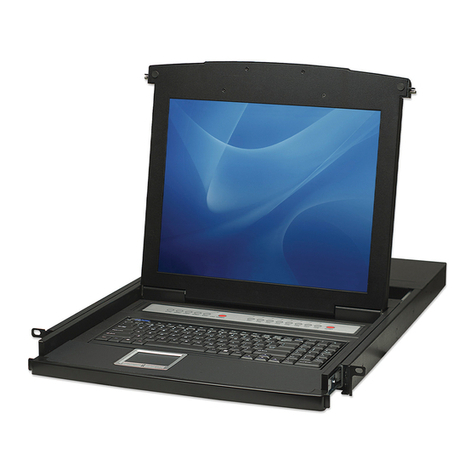
StarTech.com RACKCOND17HD User manual

Manual Revision: 02/09/2015
For the most up-to-date information, please visit: www.startech.com
DE: Bedienungsanleitung - de.startech.com
FR: Guide de l'utilisateur - fr.startech.com
ES: Guía del usuario - es.startech.com
IT: Guida per l'uso - it.startech.com
NL: Gebruiksaanwijzing - nl.startech.com
PT: Guia do usuário - pt.startech.com
RACKCOND17HD
RKCOND17HDxx
1U 17in 1080p Dual Rail LCD Rack Console
with Front USB Hub
*actual product may vary from photos

Instruction Manual
FCC Compliance Statement
This equipment has been tested and found to comply with the limits for a Class B digital
device, pursuant to part 15 of the FCC Rules. These limits are designed to provide reasonable
protection against harmful interference in a residential installation.This equipment generates,
uses and can radiate radio frequency energy and, if not installed and used in accordance with
the instructions, may cause harmful interference to radio communications. However, there
is no guarantee that interference will not occur in a particular installation. If this equipment
does cause harmful interference to radio or television reception, which can be determined by
turning the equipment o and on, the user is encouraged to try to correct the interference by
one or more of the following measures:
• Reorient or relocate the receiving antenna.
• Increase the separation between the equipment and receiver.
• Connect the equipment into an outlet on a circuit dierent from that to which the receiver
is connected.
• Consult the dealer or an experienced radio/TV technician for help.
Use of Trademarks, Registered Trademarks, and other Protected Names and Symbols
This manual may make reference to trademarks, registered trademarks, and other
protected names and/or symbols of third-party companies not related in any way to
StarTech.com. Where they occur these references are for illustrative purposes only and do not
represent an endorsement of a product or service by StarTech.com, or an endorsement of the
product(s) to which this manual applies by the third-party company in question. Regardless
of any direct acknowledgement elsewhere in the body of this document, StarTech.com hereby
acknowledges that all trademarks, registered trademarks, service marks, and other protected
names and/or symbols contained in this manual and related documents are the property of
their respective holders.

Instruction Manual i
Table of Contents
Product Diagram ....................................................................................1
Front View.................................................................................................................................................... 1
Rear View...................................................................................................................................................... 1
Introduction............................................................................................2
Packaging Contents ................................................................................................................................. 2
Front Panel Controls ..............................................................................2
Installation ..............................................................................................3
Rack Installation......................................................................................................................................... 3
PC / Server Connection........................................................................................................................... 5
Connecting to a KVM Switch ................................................................................................................ 5
Operation ................................................................................................5
Dual Rail Slide............................................................................................................................................. 6
Fingerprint Reader.................................................................................................................................... 7
Specications..........................................................................................10
Technical Support ..................................................................................11
Warranty Information............................................................................11

Instruction Manual 1
Product Diagram
Front View
Rear View
Keyboard Tray Handle USB 2.0 Hub Ports Power Switch
Fingerprint
Reader
Menu Buttons
Key Lock
Top Handle
USB 2.0 Hub Ports Power Switch
Hidden Keyboard Tray Handle
Top Handle
USB Hub PC
Connection
PS/2 - USB
Selector Switch
Modular KVM
Dock Port
DC
Jack
PC/KVM
Connections

Instruction Manual 2
Introduction
Packaging Contents
• 1 x Dual Rail Rack Console
• 1 x Set, Mounting Rails
• 2 x USB A to A Cables
• 1 x DVI Cable
• 1 x VGA PS/2 KVM Cable
• 6 x 6mm Flat Screws
• 2 x Keys
• 2 x Blockers w/ screws
• 1 x NA Power Cord
• 1 x Power Adapter
• 1 x Instruction Manual / Software CD
Front Panel Controls
Controls Description
Soft power on/o button. Adjacent LED is lit when on.
Auto Auto-synchronize and scale down display to any valid
factory preset timings.
Up Press to scroll the function you want to adjust.
Down Press to scroll the function you want to adjust.
Menu To access the main menu. This button also acts as
the“Enter”button.
Power Indicator
GREEN
RED
RED
RED
ON
STANDBY
SUSPEND
OFF

Instruction Manual 3
2. Secure the front and rear brackets onto the rack using screws and cage nuts
appropriate to your rack (not included).
Installation
Rack Installation
NOTE: The cabinet depth must be within 22.4 – 34.2” (570 - 870 mm).
1. Adjust rail with rear bracket to t your rack.
3. Repeat steps 1-2 for the other side.

Instruction Manual 4
4. Slide the console into the rails and leave about 5-10cm of space to install the
blockers.
5. Install one of the Blockers onto the back of the console as shown, and use the
included screw to secure it. Repeat on the other side.

Instruction Manual 5
6. Install three of the included 6mm Flat Screws to secure the console to the bracket.
Repeat on the other side to complete the installation.
PC / Server Connection
1. Turn o the PC / Server you are connecting to the console.
2. Using one of the included cable sets, connect the appropriate video (VGA / DVI)
connector to the video output of your PC / Server. Then connect either the PS/2
keyboard/mouse connectors, or use the USB interface.
3. Connect the other end of the cables to the rear of the console.
NOTE: Move the PS/2-USB Selector Switch on the rear of the console to either side
to select your desired interface.
4. Connect the USB Hub connector using one of the included USB A-A cables to the
USB connector on your server / KVM switch to enable the front USB hub ports and
ngerprint reader (optional).
5. Connect the AC to DC power adapter to the power inlet on the console and then to
a power outlet.
Connecting to a KVM Switch
When cascading with a KVM switch, KVM Module can be used to control additional
computers from the console. The connection is exactly the same as is shown above
(see PC / Server Connection section above). The only dierence is the connection
would be made to the“CONSOLE PORT” of the KVM switch instead, of a computer.

Instruction Manual 6
Operation
1. Once all cables are securely connected and all mounting screws are properly
tightened, loosen the thumbscrews on the front of the console.
2. Grasp the Top Handle and pull the console outward and then lift upward to open.
3. Turn the Power Switch on the front of the console to the On position, and power on
the connected Server or KVM switch.
NOTE: There is also a soft Power On/O button located with the menu controls
below the LCD panel. If the display does not turn on automatically, press the power
button.
4. Use the OSD controls to adjust the image as necessary – see the Front Panel
Controls section above for instruction.

Instruction Manual 7
Dual Rail Slide
The dual-rail console design allows the LCD display and keyboard/mouse to slide
independently from the keyboard/touchpad tray.
1. With the console lid open (keyboard tray can be in the rack or pulled out), grab both
sides of the LCD panel at the bottom and pull towards you to slide the LCD forward.
2. You can then disengage the locks on the keyboard tray rails to slide the console
back into the rack if desired, leaving the LCD panel visible.
Other manuals for RACKCOND17HD
2
This manual suits for next models
1
Table of contents
Other StarTech.com KVM Switch manuals