manuals.online logo
Brands
  1. Home
  2. •
  3. Brands
  4. •
  5. Alienware
  6. •
  7. Laptop
  8. •
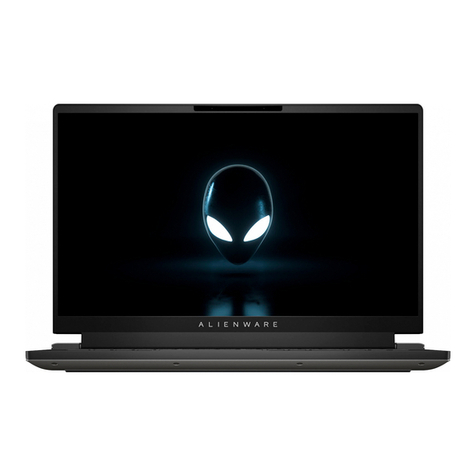
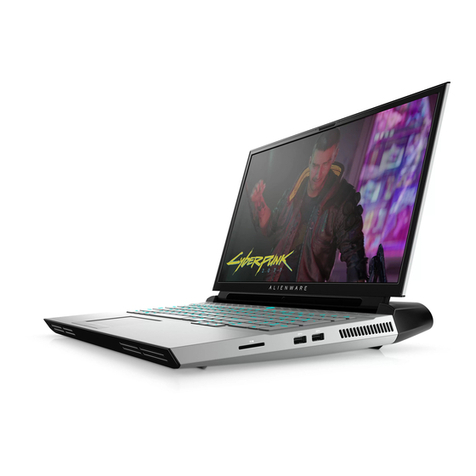
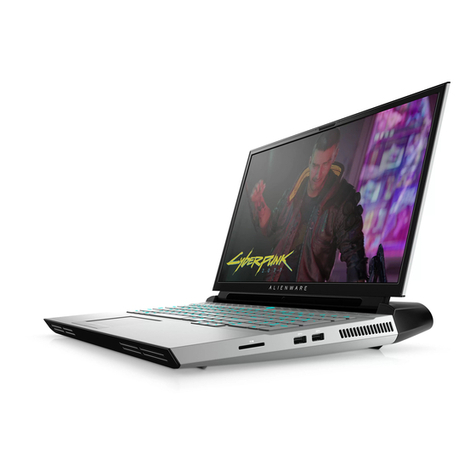
  9. Alienware P81G Operation and maintenance manual

Alienware P81G Operation and maintenance manual

This manual suits for next models

1

Other Alienware Laptop manuals

Alienware M18x R2 User manual

Alienware

Alienware M18x R2 User manual

Alienware Sentia m3400 User manual

Alienware

Alienware Sentia m3400 User manual

Alienware Sentia m3450 User manual

Alienware

Alienware Sentia m3450 User manual

Alienware m15 R7 Operation and maintenance manual

Alienware

Alienware m15 R7 Operation and maintenance manual

Alienware Alienware M17x - GAMING LATTOP User manual

Alienware

Alienware Alienware M17x - GAMING LATTOP User manual

Alienware m15 Ryzen Edition R5 Operation and maintenance manual

Alienware

Alienware m15 Ryzen Edition R5 Operation and maintenance manual

Alienware m17 R5 AMD Operation and maintenance manual

Alienware

Alienware m17 R5 AMD Operation and maintenance manual

Alienware Alienware M18x User manual

Alienware

Alienware Alienware M18x User manual

Alienware ANW15-7493SLV-REFA User manual

Alienware

Alienware ANW15-7493SLV-REFA User manual

Alienware Alienware M17x - GAMING LATTOP User manual

Alienware

Alienware Alienware M17x - GAMING LATTOP User manual

Alienware m15 R7 User manual

Alienware

Alienware m15 R7 User manual

Alienware M14X User manual

Alienware

Alienware M14X User manual

Alienware x15 R1 Operation and maintenance manual

Alienware

Alienware x15 R1 Operation and maintenance manual

Alienware m17 R4 Operation and maintenance manual

Alienware

Alienware m17 R4 Operation and maintenance manual

Alienware Alienware M17x R4 User manual

Alienware

Alienware Alienware M17x R4 User manual

Alienware Area-51m 766 User manual

Alienware

Alienware Area-51m 766 User manual

Alienware Sentia 244 User manual

Alienware

Alienware Sentia 244 User manual

Alienware 15 R4 Operation and maintenance manual

Alienware

Alienware 15 R4 Operation and maintenance manual

Alienware m18 R1 Operation and maintenance manual

Alienware

Alienware m18 R1 Operation and maintenance manual

Alienware Area-51m User manual

Alienware

Alienware Area-51m User manual

Alienware Sentia m3200 User manual

Alienware

Alienware Sentia m3200 User manual

Alienware M15x Core i7 User manual

Alienware

Alienware M15x Core i7 User manual

Alienware Sentia m3200 User manual

Alienware

Alienware Sentia m3200 User manual

Alienware 15 R3 User manual

Alienware

Alienware 15 R3 User manual

Popular Laptop manuals by other brands

EUROCOM ARMADILLO 2 W840AU Service manual

EUROCOM

EUROCOM ARMADILLO 2 W840AU Service manual

HP EliteBook 8570p Maintenance and service guide

HP

HP EliteBook 8570p Maintenance and service guide

Toshiba L300-EZ1522 Specifications

Toshiba

Toshiba L300-EZ1522 Specifications

HP Compaq 6520s Maintenance and service guide

HP

HP Compaq 6520s Maintenance and service guide

Lenovo ThinkPad T530 null

Lenovo

Lenovo ThinkPad T530 null

IBM THINKPAD T41 - Warranty user manual

IBM

IBM THINKPAD T41 - Warranty user manual

Lenovo ThinkPad X1 Carbon user guide

Lenovo

Lenovo ThinkPad X1 Carbon user guide

Lenovo ThinkPad T400s Ghid de service şi depanare

Lenovo

Lenovo ThinkPad T400s Ghid de service şi depanare

Toshiba TE2000 user manual

Toshiba

Toshiba TE2000 user manual

Acer SP514-51N user manual

Acer

Acer SP514-51N user manual

Fujitsu P1620 - LifeBook - Core 2 Duo 1.2 GHz Getting started

Fujitsu

Fujitsu P1620 - LifeBook - Core 2 Duo 1.2 GHz Getting started

IBM ThinkPad 240 Quick reference guide

IBM

IBM ThinkPad 240 Quick reference guide

Dell G3 15 Setup and specifications

Dell

Dell G3 15 Setup and specifications

Clevo D400P Service manual

Clevo

Clevo D400P Service manual

HP EliteBook 840r G4 Maintenance and service guide

HP

HP EliteBook 840r G4 Maintenance and service guide

Clevo NL51CU Service manual

Clevo

Clevo NL51CU Service manual

Dell Inspiron 3700 Get started

Dell

Dell Inspiron 3700 Get started

Toshiba R700-S1320 Specifications

Toshiba

Toshiba R700-S1320 Specifications

manuals.online logo
manuals.online logoBrands
  • About & Mission
  • Contact us
  • Privacy Policy
  • Terms and Conditions

Copyright 2025 Manuals.Online. All Rights Reserved.

Alienware 13 R3
Setup and Specifications
Regulatory Model: P81G
Regulatory Type: P81G001
Notes, cautions, and warnings
NOTE: A NOTE indicates important information that helps you make better use of your product.
CAUTION: A CAUTION indicates either potential damage to hardware or loss of data and tells you how to avoid the
problem.
WARNING: A WARNING indicates a potential for property damage, personal injury, or death.
© 2016-2019 Dell Inc. or its subsidiaries. All rights reserved. Dell, EMC, and other trademarks are trademarks of Dell Inc. or its
subsidiaries. Other trademarks may be trademarks of their respective owners.
2018 - 11
Rev. A03
Contents
1 Set up your computer.............................................................................................................................4
Set up the Virtual Reality (VR) headset—optional.............................................................................................................4
HTC Vive......................................................................................................................................................................... 4
Oculus Rift....................................................................................................................................................................... 4
Oculus Rift with touch.....................................................................................................................................................6
Alienware Graphics Amplifier.............................................................................................................................................. 7
2 Views......................................................................................................................................................8
Base....................................................................................................................................................................................... 8
Display...................................................................................................................................................................................8
Back.......................................................................................................................................................................................9
Left........................................................................................................................................................................................9
Right....................................................................................................................................................................................10
3 Specifications........................................................................................................................................11
Dimensions and weight....................................................................................................................................................... 11
System information.............................................................................................................................................................. 11
Memory................................................................................................................................................................................ 11
Ports and connectors........................................................................................................................................................... 11
Communications..................................................................................................................................................................12
Audio................................................................................................................................................................................... 12
Storage................................................................................................................................................................................ 12
Keyboard.............................................................................................................................................................................12
Camera................................................................................................................................................................................ 12
Touch pad............................................................................................................................................................................13
Battery................................................................................................................................................................................. 13
Video................................................................................................................................................................................... 13
Power adapter.....................................................................................................................................................................13
Display.................................................................................................................................................................................14
Computer environment...................................................................................................................................................... 14
4 Tobii Aware.......................................................................................................................................... 15
Features...............................................................................................................................................................................15
Enabling or disabling Tobii Aware.....................................................................................................................................15
5 Keyboard shortcuts............................................................................................................................. 16
6 Getting help and contacting Alienware..............................................................................................17
3

Set up your computer
Connect the power adapter and press the power button.
Set up the Virtual Reality (VR) headset—optional
NOTE: The VR headset is sold separately.
NOTE: If you are using Alienware Graphics Amplifier with your computer, see Alienware Graphics Amplifier.
HTC Vive
1. Download and run the setup tools for your VR headset at www.dell.com/VRsupport.
2. Connect the HDMI cable of the HTC Vive headset to the back of your computer.
3. Connect the USB cable from the Vive hub to the USB 3.1 Gen 1 port at the right side of your computer.
4. Follow the on-screen instructions to complete the setup.
Oculus Rift
NOTE: The USB dongles are only shipped with computers that are Oculus certified.
1. Download and run the setup tools for your VR headset at www.dell.com/VRsupport.
2. Connect the HDMI cable of the Oculus Rift headset to the back of your computer.
4
3. Connect the Oculus Rift headset to the USB Type-A port at the right side of your computer.
4. Connect the Oculus Rift tracker to the USB Type-A port at the left side of your computer.
5. Connect a USB Type-C to Type-A dongle to the Thunderbolt 3 (USB Type-C) port at the back of your computer.
6. Connect the XBOX controller to the USB Type-A port on the USB dongle.
7. Follow the on-screen instructions to complete the setup.
5
Oculus Rift with touch
NOTE: The USB dongles are only shipped with computers that are Oculus certified.
1. Download and run the setup tools for your VR headset at www.dell.com/VRsupport.
2. Connect the HDMI cable of the Oculus Rift headset to the back of your computer.
3. Connect the Oculus Rift headset to the USB Type-A port at the right side of your computer.
4. Connect a USB Type-C to Type-A dongle to the Thunderbolt 3 (USB Type-C) port on the back of your computer.
5. Connect the Oculus Rift tracker to the USB Type-A port at the left side of your computer.
6. Connect a USB Type-C to Type-A dongle to the USB 3.1 Gen 2 (Type-C) port at the right side of your computer.
6
7. Connect the XBOX controller to the USB Type-A port on the USB dongle.
8. Connect the Oculus Rift tracker for Touch to the USB Type-A port on the dongle.
9. Follow the on-screen instructions to complete the setup.
Alienware Graphics Amplifier
Alienware Graphics Amplifier enables you to connect an external graphics card to your computer.
When using the Virtual Reality (VR) headset, connect the HDMI cable to the graphics card installed on your Alienware Graphics
Amplifier. The USB cables from the VR headset can be connected either to your computer or your Alienware Graphics Amplifier.
NOTE: The USB dongle is not required, if you are connecting the USB 3.0 cables on your VR headset to the USB 3.0 Type-
A port on your Alienware Graphics Amplifier.
For more information about Alienware Graphics Amplifier, see Alienware Graphics Amplifier User’s Guide at http://www.dell.com/
support.
7
Views
Base
1. Power button (Alienhead)
Press to turn on the computer if it is turned off, in sleep state, or in hibernate state.
Press to put the computer in sleep state if it is turned on.
Press and hold for 4 seconds to force shut-down the computer.
NOTE: You can customize the power-button behavior in Power Options.
Display
1. Left microphone
Provides digital sound input for audio recording and voice calls.
8
2. Infrared emitter
Emits infrared light, which enables the infrared camera to sense depth and track motion.
NOTE: The infrared emitter blinks to detect the user’s presence. To stop the emitter from blinking, turn off the Tobii
Aware. For more information about the Tobii Aware, see Tobii Aware.
3. Infrared camera
Enhances security when paired with Windows Hello face authentication.
4. Camera
Enables you to video chat, capture photos, and record videos.
5. Camera-status light
Turns on when the camera is in use.
6. Right microphone
Provides digital sound input for audio recording and voice calls.
7. Service Tag label
The Service Tag is a unique alphanumeric identifier that enables Dell service technicians to identify the hardware components in
your computer and access warranty information.
Back
1. Network port (with lights)
Connect an Ethernet (RJ45) cable from a router or a broadband modem for network or Internet access.
The two lights next to the connector indicate the connectivity status and network activity.
2. Mini DisplayPort
Connect to a TV or another DisplayPort-in enabled device. Provides video and audio output.
3. HDMI port
Connect to a TV or another HDMI-in enabled device. Provides video and audio output.
4. Thunderbolt 3 (USB Type-C) port
Supports USB 3.1 Gen 2, DisplayPort 1.2, Thunderbolt 3 and also enables you to connect to an external display using a display
adapter.
Provides data transfer rates up to 10 Gbps for USB 3.1 Gen 2 and up to 40 Gbps for Thunderbolt 3.
NOTE: A USB Type-C to DisplayPort adapter (sold separately) is required to connect a DisplayPort device.
5. External graphics port
Connect an Alienware Graphics Amplifier to enhance the graphics performance.
6. Power-adapter port
Connect a power adapter to provide power to your computer and charge the battery.
Left
9
1. Security-cable slot (for Noble locks)
Connect a security cable to prevent unauthorized movement of your computer.
2. USB 3.0 port with PowerShare
Connect peripherals such as external storage devices and printers.
Provides data transfer speeds up to 5 Gbps. PowerShare enables you to charge your USB devices even when your computer is
turned off.
NOTE: If the charge on your computer’s battery is less than 10 percent, you must connect the power adapter to charge
your computer, and USB devices connected to the PowerShare port.
NOTE: If a USB device is connected to the PowerShare port before the computer is turned off or in hibernate state, you
must disconnect and connect it again to enable charging.
3. Microphone/headphone port (configurable)
Connect an external microphone for sound input or headphones for sound output.
4. Headset port
Connect headphones or a headset (headphone and microphone combo).
Right
1. USB 3.0 (Type-C) port
Connect peripherals such as external storage devices and printers.
Provides data transfer speeds up to 5 Gbps. Supports Power Delivery that enables two-way power supply between devices.
Provides up to 15 W power output that enables faster charging.
2. USB 3.1 Gen 1 port
Connect peripherals such as external storage devices and printers. Provides data transfer speeds up to 5 Gbps.
10