manuals.online logo
Brands
  1. Home
  2. •
  3. Brands
  4. •
  5. ALTOmobile
  6. •
  7. Stereo Equalizer
  8. •
  9. ALTOmobile CONTROL 16 User manual

ALTOmobile CONTROL 16 User manual

Popular Stereo Equalizer manuals by other brands

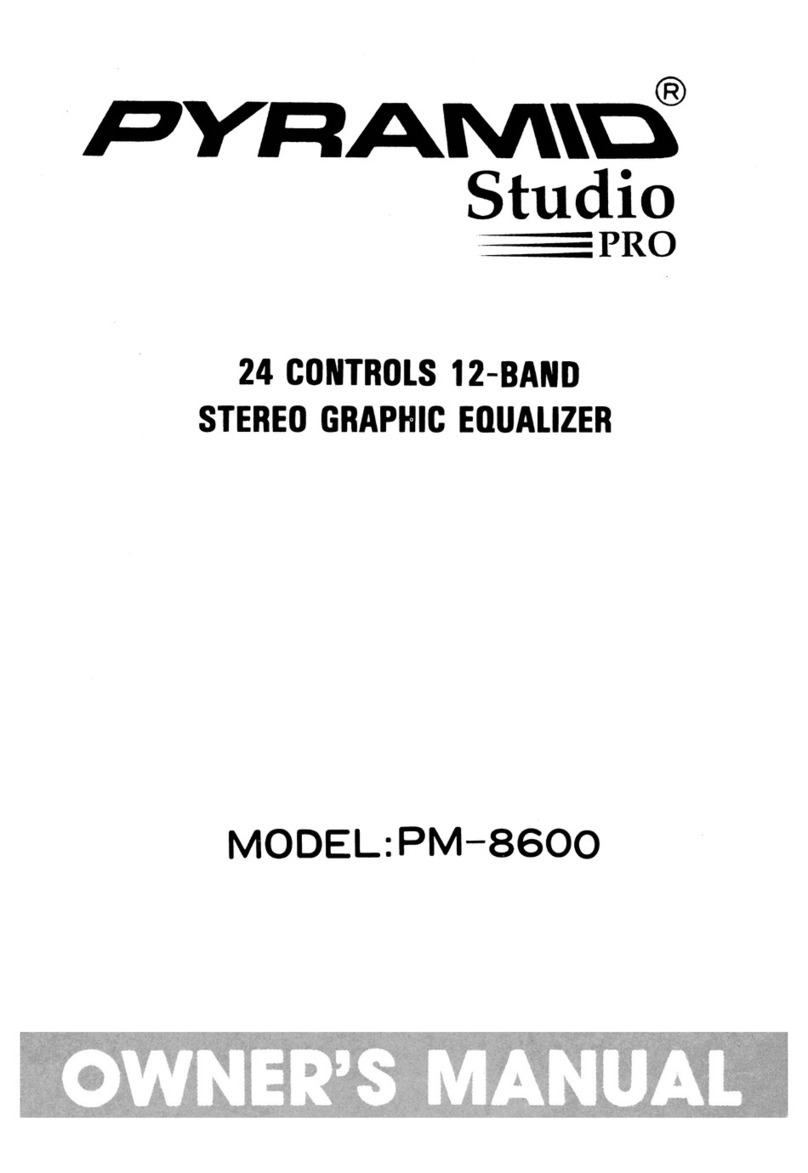
Pyramid PM8600 owner's manual

Pyramid

Pyramid PM8600 owner's manual

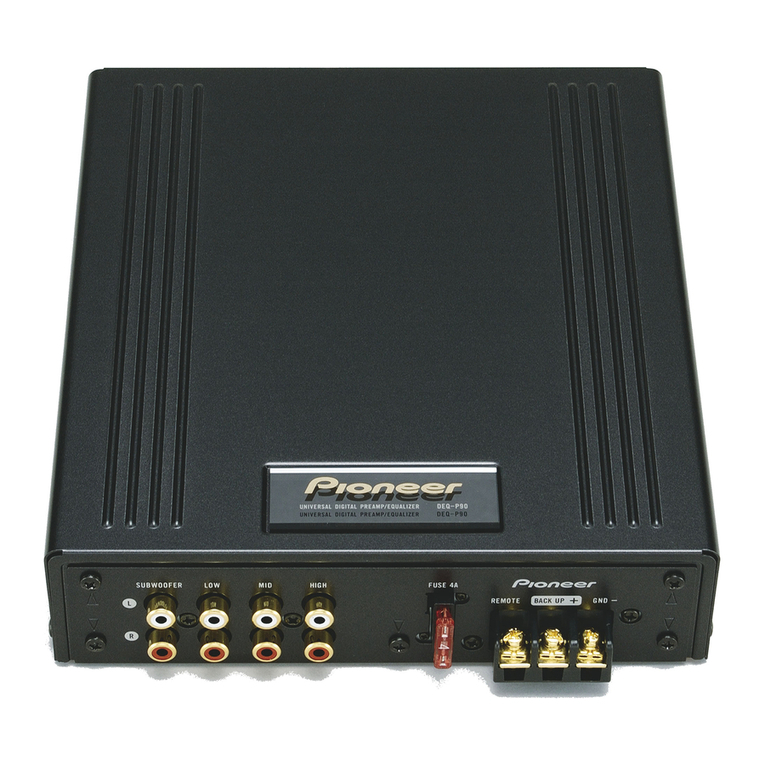
Pioneer DEQ-P90 owner's manual

Pioneer

Pioneer DEQ-P90 owner's manual

Roland E-660 owner's manual

Roland

Roland E-660 owner's manual

elysia mpressor manual

elysia

elysia mpressor manual

Free The Tone PA-1QG quick start guide

Free The Tone

Free The Tone PA-1QG quick start guide

Kenwood KRC-999II instruction manual

Kenwood

Kenwood KRC-999II instruction manual

AudioBahn AEX250X operating instructions

AudioBahn

AudioBahn AEX250X operating instructions

Onkyo EQ-08 Service manual

Onkyo

Onkyo EQ-08 Service manual

Samson D3500 owner's manual

Samson

Samson D3500 owner's manual

Me WM8 installation instructions

Me

Me WM8 installation instructions

Rob Papen RP-EQ user guide

Rob Papen

Rob Papen RP-EQ user guide

Kenwood GE-4030 instruction manual

Kenwood

Kenwood GE-4030 instruction manual

Rane RE 27 Operating and service manual

Rane

Rane RE 27 Operating and service manual

SPL SX2 owner's manual

SPL

SPL SX2 owner's manual

Rane MQ 302S Operator's manual

Rane

Rane MQ 302S Operator's manual

Aphex 9901 operating guide

Aphex

Aphex 9901 operating guide

Behringer Ultragraph Pro FBQ6200 Technical specifications

Behringer

Behringer Ultragraph Pro FBQ6200 Technical specifications

Black Rooster Audio VEQ-5 OVERVIEW & INSTRUCTIONS

Black Rooster Audio

Black Rooster Audio VEQ-5 OVERVIEW & INSTRUCTIONS

manuals.online logo
manuals.online logoBrands
  • About & Mission
  • Contact us
  • Privacy Policy
  • Terms and Conditions

Copyright 2025 Manuals.Online. All Rights Reserved.

LTO
LTO
TM
CONTROL 16
User's Manual
Version 1.5
---English---
LTO
LTO
TM
Safety Instructions
All safety and operating instructions should be read before the equipment is installed and operated. We recommend that
installation be carried out by an authorised mobile electronics installation company. Please contact your local ALTO
Mobile distributor for a list of authorised installers in your country.
TM
To reduce the risk of electric shock and potentially damaging the equipment, do not disassemble the product. No user
serviceable parts inside; refer servicing to qualified personnel.
The equipment should be protected from moisture and rain, especially if mounted in the vehicle's trunk area or any
location that may be susceptible to water ingress.
The equipment should be situated so that its location or position does not interfere with its proper ventilation. For example,
the product should not be situated under carpeting or in a totally sealed enclosure.
Trunk-mounted equipment/amp racks should be well ventilated, using forced air cooling fans if necessary.
The equipment should be situated away from heat sources such as engine exhaust systems and radiators.
This product is designed for vehicles with a 12 VOLT NEGATIVE GROUND electrical circuit. This product must not be
used in vehicles that use a 24 Volt supply or a positive ground electrical circuit.
Great care must be taken when wiring the product to the vehicle's electrical system. Unless you are fully familiar and
in wiring automotive electrical systems, installation should only be undertaken by a qualified automotive electrician.trained
LTO
LTO
TM
Dear Customer,
Thank you for choosing the ALTO Mobile CONTROL16 2 16 band digital graphic/parametric equalizer. We hope you'll
TM
love the results you get from your new digital sound processor and enjoy using it as much as we enjoyed developing it.
The CONTROL16 is the result of considerable development work in our R&D centres in Europe and the Far East and is
a close cousin of ALTO's professional audio products. We've been designing products for musicians and recording studios
for many years - the product you now have in your hands has a fine pedigree.
The core of our digital audio products is a sophisticated DSP (Digital Signal Processor) coupled with state-of-the-art
algorithms developed by our software team over the last 7 years.
The car audio environment is worlds away from the controlled listening area of the recording studio, and yet much of the
sound processing so important to recording engineers can be applied with spectacular success to the automotive
environment. ALTO Mobile is a specialist division of audio and computer software engineers, but above all we're car
TM
audio enthusiasts. We love the challenge of trying to reproduce studio quality sound inside a moving vehicle.
We're convinced you are an important member of our team and we listen to what you say and take on board your
suggestions. It's this feedback that helps us create the products you want. Thank you.
ALTO MOBILE TEAM
TM
Block Diagram: CONTROL16
Preface
16 PEQ High Pass Delay Volume Output L
Input L
16 PEQ High Pass Delay Volume Output R
Input R
LTO
LTO
TM
Introduction
In purchasing the CONTROL16, you purchased a very powerful digital sound processor. Some knowledge is required in
order to achieve the best results, but setting the system parameters is easy since it's just a case of stepping through a
series of menus and selecting the desired values.
Once it's all correctly installed, you'll be eager to play with your new buy. If the product has been installed for you there's
nothing stopping you, so go ahead - just read the following warning first and remember to come back and read the rest
of this manual.
Important Warning Substantially boosting the level of frequencies may stress your speakers.
Keep the volume level down until you are familiar with the unit.
If you've purchased the product but haven't had it installed in your vehicle, that's obviously the first thing you'll need to do.
We strongly recommend that you have the unit professionally installed by a specialist company authorised by the ALTO
Mobile distributor in your country. The installation instructions in this manual are for guidance only and are not intended
TM
to be a thorough explanation of all the steps involved in correctly fitting this unit. The instructions assume that the person
installing the equipment has been trained to carry out such work.
Once you've had a quick play with it you'll have some idea of what the CONTROL16 can do, but it's worth taking time to
understand the menu system and all the parameters that are available for you to adjust. The unit is a very sophisticated
digital graphic/parametric equalizer, but actually it can do even more than that. Once you've worked on setting the sound
the way you like it, you can store it in one of the 48 user preset locations. These can be quickly recalled from the panel
buttons or by using the optional remote control.
LTO
LTO
TM
User Interface
Input Gain Controls: Use these controls to match the pre-amp output level from your car audio source unit.
Set the input level so that the SIGNAL LED (next to the input sockets) lights occasionally on musical peaks.
Control16 MAX Input level: 15 V
Output Gain Controls: Use these controls to match the optimum pre-amp input level of your amplifier or active crossover.
Control16 MAX Output level (DSP@ 0 dB): 9.5 V
Input / Output Gain Setting: Proper setting of the input and output levels is important in achieving the best signal-to-noise
ratio. Use of test tones and an oscilloscope will greatly assist in setting the optimum gain levels. For this reason, system
setup is best left to a professional car audio installer.
However, if you need to get up and running without professional help, follow these steps and you won't go far wrong.
LTO
LTO
TM
User Interface
Select Preset 01 (FLAT).
Set the ALTO's Output Gains to their 12 o'clock positions.
Turn the Input Gain controls fully counter-clockwise (minimum gain).
Turn the volume control on your CD player to about 75%.
Turn your amplifier input gains to a low setting (say 25%).
Now play some music and increase the ALTO's Input Gains until you see the red CLIP LED next to the input terminals
begin to flash occasionally on musical peaks. This will in most cases be the optimum setting for the input gains. Note that
setting the volume control of your CD player at 75% rather than maximum is done to ensure that the signal output from
the player is pure and undistorted.
Pause the music. Now set the ALTO's Output Gains to about their 3 o'clock position (i.e. 75% of maximum) and set your
amplifier input gains to their Minimum Gain position (i.e. where the amp gives its lowest output level). Note that the
maximum output level from the ALTO processor exceeds 9 volts.
Play some music and gradually increase your amplifier's gain controls until you reach your preferred maximum listening
level, or where you begin to hear any stress from the speakers. If the music sounds distorted with the amp gains at
minimum, reduce the Output Gains on the ALTO unit.
Up/Down Keys: Use these to select the required Parameter Group and the specific parameter that you wish to adjust.
The group or individual parameter is shown in the LCD display. CONTROL16 uses a multi-level menu system. You move
down through the menu - from parameter group to each specific parameter you want to adjust - by pressing . OnlyENTER
after pressing the key are changes made.ENTER
Enter Key: UP/DOWNWhile searching using the keys, the currently selected program does not change.
Choose a Parameter Group using the keys. Now press the key. This action moves you one level lowerUP/DOWN ENTER
in the menu system. Use the keys again to choose a specific parameter to adjust.UP/DOWN
Press again. Now make your changes using the keys. When you are happy with your changes, pressENTER UP/DOWN
ENTER once more. The new settings will now be applied and should be audible.
Escape (ESC) Key: Use this key to move back up the menu system without making any changes to the current settings.

LTO
LTO
TM
Parameter Menus
Setting the various parameters of the CONTROL16 is achieved with the help of a menu system. While this may be
unfamiliar at first, it should soon become intuitive and easy to find your way around.
After power-up, the display will show the VU-meter data for the left and right input channels and the number of the currently
active preset. Pressing will put the device into edit mode. Pressing the key at stage will return you toENTER ESC this
the power-up screen display.
The menu functions are multi-layered, as shown in the following diagrams:
Select Channel
Setup Equalizer Gain / 15dB step 0.5dB
Left, Right, L R
PEQ 01
PEQ 02
Frequency
Band Width
20Hz-20KHz step 1/2oct
0.05-3oct step 0.05oct
Gain / 15dB step 0.5dB
Frequency
Band Width
20Hz-20KHz step 1/2oct
0.05-3oct step 0.05oct
LTO
LTO
TM
Parameter Menus
Frequency
Band Width
20Hz-20KHz step 1/2oct
0.05-3oct step 0.05oct
Setup High Pass 20Hz-20KHz step 1/2oct
Frequency
Slope Bypass, 1 ord, 2 ord
Output Volume / 12dB step 0.5dB
Setup Delay 0, ..., 99 ms step 1 ms
Adjuist
Fine 0, ..., 978 us step 21us
PEQ 16 Gain / 15dB step 0.5dB
LTO
LTO
TM
Parameter Menus
Load Preset 1, ..., 16, 17, ... 64 Preset
Store Preset 17, ... 64 User Preset
Name editing
Equalizer Flat All filter 0dB
Bypass System Bypass
View Eq filter View all filter
Select Channel
Before editing a parameter, the channel must first be selected using the menu function. You can selectSelect Channel
the right channel, left channel or both. If you select L R then the changes you make will be applied equally to both
channels.
LTO
LTO
TM
Parameter Menus
Setup Equalizer
From here you can select each of the 16 filters. Remember that there are a total of 32 filters (16 per channel) and the
channel setting you choose above dictates whether your changes are applied to just one channel or to both.
Once you have selected a Filter, you can then adjust Gain (cut/boost), Frequency (the centre frequency of the filter), and
Band Width (the extent to which frequencies around the centre frequency will also be adjusted).
Setup High Pass
From here you can set the crossover point (Frequency) and Slope of the built-in High-Pass filter. It's useful for limiting
the amount of bass sent to full-range loudspeakers - this improves power handling and midrange clarity.
The High Pass filter setting is not automatically stored - you need to store it as part of an individual custom preset. Be
careful not to damage your speakers when you switch to a preset that does not use the High Pass filter.
Setup Delay
This allows a tiny amount of delay to be set on each channel. The amount of delay is usually calculated from physical
measurements of the distances between the various speakers and the driver's ears. The delay compensates for the
difference in speaker mounting positions and is generally known as "time alignment".
When applied correctly to all speakers in the system, the result is an improvement in the apparent stage position, height,
depth and the location and focus of the performers on the imaginary stage (usually across the dashboard).
More information is available via our web site.
Output Volume
The Output Volume set here can be stored as one of the custom preset parameters. Heavy equalization can cause
considerable variation in output level when switching from one preset to the next. This allows you to set the same overall
level while maintaining very different tonal contours.
Can also be used as a master gain control. For example, for safety you may want to limit the maximum output level set
by the panel-mounted rotary gain controls.