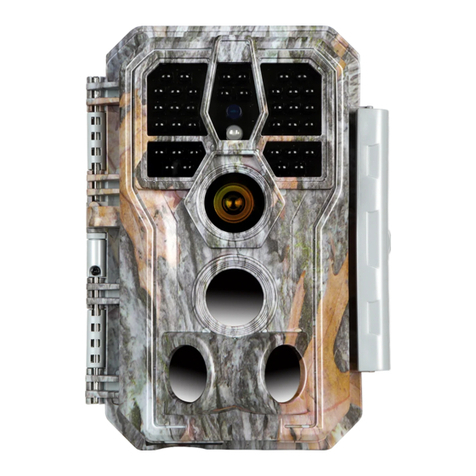
Camera Bullet 6S User manual

QUICK GUIDE
ORIGINALITY DESIGN SMART AND BEAUTIFUL
Bullet 6S

What's in the box
Consult the checklist below for all components.
1
Bullet 6S
Manual
Power adapter
Screw package
Screwdriver

Description
2
Status light
Microphone
Speaker
Reset
SD card slot
Power
Status light
DC12V±10%
Solid red light on: the camera is turning on or malfunctional
Blinking red light: awaiting WiFi connection
Solid blue light on: the camera runs correctly
Blinking blue light: currently connecting
Capture sound for your video
Support local SD Card storage (Max.128G)
Press and hold for 5 seconds to reset the camera (if you have
modified settings, they will return to factory defaults)
Microphone
SD card slot
Reset

Install
3
1 Fix the Camera to the wall with screws
2 Adjust camera angle to a correct view(as shown in the picture)
After ajusting your camera angle,
please lock this screw

4
Set up router
The router supports the 2.4GHz WiFi (doesn't support the 5GHz), and is
connected to the WiFi network.Please set the parameters of the router
before connecting the WiFi network, and record the SSID and password
of your WiFi.
Please keep network available
2.4GHz 5GHz
Connect
Download
SmartLife is available for both iOS and Android OS. Search the name 'Smart
Life', in App Store or Google Play, or scan the QR-Code to download the App.
ipad AndroidIOS
·Support
Download App(IOS&android)

5
Registration process
Step 1 Open the Smart Life App, click "Register", read the "Privacy Policy"
and click "Agree" .
Step 2
Input a legal and valid Mobile number or Email address and click
"Continue". Input Verification Code, then log in the app.
Connect

6
QR Code Configuration
Open the Smart Life App, click "Create family", and you can customize
the Family name and related settings .
1
Continue to click "Security & Sensor" >> "Smart Camera",and then
choose"Add Device" or "+",ready to add camera.
2

7
QR Code Configuration
In "Add Device" this interface,continue to click "next step",and then you
should input your WiFi's passwords.
3
Note:
1) Camera only supports 2.4GHz WiFi network.
2) The number of bits in the ssid and passwords of the router
should not exceed 24 digits.

8
QR Code Configuration
In this interface,you should scan the QR code in your phone with the
camera,when the camera comes out "dong dong dong". And you can
complete the configuration about 30s.
4

9
QR Code Configuration
When connecting,you should make sure your router,mobile,and camera
are as close as possible.When camera added successffully,click " "
you could also DIY the camera's name.
5
Other Camera Digital Camera manuals