Core CLC14364 User manual

CORE
INNOVATIONSTM
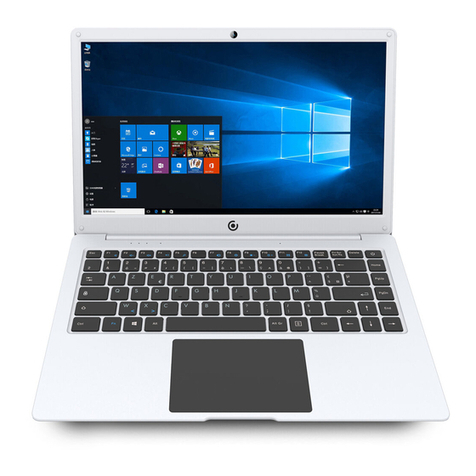
14.1” Laptop with Windows™ 10 S
CLC14364
User Manual

2
1. This laptop works best in non-tropical areas below 6560 feet (2000
meters).
2. Protect your device from impact from bumps and falls.
3. Do not use this device for extended periods of time in environments that
are either too cold, too hot, too humid or too dusty. Do not expose the
device to direct sunlight.
4. Avoid using this device in strong magnetic and static environments as
much as possible.
5. If the device comes into contact with water or any other liquid, power
it o immediately and wait for it to dry completely before turning it on
again.
6. Do not clean the device with any cleaning products containing
chemicals, to avoid damage caused by corrosion and dampness. When
cleaning is necessary, use a dry, soft cloth.
7. The company shall not be held responsible for the loss or deletion of
material inside the device caused by abnormal software and hardware
operation, maintenance or any other accidents.
8. Please regularly back up important data and les to avoid loss.
9. Please do not disassemble the device by yourself; doing so will void the
warranty.
Read Before Use

3
Unit at a Glance
1. Power Button: Turn your device on or o. Use to set your device to
Sleep or to wake it from Sleep.
2. Front Camera: Take photos and videos.
3. Touchpad: Use the touchpad to move your cursor.
2
6
6
1
4
3
14
11
12
13
14
79
8
10
FRONT TOP
BOTTOM
LEFT RIGHT
5

4
4. Keyboard: Use the keyboard for typing.
5. Indicators:
1 - The rst light from the left indicates that the Power is on.
2 - The middle light indicates that Caps Lock is on.
3 - The third is the Num Lock indicator. When this light is on, you may
use the secondary keys on your keyboard.
6. Microphone: Transmits audio signals.
7. Charging Indicator: Red light illuminates when connected to a power
adapter.
8. Charging Port: 12V/2A charger.
9. USB Input: Connect external USB devices.
10. Mini-HDMI®Output: Connect your laptop to a monitor, TV or
other HDMI®-enabled device.
11. USB Input: Connect external USB devices.
12. Headphone Jack: Transmit audio signals to speakers or headphones.
13. Micro SD Card Slot: Built-in memory card reader slot that supports
Micro SD format up to 64GB.
14. Speakers: Built-in 2x1W speakers allow you to playback sound without
connecting external devices.
Unit at a Glance (Continued)
Fully charge your laptop for at least six hours before initial use. Use the
included wall charger. The battery indicator will conrm that your device is
charging.
Turn your laptop on by pressing and holding the power key for two seconds.
Once the screen is loaded, connect to your Wi-Fi®network. To wake the
screen from sleep, press the power key and the lock screen should appear.
Next, press the upwards arrow key () and log in. Sign in if your laptop
requires a password to log in.
Getting Started
Use your information to create a user account. You can use this
account to create, modify or remove other accounts on this
device.

5
Windows™ 10 S Start Menu
You will see many applications xed on the Start menu. These apps are
displayed in the form of magnets, allowing you to easily visit programs at the
click of a button. You will need to log in to your Microsoft™ account before
the applications can fully run.
Learn more about Windows™ 10 S at:
https://www.microsoft.com/en-us/windows/s-mode
Interface Introduction

6
Microsoft™-Veried Security
With Windows™ 10 in S mode, your favorite applications, such as Oce,
Evernote and Spotify are available from the Microsoft™ Store where they’re
Microsoft™-veried for security. Feel secure when you’re online. Microsoft
Edge™, your default browser, gives you more protection against phishing
and socially-engineered malware than Chrome or Firefox.
Switching out of S Mode
Windows™ 10 in S mode is designed for security and performance,
exclusively running apps from the Microsoft™ Store. If you want to install an
app that isn’t available in the Microsoft™ Store, you’ll need to switch out of
S mode.
Note: Switching out of S mode is one-way. If you make the switch, you won’t
be able to go back to Windows™ 10 in S mode. You may switch back only if
a software upgrade is made available. We recommend that you back up all
your les onto an external hard drive before switching OS. Switching out of S
mode is free of charge.
To switch out of S Mode, follow these steps:
1. Make sure you are logged into the Microsoft™ Store.
Windows™ 10 in S Mode

7
2. In the Microsoft™ Store, search for “Switch out of S Mode.”
3. Click on the Get button. Once the software has downloaded, click on the
Install button and follow the onscreen instructions to complete the setup.
Windows™ 10 in S Mode (Continued)

8
In addition to the applications already xed on the Start Menu, all other apps
can be accessed from your laptop’s homepage. To add multiple apps to the
Start Menu:
1. Right click on the app icon you wish to pin to the Start Menu
2. Select Pin to Start
Conversely, if you want to remove an app from the Start Menu:
1. Right click on the app icon
2. Select Unpin from Start
Applications Introduction

9
The Menu bar is located within your Windows™ Start Menu, found at the
bottom of your screen.
Menu Bar
You can download more apps from the Microsoft™ Store found on
the Windows™ Start Menu.
Note: You need a Microsoft™ account to be able to download apps. You can
create an account by logging on to https://account.microsoft.com/account
Once you’ve created an account, go to the Microsoft™ Store app on
your laptop and sign in by clicking the icon.
Downloading Apps
PC: Allows you to set up, lock and
sign out
Documents: Opens the Documents
folder in your laptop
Pictures: Opens the Pictures folder
in your laptop
Settings: Setup and customize your
device
Power: Sleep, shutdown or restart
your device

10
You can see notications on the Action Center.
The Search Bar can be found in your Start Menu. Use it to nd documents
or les stored in your device. You can also use the Search Bar to search for
anything on the Web when an Internet connection has been setup.
Search
Table of contents
Other Core Laptop manuals