After the Mini-Movie has been captured,
it is played back in a continuous loop
on the screen until it is either saved
or discarded.
Mini-Movies are automatically named with the
date and time. A custom name can be entered via
Graffiti before saving the Mini-Movie. The name
can also be changed later in View Mode or in the
Image Info screen.
Tap here to select the category into which the
Mini-Movie will be saved.
Tap or press the Up button to save
the Mini-Movie and return to the live preview.
Tap or press the Down button to discard
the Mini-Movie.
Note: Only a color Handspring handheld will capture
color Mini-Movies. B&W Visor handhelds can only
capture B&W Mini-Movies.
www.eyemodule.com 9
eyemodule2 user guide
8
capturing mini-movies
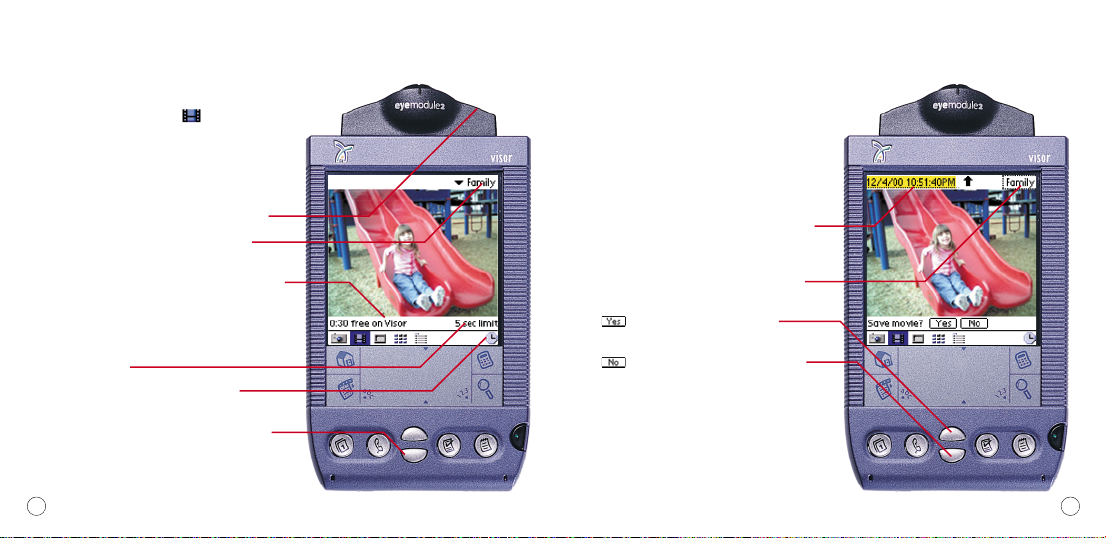
In Movie Capture Mode ( ), you
can record short movies on your Visor
handheld. You can then view them in
View Mode or bring them to your computer
as QuickTime™ movies.
Press the capture button to start and stop filming.
Tap here to select the category into which the
Mini-Movie will be saved.
The current maximum Mini-Movie length is indicated
here, based on the remaining memory.
The five second limit can be removed by tapping the
Visor Menu icon, selecting “Preferences” from the
Options menu, and then unchecking the “Limit Filming
to 5 seconds”option.
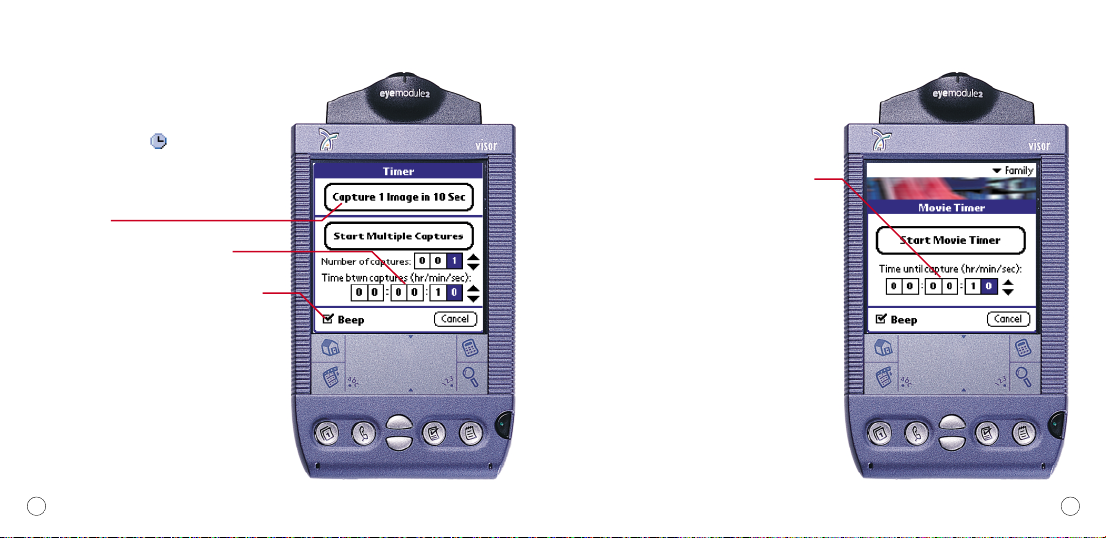
Tap here to set the Capture Timer (page 11).
Alternatively, you can start and stop filming by
pressing the Up button. Pressing the Down button
cancels filming.
Note: Mini-Movie capture consumes a lot of memory.
Keep your movies short to save memory space.
472.0009_manual_v3.1.qxd 1/31/01 4:15 PM Page 8