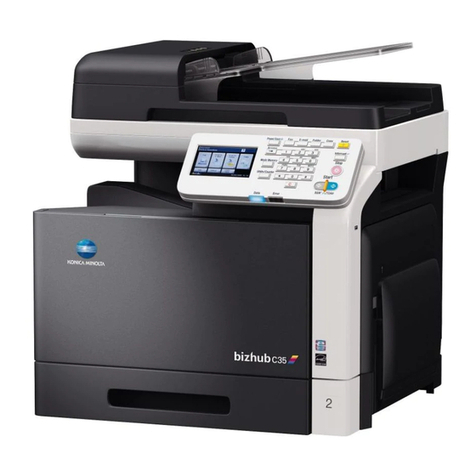
Formax FD 2052IL AutoSeal System User manual

FD 2052IL AutoSeal® System
OPERATOR MANUAL
FIRST EDITION
12/2007


TABLE OF CONTENTS
DESCRIPTION 1
SPECIFICATIONS 1
UNPACKING 1
SETUP 2
Alignment Base Setup 2
Sealer Setup 2-3
Printer Setup 4
Alignment Stoppers 5
CONTROL PANEL 6
OPERATION 7-8
Offline Print Test 8
Normal Operating Conditions 8
Setting Custom Folds 9
TROUBLESHOOTING 10-12
TEST SHEET 13
OPTIONAL CONVEYOR INSTALLATION 14


DESCRIPTION
FUNCTION
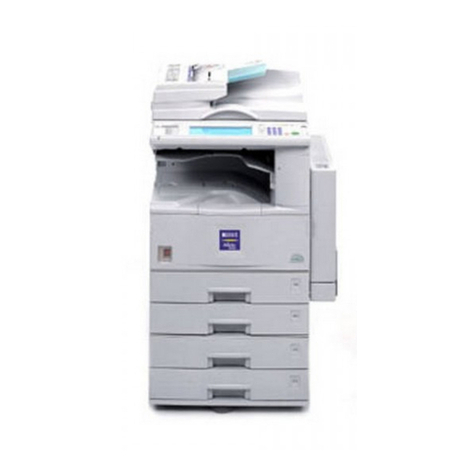
With the Formax FD 2052IL AutoSeal System operators can print, fold and seal all in one streamlined process.
One-piece pressure sensitive forms are loaded into an existing laser printer where they’re printed and fed directly
into the IL Pressure Sealer where they’re folded, sealed and output as a mail-ready piece.
1
SPECIFICATIONS
** Dimensions include IL Pressure Sealer and IL Alignment Base.
FD 2052IL System
IL Pressure Sealer
Printer alignment base
Printer (not included in IL System)
Optional 18” conveyor
Printer Compatibility: HP & Troy 4200, only with two 500-sheet trays
HP & Troy 4250, only with two 500-sheet trays
HP & Troy 4350, only with two 500-sheet trays
Consult your Formax dealer for an updated list of additional
FD 2052IL compatible laser printers.
Speed: Printer dependent
Paper Size: Up to 8.5” x 14”
Duty Cycle: Up to 175,000 pieces per month
Power Requirements: FD Model: 120 Volts AC, 50/60 Hz
FE Model: 220 Volts AC, 50/60 Hz
Dimensions (closed) **: 17” W x 43.5” L x 16” H
Dimensions w/18” Conveyor (closed): 17” W x 58.5” L x 16” H
Tabletop Area Required: 19” W x 49” L
Tabletop Area Required
w/18” Conveyor:
19” W x 64” L
Dimensions with Cabinets and
18” Conveyor:
17” W x 69” L x 45.5” H
UNPACKING
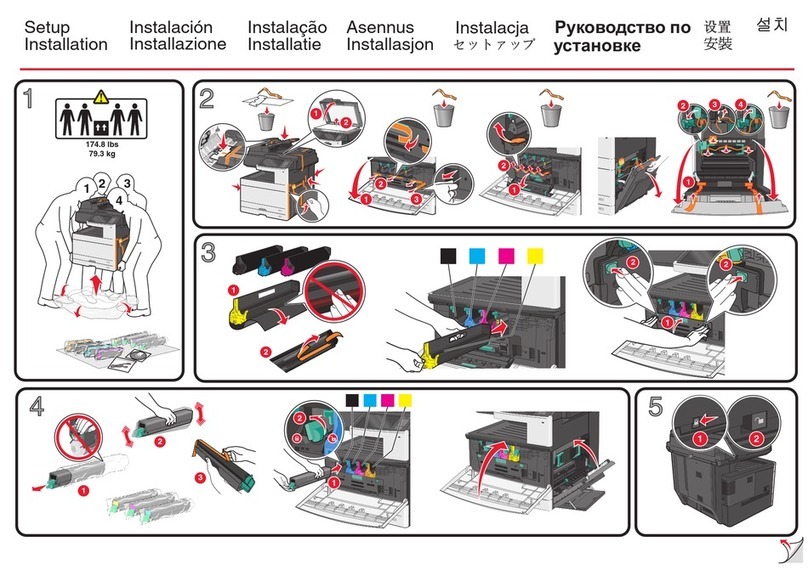
1. Check package for shipping damage. If there is shipping damage do not discard the box.
2. CAUTION: Two people must lift the Pressure Sealer out of the box.
3. Package should contain the IL Pressure Sealer and two piece IL Alignment Base.
Printer outfeed / sealer infeed
Sealer transport deck
Lower printer feed tray
Upper printer feed tray
Printer power switch
Sealer alignment base
Paper length toggle switch
Lower fold plate
Upper fold plate
Sealer power switch

2
SETUP
Fig. 1
Fig. 2
Fig. 3
2. Extend connecting slider and slide into slot on
sealer section of base, lining up the screw holes
wih the holes in the top of the base (Fig. 2). Insert
the leading two screws first, do not tighten down at
this point. Align third screw hole in the slider with
the top cover and insert screw. Tighten all three
screws into place.
1. Align the 2052IL with the pins located on the
alignment base and lower into position. (Fig. 3)
Caution: Two people should lift and lower the
2052IL.
1. Place two parts of alignment base face up.
(Fig. 1).
Alignment Base, Pressure Sealer Section
Alignment Base, Printer Section
Connecting slider
Alignment Base Setup
Sealer Setup

2. Install lower fold plate into pressure sealer.
Match up alignment pins (Fig. 4a) on the pressure
sealer with grooves on the underside of the fold
plate.
3. Plug the cord into the fold plate receptacle (Fig.
4b).
Fig. 4b
Lower fold plate
alignment pins
Lower fold plate
power connector
Fig. 4a
4. Install upper fold plate into pressure sealer.
Match up alignment pins (Fig. 5a) on the pressure
sealer with grooves on the underside of the fold
plate.
Fig. 5a
Upper fold plate
alignment pins
5. Plug the cord into the fold plate receptacle (Fig.
5b).
CAUTION: Do not operate the machine without the
fold plates installed and plugged in.
Fig. 5b
3

Fig. 7
2. Place printer on alignment base. First align
bottom feed tray with the pins on the printer
alignment base and lower into position. Then align
printer with the bottom feed tray pins and lower into
place. (Fig. 7)
1. Remove back door from the printer. Lower door,
depress the side tabs to release and pull the door
out (Fig. 6).
Fig. 6 Side tabs
3. Secure the printer to the bottom feed tray with
the locking mechanism located on the backside of
the printer. (Fig. 8)
Locking mechanism
Fig. 8
Printer Setup
4

5
The alignment base stoppers are used to keep
the printer from making contact with the sealer
infeed. The exit rollers of the printer and the sealer
infeed throat should not come into contact during
operation. There should be a gap of approximately
1/8” between the rollers and the sealer Infeed
throat.
Fig. 9
Locking pins
Alignment base stopper
2. Pull the stopper out from the pressure seal
alignment base until it meets the edge of the
printer alignment base, be sure to maintain the gap
between the printer outfeed and the sealer infeed.
(Fig. 10a & 10b)
Fig. 10a
Fig. 10b
Alignment Stoppers
1. Slide the printer up to the sealer infeed throat so
that there is approximately a 1/8" gap between the
printer out feed and the sealer infeed throat. Using
a 1/8” standard allen wrench, loosen the locking pin
of each alignment base stopper. (Fig. 9)
Fig. 11
3. Using the allen wrench, tighten both locking pins
to hold the stopper into place. Now it’s possible to
slide the printer away from the 2052IL infeed throat
and back into place without having to reset the
position. (Fig. 11)
Repeat with the second stopper.

CONTROL PANEL
Standard Folds Menu:
The Standard Folds Menu consists of three folds; Letter (C-fold), Zig-Zag (Z-fold), and Single (Half fold). By
pressing the green button in the Standard Folds Menu, you can toggle between the fold settings. An indicator
will light up on the fold type selected. These fold types are standard for 11” and 14” forms.
Set the form length by flipping the 11”/14” toggle switch located on the left of the pressure sealer (fig. )
Custom Folds Menu:
To use a custom fold setting press one of the custom fold buttons (1, 2, 3-9). Press the 3-9 button multiple
times to toggle through the 3rd and the 9th custom folds.
7
9
3
5
4
6
8
1
2
1 Standard Fold Menu Press to select standard fold type
2 Fold LED’s Indicates fold type selected
3 Display Screen Displays all current functions
4 Fold Setup Press to automatically set the fold plates
5 Counter Reset Resets counter and resets faults
6 Service Mode Used to perform service diagnostics
7 Custom Fold Selection Push to select custom folds
8 Adjust Tables “-” “+” Adjusts fold plate measurements for programming custom folds
9 Table A / Table B Toggles between top and bottom fold plate when setting custom
folds
6
Table of contents