HP VR BACKPACK Manual

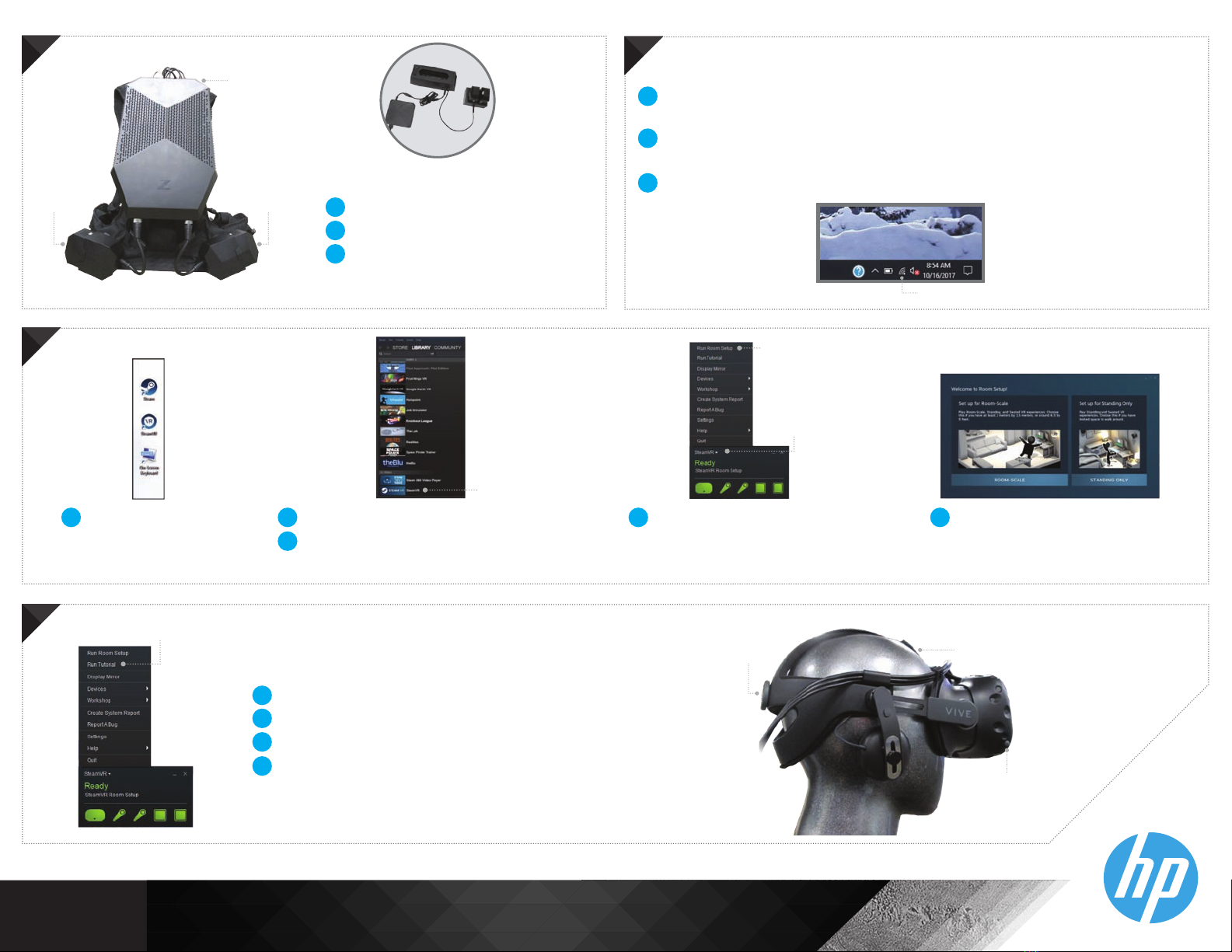
VR BACKPACK SETUP
1
STEP
1
STEP
Clear a space for VR (5ft x 6.5ft)
Screw lighthouses into tripods
(user’s choice)
Tighten mounting screw below
lighthouses
1
2
3
2
STEP
2
STEP
Raise tripods to max height and place at
opposite corners of the VR space with
lighthouses facing each other
Connect AC power adapters and plug-in
lighthouses by making sure one lighthouse
shows channel “b” and the other shows
channel “c”
If necessary, press button on lighthouse to
change channel
1
2
3
Channel
Button
Channel
AC power
3
STEP
3
STEP
Strap
Connect the 3-in-1 cable from headset to top
of backpack and make sure HDMI, USB and
power plugs are fully inserted into their ports
Hold the VIVE headset in a strap with a
magnetic catch on the front of harness
1
2
4
STEP
4
STEP
Connect wireless video
transmitter to top of backpack
Tuck transmitter between
harness and raised mounting
plate
1
2
5
STEP
5
STEP
Connect power adapter and plug in
wireless video receiver
Connect HDMI cable
1
2
7
STEP
7
STEP
If keyboard (with trackpad) or mouse is unresponsive, check on-o switch.
Also, left-click to wake
Connect to your local Wi-Fi network. If not, you will be able to start Steam in
“Oine Mode” when you load it
Refer to VIVE instructions included in packaging or online for VIVE controller
summary
1
2
Wi-Fi Connect
8
STEP
8
STEP
Launch Steam from
the desktop
1
SteamVR
Room
Setup
SteamVR
menu
3
Log-in or create a Steam account
Launch SteamVR from Library -> VR
2Click the SteamVR menu button,
then Run Room Setup
4
9
STEP
9
STEP
Tension
knob
Velcro
strap
IPD
Knob
Tutorial
If desired, select “Run Tutorial” to learn how to interact in VR
Put the VIVE on “eyes-rst”
Adjust Velcro strap and tension knob until comfortable
Adjust Interpupillarydistance with IPD knob for optimal display
position
1
2
3
4
6
STEP
6
STEP
Power
Button
BatteryBattery Insert batteries into holsters
Power on backpack
Charge spare batteries in
charging cradle
1
2
3
Battery
Charger
Select “Room-Scale” and follow
on-screen setup
5
© Copyright 2019 HP Development Company, L.P.
4AA7-4422ENW, January 2019
3
Other HP Speakers manuals
HP
HP GL313AA - USB Speakers PC Multimedia User manual
HP
HP SR7250 User manual
HP
HP S9500 User manual
HP
HP HSA-T001S User manual
HP
HP S9500 Specification sheet
HP
HP GL313AA - USB Speakers PC Multimedia User manual

HP
HP Roar Plus Owner's manual
HP
HP GL313AA - USB Speakers PC Multimedia User manual
HP
HP WN483AA User manual