Ver 1.1 7/15
possible.
6. Lithium ion batteries should not be left to sit in a fully discharged state for any
significant period of time or voltage can drop below the battery protection circuit
shutoff point, rendering the battery un-chargeable. Whenever the HuddlePod Air
shuts down due to battery discharge, please recharge as soon as possible.
Note: A full recharge is not required to maintain battery life, however.
While Lithium ion batteries provide the longest run time from a full charge, they will
provide more charge-discharge cycles with shallower cycles (do not fully charge, do
not fully discharge). Decisions regarding how to maintain your HuddlePod Air battery
will depend upon your intended session length. If meetings only last 1-3 hours per
day, you can probably charge the HuddlePod for 1-3 hours each day and extend
battery life. If you need the HuddlePod Air for 4-6 hours each day*, you are better
off charging the HuddlePod Air to full capacity each day.
Notes:
1. Any USB charger without a Safety Certificate or not intended for Lithium ion
batteries, may cause explosion or damage to this speaker phone.
2. *As a consumable, the built-in battery will gradually lose its total capacity (run
time) between charges - after repeated charge-discharge cycles. Full
Charge/Discharge cycle rating is 300-500 cycles to 80% of original capacity
depending upon environmental factors, such as ambient temperature.
Conference Function (Video or Voice only)………………………………………………..……
A. Computer Conferencing Function
Connected via the USB wireless adapter, this device can be used as an external
microphone and speaker for a computer, enabling software based conferencing.
1. Preparation for use
This device is compatible with computers running operating systems, including
Microsoft Windows 7/8, Android (Version 4.4 or lower) and Apple OSX. A USB 1.1 or
higher (USB 2.0 recommended) port and network connection are required; an IM
application or VoIP package (e.g. WebEx, Zoom.us, Skype, GotoMeeting) with
network conferencing function should be installed. The USB wireless adapter
supplied with the device is plug-and-play without the need of custom driver
installation.
2. Power-on and Wireless Connection
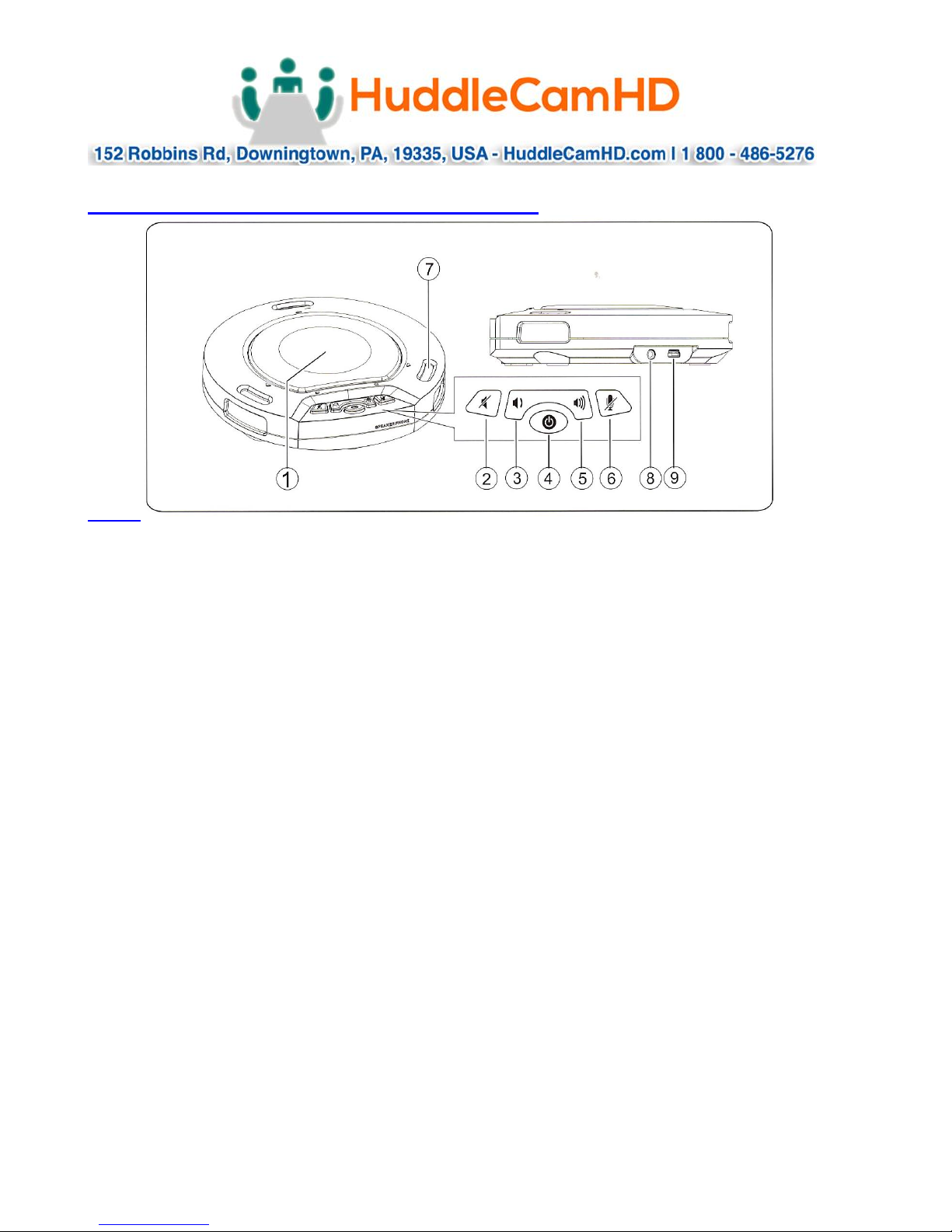
Press and hold the power button until the device is turned on and enters standby
mode. In this state, the bottom right blue light blinks continuously, waiting for
receiver to be connected. When the USB wireless adapter is connected to the USB
port on the computer, the USB driver will be automatically recognized on the
computer. The triangular blue light will now stop blinking and stay on, suggesting a
successful wireless connection between the device and the computer.