Jaycar QC8028 User manual

1
Wifi Sports Camera
User Manual

2
Quick Guide:
1. Download and install the app “SYMAGIX 2” from Itunes® or Google Play
2. Press the Wi-Fi button on the side of the camera to initialize the signal, the LED will be red
3. Search for the wireless signal “QC8028” on your smartphone or tablet using
the password “1234567890”.
4. You can now start using the camera once the wireless signal is connected and you have opened the app.
Note: Class 10 Micro SD Cards are required for this camera

3
Care & Maintenance
Limit the cameras exposure to direct sunlight; also do not point its lens into direct sunlight. This may
damage the image sensor of the video camera.
Take precautions to prevent water or sand particles from entering the video camera when it is used on the
beach or near water, as this may damage the video camera.
Keep the video camera free of dust and chemical materials. Place it in a cool, dry and well ventilated place.
Avoid placing the video camera in high temperature conditions, moist or dusty places to avoid damage of
the video camera.
If dirt or stains are accumulated on the video camera or on its lens, use soft, clean and dry rag to wipe it
away gently. If the video camera or its lens is covered with sand particles, blow them away gently. Do not
use a cloth to wipe. Otherwise, it may scratch the surface of video camera or its lens.
If you are required to clean the camera lens surface, firstly blow away the sand or dust accumulated on this
surface, and then wipe the camera gently with a clean dry cloth. Do not use solvents to clean the video
camera.
Do not touch the lens surface with fingers.

4
C
Ca
am
me
er
ra
a
D
Di
ia
ag
gr
ra
am
m:
:
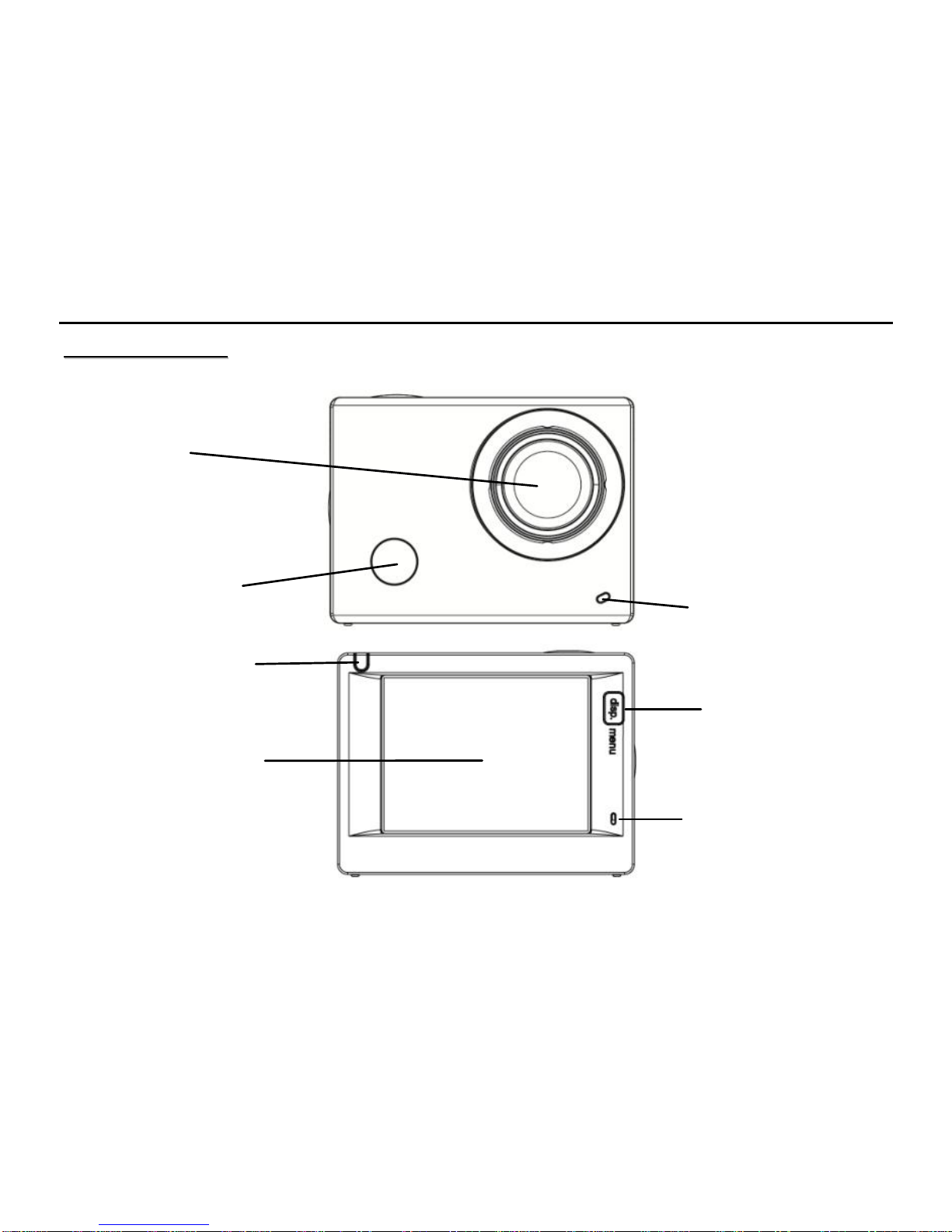
Display/Menu key
2.0’’ HD LCD
Lens
IR Remote
Charging /Busy indicator
Busy indicator
Microphone

5
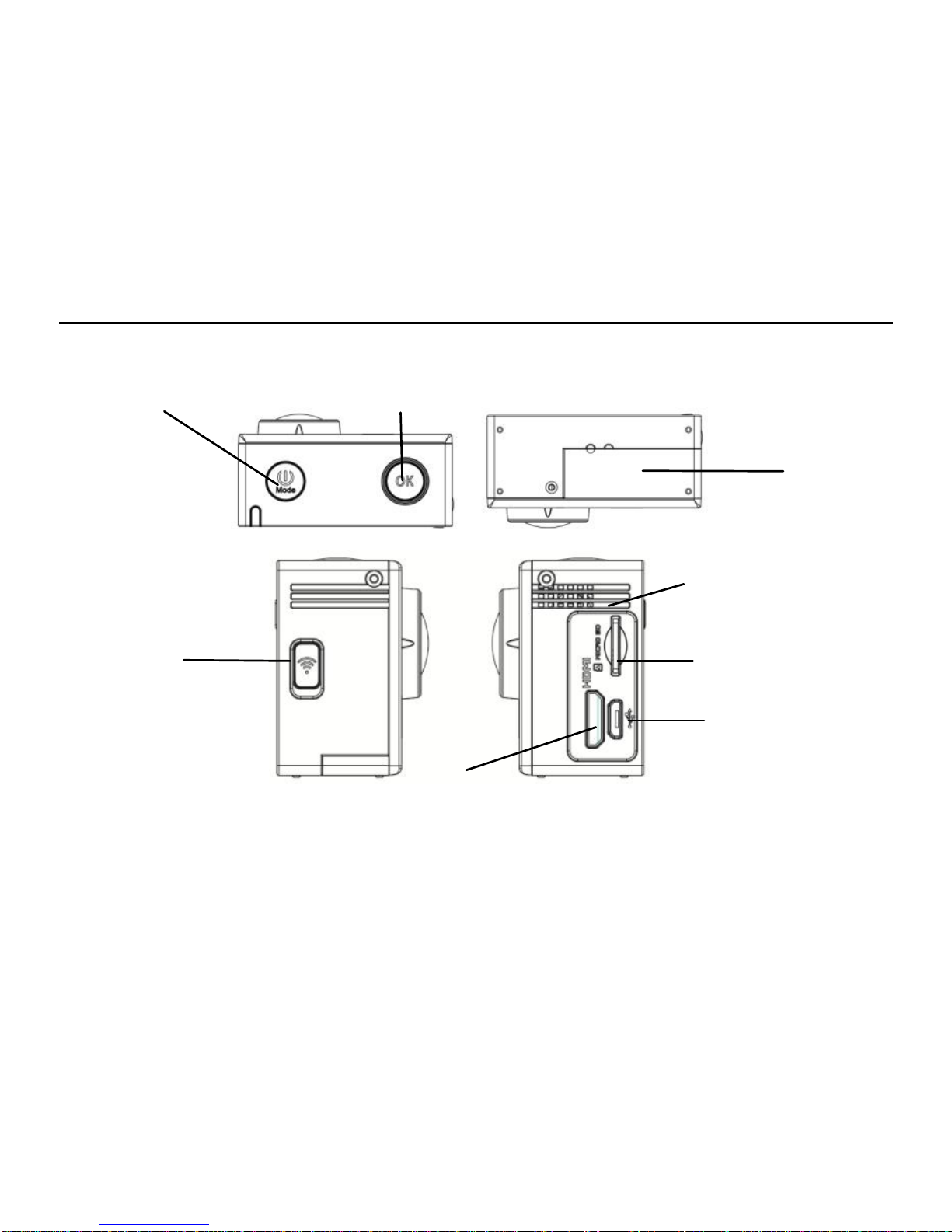
Wifi/Down key
HDMI port
Power/Mode key
Battery Latch
Micro SD Card
Shutter/OK key
Micro USB port
Speaker

6
O
Op
pe
ea
ar
rt
ti
in
ng
g:
:
_
__
__
__
__
__
__
_
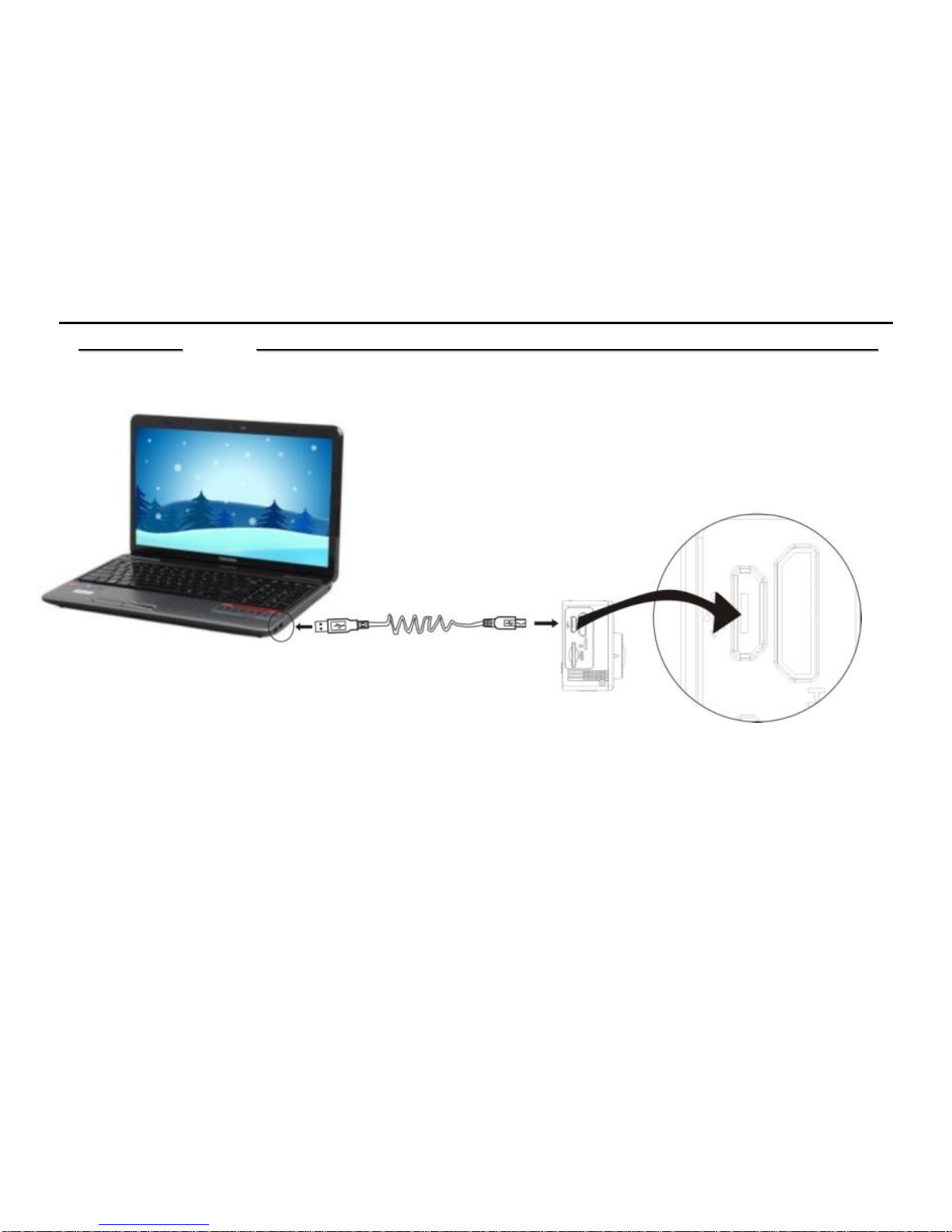
1. Charge the built-in lithium battery
Connect the camera to the computer for charging, at this time, the charging indicator will be in red, and it will be
off after charging. Generally, it takes 2-4 hours to charge the battery.
USB cable

7
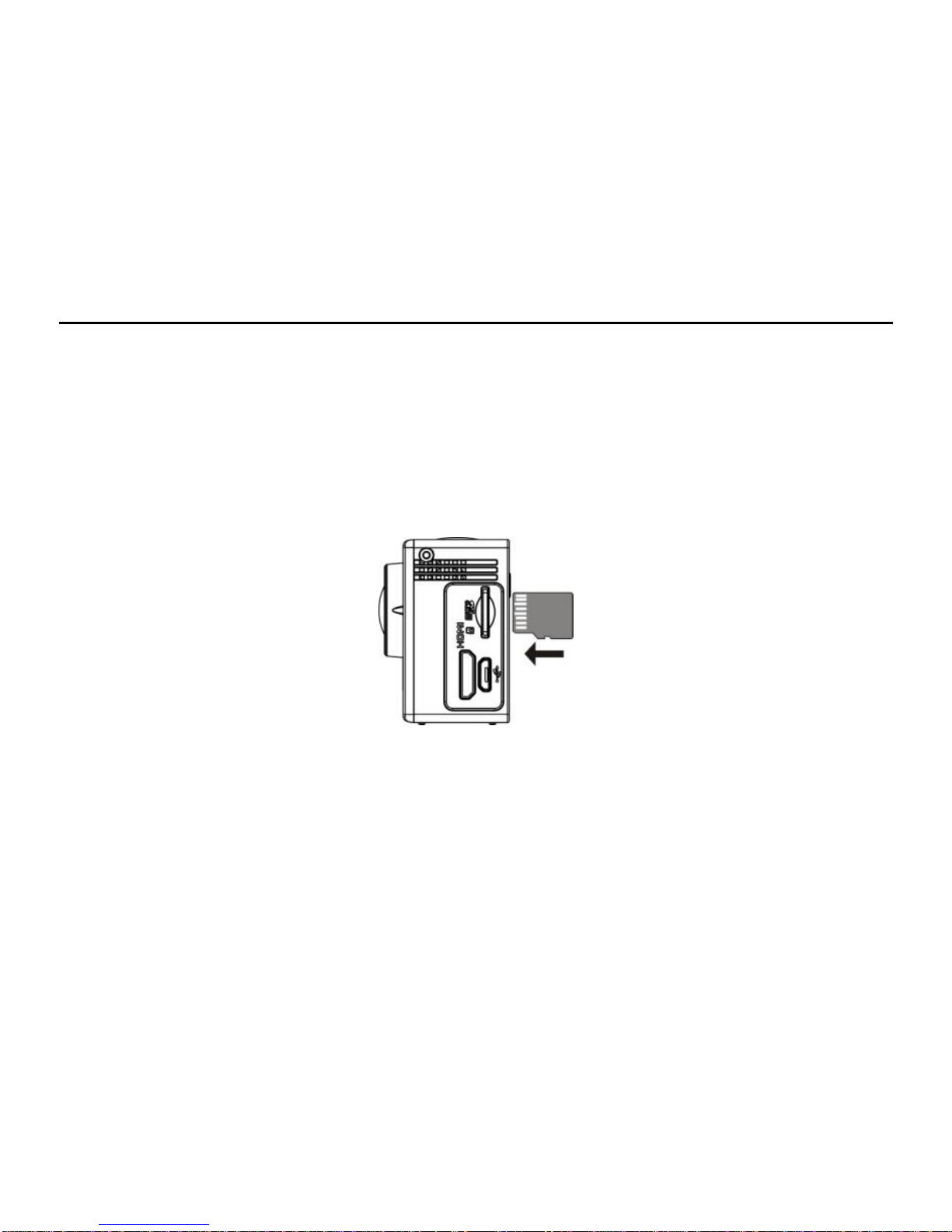
2. Use the storage card
1. Push the Microsd card into the slot till it is in place as per the instruction in concavely engraved words by the
storage card slot.
2. To take out the Micro Sd card, press the tail of the storage card inwardly softly and it will be popped out.
Note: There’s no built-in memory unit in the camera, so make sure to insert a storage card into it prior to
use (it is recommended at least Class 10 high speed microSD card).

8
3. Power on/off
3.1 Power on: Press Power key for 3 seconds, the screen will be on and the camera will be started.
3.2 Power off: Hold on Power key for 3 seconds when the camera is in the idle state to turn it off.
3.3 Auto screen off: The screen will be turned off automatically when the time that the camera is in the idle
state for automatic screen off to save power. After that, the lamp for screen off will be on.
3.4 Power off when the camera is lack of electricity. When electrical quantity of the battery is very low, an
icon of will be displayed on the LCD screen, prompting you to charge it in time. When the icon turns
red and flickers, the camera will be turned off automatically.

9
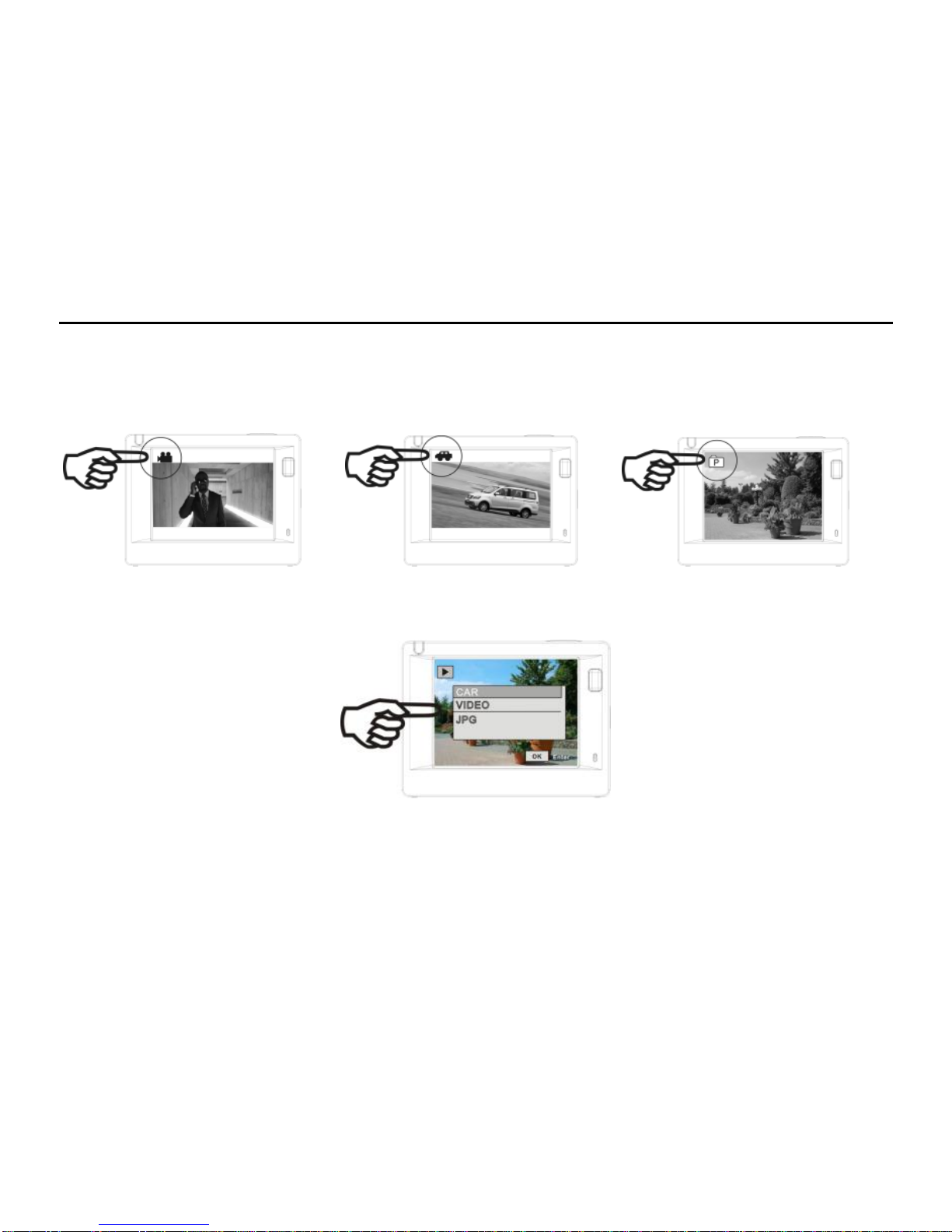
4. Shift among functional modes
The camera has 4 modes, namely video recording mode, car-carrying mode, shooting mode and replay mode.
After power is on, press Power key to shift among them.
Video recording mode Car-carrying mode Shooting mode
Replay mode
Note: after the shutdown of the system will save the current setting pattern, the next open opportunity
automatically entered into the model.

10
5. Indicator
Busy indicator (red): When the camera is busy such as recording videos, shooting photos and turning off
screen automatically, the work indicator will flicker.
Charging indicator (blue): When it is on, the user is prompted that the camera is being charged and it will be
off after charging is completed.
6. Video recording mode
After power is on, the video camera will enter video recording mode directly and in preview mode, press
Shutter key to start video recording; Press it again to stop shooting. If the memory card is full or electrical
quantity is low, it will also stop shooting:
1. Icon of mode, indicating video recording mode;
2. Indicate quality of video;
3. Indicate size of video:FHD 1080P(60FPS)
/ FHD 1080P(30FPS)/HD 720P(120FPS) / HD 720P(60FPS)
4. Recording time, indicating recordable length of time;
5. Icon of battery, indicating current electrical quantity;
Note: short press power key to realize the camera video process
and save the image.

Table of contents