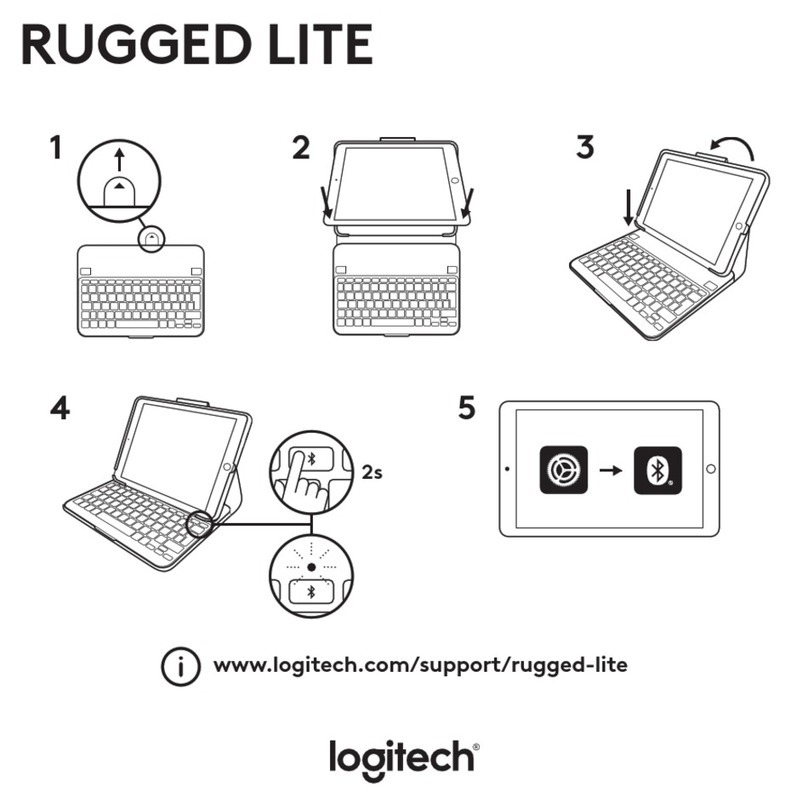
How to pair your Bluetooth Go! with your device
Bluetooth Pairing with PC
1. Turn on the power using the power switch on the keyboard.
2. Press Ctrl, left Alt, left Shift and Up arrow keys simultaneously.
3. Release the Up arrow key rst, and then release the other keys.
4. Green LED light will be blinking.
5. Engage your PC’s “Add Bluetooth Device” wizard.
6. Follow the Bluetooth device wizard process for your PC.
7. Type the code presented on the screen into your Go! Keyboard and press Enter.
8. LED will be turned o after successful pairing or time out failure.
9. Wait for the “Installing Device Drivers” to complete before proceeding.
Bluetooth Pairing with MAC
1. Turn on the power using the power switch on the keyboard.
2. Press Ctrl, left Alt, left Shift and Down arrow keys simultaneously.
3. Release the Down arrow key rst, and then release the other keys.
4. Green LED light will be blinking.
5. Follow the Bluetooth device addition process for MAC operating system.
6. Type the code presented on the screen into your Go! Keyboard and press Enter.
7. LED will be turned o after successful pairing or time out failure.
During the pairing process, you will be prompted to type a key sequence to secure the connection
between your Go! Keyboard and your device or PC. Follow the instructions on the screen to complete
the pairing process.
Microsoft AppleAndroid
Note: for Android users only - Follow the instructions provided above for pairing with a Mac device, then use
these supplemental instructions. The PIN must be typed on BOTH the Go! Keyboard AND the Android device.
First type in “0000” or “1234” on your device and press Enter, then type “0000” or “1234” on the keyboard and
press Enter.
Windows 7 - Putting the keyboard into pairing mode does not pair
the keyboard with my PC.
Putting the keyboard in pairing mode alone does not cause your PC to detect a
new Bluetooth device, you must rst congure your PC to detect the new Bluetooth
Device.
1. Check to see if your radio receiver status is on and functioning correctly. Do
not use the Optional Bluetooth Dongle adaptor if your computer or laptop
already has a Bluetooth Receiver.
Note: If your computer has integrated Bluetooth and it is turned on when you go to your
Task Bar you see the Bluetooth Devices icon
2. If you don’t see this icon on the task bar, then your radio receiver is likely turned
o or your computer does not have Bluetooth integrated in your computer.
If you previously had Bluetooth devices connected to you device then you
probably DO have native Bluetooth Support. In this case, using the Optional
USB Bluetooth adapter will interfere with your system’s native support. If your
system has integrated Bluetooth, and it is turned on, you should see the BT icon
on your Taskbar along the bottom of your screen. There is usually a slider switch
on the front or side of the laptop.
3. If your computer does have integrated Bluetooth support, make sure you have
installed the latest Bluetooth drivers from your manufacturer’s website.
Follow these steps to complete the pairing process
1. Double-click the Bluetooth icon on your Task Bar, or go to Control Panel\Devices
and Printer\Bluetooth Devices.
2. Turn the Keyboard On.
3. Press the PC pairing keystroke sequence.
4. Click Add Device and wait for the keyboard to connect to your system.
5. When prompted, provide the Pairing Code by entering the code on the Go!
Keyboard.
6. You will be presented with a message that“The Device“SWK-4210BT” Has Been
Successfully Installed”.
Android - nothing happens when during pairing when I’m prompted
to type “1234” or “0000” on the keyboard.
On many Android devices, it is rst required to type the code“0000”or“1234” on the
Android device itself before typing the code on the keyboard.
1. Turn the Keyboard On.
2. Press the PC pairing keystroke sequence.
3. During the pairing process at the point where you are prompted to type in
“0000” or “1234” rst tap the entry eld on the Android device and type “1234”
and press Enter.
4. Immediately type “1234”on the Go! Keyboard and press Enter.
5. Your device will be detected and successfully added as “SWK-4210BT”.
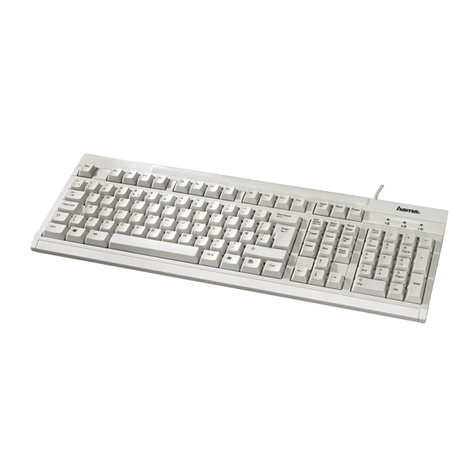
Darker shaded keys represent pairing in PC mode. Lighter shaded keys represent pairing in Mac mode.
Pressing these key combinations simultaneously changes the keyboard to Mac or PC mode and puts the
keyboard into pairing mode.