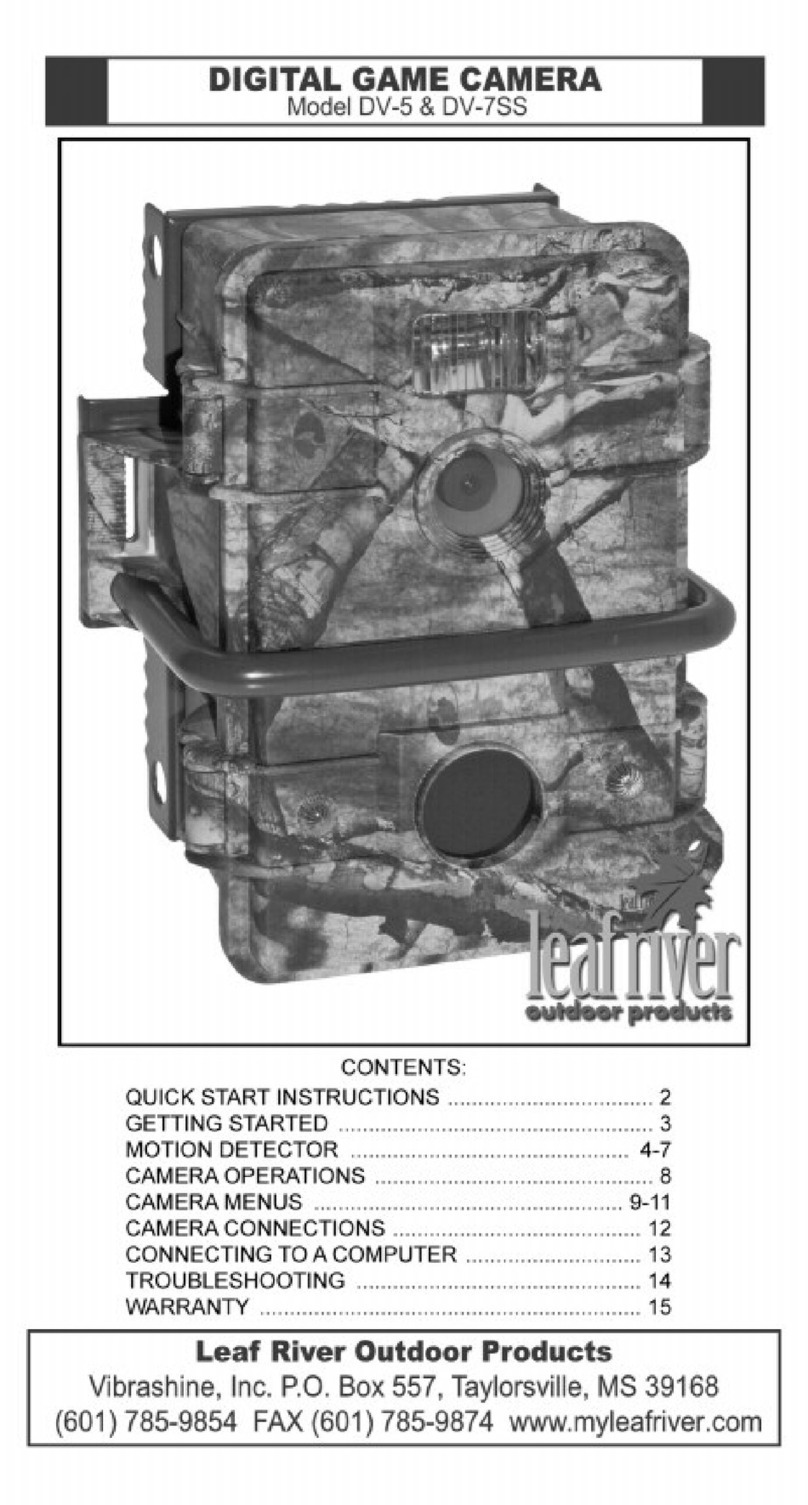
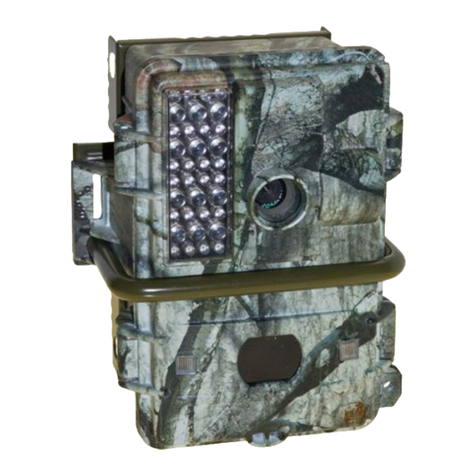
GAME CAMERA MODEL IR-3BU has an LCD view-
ing screen for setting camera options. It can show a “live”
preview of the camera image and you can use it to view
CAMERA MODEL IR-3BU
How do I change the settings on my camera?
10
pictures or video recorded in the
camera. On some models there is a
“Trigger Time” switch
which selects between
“Fast” and “Battery
Save” trigger time
settings.
The circular control
is the “Navigator” with “Left,” “Right,” “Up,” and “Down”
directional keys. The center is the “Menu” button. The “Left”
and “Right” keys select functions; the “Up” and “Down”
keys change the setting. Press “Display” to turn on the
screen, clear data from the screen, or display a page of
several stored images. “Preview” toggles between showing
a “live” image and stored images; change pictures using the
“Left” and “Right” buttons.
First, let’s set the date and time. Follow the 4 Steps on
Page 4 to power on the camera. Press “Menu,” the center
button on the round Navigator. Press the “Right” or “Left”
Navigator keys until the “Date and Time” menu appears.
Use the “Up” and “Down” navigator keys to highlight “Set”.
Press the “Center” button to display “Year, Month, Day,
and Date.” Use the “Left” and “Right” keys to select an
item to change. Use the “Up” and “Down” key to change the
setting. Notice that the camera uses a 24 hour, military-style
clock: 2:00 PM will display as 14:00. The display shows
hours, minutes, and seconds. When the year, month, day,
and time are correct, press the center “Menu” button. “Yes”
and “No” will display. Highlight “Yes,” then press the “Menu”
again to record your settings.
When you change from picture viewing to picture taking,
from Video to Single, or from Fast to Bat Save, you must
turn the Main Power off, then back on to reset the camera.
TIP
When the Trigger Time switch is set to Fast, the Game
Camera is ready to take a picture faster, without warming
up, or use Battery Save mode for maximum battery life.
TIP