EnglishDeutsch
 logo
Brands
  1. Home
  2. •
  3. Brands
  4. •
  5. Lenovo
  6. •
  7. Monitor
  8. •
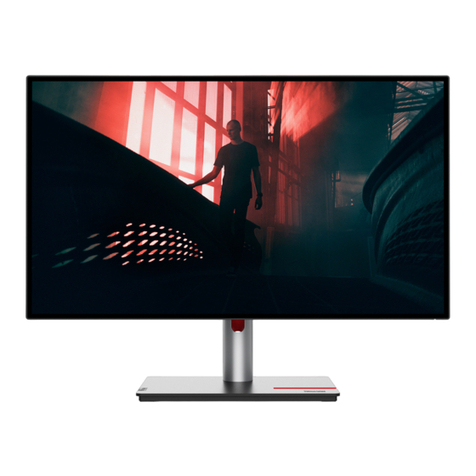
  9. Lenovo ThinkVision E22-20 User manual

Lenovo ThinkVision E22-20 User manual

This manual suits for next models

1

Other Lenovo Monitor manuals

Lenovo ThinkVision P27q-30 Instructions for use
Lenovo

Lenovo ThinkVision P27q-30 Instructions for use

Lenovo ThinkVision S27e-20 User manual

Lenovo

Lenovo ThinkVision S27e-20 User manual

Lenovo Y25g-30 User manual

Lenovo

Lenovo Y25g-30 User manual
Lenovo L2362p Wide User manual

Lenovo

Lenovo L2362p Wide User manual
Lenovo AIO 730S User manual

Lenovo

Lenovo AIO 730S User manual
Lenovo ThinkCentre TIO24Gen3 User manual
Lenovo

Lenovo ThinkCentre TIO24Gen3 User manual

Lenovo 66C2GAC1EU User manual

Lenovo

Lenovo 66C2GAC1EU User manual
Lenovo LI1931e User manual

Lenovo

Lenovo LI1931e User manual
Lenovo Thinkvision T2220 User manual

Lenovo

Lenovo Thinkvision T2220 User manual
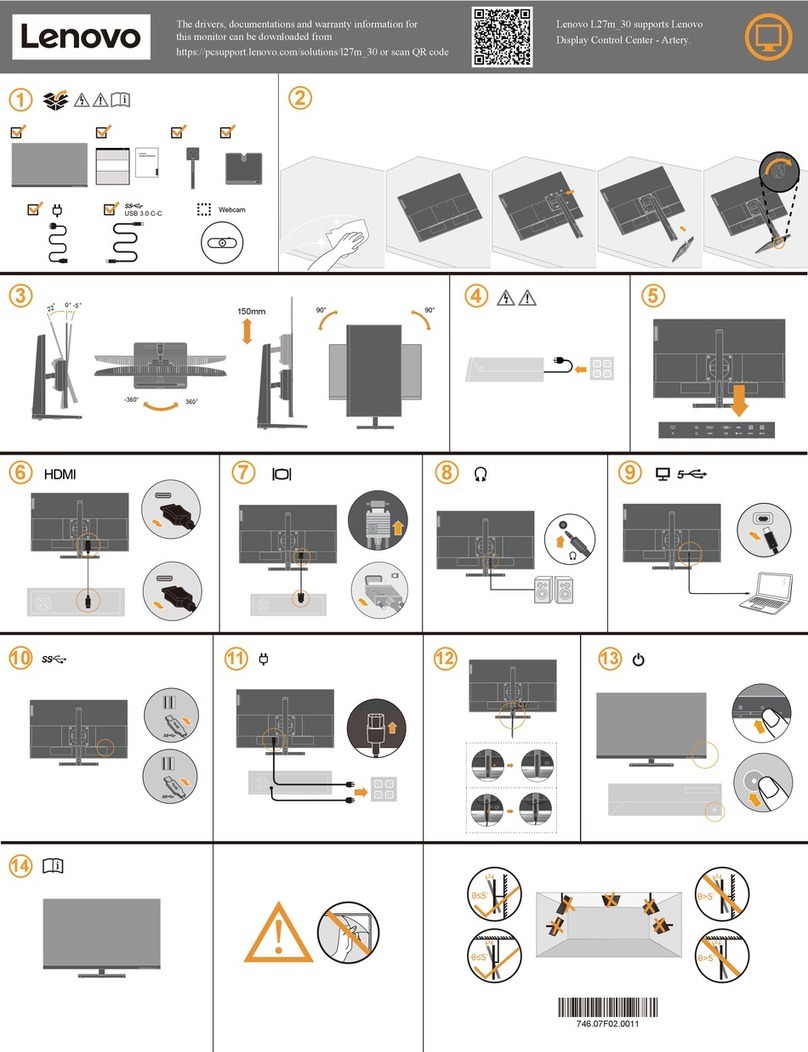
Lenovo L27m-30 User manual

Lenovo

Lenovo L27m-30 User manual

Lenovo ThinkVision P27q-30 User manual
Lenovo

Lenovo ThinkVision P27q-30 User manual

Lenovo ThinkVision S28u-10 User manual

Lenovo

Lenovo ThinkVision S28u-10 User manual

Lenovo D24-40 User manual

Lenovo

Lenovo D24-40 User manual
Lenovo ThinkVision S22e-19 User manual
Lenovo

Lenovo ThinkVision S22e-19 User manual

Lenovo ThinkVision L197 Wide User manual
Lenovo

Lenovo ThinkVision L197 Wide User manual

Lenovo 60FB User manual

Lenovo

Lenovo 60FB User manual

Lenovo ThinkVision P27u-20 Instructions for use

Lenovo

Lenovo ThinkVision P27u-20 Instructions for use

Lenovo L192P 9227-HB2 User manual

Lenovo

Lenovo L192P 9227-HB2 User manual
Lenovo ThinkVision L2251p User manual

Lenovo

Lenovo ThinkVision L2251p User manual

Lenovo Y27GQ-25 User manual

Lenovo

Lenovo Y27GQ-25 User manual
Lenovo ThinkVision T22i-30 User manual

Lenovo

Lenovo ThinkVision T22i-30 User manual

Lenovo L27m-30 User manual

Lenovo

Lenovo L27m-30 User manual

Lenovo ThinkVision P27h-30 User manual

Lenovo

Lenovo ThinkVision P27h-30 User manual

Lenovo L24q-30 User manual

Lenovo

Lenovo L24q-30 User manual

Popular Monitor manuals by other brands

Linear Acoustic LQ-1000 user guide

Linear Acoustic

Linear Acoustic LQ-1000 user guide

AOC I2579V user manual

AOC

AOC I2579V user manual

ViewSonic VX1945WM - ViewDock - 19" LCD Monitor null

ViewSonic

ViewSonic VX1945WM - ViewDock - 19" LCD Monitor null

ViewSonic VA705M null

ViewSonic

ViewSonic VA705M null

BenQ FP757 null

BenQ

BenQ FP757 null

ViewSonic VA703MB - 17" LCD Monitor null

ViewSonic

ViewSonic VA703MB - 17" LCD Monitor null

Gateway FPD1520 user guide

Gateway

Gateway FPD1520 user guide

Furuno Mu 120c Operator's manual

Furuno

Furuno Mu 120c Operator's manual

Asus VB171D - 17" LCD Monitor Service manual

Asus

Asus VB171D - 17" LCD Monitor Service manual

Dell S2230MX Setting up

Dell

Dell S2230MX Setting up

Philips 107C64 user manual

Philips

Philips 107C64 user manual

Dell S2409WFP user guide

Dell

Dell S2409WFP user guide

EverFocus EN-7517E instruction manual

EverFocus

EverFocus EN-7517E instruction manual

Panasonic TH152UX1 - 152" PLASMA TV Service manual

Panasonic

Panasonic TH152UX1 - 152" PLASMA TV Service manual

Dell Precision 7680 Connection guide

Dell

Dell Precision 7680 Connection guide

LG 50PM1M -  - 50" Plasma Panel Service manual

LG

LG 50PM1M - - 50" Plasma Panel Service manual

Bosch DDU 9 manual

Bosch

Bosch DDU 9 manual

Acer A231HL user manual

Acer

Acer A231HL user manual

https://manuals.online logo
https://manuals.online logoBrands
  • About & Mission
  • Contact us
  • Privacy Policy
  • Terms and Conditions

Copyright 2026 Manuals.Online. All Rights Reserved.

ThinkVision E22-20
User Guide
Machine Types: 62A4-MAR4-WW
Product No.
62A4-MAR4-WW
First Edition (April 2020)
© Copyright Lenovo 2020.
LENOVO products, data, computer software, and services have been developed exclusively at private expense
restricted rights to use, reproduction and disclosure.
LIMITED AND RESTRICTED RIGHTS NOTICE: If products, data, computer software, or services are
delivered pursuant a General Services Administration "GSA" contract, use, reproduction, or disclosure is
subject to restrictions set forth in Contract No. GS-35F-05925.
H20215FE0
Power Management Modes
Serice information
Customer responsibilities
Service parts
Accessibility information
iii
Safety information
General Safety guidelines
For tips to help you use your computer safely, go to:
http://www.lenovo.com/safety
Before installing this product, read the Safety Information.
DANGER
To avoid shock hazard:
•Do not remove the covers.
•Do not operate this product unless the stand is attached.
•Do not connect or disconnect this product during an electrical storm.
•The power cord plug must be connected to a properly wired and grounded power outlet.
•Any equipment to which this product will be attached must also be connected to
properly wired and grounded power outlets.
•To isolate the monitor from the electrical supply, you must remove the plug from the
power outlet. The power outlet should be easily accessible.
To take special precautions to avoid the introduction of hazards when operating, installing,
servicing, transporting or storing equipment, the necessary instructions shall be made
available.
To reduce the risk of electric shock, do not perform any servicing other than that contained
Handling:
•If your monitor weighs more than 18 kg (39.68 lb), it is recommended that it be moved
or lifted by two people.
Make sure the light bar is located downside when you install in the way of VESA.
To prevent possible hearing damage, do not listen at high volume levels for long periods.
Warning for excessive sound pressure from earphones and headphones. Excessive sound
pressure fromearphones and headphones can cause hearing loss. Adjustment of the equalizer
to maximum increases the earphones and headphones output voltage and therefore the sound
pressure level.
A third-party certification according to ISO 14024
Say hello
to a more sustainable product
IT products are associated with a wide range of sustainability risks
throughout their life cycle. Human rights violations are common in the
factories. Harmful substances are used both in products and their
manufacture. Products can often have a short lifespan because of poor
ergonomics, low quality and when they are not able to be repaired or
upgraded.
This product is a better choice. It meets all the criteria in TCO Certified,
the world’s most comprehensive sustainability certification for IT
products. Thank you for making a responsible product choice, that help
drive progress towards a more sustainable future!
Criteria in TCO Certified have a life-cycle perspective and balance
environmental and social responsibility. Conformity is verified by
independent and approved verifiers that specialize in IT products, social
responsibility or other sustainability issues. Verification is done both
before and after the certificate is issued, covering the entire validity
period. The process also includes ensuring that corrective actions are
implemented in all cases of factory non-conformities. And last but not
least, to make sure that the certification and independent verification is
accurate, both TCO Certified and the verifiers are reviewed regularly.
Want to know more?
Read information about TCO Certified, full criteria documents, news and
updates at tcocertified.com. On the website you’ll also find our Product
Finder, which presents a complete, searchable listing of certified
products.
Toward sustainable IT products
iv
v
Stand (with four screws)
Information Flyer
Flat Panel Monitor
Power Cord
HDMI Cable
Base
HDMI
Chapter 1. 1-2
Notice for use
To set up your monitor, please see the illustrations below.
Note: Do not touch the screen of monitor, which can be damaged easily by rub or pressure
because it is made of glass.
1.
2. Assemble the bracket on the base and tighten the screws on the base.
3. Assemble the bracket base on the back of the monitor, align the screw hole and tighten the screw.
Notes: To install a VESA mount, please see "Wall Mounting (Optional)" on page 2-9.
Don’t press hard screen(screen arch up).
Put your monitor with the screen face down on a soft flat surface.
Chapter 1. 1-3
Product overview
This section will provide information on adjusting monitor positions, setting user controls,
and using the cable lock slot.
Types of adjustments
Tilt
Please see the illustration below for an example of the tilt range.
-5
22
Chapter 1. 1-4
Height Adjustment
For height adjustment, user needs to press down or lift up the monitor.
Pivot
Before the monitor is displayed in the vertical direction, it should be fully lift up and fully
tilted to avoid collisions.
90°
155mm