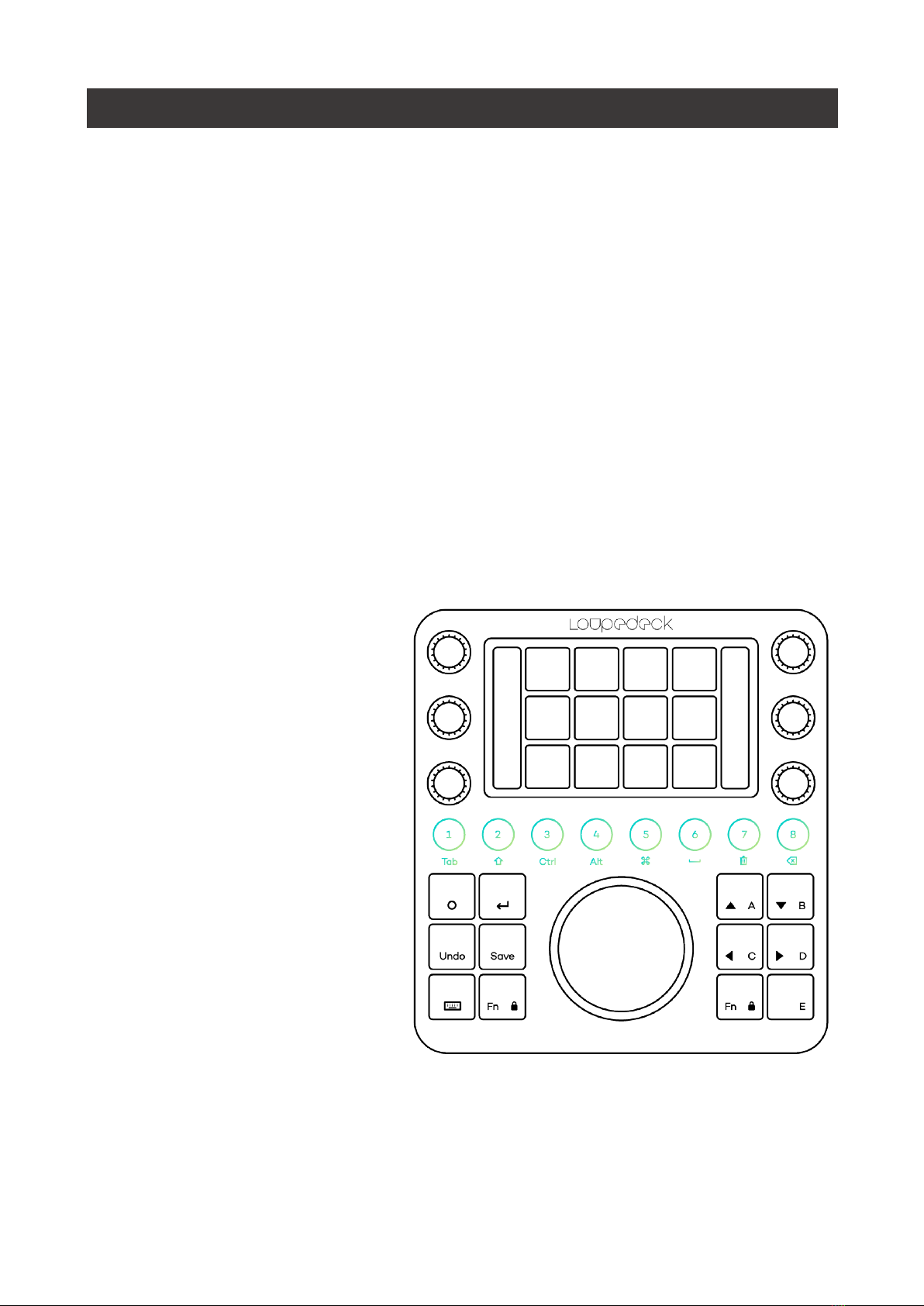
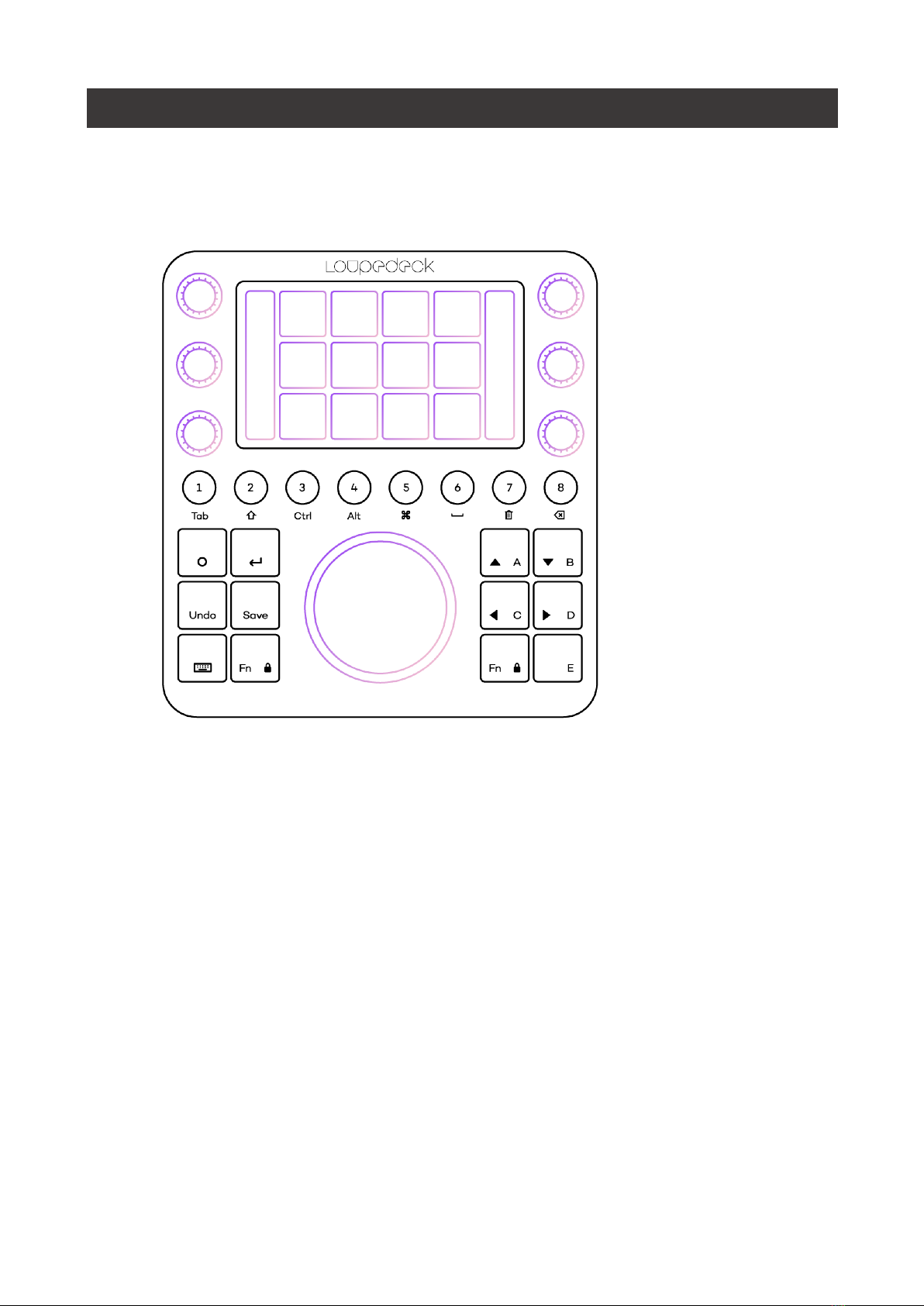
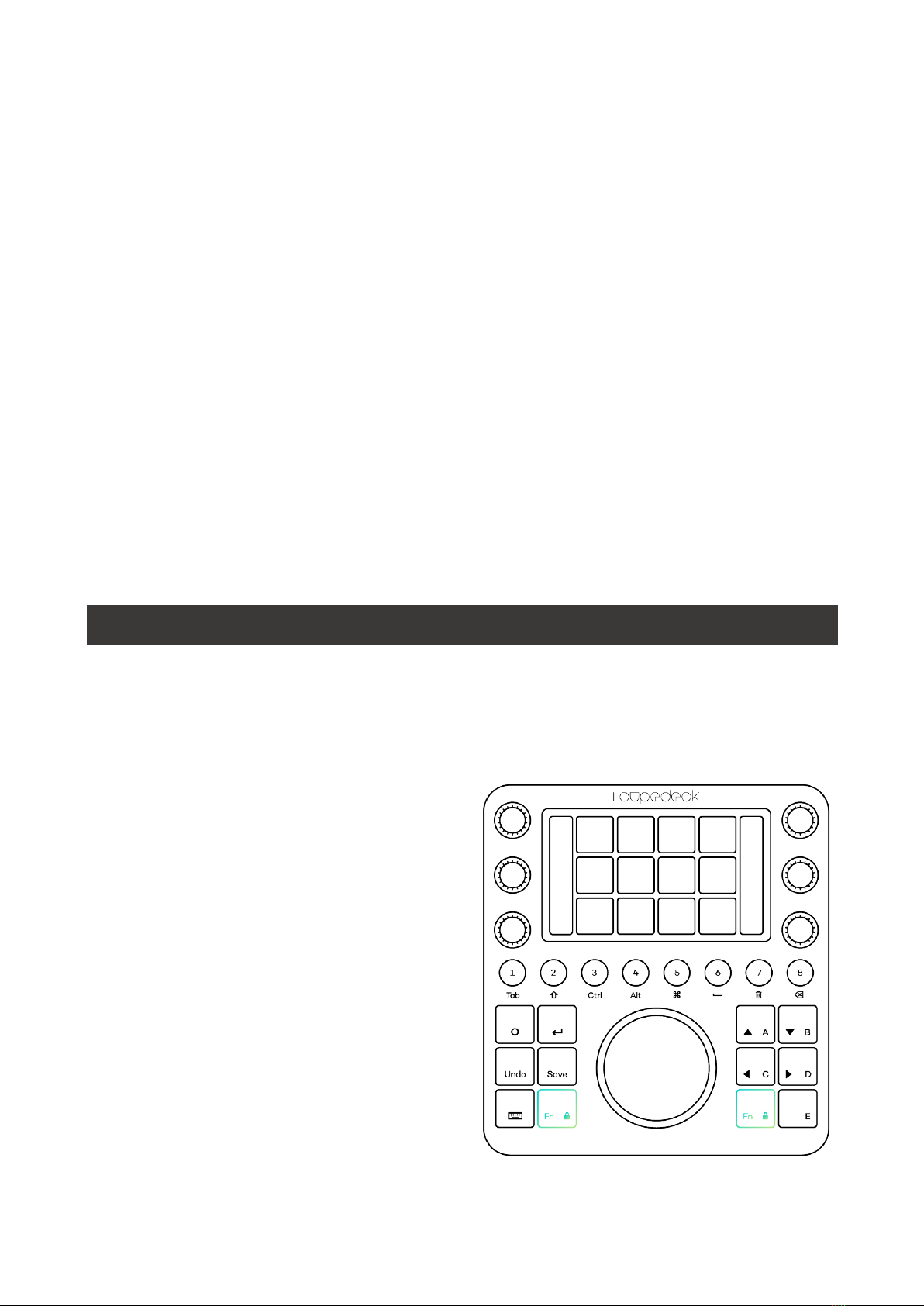
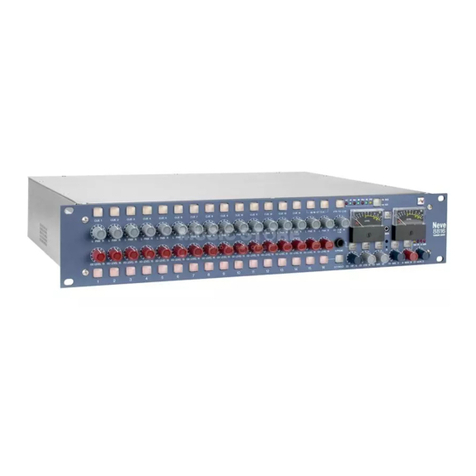
OVERVIEW OF LOUPEDECK CT
Before getting familiar with Loupedeck Creative Tool (referred to in this manual as
“CT”) and all that it offers for Adobe Premiere Pro, let’s go through some things that
are important for your usage and ideal understanding of the device.
Please read this manual as well as the User Guide on how to use the Loupedeck
Setup to fully understand the depth and usage of the device and its software
before fully getting into it to avoid potential confusion and misunderstanding.
LOUPEDECK CT SUPPORTS:
§ Windows® 10
§ Mac® OS 10.12 or later
§ Adobe® Premiere Pro® (most recent version)
MAC TIP
: Install applications into Applications folder. Otherwise Loupedeck software
may not be able to detect editing software on your computer.
WIN TIP
: Install Loupedeck Setup software using admin rights. Otherwise there might
be issues, as some parts of the software are either not installed correctly or installed
with insufficient rights.
NOTE!
:
For Loupedeck CT, minimum requirement is Loupedeck Setup software 3.0,
which does not work on MacOS 10.11 (or older) or 32-bit Windows versions.
64-bit Windows 7, 8 or 8.1 versions are also not supported. Loupedeck Setup
software might work if .NET Framework 4.5.1 (or later) is installed.
HOW TO SET UP YOUR LOUPEDECK CT:
1. Download & install the latest Loupedeck software by visiting
www.loupedeck.com/en/setup
2. Connect the USB cable to your computer’s USB port
HOW TO SET UP YOUR LOUPEDECK CT WITH ADOBE PREMIERE PRO CC:
WINDOWS:
1. While Loupedeck softare is running, open Adobe Premiere Pro CC
2. Go to Edit -> Preferences -> Control surface -> Push “Add”
3. Select “Loupedeck” and accept
MACOS:
1. While Loupedeck softare is running, open Adobe Premiere Pro CC
2. Go to Premiere Pro CC -> Edit -> Preferences -> Control surface -> Push “Add”
3. Select “Loupedeck 2” and accept
NOTE!:
Yo u r c om p u te r key b o a rd s h o u l d b e u si n g U K o r US key b o a rd se t t i n gs (yo u c a n
change this in your OS preferences). For the time being, this has to be done for CT to work
within Adobe Premiere Pro. Some actions do not work properly with Scandinavian and Ger-
man layouts, for example.