manuals.online logo
Brands
  1. Home
  2. •
  3. Brands
  4. •
  5. MaxIT
  6. •
  7. Amplifier
  8. •
  9. MaxIT Classic User manual

MaxIT Classic User manual

Popular Amplifier manuals by other brands

Magnat Audio EDITION FOUR Owner's manual/warranty document

Magnat Audio

Magnat Audio EDITION FOUR Owner's manual/warranty document

Inter-m PA-2000A Operation manual

Inter-m

Inter-m PA-2000A Operation manual

Yamaha TX6n owner's manual

Yamaha

Yamaha TX6n owner's manual

Peavey TNT 150 user guide

Peavey

Peavey TNT 150 user guide

Bosch LBB 1903/10 Installation and user instructions

Bosch

Bosch LBB 1903/10 Installation and user instructions

Avocent Emerge DA1200D Installer/user guide

Avocent

Avocent Emerge DA1200D Installer/user guide

Redgum RGi35 operating instructions

Redgum

Redgum RGi35 operating instructions

Cambridge Audio AXA25 user manual

Cambridge Audio

Cambridge Audio AXA25 user manual

Alpine MRP-M200 owner's manual

Alpine

Alpine MRP-M200 owner's manual

Technical Pro H1502UrBT user manual

Technical Pro

Technical Pro H1502UrBT user manual

FMS EMGZ307 operating manual

FMS

FMS EMGZ307 operating manual

Racal Instruments 5601 user manual

Racal Instruments

Racal Instruments 5601 user manual

Valcom V-1094A Technical specifications

Valcom

Valcom V-1094A Technical specifications

Cambridge Audio 851D user manual

Cambridge Audio

Cambridge Audio 851D user manual

QSC 3800 Specifications

QSC

QSC 3800 Specifications

NAD C300 owner's manual

NAD

NAD C300 owner's manual

Rotel RMB-1077 owner's manual

Rotel

Rotel RMB-1077 owner's manual

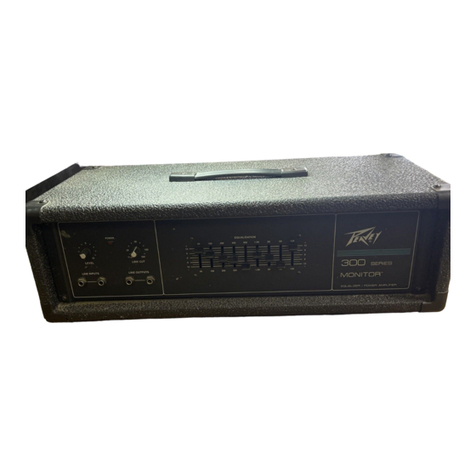
Peavey Monitor 300 Series operating guide

Peavey

Peavey Monitor 300 Series operating guide

manuals.online logo
manuals.online logoBrands
  • About & Mission
  • Contact us
  • Privacy Policy
  • Terms and Conditions

Copyright 2025 Manuals.Online. All Rights Reserved.

(
((
((
((
(
M
Ma
ax
xI
IT
T
)
))
))
))
)
Wireless Inductive Loopset User Manual
MaxIT Wireless Inductive Loopset features
1
2
1) Introduction
Your MaxIT®Wireless Inductive Loopset is a lightweight device utilising Bluetooth®wireless
technology.
It provides hands-free communication for the hearing aid wearer via the hearing aid’s telecoil
switch (‘T switch’).
The power is provided by an AAA battery (re-chargeable as supplied or alkaline).
Any mobile cell phone that you want to use with your MaxIT Inductive Loopset must be
Bluetooth enabled and compatible with Bluetooth technology version 1.2/2.0. The mobile cell
phone must also support the same profiles as the Loopset.
The Loopset is worn around the neck in the same manner as a necklace.
2) Package contents
MaxIT Wireless Inductive Loopset
2 x AAA re-chargeable battery
USB charger
Car charger adapter
Spare battery cover
User guide
3
3) System Requirements
In order for your Loopset to function correctly, you must have a Bluetooth enabled mobile
telephone and your hearing aid must be equipped with a Telecoil switch (‘T switch’).
4) Charging the re-chargeable AAA battery
a) Place the battery in the charger ensuring that the polarity is correct in accordance with
the markings.
b) Slot the charger into an empty USB port on your computer and ensure that the computer
is turned on. Whilst the battery is charging the light will glow RED. When the battery is
fully charged the light will fade and go out.
5) Installing the battery in the Loopset
a) Open the battery cover by sliding back the black coloured cover marked ‘Bluetooth’
away from the direction of the LED. Lift off the battery cover.
b) Insert the battery into the Loopset ensuring that the polarity is correct in accordance with
the markings.
c) Replace the battery cover in reverse order to opening.
4
IMPORTANT:
Ensure that a new battery is fully charged prior to initial use otherwise the
battery life may be reduced.
6) Initial pairing and connection procedure
a) Activate the Bluetooth function on your mobile phone.
b) On the phone’s Bluetooth menu, select your phone’s visibility as ‘SHOWN TO ALL’.
c) Press and hold the TALK button on the Loopset for approximately 7 seconds until the
LED flashes alternately between YELLOW and RED indicating that the Loopset is in
pairing mode. The Loopset will “beep” once as it is switched on.
d) On the phone’s Bluetooth menu, select the ‘SEARCH FOR BLUETOOTH DEVICES’
option.
e) Once the phone indicates that is has found ‘MA007’ select ‘PAIR’ and when asked for a
passcode, enter ‘0000’.
f) If your phone offers the option to ‘ALLOW THIS DEVICE TO CONNECT
AUTOMATICALLY?’ select ‘Yes’.
5
g) The phone will confirm that ‘MA007’ is now recognised and the option to ‘CONNECT’
appears. Select ‘CONNECT’. The Loopset will emit one short “beep” to indicate a
successful connection.
h) Once the phone indicates that pairing & connection has been successful, exit its
Bluetooth menu and return to the home screen. A headphone icon (Ω) will appear.
i) If pairing does not occur as expected, turn off both the phone and the Loopset, wait for
10 seconds and then repeat steps a to h above.
j) If pairing still does not occur as expected, turn off the Loopset, delete all paired devices
from your phone and repeat steps a to h above.
7) Subsequent connection procedure (after initial pairing has been established)
k) Press and hold the Loopset TALK button until the LED flashes YELLOW and then
release. If your phone is set to connect automatically as in step 6f above, your Loopset
will connect automatically to your phone; otherwise press the TALK button once more
momentarily to link your Loopset with your mobile phone. The Loopset will emit one
short “beep” to indicate a successful connection.
NOTE: Initial and subsequent pairing & connection procedures may vary
depending on the make and model of your mobile phone. Please refer to the
manufacturer’s specific instructions if you are unable to follow the above
sequences.
6
8) Switching OFF the Loopset
To switch OFF your Loopset, press and hold the TALK button until the LED flashes RED and
then extinguishes. Release the button and your Loopset will then switch off. The Loopset will
emit a long “beep” to indicate it is closing down.
9) Answering a call
To answer an incoming call, press the TALK button on your Loopset. (If your mobile cell
phone supports auto-answering and the feature is correctly set up, your Loopset will take the
incoming call automatically. In this case you won’t need to press the TALK button). The
Loopset will emit a short “beep” to indicate the call has been answered.
10) Making a call with your Loopset by voice dialling
a) Voice dial function on your mobile cell phone must be turned on and ‘voice tags’ must be
stored.
b) On your Loopset, press the TALK button once.
c) A short tone will prompt you and you can then speak the ‘voice tag’ that has been stored
in your phone’s voice dial phonebook.
d) The phone automatically dials the contact you’ve selected. On most cell phones you can
see the details of the call on the phone’s display.
7
e) When connected you can communicate normally using the Loopset.
11) Making a call from the mobile cell phone’s keypad
a) Dial the phone number using the keypad on the mobile cell phone.
b) To send the call, press the phone’s SEND/CALL key.
c) The call will be transferred automatically to your Loopset when a connection is made.
12) Ending a call from the Loopset
To end a call, press the Loopset TALK button.
NOTE: This function only works on phones that support hands-free profile.
You can also end the call using the keypad on the mobile cell phone.
13) Last number redial
This function only works on phones that support hands-free profile.
When your Loopset is in standby mode (not in conversation), press and hold the VOLUME
DOWN button. The phone will then dial the last number called. The Loopset emits a short
“beep” to indicate that a call is being made.
8
NOTE: Be aware that on many phones the last number redial function via the
Loopset will still be active even if the phone’s keypad is locked.
14) Volume control
Your Loopset has 9 pre-set volume levels. The VOLUME UP and VOLUME DOWN
buttons are used to increase or decrease the volume of your Loopset output to the hearing
aid. These buttons operate incrementally, i.e. in order to move from level 1 to level 10 you
must press the VOLUME UP button momentarily 9 times. Pressing and holding the
VOLUME UP button will NOT increase the volume to maximum level, it will only increase
the volume by 1 increment. The VOLUME DOWN button operates in a similar incremental
manner. Pressing and holding the VOLUME DOWN button is used to activate the Last
Number Redial function (see paragraph 13). You may also use your phone’s volume up /
down buttons to adjust the Loopset output volume. The Loopset emits a “beep” with each
increase or decrease in volume level.
NOTE: These volume controls ONLY change the volume of the Loopset/phone
combination output to the hearing aid. They DO NOT change the volume setting of
the hearing aid itself. If you experience problems with the volume level, please
adjust the volume control on your hearing aid to an appropriate level.
15) Power saving mode
If your Loopset is out of range of your phone for an extended period, your Loopset will
enter power saving mode and turn itself off to conserve battery power. To re-establish

9
connection, return your phone within range of your Loopset and press the TALK button.
16) Battery status and low battery alert
Each time your Loopset is turned on, the LED will show the battery status.
a) In normal condition the LED flashes YELLOW every 5 seconds.
b) In low battery condition the LED flashes RED every 5 seconds.
c) The Loopset battery needs to be recharged or replaced when you hear a warning tone
from the Loopset every 20 seconds. Once this warning starts there is less than 30
minutes of talk time remaining.
17) Storage of your Loopset
a) Always store your Loopset safely.
b) Avoid storage at high temperatures (above 60ºC) such as in hot vehicles or in direct
sunlight. Storage at high temperatures can degrade performance and reduce battery
life.
c) Do NOT expose your Loopset or any of the supplied parts to water or other liquids.