4
shut-down function under backup mode (about 4 minutes later).
ATTENTION:At backup mode, UPS can be automatically turned off if none of
the connected loads is operating. (Green mode; No Load shut down function) Once
the utility power is normal again, the unit can be waked up by itself.
CAUTION: Never connect a laser printer or plotter to the UPS with other
computer equipment. A laser printer or plotter periodically draws significantly more
power than when its idle status, and may overload the UPS.
3.2 Switch on with “Disabled Green Mode” Function under AC mode
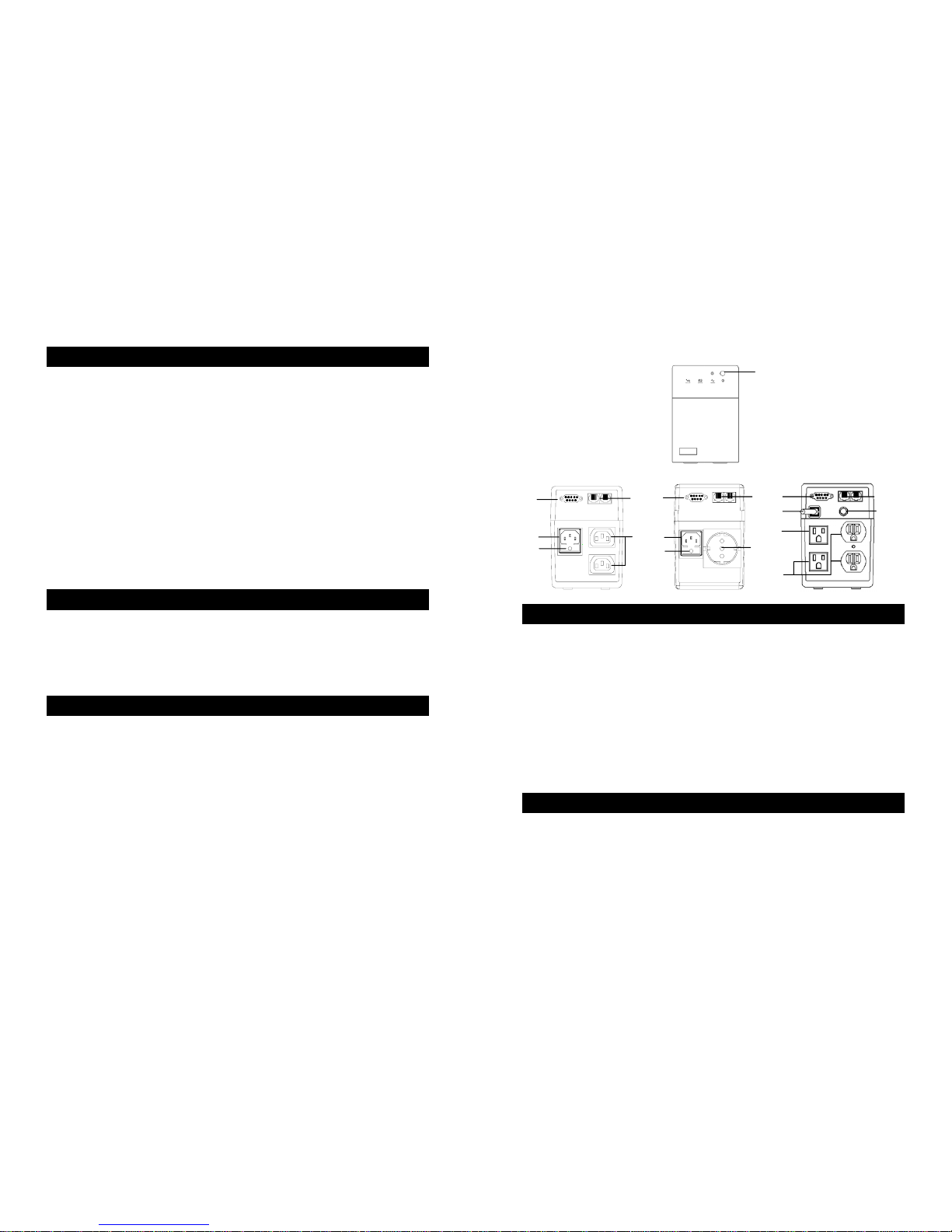
When utility input is connected to the UPS, press “ON” button and keep pressing until
the ”Bi...Bi-Bi” beeps stopped to turn on the UPS. After that, connect the electrical cords of
the equipments that will be used (such as Notebook computer and LCD monitor) to the rear
panel of UPS. If the load is lighter than 15W, please also refer this function to avoid any
inconvenience cause by “Green Mode” function.
3.3 DC Start with “Green Mode” Function
If the power of UPS isn't supplied by utility but by the internal batteries to engage the UPS,
press the power button and keep pressing less then 3 seconds.
3.4 DC Start with “Disabled Green Mode” Function
If the power of UPS isn't supplied by utility but by the internal batteries to engage the UPS,
press the power button and keep pressing until the sounds of “Bi Bi-Bi”.
3.5 Switch off
Press the power switch and keep pressing more than 3 seconds to turn off the UPS.
3.6 Silence
When UPS is under “BACKUP” mode, press power switch more than 1 second to silence
the audible alarm. (The function is disable when UPS is under condition of “LOW
BATTERY” or “OVERLOAD”)
3.7 Self test function
Press power switch while utility power is connected, UPS will perform self-test procedure
automatically.
4. Alarm
4.1 “BACKUP” (slow alarm)
When the UPS is working under “BACKUP” mode, the UPS would emit audible alarm. The
alarm stops when the UPS is return to “LINE” mode operation.
ATTENTION: The alarm of “BACKUP” is going to beep every 2 seconds.
(Slow-speed beep).
5
ATTENTION: The UPS provides mute function for the warning. When the
beeping sound occurs, press "ON" to stop it; and press "ON" again to regain the
sound.
4.2 “LOW BATTERY” (rapid alarm)
In the “BACKUP” mode, when the energy of battery becomes to lower level. (about
20%~30%) The UPS beeps rapidly until the UPS shuts down from battery exhaustion or
returns to “LINE” mode operation.
ATTENTION: The alarm of the batteries caused by low voltage beeps every
0.5 second.
ATTENTION: The rapid alarm under “LOW BATTERY” condition cannot be
muted.
4.3 “OVER LOAD” (continuous alarm)
When the UPS is working under overload condition (the connected loads exceed the
maximum rated capacity), the UPS will emit continuous alarm to warn an overload condition.
In order to protect the unit and the loads, the UPS will be automatically turn off. Please
disconnect nonessential devices from UPS to eliminate the overload alarm.
5. Software and Interface Port (Option)
5.1 Power Monitoring Software
The UPSMON series software (or other power monitoring software) is applied standard
RS-232 interface to perform monitoring functions, and then provides an orderly shutdown of
a computer in the event of power failure. Moreover, UPSMON displays all the diagnostic
symptoms on monitor, such as Voltage, Frequency, Battery level and so on. The software is
available for Windows 95, Windows 98, Windows 2000, Windows ME, Windows XP,
Windows 2003, Windows NT 4.0 or later, Novell Netware, Linux, and others. Call your
dealer for more information on computer OS compatible solutions.
5.2 Interface Kits
A series of interface kits is available for operation systems that provide UPS monitoring.
Each interface kit includes the special interface cable required to convert status signals from
the UPS into signals which individual operating system recognizes. The interface cable at
UPS side must be connected to REMOTE PORT, at computer side can be either COM 1 or
COM 2. The other installation instructions and powerful features please refer to READ.ME
file.
5.3 The characteristics of computer interface port
The computer interface port has the following characteristics:
The communication port on the back of the UPS may be connected to host computer. This
port allows the computer to monitor the status of the UPS and control the operation of the
UPS in some cases. Its major functions normally include some or all of the following: