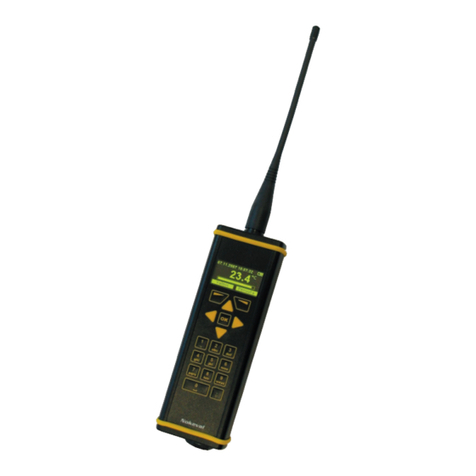
WedgeLink SM 6
Connecting the WedgeLink SM to Your PC
There are 2 methods available for connecting the WedgeLink SM to your PC or laptop.
1. Connect the keyboard cable from the WedgeLink SM to the keyboard port on your
PC and plug your keyboard into the WedgeLink SM.
2. Plug a USB to PS/2 adapter into a USB port and connect the keyboard cable from
the WedgeLink SM into this adapter.
The use of the USB to PS/2 adapter is the recommended way to connect WedgeLink SM to
yourPC. If you are using WedgeLink SM with a laptop, the only method for connecting
WedgeLink SM may be to use this USB adapter. Refer to the following sections for
additional details on connecting the wedge to your PC or laptop.
Be careful if you plan to use keyboard extension cables between the hardware wedge and
the PC. We have done some testing and have found that when you start adding additional
keyboard extension cables to the wedge connections, yourhardware wedge and/or
keyboard may stop working. In one test on a 400 MHz computer (purchased in 1998)
running Windows 98, problems started to occur when 1 6-foot extension cable was
connected between the hardware wedge and the PC. In another test on a 3.2 GHz
computer (purchased in 2005) running Windows XP, no problems were detected when 4 6-
foot extension cables where connected between the hardware wedge and the PC.
Connecting the WedgeLink SM to a Keyboard Port
In the past, hardware wedges were connected to a PC by connecting the wedge between
the keyboard and the PC keyboard port. This method can still be used today, however we
recommend the use of a USB to PS/2 adapter as described below.
If you are going to connect the wedge between yourkeyboard and PC, you should follow
the steps listed below.
•Turn off your PC.
•Unplug the keyboard cable from the back of your PC.
•Plug the cable coming from the wedge to the keyboard connector on the back of your
PC.
•Plug the keyboard into the back of the wedge.
•Turn on your PC.
If your keyboard uses the older style 5-pin DIN connector, you must purchase adapters in
order to use the wedge. These adapters should be available at most computer stores.
Many laptops have a port on them that looks like a keyboard or mouse port. You can plug
a mouse or keyboard into one of these laptop ports and the mouse or keyboard will work
just fine. However, if you plug the wedge into one of these laptop ports, the wedge
probably will not work. These laptop ports are not standard keyboard ports and in order to
use this laptop port with WedgeLink SM, you must also have a keyboard plugged into the
wedge. When using the wedge with a laptop, we recommend you use a USB to PS/2
adapter as described below.