Standard Communications Module
xTablet T7200 docks are shipped with a standard communications module that you will have to remove before installing the
QWERTY keyboard.
To remove the standard communications module
•
With the xTablet T7200 dock face down, use a Phillips screwdriver to remove the eight screws from the back and bottom
of the communications module, then detach the communications module from the xTablet T7200 dock.
Note the order and types of screws you remove. You will be reattaching them to the QWERTY keyboard in the same order.
Installing the QWERTY Keyboard
Use the same screws that you removed from the communications module to attach the QWERTY keyboard.
To install the QWERTY keyboard
1. Place the QWERTY keyboard face down on your work surface.
2. With the dock facing down, align the holes in the bottom lip of the dock with the holes on the back of the QWERTY
keyboard.
3. Align the holes on the plate with the holes in the lip of the dock.
4. Using a Phillips screwdriver, reattach the plate to the dock, and the dock to the QWERTY keyboard using the screws you
had removed earlier - in the correct order as noted earlier.
Note: The communications module, with its gold contact pins, is spring-loaded and sinks as the xTablet T7200 is put in
place. The spring action of the module plus the spring-loaded contact pins put force against the surface contacts on the
xTablet T7200 to ensure a solid connection.
To use the QWERTY keyboard
•
Press Fn then any of the keys with burgundy text on the overlay to perform applicable functions.
•
Press (Up Arrow or Shift) than any of the keys with white text on the overlay to insert additional characters.
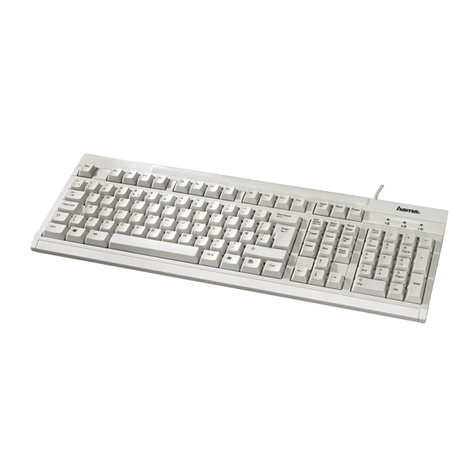
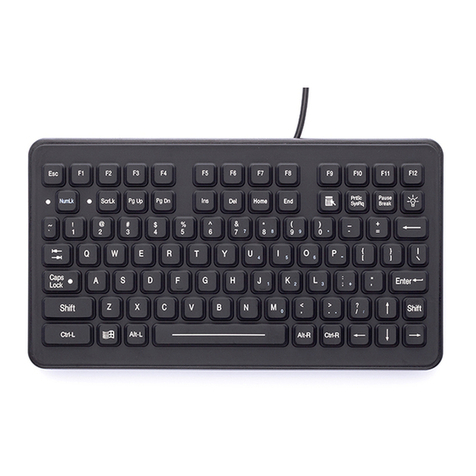
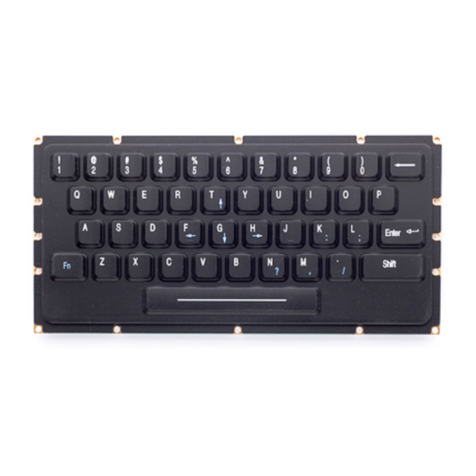
The QWERTY keyboard module has a standard keyboard layout, separated by the control keys for the
keyboard.