User Manual Mobius Maxi 4K Camera Version: V2.0
6
Operating Instructions
Power On/Off
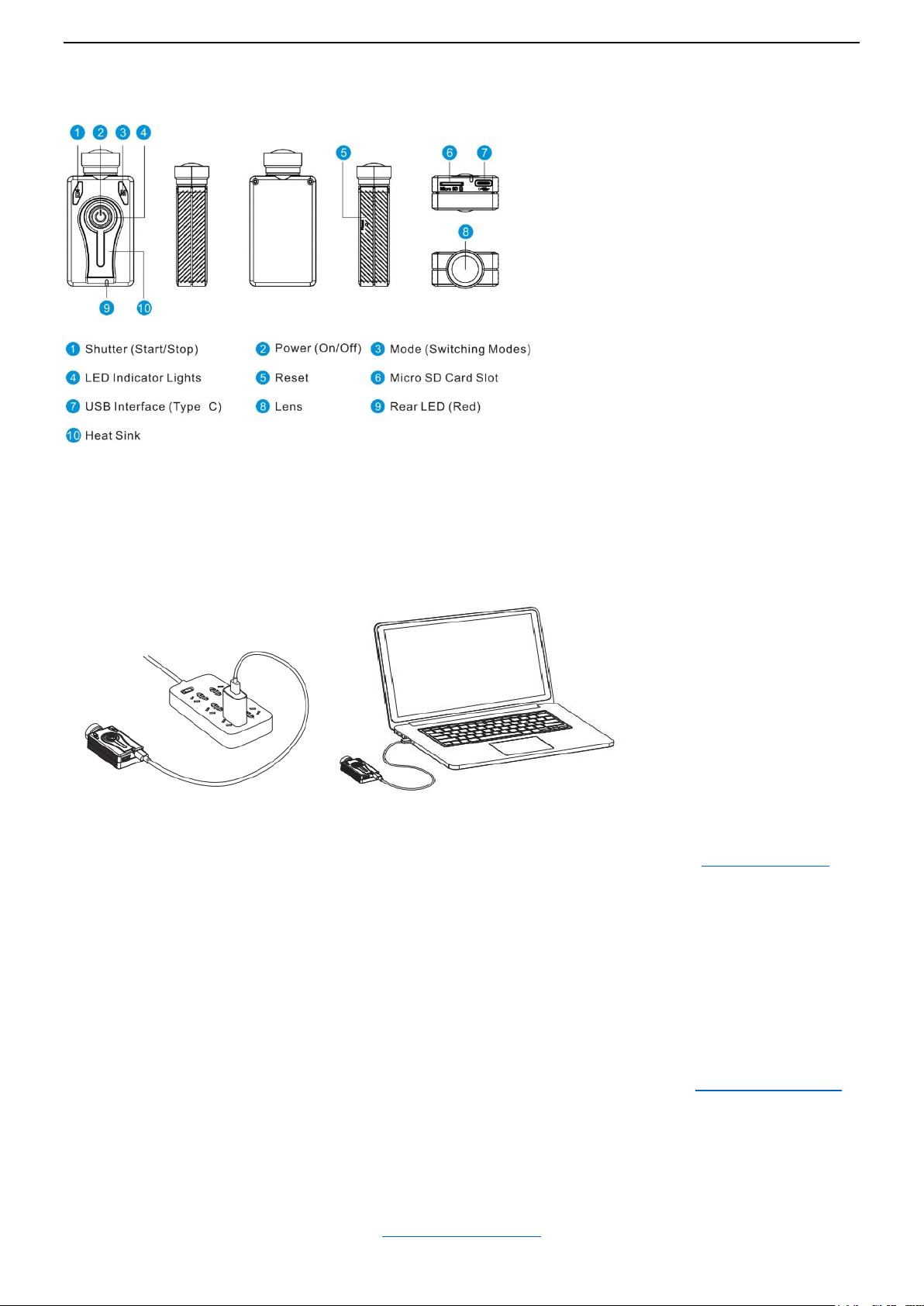
►To power on, press and hold the Power button for 1-3 seconds, the LED lights will start flashing, the camera will
beep 3 times, and the yellow LED will turn on. The camera is now on and in standby mode.
►To power off, press and hold the Power button for 1-3 seconds, the LED lights will start flashing, the camera will
beep 5 times, and all the LEDs will turn off. The camera is now off.
►Camera will be automatically powered on when connecting with PC’s USB port or external USB power.
Mode Switching
The camera has 3 working modes: Video 1 (Yellow LED), Video 2 (Blue LED), Photo Mode (Red LED).
When the camera is on and in standby, press the Mode button to switch modes (from Video 1 to Video 2, and to
Photo, and then back to Video 1)
►*If the camera is connected to an external TV monitor using the TV out cable, the camera will enter Playback
mode (Red LED) after pressing the Mode button (top right) when in Photo mode. See TV out Mode and OSD menu.
Start / Stop Video Recording
When the camera is on and in standby mode (Video 1 or Video 2), press the Shutter button to start a video
recording, the camera will beep, and the LED will begin to flash slowly. Press the Shutter button again to stop
recording, the camera will beep twice, and the LED will remain on.
►If the recording LED has been disabled, the yellow or blue LED will slowly blink 3 times and then turn off,
indicating that recording has started. Press the Shutter button to stop and save the file. The LED will turn back on.
Take a Photo / Photos
The red LED indicates that the camera is in Photo mode. Press the Shutter button to take a photo. The LED will
flash and the camera will beep once, while the photo is taken.
The camera can also be set to take Burst Photos or Time-lapse Photos.
LED Indicator Lights
The following LED states are for a camera not connected to the PC.
Steady Yellow - The camera is in Video Mode 1 and is on standby.
Slowly flashing Yellow - The camera is in Video Mode 1 and is recording video. The Video Recording indicator (see
configuration) must be ON for this to work.
Steady Blue - The camera is in Video Mode 2 and is on standby.
Slowly flashing Blue - The camera is in Video Mode 2 and is recording video. The Video Recording indicator (see
configuration) must be ON for this to work.
Steady Red - The camera is in Photo Mode.
Red LED flashes once - The camera has taken a picture.
Steady Green - The battery is charging. It will be off when battery is fully charged.
Rear LED
If the camera is configured to show the Recording Indicator, then the rear red LED will normally blink in sequence
with the main LED while recording or in standby mode.
►The rear LED will blink when WiFi mode is enabled and the camera is waiting for a smart phone to connect. The
top LED will be steady.
(Back to Table of Contents)