MOON 350P Preamplifier
Front Panel Controls
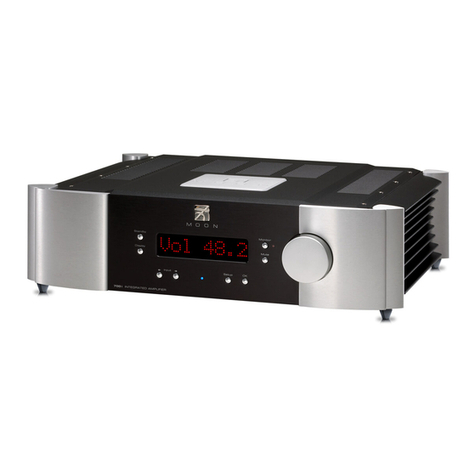
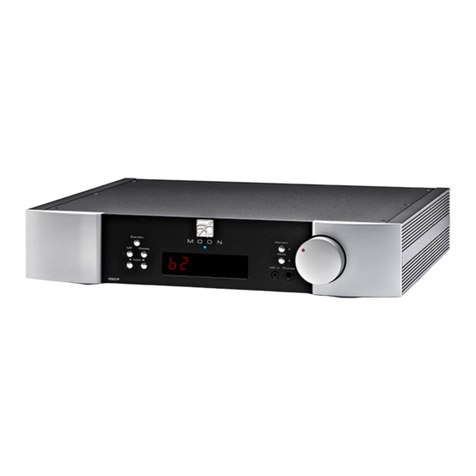
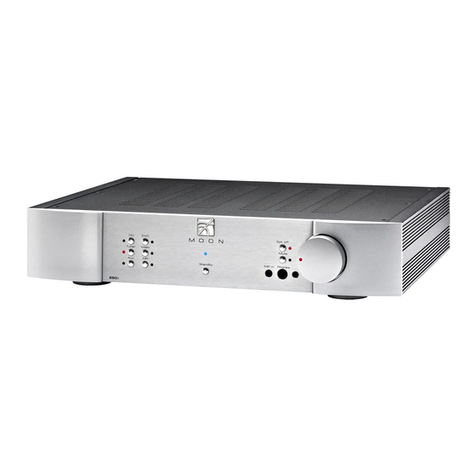
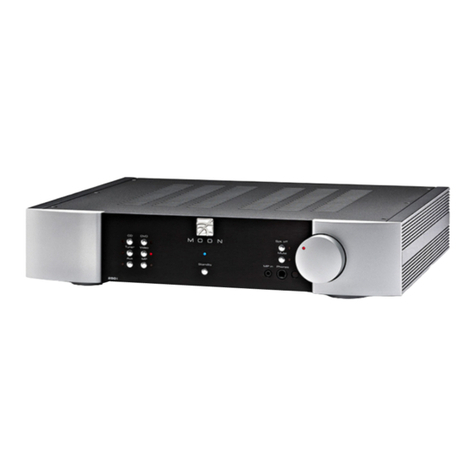
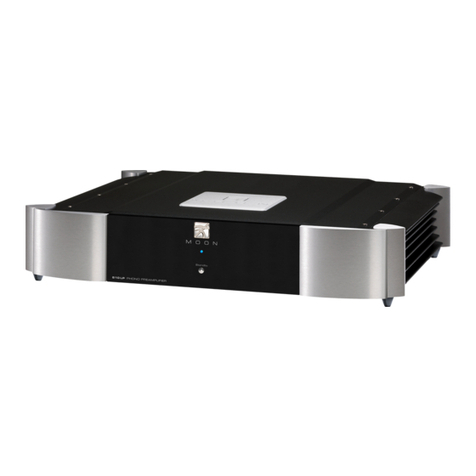
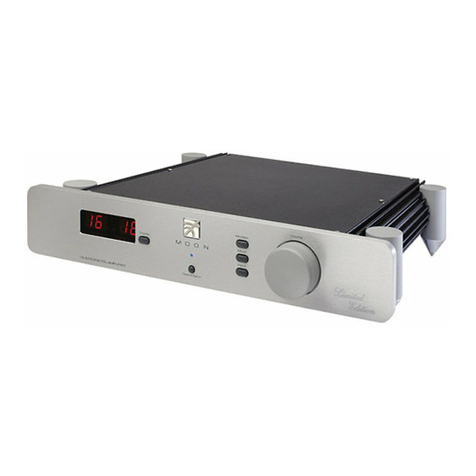
Figure 1: MOON 350P Front panel
The front panel will look similar to Figure 1 (above). The large display window indicates the selected input source. In the
event that your MOON 350P includes the digital input option, additional information will appear in the display window. Refer
to the section entitled “Optional Digital Inputs” on page 8 for further details.
Directly below the display window, from left to right, are seven (7) buttons. The “Standby” button disengages the input
section from the rest of the 350P’s circuitry. When in “Standby” mode all audio circuitry remains powered up to help maintain
optimal performance. When switching back from “Standby” to the “on” mode, the blue LED directly above the button will
illuminate. As well, the current ‘input’ will be memorized from the previous listening session. The blue indicator LED, does not
illuminate when the 350P is in “Standby” mode.
The “Display” button allows you to turn the digital display on and off. The “Mute” button mutes the output signal to both the
fixed and variable line output connectors (refer to the section entitled “Rear Panel Connections” for further details), as well as
the headphone jack. Pressing the “Mute” button a second time will reinstate the volume to its previous level. When the output
signal is muted, the corresponding red indicator LED, located to the left of the display window, will flash on and off.
The “Monitor” button provides for a dedicated loop to be used with either a component that can record & playback (Cassette
Deck, DAT, CD-Recorder, etc.) or a signal processor such as an equalizer. Pressing this button allows you to 1) monitor the
recording as it occurs on the recording device or 2) engage the effects of the signal processor. The monitor component’s
outputs must be connected to the 350P’s “Monitor In” and its inputs must be connected to the 350P’s “Monitor Out”. The
monitor output level is fixed and independent of the 350 P’s volume setting. The LED to the left of the display window will
illuminate when the “Monitor” function is engaged.
The “MP” button (for Media Player) has its corresponding input connection located on the far right side of the front panel for
easy access. It uses a 1/8” mini-jack connector which is the most common type of connection found on portable media
players. When selected, the corresponding red LED, located to the left of the display window, will illuminate. As well, when the
“MP” input is in use the display window automatically turns off.
The two (2) buttons labeled ◄INPUT ►allow you to sequentially scroll, either forward (►) or backward (◄) through all of the
available inputs. Depending on the installed options, the order of the inputs is as follows going forward (►):
Basic Unit: “CD”, “A1”, “A2”, “A3”, “B1” and “B2”
All options installed: “CD”, “A1”, “A2”, “PH”, “B1”, “B2”, “D1”, “D2”, “D3” and “D4”
The above abbreviations correspond directly to the labeling of the rear panel inputs. By default the “CD” input is intended for
use with a CD Player, however you can connect another type of source component to it. “A1”, “A2” and “A3” are intended for
use with any type of source component that outputs analog signal. If you have installed the optional phono section, the “A3”
input is replaced by “PH”. The balanced inouts “B1” and “B2” will appear after the “A3” / ”PH” input. Finally, if you have
installed the digital input option, “D1”, “D2”, “D3” and “D4” will appear after “B2”.
____________________________________________________________________________________
FrontPanelControls 7