Method 2: LAN cable connection
1. Open the app, tap on the “+” button on the upper right corner of the
interface, and then select the option “Add Device”.Select option “Smart
Camera”and then choose the corresponding model purchased.
2. Change the connection mode at the top right to mode “Cable". I dialed
"Following"if you have finished the above steps in the interface. Select
the desired Wi-Fi and enter the correct password. Then tap on the “Next”
button.
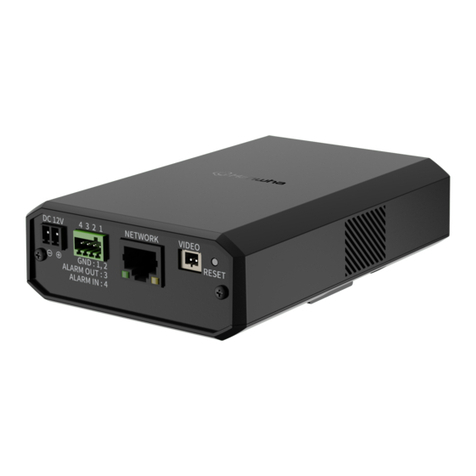
Note: Make sure to connect the camera to your home router using the Ethernet
cable.
3. The app will search the camera automatically and then click the button
“+”to add the corresponding camera.
4. Once you see the message “Added successfully”In the app, you can
edit the device name manually. Touch the button “Finalized" to complete
the setup.
Note: If you were unable to connect your device to Wi-Fi, please press
and hold the Reset Button for 5 seconds until you hear the audio
message “Reset successfully, please wait for reboot”.
Review Recordings from Browser
1. Please visit https://ipc-us.ismartlife.me and then select the corresponding
data server in the upper right corner of the interface.
2. Use NGTeco Home app to scan the QR code to login your account.
3. Click on the corresponding device to view the live videos.
NG-C4200 series 7