manuals.online logo
Brands
  1. Home
  2. •
  3. Brands
  4. •
  5. Nuvo
  6. •
  7. Digital Camera
  8. •
  9. Nuvo Driveri D-210 User manual

Nuvo Driveri D-210 User manual

Popular Digital Camera manuals by other brands

Canon WP-DC35 user guide

Canon

Canon WP-DC35 user guide

Xiaomi 70mai Dash Cam Lite user manual

Xiaomi

Xiaomi 70mai Dash Cam Lite user manual

Samsung PL70 Quick start manual

Samsung

Samsung PL70 Quick start manual

GE E1680W user manual

GE

GE E1680W user manual

Canon EOS 1200D instruction manual

Canon

Canon EOS 1200D instruction manual

Tevion MD 86497 user guide

Tevion

Tevion MD 86497 user guide

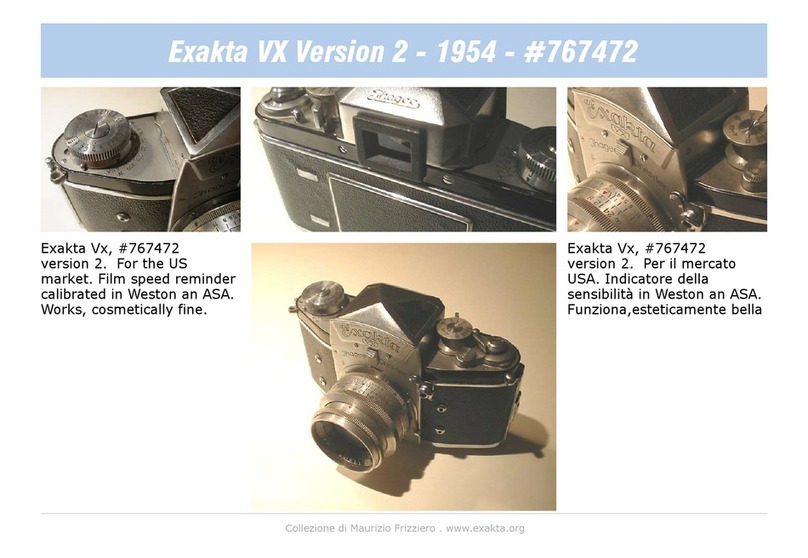
Exakta VX Features

Exakta

Exakta VX Features

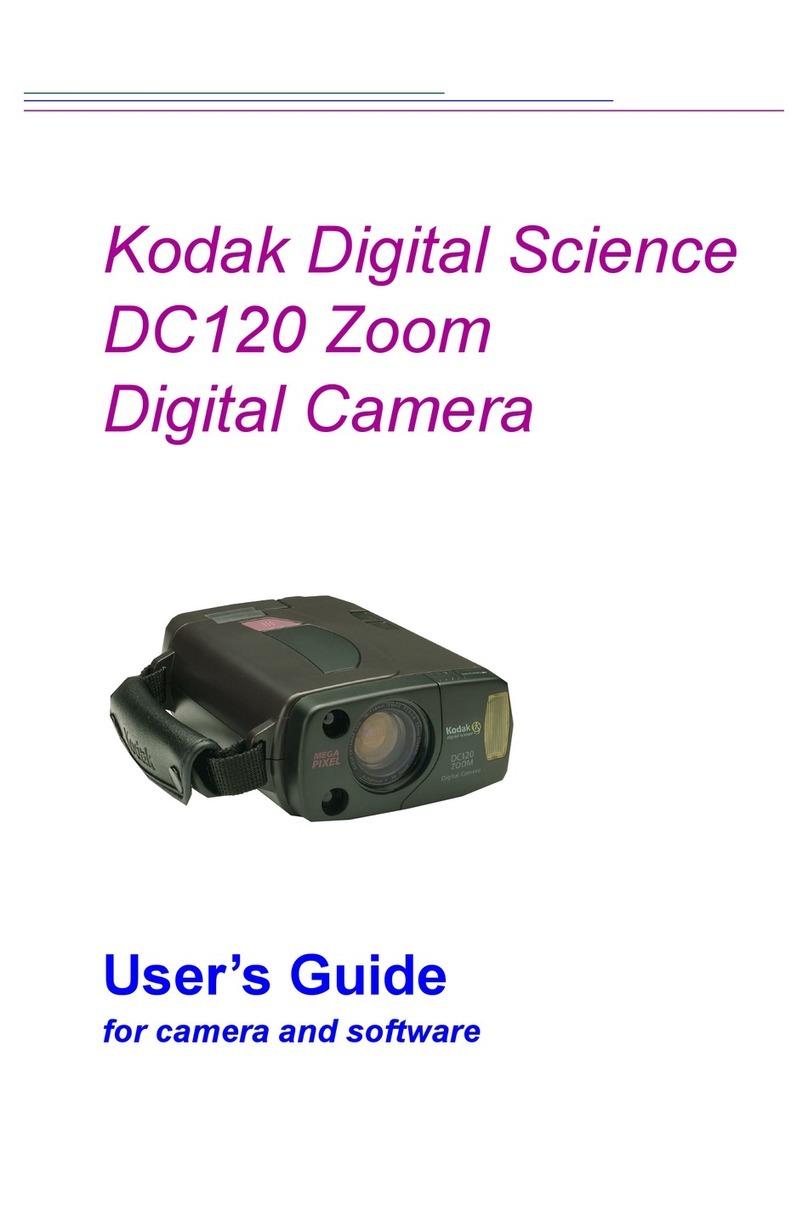
Kodak Digital Science DC120 user guide

Kodak

Kodak Digital Science DC120 user guide

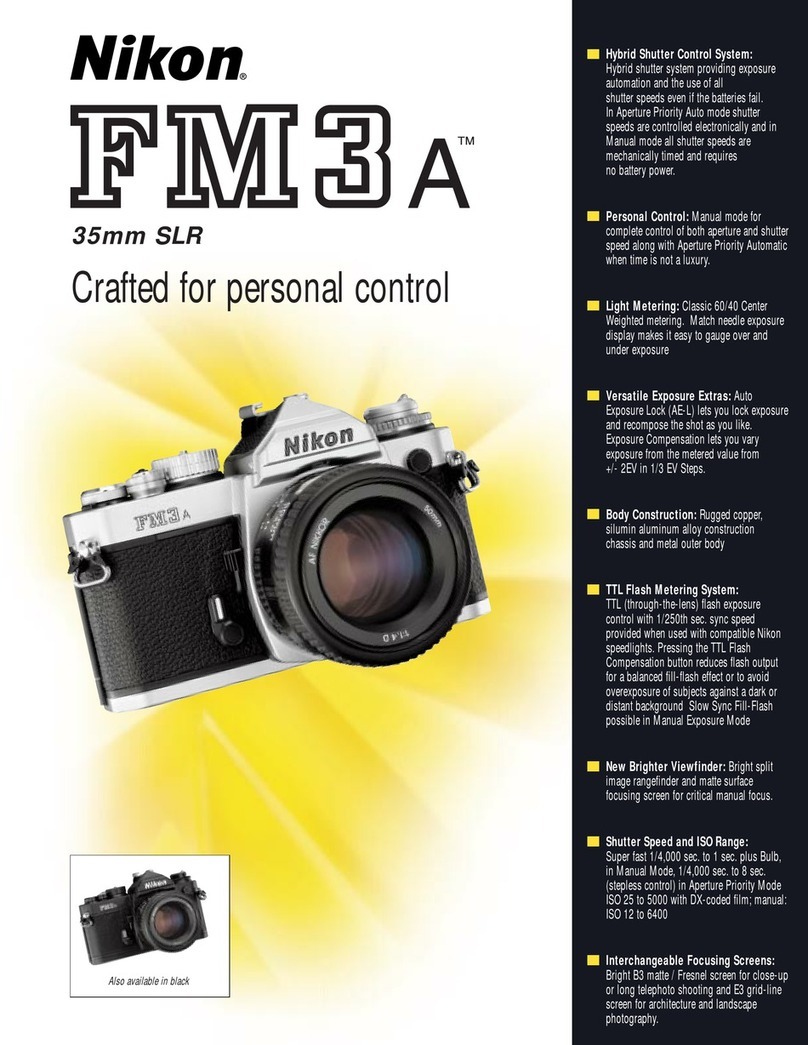
Nikon FM3A Specifications

Nikon

Nikon FM3A Specifications

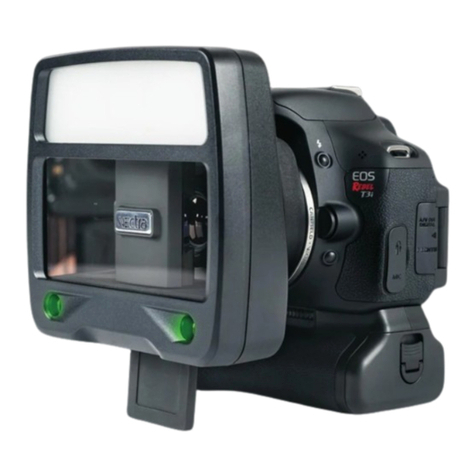
Vectra Fitness H1 Quick reference guide

Vectra Fitness

Vectra Fitness H1 Quick reference guide

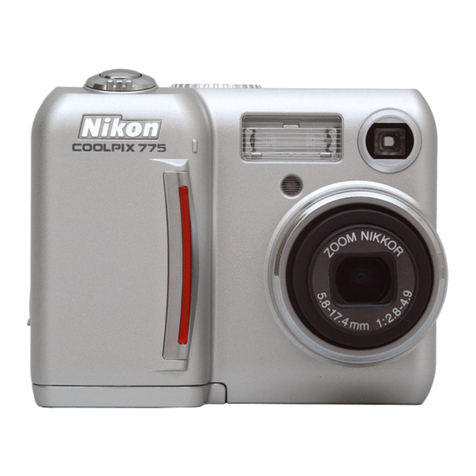
Nikon COOLPIX 775 quick start guide

Nikon

Nikon COOLPIX 775 quick start guide

Olympus IR 500 - 4MP Digital Solutions Camera Manuel de Référence

Olympus

Olympus IR 500 - 4MP Digital Solutions Camera Manuel de Référence

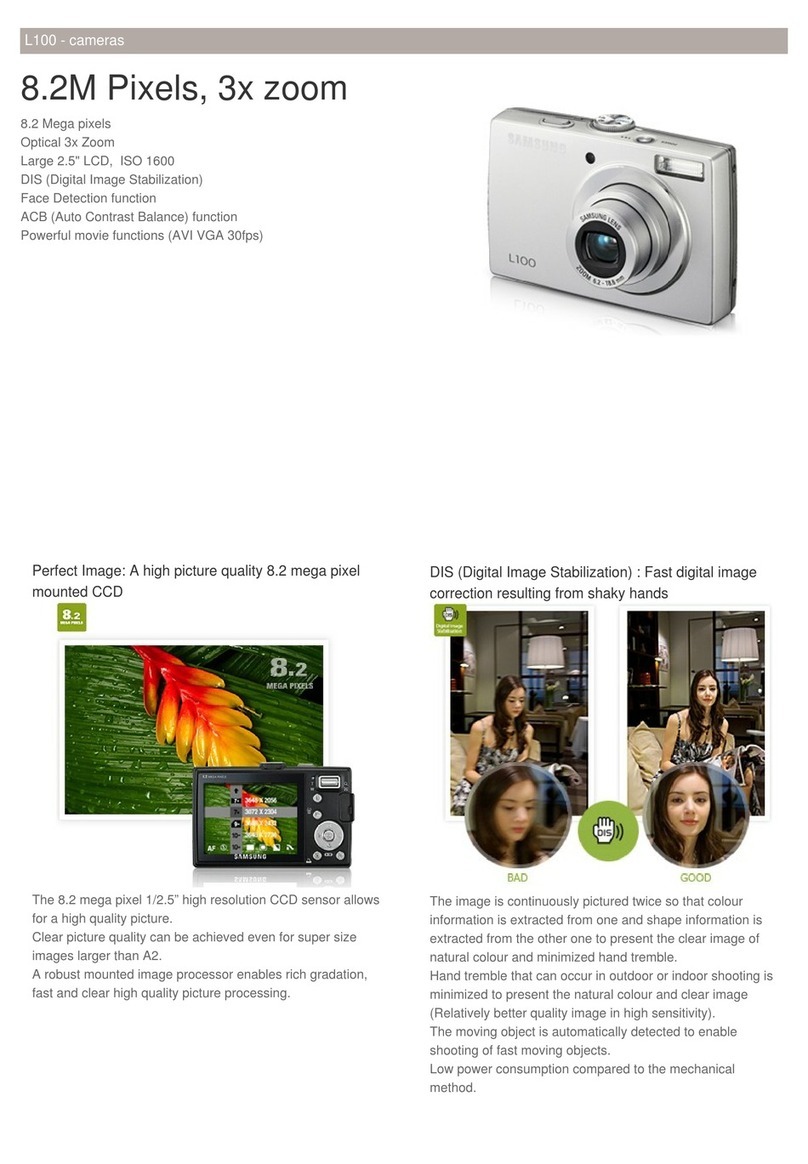
Samsung EC-L100ZBBA brochure

Samsung

Samsung EC-L100ZBBA brochure

FujiFilm FINEPIX BL01124-201 owner's manual

FujiFilm

FujiFilm FINEPIX BL01124-201 owner's manual

Panasonic DMC-L10KPP Service manual

Panasonic

Panasonic DMC-L10KPP Service manual

Hyundai Electric HYU-CC-CHBF12001 Quick installation guide

Hyundai Electric

Hyundai Electric HYU-CC-CHBF12001 Quick installation guide

Sony DSC-WX80 specification

Sony

Sony DSC-WX80 specification

Nikon Nuvis S - Point & Shoot instruction manual

Nikon

Nikon Nuvis S - Point & Shoot instruction manual

manuals.online logo
manuals.online logoBrands
  • About & Mission
  • Contact us
  • Privacy Policy
  • Terms and Conditions

Copyright 2025 Manuals.Online. All Rights Reserved.

Driveri D-210 (2 Camera) Conventional
Hardwire
Link: https://help.nuvo.solutions/installation-guide/driveri-d-210-conv-hardwire/ Last Updated: December 9th, 2022
Copyright ©2023 Nuvo Solutions Page 1 of 16
The installation kit contains an installation guide (please refer to this online guide as they differ), one Driveri
D-210 device, one mounting bracket, one power cable with antenna, one AD-1/2/3, a 6-pin harness, eight butt
connectors, one ring terminal, one self-tapping screw, one-star washer, eight 8” cable ties and cleaning wipes.
App installation verification and registration is required so please visit the App store on your smartphone and
download the Driveri Installer App.
Additional tools and supplies you will need include dashboard panel removers, a smartphone, a razor blade, a
digital multimeter, a cordless drill, 5/16” in. (8 mm) driver bit, a T9 and T20 security Torx bit, an insulated
crimper, a side cutter, wire strippers, a heat gun, hand roller, electrical tape, a dry/clean/lint-free cloth, dry
erase/wax tip marker and a tamper seal compound.
Installation Steps
The following steps provide an overview of the installation process:
Install Preparation.1.
6-Pin Harness Installation.2.
Mounting Preparation.3.
Device Installation.4.
Verify and Registration.5.
Frequently Asked Questions.6.
Note. Driveri components MUST remain together; these parts are not replaceable or
interchangeable. The ONLY interchangeable part is the diagnostic bypass cable.
1. Install preparation.
Note. If applicable, all water/ice/snow should be completely removed. If the outside
temperature is 75 degrees Fahrenheit (24 degrees Celsius) or less, turn on vehicle defrost
until the windshield is warm to the touch. Also, place the mounting bracket in defrost airflow
to warm VHB tape.

Driveri D-210 (2 Camera) Conventional
Hardwire
Link: https://help.nuvo.solutions/installation-guide/driveri-d-210-conv-hardwire/ Last Updated: December 9th, 2022
Copyright ©2023 Nuvo Solutions Page 2 of 16
Record the 8-digit device serial number (S/N) onto your paperwork.1.
Remove a-pillar plastic and dashboard panels for harness installation.2.
Tape off and cable tie 6-Pin Harness Green and Yellow wires, remove 1 1/2-in (4 cm) of insulation3.
from the end of the Red, White and Black wire, and crimp ring terminal to Black wire.
Driveri D-210 (2 Camera) Conventional
Hardwire
Link: https://help.nuvo.solutions/installation-guide/driveri-d-210-conv-hardwire/ Last Updated: December 9th, 2022
Copyright ©2023 Nuvo Solutions Page 3 of 16
2. 6-Pin Harness Installation.
Note. The device is not rated for more than 17 VDC (+), will shut itself down at 15 VDC (+)
and draws ~3Amps when active. Make sure the circuit will support this current draw and
does not exceed the max device voltage threshold.
Keys removed from the ignition, locate a vehicle wire providing 12 to 14 VDC (+). This will be the1.
6-Pin Harness Red wire power source.
Complete the following steps to poke and wrap the connection:2.
Remove 1 in. (2.5 cm) of insulation from the vehicle wire identified, poke something non-A.
conductive between the wire strands creating a loop and insert the harness Red wire.
Squeeze the loop shut, tightly wrap the bare wire around the exposed wire at least threeB.
times and fold the wire over the connection.
Generously wrap electrical tape around the connection, crossing over the insulation on bothC.
sides.
Secure the connection with one cable tie directly over the wire-to-wire connection andD.
another creating a stress loop created about 1 in. (2.5 cm) away from the connection.
Driveri D-210 (2 Camera) Conventional
Hardwire
Link: https://help.nuvo.solutions/installation-guide/driveri-d-210-conv-hardwire/ Last Updated: December 9th, 2022
Copyright ©2023 Nuvo Solutions Page 4 of 16
Locate a vehicle wire which provides at least 12 VDC (+) and 14 VDC (+) while the vehicle is On and running
and 0 VDC (+) when the key is in the Off and Accessory position; this will be the 6-Pin Harness White wire power
source.
Repeat Step 2.2: A-D to make the same type of wire-to-wire connection for the Switch/White wire.A.
Locate a suitable location on the chassis to attach the device Black/Ground wire. Confirm there is nothing
behind the mounting location and screw the ring terminal to the chassis.
Driveri D-210 (2 Camera) Conventional
Hardwire
Link: https://help.nuvo.solutions/installation-guide/driveri-d-210-conv-hardwire/ Last Updated: December 9th, 2022
Copyright ©2023 Nuvo Solutions Page 5 of 16
3. Mounting Preparation.1.
Mounting location is dependent on windshield type. For other windshield types, please see FAQ section at
the end of this guide.
Type 1: Rear View Mirror (Standard)1.
Clean bracket mounting area with Alcohol wipe.A.
Wipe clean with clean dry cloth.B.
From the bottom of the mirror anchor go ~1”in. down and place mark.C.
Apply heat to burn off any leftover residueD.
Driveri D-210 (2 Camera) Conventional
Hardwire
Link: https://help.nuvo.solutions/installation-guide/driveri-d-210-conv-hardwire/ Last Updated: December 9th, 2022
Copyright ©2023 Nuvo Solutions Page 6 of 16
Note. Excessive heat may cause delamination of the windshield or cracking.
Continuously move heat gun to not apply heat in one area for too long.
Near the A-pillar, scrub the dashboard with alcohol wipes and wipe dry with a clean cloth.2.
Driveri D-210 (2 Camera) Conventional
Hardwire
Link: https://help.nuvo.solutions/installation-guide/driveri-d-210-conv-hardwire/ Last Updated: December 9th, 2022
Copyright ©2023 Nuvo Solutions Page 7 of 16
4. Device Installation.2.
Bracket Mounting1.
Remove the plastic exposing the VHB adhesive.A.
Apply heat to the tape. If using butane, lightly heat the bracket instead vs. the tape.B.
Ensuring bracket is level, and left bracket arm is inline with windshield mark, press firmly toC.
the windshield.
Using a hand roller, roll the entire bracket applying firm pressure removing all air bubbles.D.
From outside the vehicle, visually inspect tape adhesion. There should be no air bubbles in the2.
tape. If necessary, repeat the rolling process until required results are achieved.
Driveri D-210 (2 Camera) Conventional
Hardwire
Link: https://help.nuvo.solutions/installation-guide/driveri-d-210-conv-hardwire/ Last Updated: December 9th, 2022
Copyright ©2023 Nuvo Solutions Page 8 of 16
Note. Mounting brackets are one time use and should be thrown away after removal.
Please contact your account manager for ordering additional mounting brackets.
Device Mounting3.
Remove device cover.A.
Plug in harness.B.
Screw cover back into place making sure grommet is seated properly.C.
Mount device in bracket and tighten screws finger tight.D.
Driveri D-210 (2 Camera) Conventional
Hardwire
Link: https://help.nuvo.solutions/installation-guide/driveri-d-210-conv-hardwire/ Last Updated: December 9th, 2022
Copyright ©2023 Nuvo Solutions Page 9 of 16
Note. The internal-facing camera has a lens cover and an LED on both sides of the
camera lens.
Cable Routing4.
Route cable along mirror wires and secure with cable ties.A.
Stuff cabling between vehicle roof and headliner.B.
Secure cable along A-Pillar wires; behind airbag if applicable.C.
Remove plastic exposing antenna VHB adhesive and press antenna firmly to dashboard.D.
Driveri D-210 (2 Camera) Conventional
Hardwire
Link: https://help.nuvo.solutions/installation-guide/driveri-d-210-conv-hardwire/ Last Updated: December 9th, 2022
Copyright ©2023 Nuvo Solutions Page 10 of 16
Device Connections5.
Connect device cable to AD-1/2/3 and then connect AD-1/2/3 to 6-Pin Harness.A.