SET UP CONTINUOUS RECORDING
CHANGE THE SCREEN DISPLAY
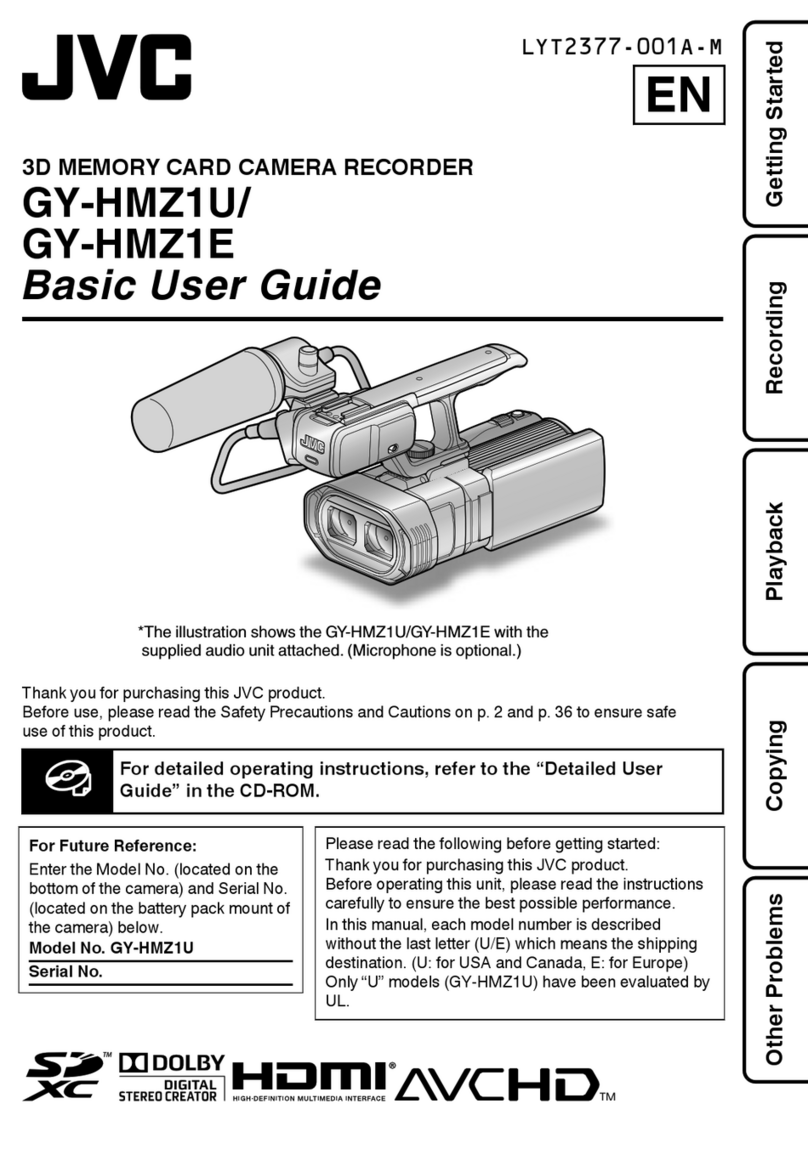
Press SEARCH on the front of the DVR or the remote control to log in to Search mode.
Select the TARGET media (HDD, DVD-RW, USB).
Select QUICK SEARCH.
Select a DATE from the list and press ENT. The list of dates only includes dates with
recorded video.
Use the arrow keys to move the bar across the displayed grid to select the search time.
Highlighted time blocks represent recorded video.
Select PLAY.
Use the play controls on the front of the DVR or remote control to play, pause, and rewind
video.
1.
2.
3.
4.
5.
6.
7.
Press BACKUP on the front of the DVR or remote control to log in to Backup mode.
Insert the media (DVD-RW, USB).
Select TARGET media (DVD-RW, USB).
CAUTION: If you are using a USB device to back up your data, you must format it first as
FAT32.
Set the FROM and TO date and time.
Select the CHANNELs to include in the backup file.
Select ESTIMATE to display the estimated data size and the free space available on the
media.
Select WRITE to start the backup.
CAUTION Do not shut down the DVR during the backup process.
1.
2.
3.
4.
5.
6.
7.
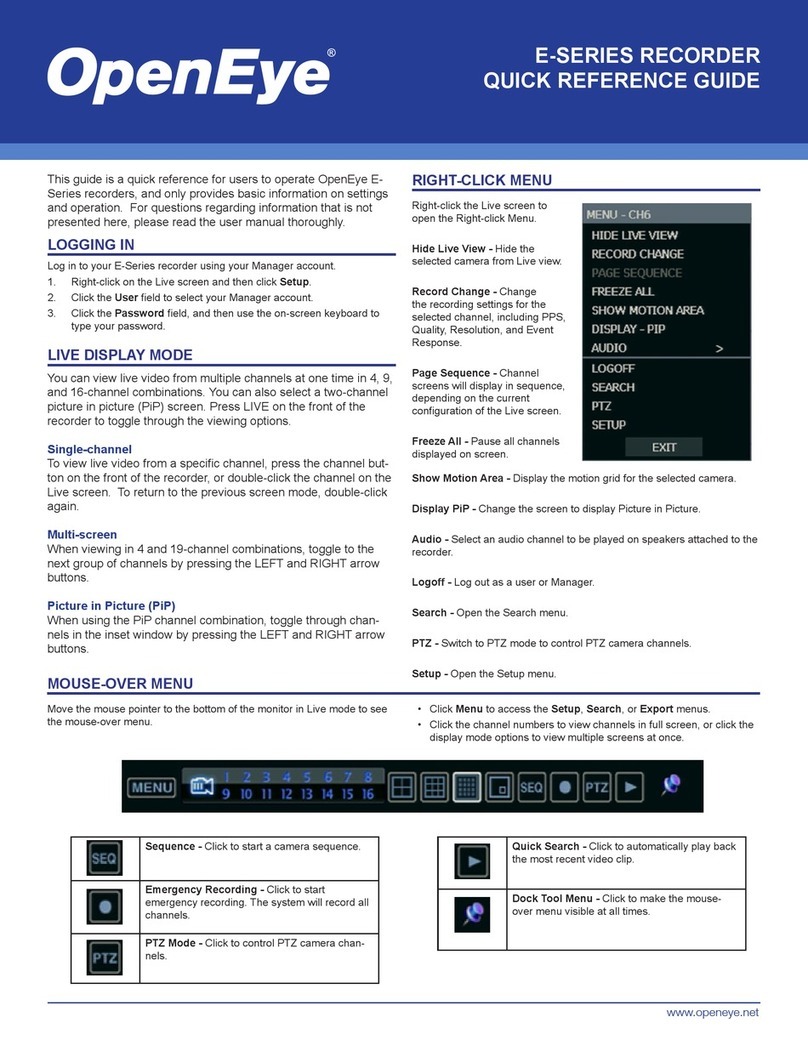
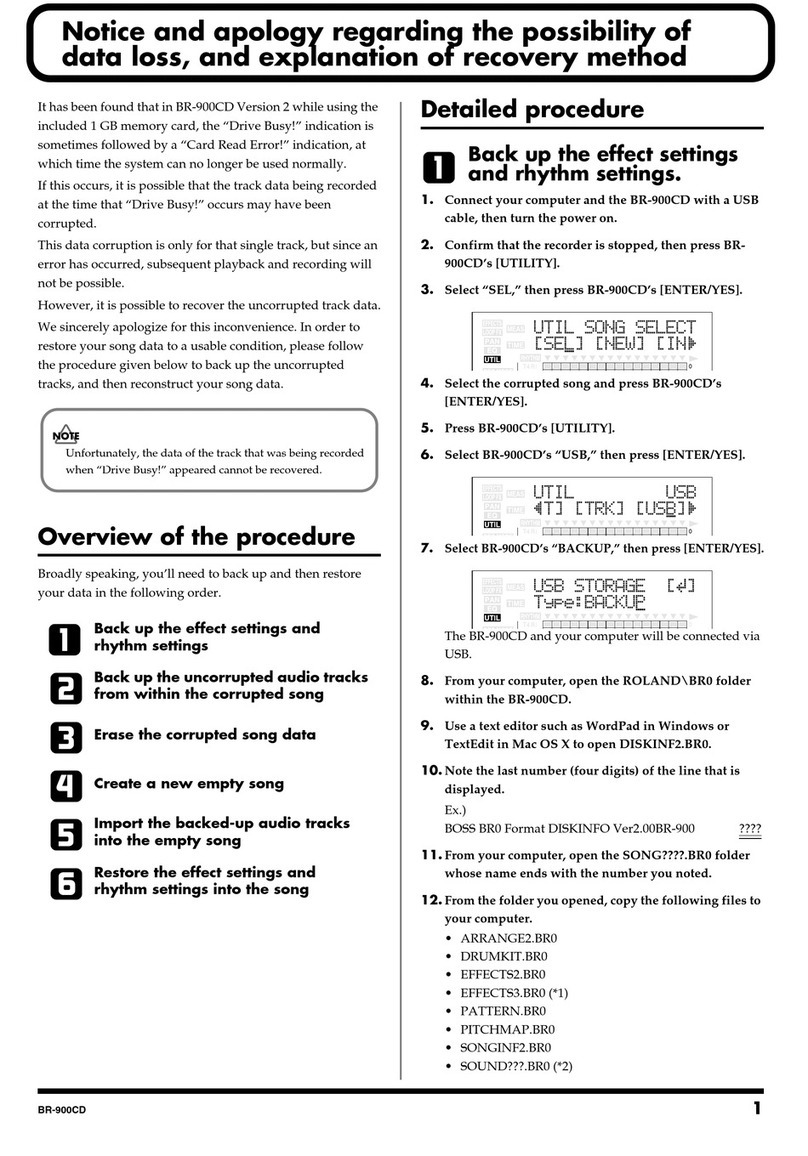
Change the screen display while in Live mode.
Full Screen Display
Press a number key on the front of the DVR or remote control to select the desired camera
channel for full screen display. (Example: Press 1 to display channel 1.)
Divided Screen Display
Press LIVE on the front of the DVR or remote control to change the display mode. Press LIVE
successively to cycle through all display configurations.
Change the Displayed Channels
Press ROTATE on the front of the DVR or remote control to rotate through the remaining
channels within the display mode or rotate the display configuration.
•
•
•
Insert the CD, DVD or connect external USB device to the client PC.
Navigate to the backup files on the CD, DVD, or USB device.
Double-click the DvrPlay application.
Click Open to locate the desired backup file saved by Date.
1.
2.
3.
4.
PLAY BACKUP FILE ON A PC
BACK UP RECORDED VIDEO
Insert the media (DVD-RW, USB).
Perform a Search to locate the desired video.
Press BACKUP at the beginning of the desired clip.
Press BACKUP again at the end of the desired clip.
Confirm the Backup settings.
Select WRITE to start the backup.
1.
2.
3.
4.
5.
6.
QUICK BACKUP
QUICK START GUIDE
Embedded Digital Recorder
E-Series (4, 8, 16 channel)
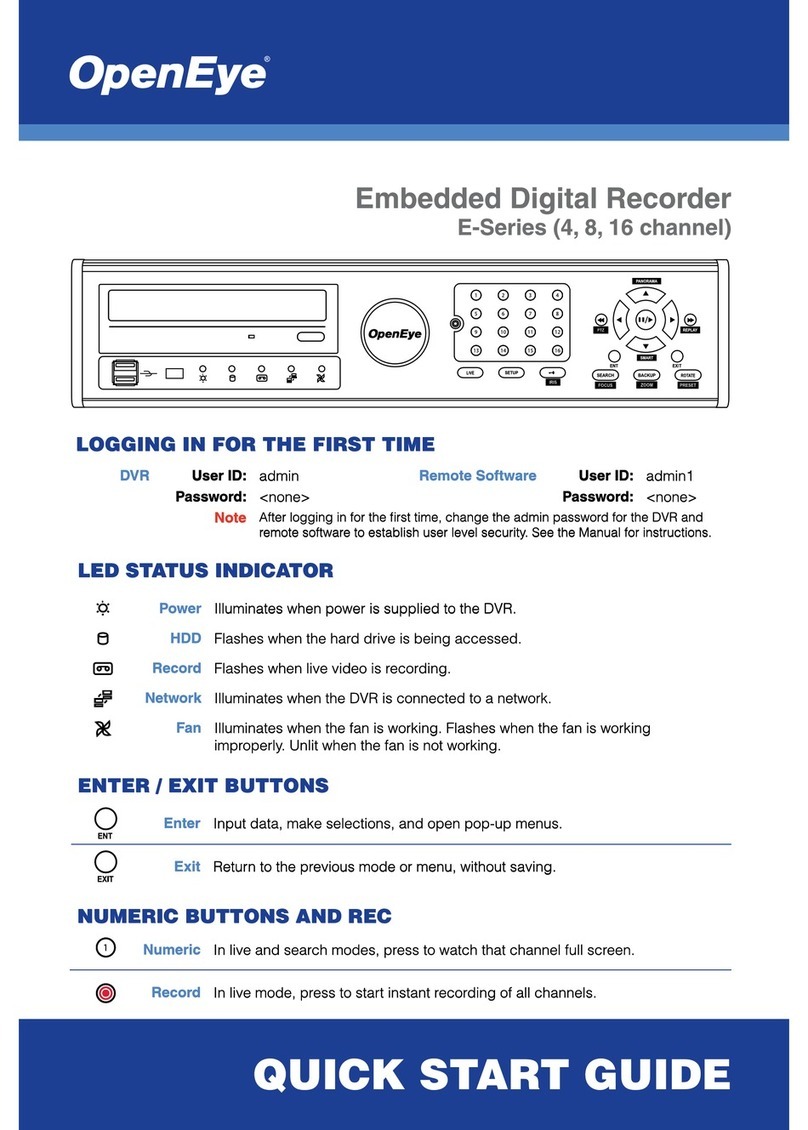
LED STATUS INDICATOR
ENTER / EXIT BUTTONS
Power Illuminates when power is supplied to the DVR.
HDD Flashes when the hard drive is being accessed.
Record Flashes when live video is recording.
Network Illuminates when the DVR is connected to a network.
Fan Illuminates when the fan is working. Flashes when the fan is working
improperly. Unlit when the fan is not working.
Enter Input data, make selections, and open pop-up menus.
NUMERIC BUTTONS AND REC
Numeric In live and search modes, press to watch that channel full screen.
Record In live mode, press to start instant recording of all channels.
Exit Return to the previous mode or menu, without saving.
LOGGING IN FOR THE FIRST TIME
DVR User ID: admin Remote Software User ID: admin1
Password: <none> Password: <none>
Note After logging in for the first time, change the admin password for the DVR and
remote software to establish user level security. See the Manual for instructions.
Press SETUP on the front of the DVR or remote control.
Select RECORD > RECORD SETUP and press ENT.
Select DAY and press ENT to toggle between DAY, NIGHT, and WEEKEND schedules.
Select C-FPS and press ENT to set the desired Frames Per Second.
Select R-MODE and press ENT to select C.
Repeat for all cameras.
Select the SCHEDULE screen and press ENT.
Select the NIGHT TIME and press ENT.
Set the FROM time and press ENT.
If 19:00 to 06:00 is defined as nighttime, 06:00 to 19:00 is defined as daytime.
Repeat to set the TO time.
Select the first WEEKEND day and press ENT to set the desired day.
Select the second WEEKEND day and press ENT to set the desired day.
Select SAVE and press ENT to save the settings and return to the SETUP Menu.
1.
2.
3.
4.
5.
6.
7.
8.
9.
10.
11.
12.
13.
When the E-Series DVR starts for the first time, it will take about 40-45 seconds to boot up. Once boot
is complete, the Install Setup window will appear. Use this setup window to configure the basic settings
of the system. If any settings are changed you must restart the DVR.
Video Format: NTSC/PAL
Date Format: ASIA (YYYY/MM/DD), US (MM/DD/YYYY) and EURO (DD/MM/YYYY).
Time Zone: Set the local time zone.
DST: To use DST (Daylight Saving Time), turn on this toggle option.
Date/Time: Specify the current date and time.
Auto Log Off: Logs users off after specified time (0~10 minutes).
Copyright ©2009 OpenEye. All Rights Reserved. Information contained in this
document is subject to change without prior notice. OpenEye does its best to provide
accurate information but cannot be held responsible for typos or mistakes.
28971AA
A12931
23221 E Knox Ave
Liberty Lake, WA 99019
1.888.542.1103
SEARCH RECORDED VIDEO WITH QUICK SEARCH
STARTING FOR THE FIRST TIME
Recording This icon always appears in conjunction with the Motion or
Continuous Recording icon.
Motion Motion Recording
Sensor Sensor (Alarm) Recording
Continuous Continuous Recording
VVideo Loss Video Loss Detected
FFreeze Pause Live View
PPTZ PTZ Camera Channel
1: Channel Channel Number
C1: Channel Name User Defined Channel Name
SSmart Smart Search Mode
PPanorama Panorama Search Mode
Play Playback Mode
Pause Pause Search Video
SCREEN ICONS