manuals.online logo
Brands
  1. Home
  2. •
  3. Brands
  4. •
  5. Paten
  6. •
  7. Keyboard
  8. •
  9. Paten PT-2002-X User manual

Paten PT-2002-X User manual

This manual suits for next models

1

Popular Keyboard manuals by other brands

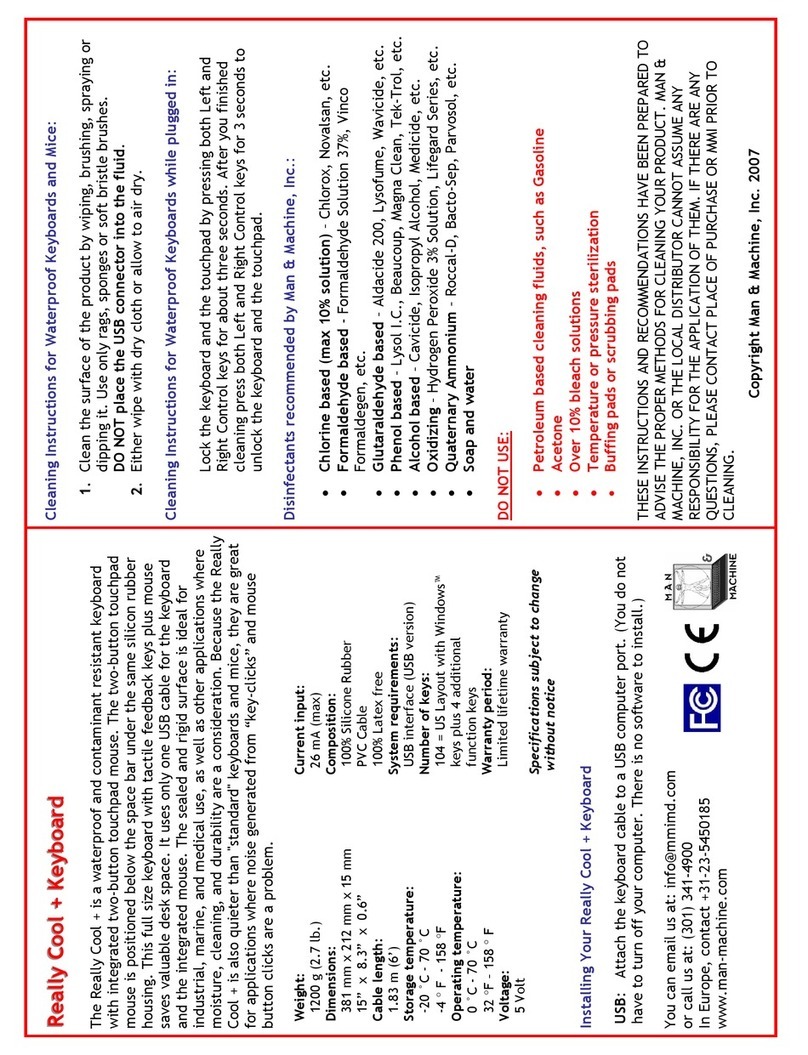
Man & Machine Really Cool + user guide

Man & Machine

Man & Machine Really Cool + user guide

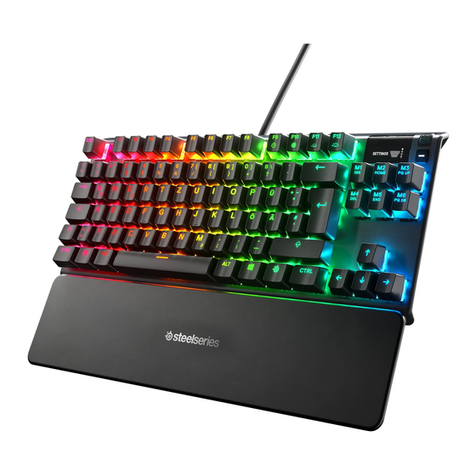
SteelSeries APEX PRO TKL Product information guide

SteelSeries

SteelSeries APEX PRO TKL Product information guide

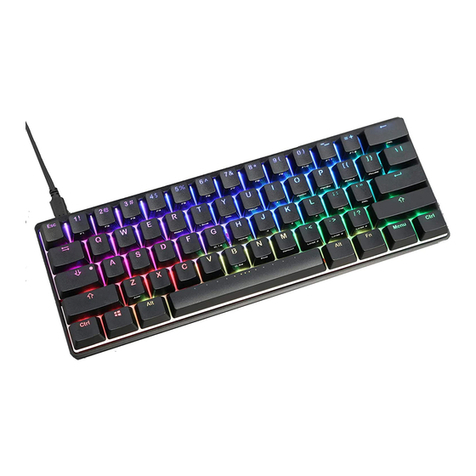
Vortexgear POK3R user manual

Vortexgear

Vortexgear POK3R user manual

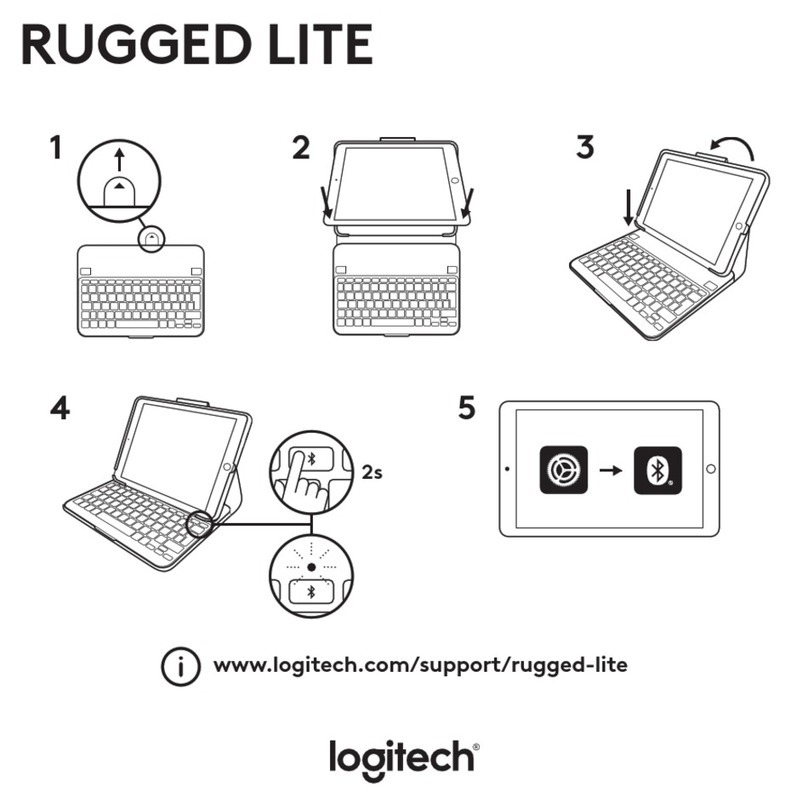
Logitech RUGGED LITE quick start guide

Logitech

Logitech RUGGED LITE quick start guide

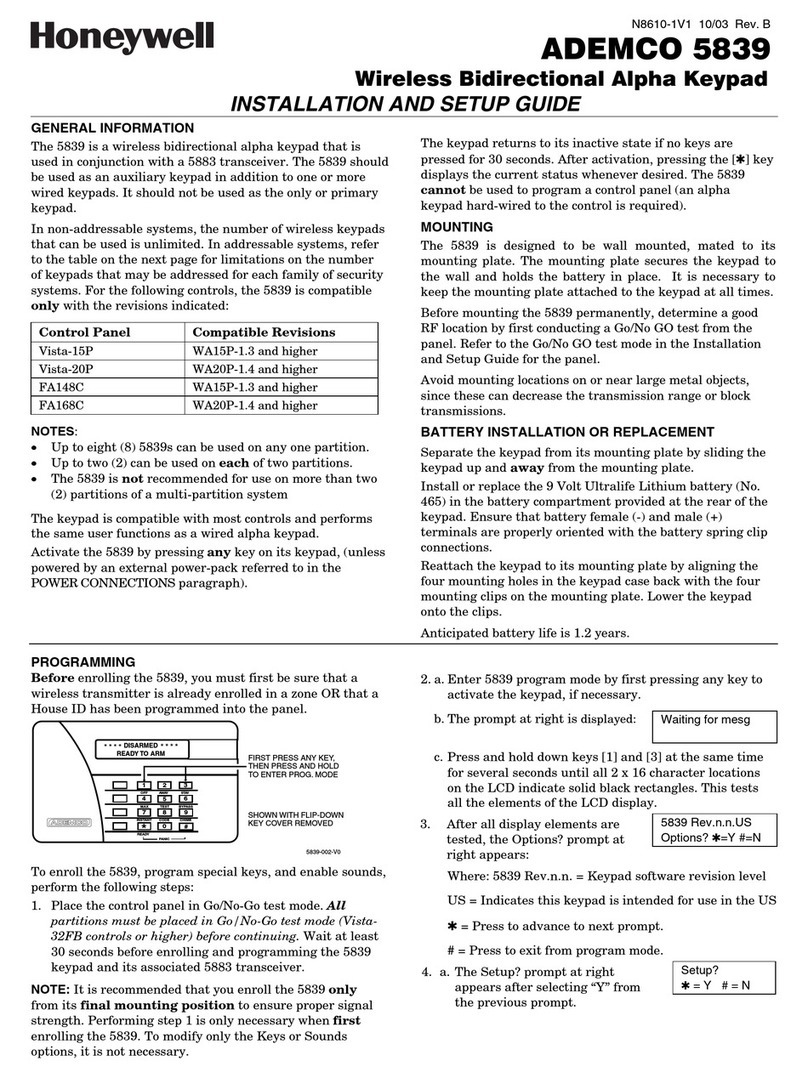
Honeywell ADEMCO 5839 Installation and setup guide

Honeywell

Honeywell ADEMCO 5839 Installation and setup guide

PROZIS EZ user manual

PROZIS

PROZIS EZ user manual

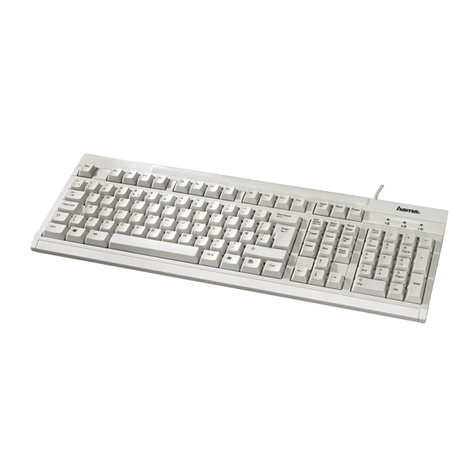
Hama AK-120 Operating	 instruction

Hama

Hama AK-120 Operating instruction

Rodgers RK-76 owner's manual

Rodgers

Rodgers RK-76 owner's manual

Logic Controls KB5000 Series user manual

Logic Controls

Logic Controls KB5000 Series user manual

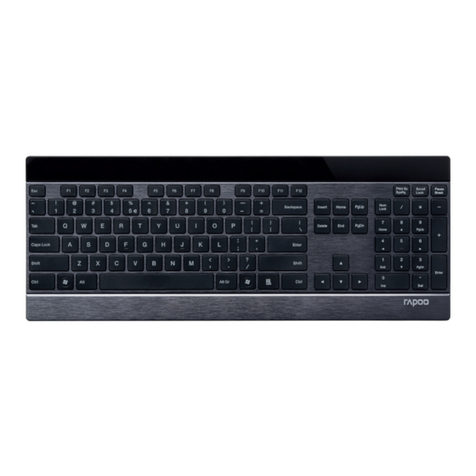
Rapoo E9270P quick start guide

Rapoo

Rapoo E9270P quick start guide

AbleNet Chester Creek USB Keyboard quick start guide

AbleNet

AbleNet Chester Creek USB Keyboard quick start guide

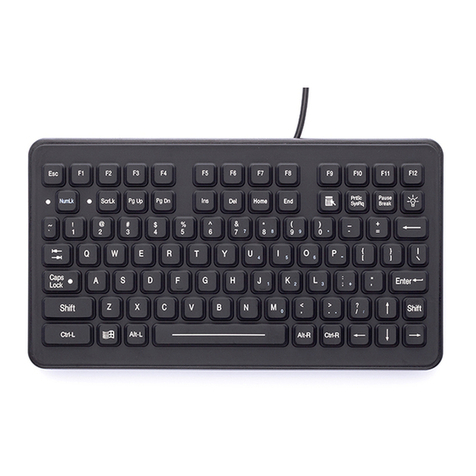
iKey DP-88 Specifications

iKey

iKey DP-88 Specifications

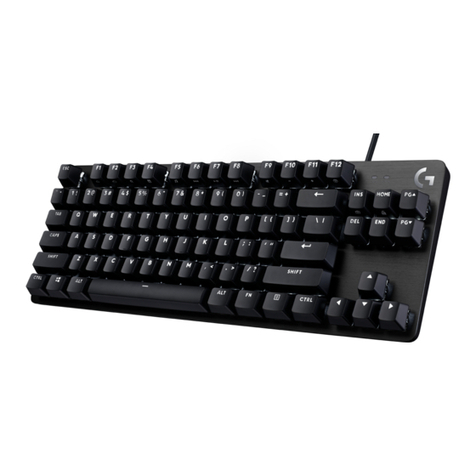
Logitech G413 TKL SE Complete Setup Guide

Logitech

Logitech G413 TKL SE Complete Setup Guide

Ultimate Technology 500 POS user guide

Ultimate Technology

Ultimate Technology 500 POS user guide

Mace MACALLY MERGOKEY user guide

Mace

Mace MACALLY MERGOKEY user guide

iKey KYB-42-KIOSK Specifications

iKey

iKey KYB-42-KIOSK Specifications

Akko MX108 user manual

Akko

Akko MX108 user manual

Viper V770 user manual

Viper

Viper V770 user manual

manuals.online logo
manuals.online logoBrands
  • About & Mission
  • Contact us
  • Privacy Policy
  • Terms and Conditions

Copyright 2025 Manuals.Online. All Rights Reserved.

User Manual
User Manual
Wireless Keyboard/Mouse
M/N:
PT-2002-X
Compatible with all IBM-compatible PCs and equipped with USB interface.
Windows XP, 2000, 98SE,ME
Compatible Equipment
Compatible with Windows Operating Systems:
Instruction Of The Wireless Keyboard/Mouse
Please read the instruction for installing,
operating, and using the wireless desktop.
12
Note
FEDERAL COMMUNICATIONS
This device complies with Part 15 of the FCC Rules. Operation is subject to
the following two conditions :(1) this device may not cause harmful interference,
and (2) this device must accept anyinterference received, including interference
that may cause undesired operation.
This equipment has been tested and found to comply with the limits for a Class B digital
device, pursuant to Part 15 of the FCC Rules. These limits are designed to provide
reasonable protection. This equipment generates, uses and can radiated radio frequency
energy and, if not installed and used in accordance with the instructions, may cause harmful
interference to radio communications. However, there is no guarantee that interference will
not occur in particular installation if this equipment does cause harmful interference to radio
or television, which can be determined by turning the equipment off and on, the user is
encouraged to try to correct the interference by one or more of the following measures:
-Reorient or relocate the receiving antenna.
-Increase the separation between the equipment and receiver.
-Connect the equipment into an outlet on a circuit different from that to which the
receiver is connected
-Consult the dealer or an experienced radio/TV technician of help.
Changes or modifications not expressly approved by the party responsible for
compliance could void the user's authority to operate the equipment.
Please Review this Checklist
Your System Includes:
Wireless mouse 1
AAA size batteries 2
Instruction manual 1
AA sizebattery 2
Wireless keyboard 1
Receiver 1
34
Receiver
2.1.
4.
Press the reset button on
the mouse.
5.
Press the receiver button.
Press the connect button on
the keyboard.
3.
Insert the batteries in the
mouse and keyboard.
6.
Insert CD disk to your computer
Connect the receiver to your
USB port.
USB
Enjoy using Your keyboard and mouse.
3. Move your mouse or keyboard to make sure the connection.
4.If the mouse or keyboard doesn't work properly, please repeat step 4 to step 6.
5. Every time after you replace batteries, please reconnect your devices.
( step 4 to step 6)
6. In office or multi-user environment, set up each system separately and don't
move or click other devices when one system is under installation.
1.Please complete step 4 to step 6 within 30seconds
2.Insert the driver disk and install.
For any further question, please refer to the CD-ROM instruction
manual.
Wireless Mouse
ConnectionConnection
For the hot key function descriptions, please to software help file.
Extendable props on the keyboard may be adjusted in two stages to optimize the position for the
user.
Wireless Keyboard
Operating Software installation
If you have previously installed other keyboard ormouse
drivers on your PC, please uninstall them first.
Insert the driverdisk to installthe program forMultimedia and Internetfunctions. If
the program doesnot auto-run, please read this menu page 5 "Software Installation
Guide."
Quick Installation Guide.
Product Features:
USB Standard Keyboard Hotkey Functions
Volume Down - Decreases your system volume
My Music - Launch Microsoft my music
My Picture - Launch Microsoft my picture
My Documents - Launch Microsoft my Documents
Volume Up - Increases your system volume
Volume Mute - Mutes your system volume
Play / Pause - Starts and stops the playback of your Audio and Video applications
Stop
Refresh - Reload the current web page
Mail - Open your systems's default E-mail application
WWW - Open your systems's default Internet Browser
Previous Track - Back to the previous track
Next Track- Go to the next track
My Favorite - Open you favorite list

5
Maintaining your hardware and resolving basic problems
A desk made of iron will negatively impact wireless keyboard and mouse
operations.
If your cursoris controlled by another system in an office or multi-user environment, try
to unload thebatteries, insert them again after 2 minutes and repeatstep 5 to step 7 of
the quick installationguide.
Please locate thereceiver at a minimum distance of 20 cm awayfrom computer
chassis, monitors, zip-drives,speakers, or switching power supply.
Normal expected batterylife for thekeyboard and mouse units:
Battery life is greatlyaffected by thelength of time these
units are inuse. Under "normal"usage conditions, youmay
expect unit batteries tolast between two andthree months.
The environment withinwhich the units areused will also
affect the lengthof battery life.
If your devicesdon't function smoothly, you maytry the followingsteps:
a. replace withnew batteries
b. repeat step5 to step 7 of the quick installation guide to ensure connection
c. move mouseand keyboard closer to receiver
Product Number
Over 20cm
USB Keyboard
USB Mouse
Receiver
Desktop PT-2002-X
PT-2002-K3L
PT-2002-MR
PT-2002-RLPUM, PT-2002-RLPUJ, PT-2002-RLPUI
5