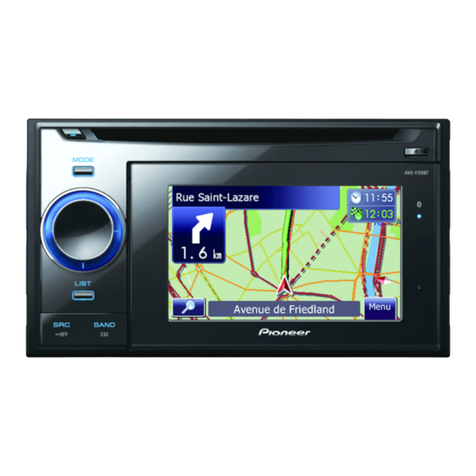
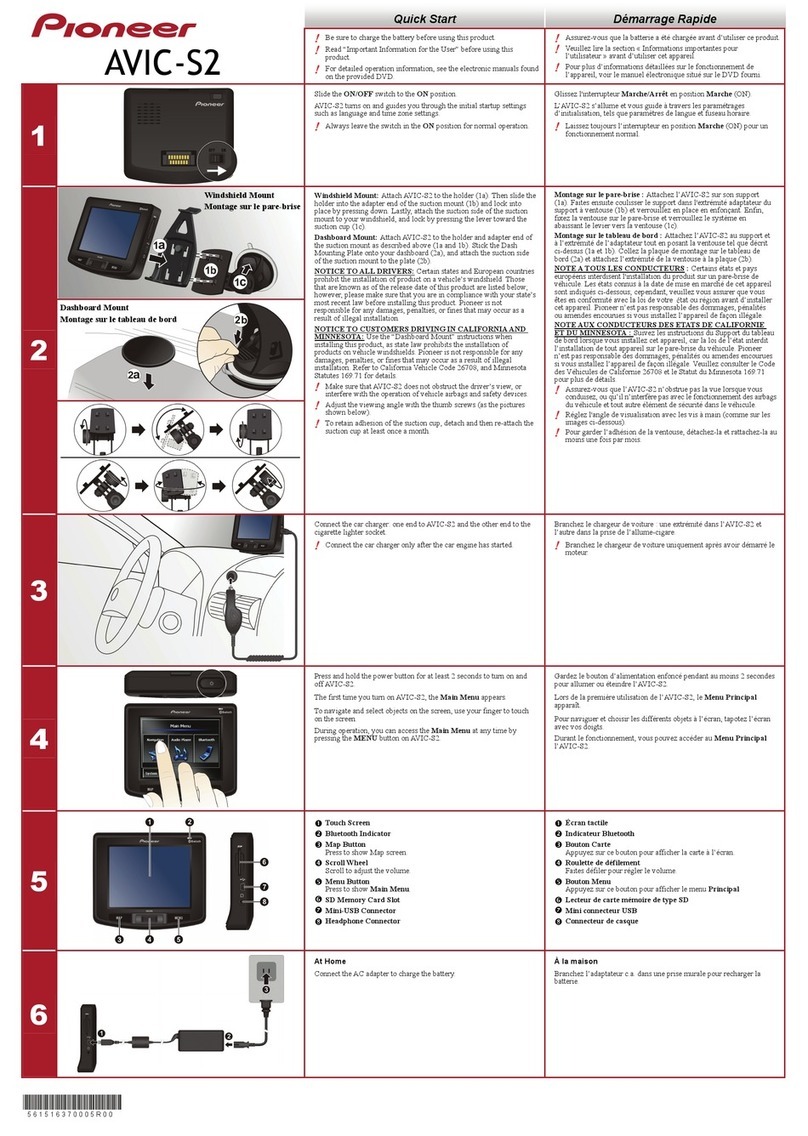
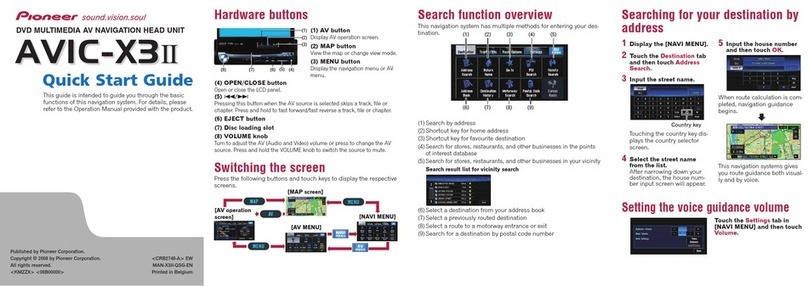
Basic Hardware buttons
GPS NAVIGATION AUDIO SYSTEM
Quick Start Guide
This guide is intended to guide you through
the basic functions of this navigation system.
For details, please refer to the operation
manual.
Searching for your destination
by address
1Display Navigation Menu
and touch A d d r e s s .
2Input the information that
you want to set as the
destination.
Touching the one of options.
After narrowing down your
destination, “Location
confirmation screen” will
appear.
3Tou ch OK.
After searching for the
destination, the “Route
confirmation screen” appears.
4Tou ch OK.
This navigation systems gives
you route guidance both visually
and by voice.
AVIC-F310BT
Switching the screen
Audio screen
Map screen
Published by Pioneer Corporation.
Copyright © 2009 by Pioneer Corporation. Printed in China
All rights reserved. <CRB3025-A/S> EU
<KYTZX> <09E00000> MAN-F310BT-QSG-EN
Press the MODE button to switch between map screen and
audio screen.
Navigation Menu
Tou ch Menu on the map screen.
41
5 6 7
2 3 8 9 a
c d e
b
1MODE button
2MULTI-CONTROL
Rotate to adjust the audio volume.
Pressing this button when the
audio source is selected plays the
track, file or skips chapter.
3LIST button
The list lets you see the list of
file names or folder names.
4SRC/OFF button
Selecting the audio source.
5BAND/ESC button
Changes the band for the radio.
6DETACH button
Press to remove the detachable
device from the head unit.
5
3
2
1
4
6
1Search by address
2Shortcut key for calculating
route of going home
3Search for stores,
restaurants, and other
businesses in the points of
interest database
4Searching for POIs by using
the data on external storage
devices (SD)
5Select a destination from
your address book
6Select a previously routed
destination
7Cancelling your current
route
8Searching for a location by
coordinates
9Gas Mileage Management
aSwitching to “PC Mode”
bUsing traffic information
cChecking the current route
conditions
dReplicating the settings
eExporting and importing the
data