manuals.online logo
Brands
  1. Home
  2. •
  3. Brands
  4. •
  5. PMV Mounts
  6. •
  7. Rack & Stand
  8. •
  9. PMV Mounts PMVMERSPG3 User manual

PMV Mounts PMVMERSPG3 User manual

Other PMV Mounts Rack & Stand manuals

PMV Mounts PMVTROLLEYXXL User manual

PMV Mounts

PMV Mounts PMVTROLLEYXXL User manual

PMV Mounts PMVSTANDEL User manual

PMV Mounts

PMV Mounts PMVSTANDEL User manual

PMV Mounts PMVDESKTOP User manual

PMV Mounts

PMV Mounts PMVDESKTOP User manual

PMV Mounts PMVTROLLEYXLDS1 User manual

PMV Mounts

PMV Mounts PMVTROLLEYXLDS1 User manual

PMV Mounts PMVMOUNTMTD1 User manual

PMV Mounts

PMV Mounts PMVMOUNTMTD1 User manual

Popular Rack & Stand manuals by other brands

Dynex DX-MP3MT Quick setup guide

Dynex

Dynex DX-MP3MT Quick setup guide

Konig & Meyer 24185 manual

Konig & Meyer

Konig & Meyer 24185 manual

ECG LD 326501 instruction manual

ECG

ECG LD 326501 instruction manual

Philips SB7S19S/00 quick start guide

Philips

Philips SB7S19S/00 quick start guide

Woodline KIT-250 lb instructions

Woodline

Woodline KIT-250 lb instructions

ricoo S1222 installation instructions

ricoo

ricoo S1222 installation instructions

Kanto P301 user manual

Kanto

Kanto P301 user manual

VidaBox VB MNT FFS2 installation guide

VidaBox

VidaBox VB MNT FFS2 installation guide

PROEL PLWIN60C user manual

PROEL

PROEL PLWIN60C user manual

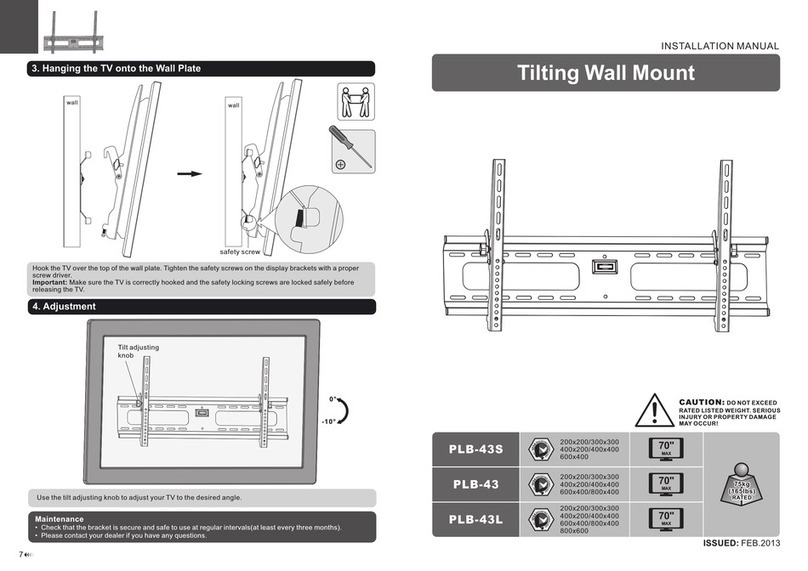
AllMounts PLB-43S instruction manual

AllMounts

AllMounts PLB-43S instruction manual

VMP VH-001 instruction sheet

VMP

VMP VH-001 instruction sheet

Nederman SYSTEM 920/400 instruction manual

Nederman

Nederman SYSTEM 920/400 instruction manual

Glasdon ORBIS POST MOUNTING KIT installation guide

Glasdon

Glasdon ORBIS POST MOUNTING KIT installation guide

Songmics LGR105 manual

Songmics

Songmics LGR105 manual

Grape GM401 user manual

Grape

Grape GM401 user manual

FourStarGroup 11225296 manual

FourStarGroup

FourStarGroup 11225296 manual

CHIEF FLR100 installation instructions

CHIEF

CHIEF FLR100 installation instructions

FEC XDCAM EX PMW-EX30 manual

FEC

FEC XDCAM EX PMW-EX30 manual

manuals.online logo
manuals.online logoBrands
  • About & Mission
  • Contact us
  • Privacy Policy
  • Terms and Conditions

Copyright 2025 Manuals.Online. All Rights Reserved.

pmvmounts.co.uk
Mounting instructions for Mersive Solstice Pod holster
Direct mount / behind wall mounted screen
Model No.
PMVMERSPG3
Factory No.
PMVMERSPG3
Included in the box
Holster with locking lid and
security fixing (Assembled)
Barrell lock with
steel sleeve.
Mounting arms / extenders X2
Mounting with VESA display mount
1.1 Remove security fixing and locking lid before mounting holster.
1.2 Using suitable fixings, secure holster to wall / desk / fixed surface.
1.3 Install Mersive Pod in to the holster as per notes on Page1.
1.1 Remove security fixing and locking lid before mounting holster.
1.2 Using the correct fixings, secure holster to VESA pattern of the display.
(Only two fixing points may be available, this will be secure enough)
1.3 Install Mersive Pod in to the holster as per notes on Page1.
The x2 mounting-arms can be used to mount the holster in a number of different ways behind a display;
Either side of the VESA pattern, above or below the VESA pattern or inside the VESA pattern if there is
useable space and depth.
1 1
Wall / Desk Mounting Direct to PC Monitor / Small Screen
Holster can fix directly to 75mm + 100mm VESA patterns.
Mounting arms can extend horizontally from 75mm VESA patterns.
Mounting arms can be mounted to meet 200mm, 300mm + 400mm VESA patterns
Designed & Manufactured
in the United Kingdom
Read these instructions carefully before assembling this equipment.
Check the equipment has been supplied with all parts and fixtures prior to assembly.
Assemble in a suitable location.
Two people will be required for assembly and three persons for installation of the screen on to the equipment.
Do not attempt to alter or modify any part of the equipment or its attachments.
Do not use if any parts are broken or appear to be damaged.
Tighten all bolts and fixings securely with appropriately sized tools.
Only use fixings provided with this bracket.
Do not position the equipment close to sources of heat or moisture.
C - M8 Washer D - Security Allen Key X1
X4
B - M4 Flange Nut X4
Kit checklist
(Security fixing - Assembled)
A - M5 x 10mm X1
75mm
75mm
75mm
100mm
135.50mm
75mm
400mm
400mm
300mm
300mm
200mm
200mm
Unlocking / Locking the holster + Installing the Mersive Pod.
*Mount holster before installing and securing Solstice Pod*
1. As packed, remove
security fixing and lid. 2. Slide in Solstice Pod
3. Position lid and fasten with security fixing.
4. Insert and lock barrell lock.
Insert Pod as shown
See notes above for hole
centres and dimensions.
Power cable, USB, Network end to the bottom of the holster.
The Holster can be mounted upside down if this improves access for your install.

1.1 Remove security fixing and locking lid before mounting holster.
1.2 Position the mounting arms through the holster and secure with Bx4 - Do not fully tighten
Note Install holster assuming the screen is safely laid flat for install of the generic VESA wall mount...
2.1 Position mounting arms over the VESA pattern.
2.2 Position and secure the TV bracket arms over the PMVMERSPG3 arms and secure with suitable fixings
2.3 Tighten the securing nuts of the PMVMERSPG3 to lock it at a suitable angle for install of the POD and servicing.
2.4 Install Mersive Pod in to the holster as per notes on Page1.
1
Mount Holster using (Generic) VESA Wall Mount
2
(Generic) VESA Wall mount - mounting arm
Fixings as supplied with
generic wall mount
x2 M8 Washers C = 2mm
Fitted to opposite side as Pod Holster
Optional
40" Display
55-65" Display
Generic Wall Mount