manuals.online logo
Brands
  1. Home
  2. •
  3. Brands
  4. •
  5. Posture balance
  6. •
  7. Rack & Stand
  8. •
  9. Posture balance Clover Freestand User manual

Posture balance Clover Freestand User manual

Popular Rack & Stand manuals by other brands

Dynex DX-MP3MT Quick setup guide

Dynex

Dynex DX-MP3MT Quick setup guide

Konig & Meyer 24185 manual

Konig & Meyer

Konig & Meyer 24185 manual

ECG LD 326501 instruction manual

ECG

ECG LD 326501 instruction manual

Philips SB7S19S/00 quick start guide

Philips

Philips SB7S19S/00 quick start guide

Woodline KIT-250 lb instructions

Woodline

Woodline KIT-250 lb instructions

ricoo S1222 installation instructions

ricoo

ricoo S1222 installation instructions

Kanto P301 user manual

Kanto

Kanto P301 user manual

VidaBox VB MNT FFS2 installation guide

VidaBox

VidaBox VB MNT FFS2 installation guide

PROEL PLWIN60C user manual

PROEL

PROEL PLWIN60C user manual

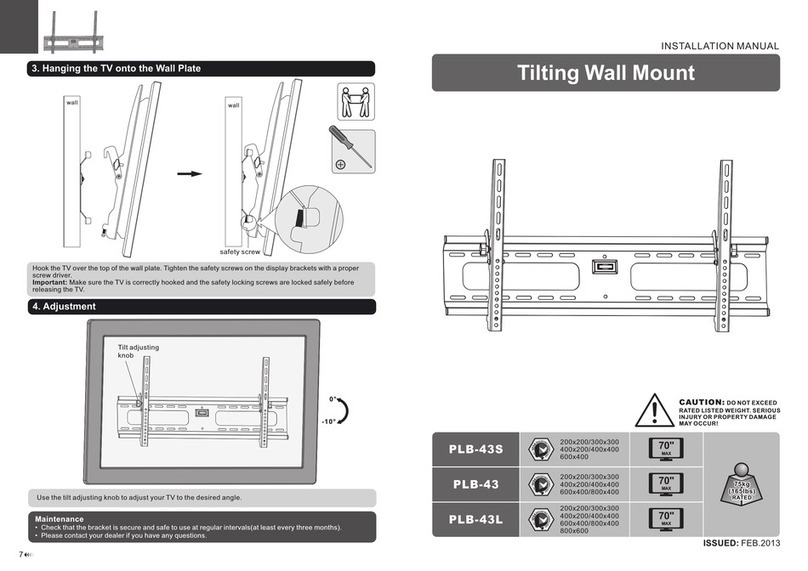
AllMounts PLB-43S instruction manual

AllMounts

AllMounts PLB-43S instruction manual

VMP VH-001 instruction sheet

VMP

VMP VH-001 instruction sheet

Nederman SYSTEM 920/400 instruction manual

Nederman

Nederman SYSTEM 920/400 instruction manual

Glasdon ORBIS POST MOUNTING KIT installation guide

Glasdon

Glasdon ORBIS POST MOUNTING KIT installation guide

Songmics LGR105 manual

Songmics

Songmics LGR105 manual

Grape GM401 user manual

Grape

Grape GM401 user manual

FourStarGroup 11225296 manual

FourStarGroup

FourStarGroup 11225296 manual

CHIEF FLR100 installation instructions

CHIEF

CHIEF FLR100 installation instructions

FEC XDCAM EX PMW-EX30 manual

FEC

FEC XDCAM EX PMW-EX30 manual

manuals.online logo
manuals.online logoBrands
  • About & Mission
  • Contact us
  • Privacy Policy
  • Terms and Conditions

Copyright 2025 Manuals.Online. All Rights Reserved.

CLOVER INSTRUCTIONS -
FREESTAND
All our Clover unit’s - ‘Single’, ‘Dual’,
‘Triple’ & ‘Quad’ - are supplied with an
installation ‘kit’. This kit enables both you
- and the team at Posture Balance™ to
identify your Clover for ease of assembly
and installation.
posturebalance.com.au
4 Guilfoyle Avenue Coburg North, Vic 3058 Australia
E : [email protected] P : 03 9353 0500
posturebalance.com.au
components
⑤Single Monitor Arms
④Dual Monitor Arms
⑧Top Cap, Allen Keys &
③Keyboard Platform
⑥Runner
②Freestand Plate
⑦Hard Switch ⑨Template
①Freestand Column with
bolts*
⑪Screws & Spacers⑩Electrics/Transformer
Positioning Bracket
* Please note that the Column is supplied with the Positioning Bracket in its correct place.
posturebalance.com.au
Lower the keyboard platform
over the top of the column.
Once the platform makes
contact with the Positioning
Bracket, it is in the corrrect
position.
Using the ‘L’ shape Allen Key,
tighten the 2 locking screws
at the rear of the bracket.
DO NOT overtighten these
screws.
Use the template to set the
correct distance between the
keyboard platform bracket, &
the monitor bracket.
Lower the monitor bracket
over the column & lock into
position.
DO NOT overtighten these
screws.
Place ‘Top Cap’ on column once
completed.
clover instructions
HOW TO ASSEMBLE YOUR CLOVER - FREESTAND
Remove any existing fittings
from the rear of your monitor
and locate its fixing points.
Align the Runner to the fixing
points and place the screws
into the holes*.
*With the arrow pointing
upward.
Secure all points using a screw
driver.
Note: You may need to use the
spacers if your monitor has an
obstruction.
clover instructions
HOW TO ASSEMBLE YOUR CLOVER - ATTACHING THE RUNNER
Remove the Freestand Plate
from box.
Ensure the counter-sunk holes
are on the underside (bottom).
Take column from box and
remove the 4x screws that
been placed into the end of the
column.
Position column on to the
Freestand Plate, ensuring that
the power lead is facing to the
rear.
Replace the 4x screws into the
column, via the counter-sunk
holes in the base of the plate to
secure the column to the plate.
�
�

Twist the dial counter
clockwise to set the mount in
an ‘unlocked’ mode.
Align the 3 pins of the runner
with the 3 holes of the mount.
For ease of installation; slide
the runner into the mount in a
downwards motion.
clover instructions
HOW TO ASSEMBLE YOUR CLOVER - MOUNTING YOUR MONITOR
& CONNECTING YOUR CABLES
Once locked, twist dial
clockwise to secure.
Power Cable (AC) Deskline cable (1)
Hardswitch cable (A2)
USB Connection (A1)
Please note that Clover can
either be manually raised or
lowered via the hardswitch or
by your mouse - using the USB
connection.
Connect the cable connected
to the base of the column to
the deskline cable (1) that is
connected to the transformer.
Return to the underside of the
desk and screw the
transformer into position.
Connect your Computer, & if
downloading the operating
software please visit
www.posturebalance.com.au
LOCKED UNLOCKED
posturebalance.com.au