manuals.online logo
Brands
  1. Home
  2. •
  3. Brands
  4. •
  5. punchlight
  6. •
  7. Monitor
  8. •
  9. punchlight Universal Studio Display User manual

punchlight Universal Studio Display User manual

Popular Monitor manuals by other brands

Samsung ME32C user manual

Samsung

Samsung ME32C user manual

ViewSonic VA926-LED user guide

ViewSonic

ViewSonic VA926-LED user guide

Furuno Mu 120c Operator's manual

Furuno

Furuno Mu 120c Operator's manual

Asus VB171D - 17" LCD Monitor Service manual

Asus

Asus VB171D - 17" LCD Monitor Service manual

AOC 9GLR Technical specifications

AOC

AOC 9GLR Technical specifications

DMG RAFFAELLO manual

DMG

DMG RAFFAELLO manual

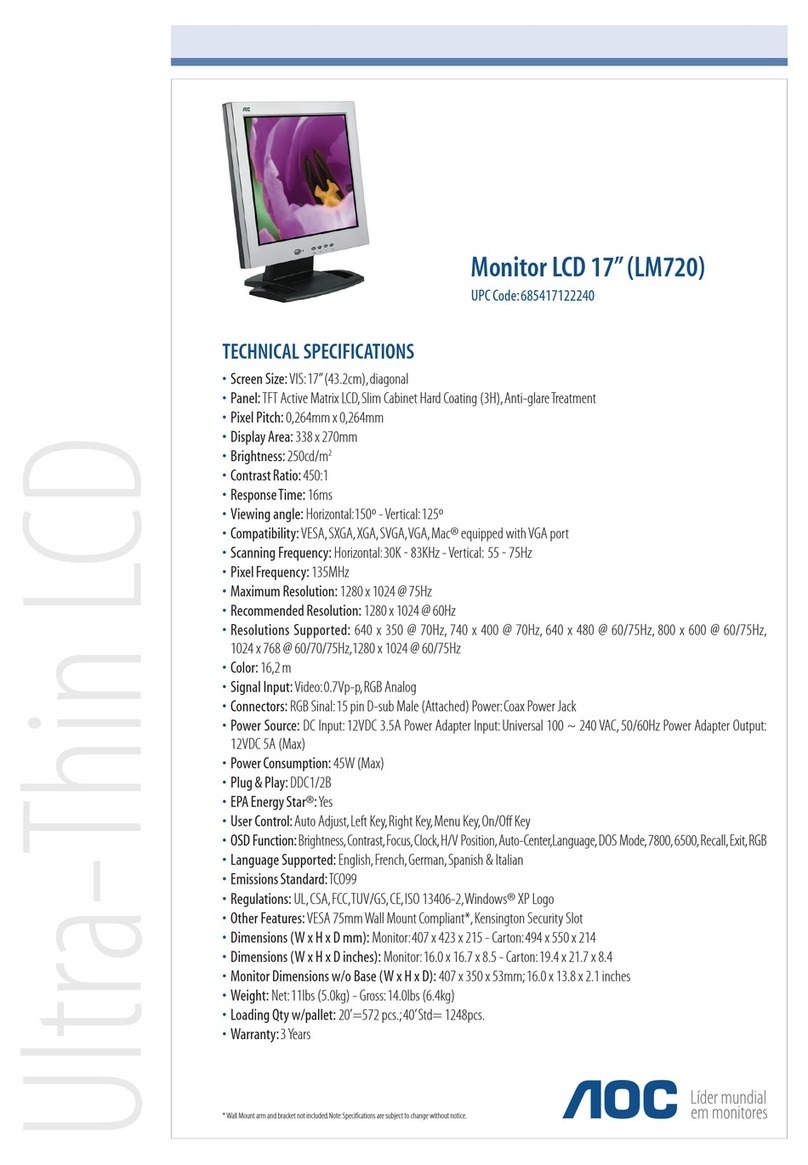
AOC LM720 - 17" Technical specifications

AOC

AOC LM720 - 17" Technical specifications

Sony Trinitron GDM-F500 Service manual

Sony

Sony Trinitron GDM-F500 Service manual

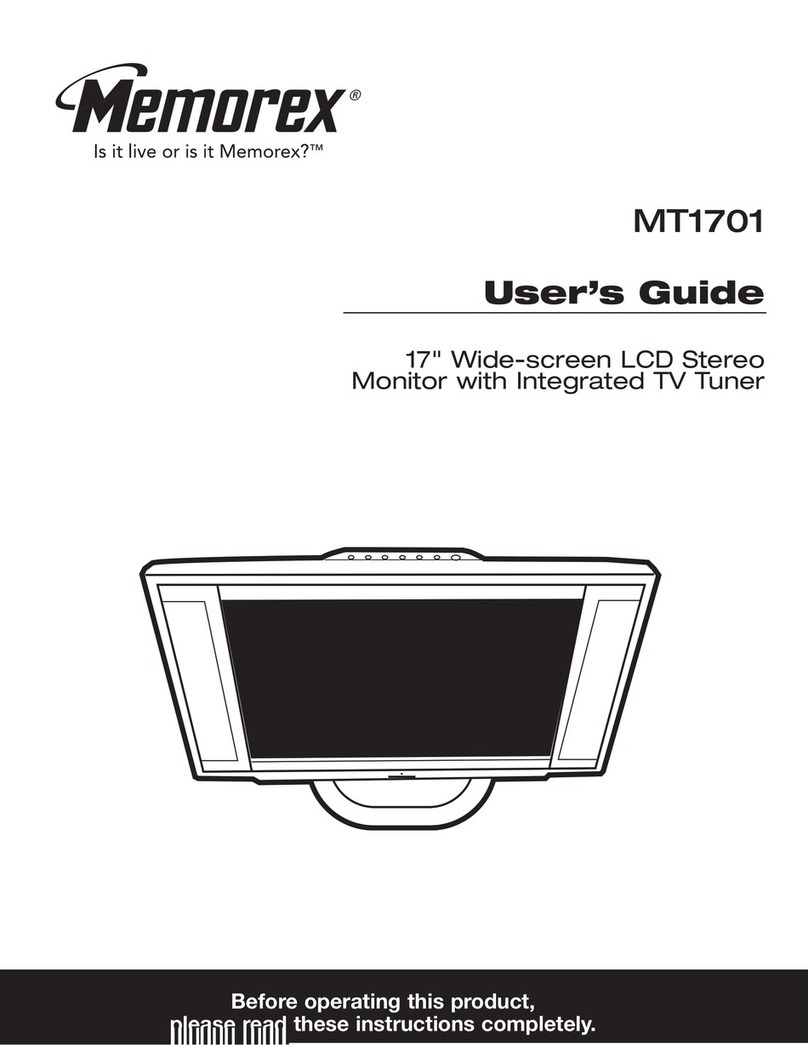
Memorex MT1701 user guide

Memorex

Memorex MT1701 user guide

ViewSonic VE510s-4 Service manual

ViewSonic

ViewSonic VE510s-4 Service manual

Farenheit T-1503CM instruction manual

Farenheit

Farenheit T-1503CM instruction manual

Ditel DINOS DN129/AT Quick installation guide

Ditel

Ditel DINOS DN129/AT Quick installation guide

Sony SDM-S51 Specifications

Sony

Sony SDM-S51 Specifications

Kenwood DMX1025BT quick start guide

Kenwood

Kenwood DMX1025BT quick start guide

Dell S2409WFP user guide

Dell

Dell S2409WFP user guide

EverFocus EN-7517E instruction manual

EverFocus

EverFocus EN-7517E instruction manual

Dell P3222QE user guide

Dell

Dell P3222QE user guide

Panasonic TH152UX1 - 152" PLASMA TV Service manual

Panasonic

Panasonic TH152UX1 - 152" PLASMA TV Service manual

manuals.online logo
manuals.online logoBrands
  • About & Mission
  • Contact us
  • Privacy Policy
  • Terms and Conditions

Copyright 2025 Manuals.Online. All Rights Reserved.

Mediaport Pro | Hradesinska 67 | 101 00 Praha 10 | Czech Republic |Tel.+ 420 271 735 610
Fax.+ 420 272 734 897 | [email protected] | www.punchlight.com
Version 2.x
Universal Studio Display
User Manual
Power On/Off
PunchLight mode
ProTools/Generic/Off
Works only with HUI. If the Punch-
Light mode is on, the last segment
on the right hand side of the Dis-
play indicates record-ready/pre-roll
and record. 3 settings: „Pro Tools“,
„Generic“ (for other DAW applica-
tions) and„Off“ mode.
Last Segment Flicker on/off
This function allows you to turn off
the last two segments that can be
distracting during playback.
Brightness Up/Down
This function allows you to set the
brightness of LED segments in
five steps. The brightness of clock
display in standby can be set inde-
pendently from the main bright-
ness.
Clock
Press the Clock Display button to
show the clock. When the display
itself is on,the clock will appear for
about2secs.Wheninstandby,itwill
show continuously.
Sleep Mode On/Clock/Off
Sleep mode allows the Display to switch
off after 30 minutes of MIDI inactivity.The
power button or any incoming MIDI data
will wake it up.1) On: the Display will go
into standby after 30 minutes. All seg-
ments will be off.2) CLK: same as 1),but
the clock will be shown in standby auto-
matically.3) Off:Sleepmode is off.
MTC Reader On/Off
The Display will not display correctly if
HUI and MTC are present at the same
time.This button allows you to turn off
the MTC reader.
Display R and MSG
R- This button manually activates the
last “R“ red segment, independently of
any other functions.This can be used as
a manual cue indicator.
MSG-Thisbuttonmanuallyactivatesthe
messagefunction.Infutureitwillbepos-
sible to put your own custom message.
See our website for an announcement.
At present it shows„--------“.
Delimiters Dots/Colons
You can choose the style of division
marks here, either a single dot “ . “ or
a colon“ : “.
5.Clock Settings (Clock Set button).
To set the clock time,use the remote control to power off the unit first,then press the Clock Display
button to show the clock.Press the Clock Set button once to set hours (a small“-“ indicator appears
ontheleft),press again to set the minutes(nowthe“-“appearsontheright).Use the brightness but-
tons to change the time,forwards or backwards.Press Set to finish.
6.Remote Control buttons:
Universal Studio Display
Thank you for purchasing the Universal Studio Display (“Display”).
Package Contents:
- 1 Universal Studio Display
- 1 PSU
- 1 Power Data Cable 10m (3 connectors:MIDI In,MIDI Out,and power)
- 1 Remote control
Technical Specifications:
Power Supply Voltage: . . . . . . DC 12V
Max.Current: . . . . . . . . . . . . . . . 900 mA
Weight:. . . . . . . . . . . . . . . . . . . . . 1,6 Kg
Dimensions. . . . . . . . . . . . . . . . . 620 x 120 x 38 mm - 24.4“ x 4.7“ x 1.5“
1.Hardware Installation.
The Display mounts on any wall via the included mounting brackets.The brackets slot into the Dis-
playanywherealongthe lengthoftheunit,sothatthereis someflexibilityinavoidinghiddencables
inthewall.Connectthesupplied cable to theDisplay;the socket ison the backof the Display.This is
a combined power and MIDI cable.Then simply hang the Display on the brackets.
2.Software Installation.
There isn‘t any! But you will need to activate the HUI or MTC protocol in your host application (Pro
Tools,Logic Pro,Nuendo etc).Please refer to the host application‘s user manual.
3.Connection Configurations:
a) Using ProTools and the HUI protocol with a MIDI Interface:
ConnecttheDisplay‘s“ToMIDIOut”cabletothe“MIDIOut“onyourMIDIinterface.ConnecttheDis-
play’s“To MIDI In”cable to the“MIDI In“ on the interface.Finally connect the power supply.
Note:
Some midi software such as Cubase,Nuendo or Digital Performer etc.do not need to receive midi data from adevice like the
Display. Forexample ProTools needs to knowthat the Display(or any otherHUIdevice) is present.Therefore theDisplaysends
mididatafromtheMIDIoutputbacktoProTools.
b) Using a MIDITime Code source eg.SYNC I/O (recording indication is not available):
ConnecttheDisplay‘s“ToMIDIOut“cabletotheMTCOutonyourSyncI/Oorto“MIDIOut”onyour
MIDI interface.Connect the power supply of the Display to the mains.
HUI/ MTCProtocol
TheDisplayworks automatically with eitherHUIor MTC protocol - nomanual switchingoveris nec-
essary.The Display accepts any MTC source (from software or from external hardware such as SYNC
I/O),butnot atthesametimeasHUI- inthiscaseitisimportanttodisable thedecodingof MTCdata.
You can turn off the MTC reader on the Display’s remote control.All the functions of the Display are
available under HUI protocol,but under MTC the following limitations apply:1) PunchLight record-
ingindication is not available;2)Timecodeonly(noswitchingto bar/beatsetc);3)Withthe playhead
stopped in ProTools or Logic,timecode will not update when clicking anywhere in the timeline - it
will only update when play is resumed.
Changing between timecode and other formats (HUI only).
To change between Timecode,Bars/Beats,Feet+Frames,Samples and Min:Secs you simply change
the setting in your transport bar - eg.in Pro Tools there is a pop-up menu in the corner of theTrans-
port Bar.The USD will automatically change to the selected format.
4.Universal Studio Display Setup.
Therearenodriversorothersoftwarethatneedtobeinstalled,theDisplayworksoutofthe boxwith
ProTools or any MIDI Sequencer that supports the HUI protocol.Please check the www.punchlight.
com website for the latest information about software versions and HUI compatibility.The Display
also works with any software/hardware combination which generates MIDI Time Code (MTC).
Whether you are using ProTools or other software with HUI or MTC,it`s neccesary to set it up.
a) Using the Display with Pro Tools (or other HUI software):
Select HUI in ProTools as the midi controller:
Go to the Pro Tools menu Setup > Peripherals > MIDI Controllers > HUI and set the MIDI ports
accord ing to connections made in step 3.
Referto your sequencer manual to learn how to setup aHUIcontrollerifyourarenotusing ProTools.
b) Using the Display with MTC software/hardware (e.g. SYNC I/O):
Mostsequencers canoutputMIDITimeCode(MTC).SYNCI/OgeneratesMTCautomatically.With
other hardware/software combinations,go to the preferences of your MIDI software and allow
MTC to be sent to the MIDI Out.
ProToolstransportbar-changing betweenformats