manuals.online logo
Brands
  1. Home
  2. •
  3. Brands
  4. •
  5. Safeline
  6. •
  7. Speakers
  8. •
  9. Safeline FD4-CAN User manual

Safeline FD4-CAN User manual

Other manuals for FD4-CAN

2

Popular Speakers manuals by other brands

Electro-Voice LR4S engineering data

Electro-Voice

Electro-Voice LR4S engineering data

Definitive Technology Sound Cylinder user guide

Definitive Technology

Definitive Technology Sound Cylinder user guide

AudioSource LS545 user manual

AudioSource

AudioSource LS545 user manual

Paso C402-T Instructions for use

Paso

Paso C402-T Instructions for use

Altec Lansing 416-8C LF SPEAKER manual

Altec Lansing

Altec Lansing 416-8C LF SPEAKER manual

Kenwood KFC-1072 Servise manual

Kenwood

Kenwood KFC-1072 Servise manual

Peavey ProSys 112 user guide

Peavey

Peavey ProSys 112 user guide

JBL Control Contractor 60 Series installation instructions

JBL

JBL Control Contractor 60 Series installation instructions

Aura STORM-8 owner's manual

Aura

Aura STORM-8 owner's manual

Oontz ANGLE 3 PLUS quick start guide

Oontz

Oontz ANGLE 3 PLUS quick start guide

Electro-Voice LR4A engineering data

Electro-Voice

Electro-Voice LR4A engineering data

Rave RK-650-ICA-B owner's manual

Rave

Rave RK-650-ICA-B owner's manual

Flux Reference Series installation manual

Flux

Flux Reference Series installation manual

Lanzar AQAWBS64BK installation manual

Lanzar

Lanzar AQAWBS64BK installation manual

DAPAudio DCS-6230 manual

DAPAudio

DAPAudio DCS-6230 manual

Aluratek ABS03F quick start guide

Aluratek

Aluratek ABS03F quick start guide

Kenwood KES-5A instruction manual

Kenwood

Kenwood KES-5A instruction manual

Sonance ORIGINAL SERIES instruction manual

Sonance

Sonance ORIGINAL SERIES instruction manual

manuals.online logo
manuals.online logoBrands
  • About & Mission
  • Contact us
  • Privacy Policy
  • Terms and Conditions

Copyright 2025 Manuals.Online. All Rights Reserved.

SafeLine FD4-CAN
05.2014
Operating instructions
Displays floor designations, arrows and scrolling messages.
ENGLISH v1.06
2
© 2014 SafeLine and all the SafeLine products and accessories are copyrighted by law.
safeline.eu
SafeLine FD4-CAN
FD4-CAN v1.06 EN
TECHNICAL DATA
Power: 19-28 VDC
Size (H x W x D): 61 x 80 x 25 mm
Current consumption, standby:
Max output current on each output:
Max output current for the card:
120 mA / 24 VDC
200 mA
1 A / 24 VDC
Power input: 19-28 VDC
Input current on each input: 8 mA / 24 VDC
SD-card: Kingston and Verbatin 1, 2 or 4 GB
Speaker output: 0,6W at 8Ω
0,3W at 16Ω
All output are shortcut protected.
Operating instructions
3© 2014 SafeLine and all the SafeLine products and accessories are copyrighted by law.
FD4-CAN v1.06 EN
Table of contents
Settings 6
Programming 7
FD4-AX, Direction of the button 9
Configuration
Wiring instructions 4
LED 4
Wiring instructions for FD4-AX 5
Installation
4
© 2014 SafeLine and all the SafeLine products and accessories are copyrighted by law.
ON
20-30 VDC
CAN H
CAN SHLD
CAN L
0V
IO4
IO3
IO2
IO1
20-30 VDC
CAN H
CAN SHLD
CAN L
0V
SPK
TERM
SD-CARD
WWW.SAFELINE.SE
FD4-CAN V3 R1.01
RUN ERR
SD-CARD
ERRRUN
TERM
ERR
RUN
TERM
TERM
20-30 VDC
CAN H
CAN SHLD
CAN L
0V
ON
WWW.SAFELINE.SE
FD4-CAN V3 R1.01
RUN ERR
IO4
IO3
IO2
IO1
20-30 VDC
CAN H
CAN SHLD
CAN L
0V
SPK
FD4-CAN v1.06 EN
Installation
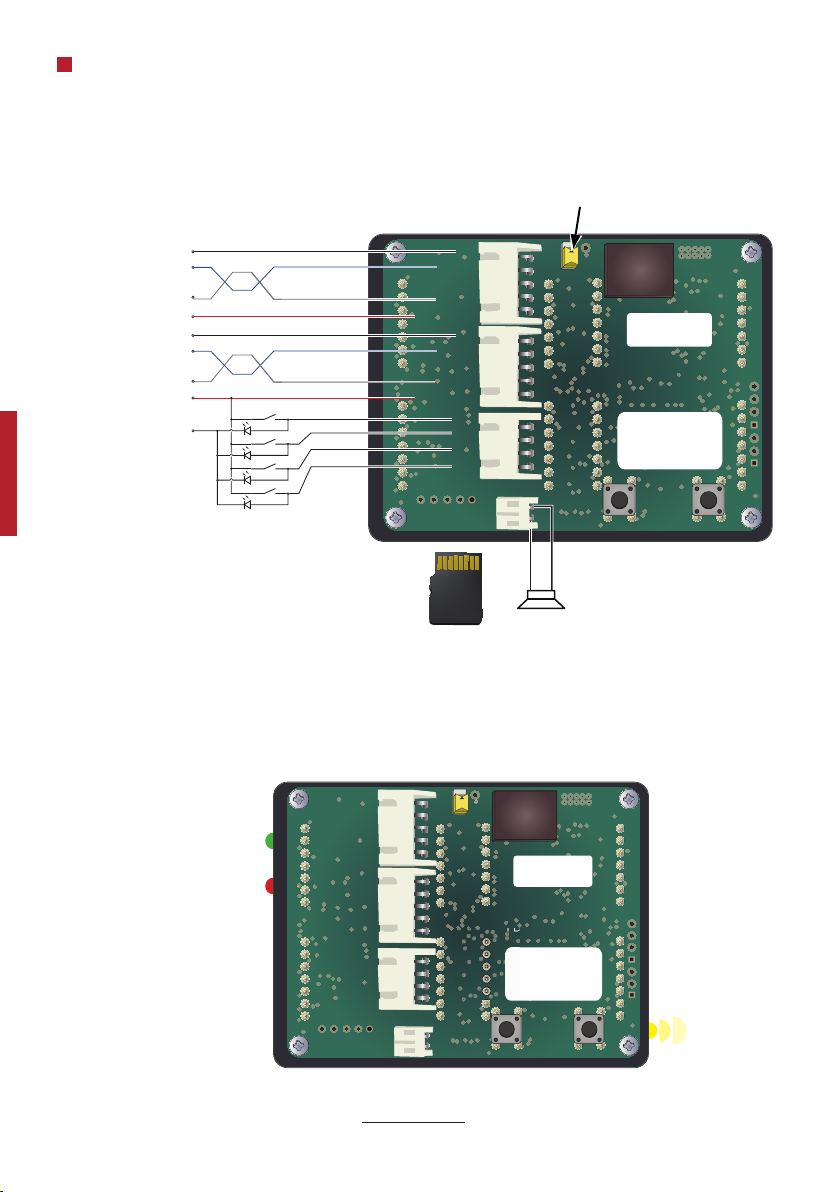
WIRING INSTRUCTIONS
LED
CAN-bus end
termination resistance
120Ω if shorted
Green LED steady
CAN OK
Heartbeat
Flashing 2Hz
Red LED steady
CAN error
Micro SD-card
MAX
4GB (HC)
Speaker
0 V
0 VDC
CAN L
CAN H
20-30 VDC
0 V
CAN L
CAN H
20-30 VDC
5© 2014 SafeLine and all the SafeLine products and accessories are copyrighted by law.
*AX-FD4-VW-B1 *AX-FD4-VW-B2
FD4-CAN v1.06 EN
Installation
Heartbeat
Flashing 2Hz
BROWN
GREEN
YELLOW
GREY
WHITE
20-30 V
CAN H
CAN L
Shield
0 V
WIRING INSTRUCTIONS FOR FD4-AX
6
© 2014 SafeLine and all the SafeLine products and accessories are copyrighted by law. FD4-CAN v1.06 EN
Configuration
SETTINGS
General settings are made by CAN-wizard.
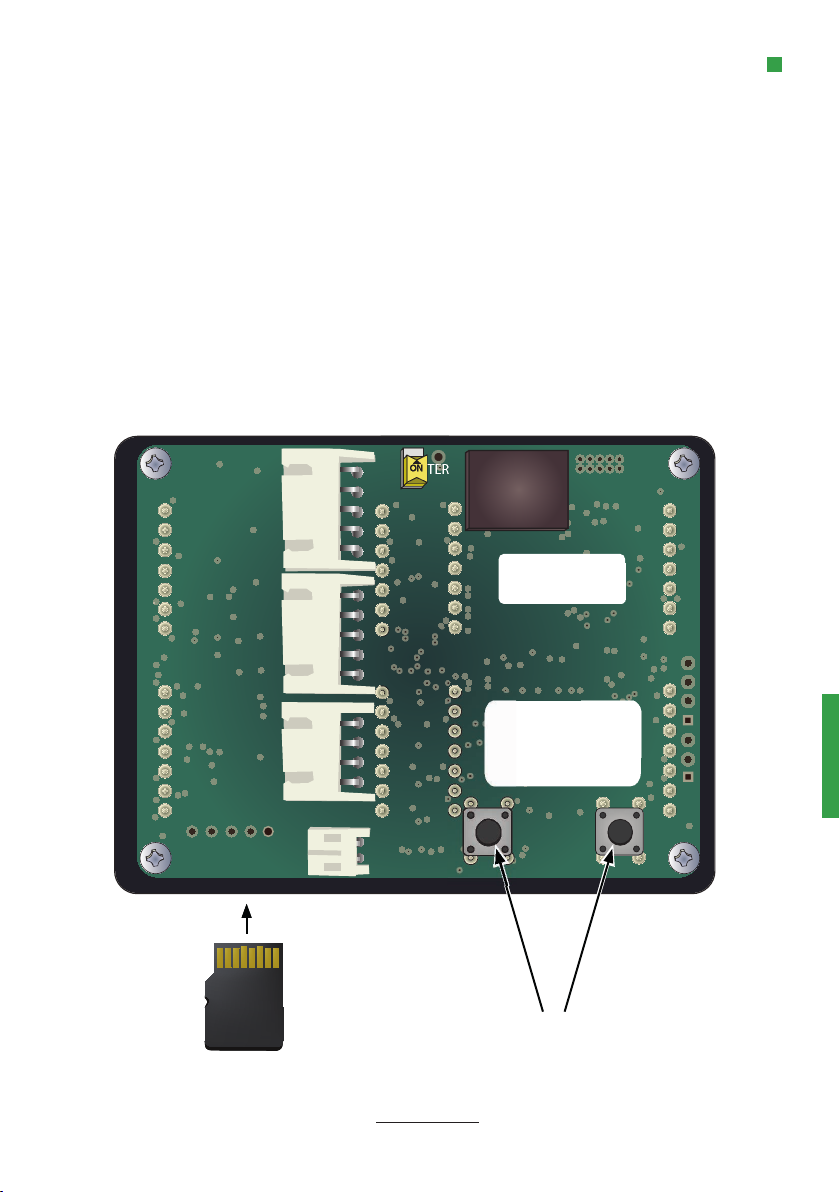
Settings and audio files can be saved on the micro SD-card.
Micro SD-card
The memory card contains the following folders:
CFG
WAV
FIRMWARE
CFG
In CFG is where the file CONFIG.FD4 is located. It has all the settings of the unit. If an empty memory card
is inserted, the unit will by default create a catalog and write a “CONFIG.FD4-file.*
WAV
In WAV is where any sound files, used by the unit, are located. Audio files have to be in the WAV format
(16bit, 16kHz mono), and correspond to the search path given in CAN-wizard.
FIRMWARE
When needed updated software can be added here to update the unit.
Update of software:
1. Disconnect the power to FD4-CAN.
2. Insert a micro SD card, that has the new software located in the folder named FIRMWARE
for eg. “X:\FIRMWARE\FD4-CAN-03_1.0.0.bin”
3. Press and hold the down-button on the backside of the FD4-CAN, and power up the unit. Hold the
down-button until the upper part of the display reads “BLT” and the lower half reads the software
version. Then release the down-button. The unit will now start.
*For transfer of settings between units see chapter “Replacing FD4-CAN”.

7© 2014 SafeLine and all the SafeLine products and accessories are copyrighted by law.
SD-CARD
ERRRUN
TERM
20-30 VDC
CAN H
CAN SHLD
CAN L
0V
WWW.SAFELINE.SE
FD4-CAN V3 R1.01
RUN ERR
IO4
IO3
IO2
IO1
20-30 VDC
CAN H
CAN SHLD
CAN L
0V
SPK
SD-CARD
ERRRUN
TERM
ERR
RUN
20-30 VDC
CAN H
CAN SHLD
CAN L
0V
ON
WWW.SAFELINE.SE
FD4-CAN V3 R1.01
RUN ERR
IO4
IO3
IO2
IO1
20-30 VDC
CAN H
CAN SHLD
CAN L
0V
SPK
FD4-CAN v1.06 EN
Configuration
Replacing FD4
1. Disconnect the power to new unit.
2. Insert the micro SD-card from the old unit into the new unit.
3. Press and hold the down-button on the backside of the FD4-CAN, and power up the unit. Hold the
button until the upper part of the display reads “CFG” and the lower half reads the software version.
Then release the button. The unit will now reboot.
Micro SD-card
Buttons
Save settings from FD4-CAN on to a micro SD-card
1. Disconnect the power to FD4-CAN.
2. insert an empty micro SD-card into the unit.
3. Power the FD4-CAN. The transfer starts automatically.
Note that sound files cannot be transfered this way, as they never are stored directly onto the FD4-CAN.
UP DOWN
PROGRAMMING
8
© 2014 SafeLine and all the SafeLine products and accessories are copyrighted by law. FD4-CAN v1.06 EN
Configuration
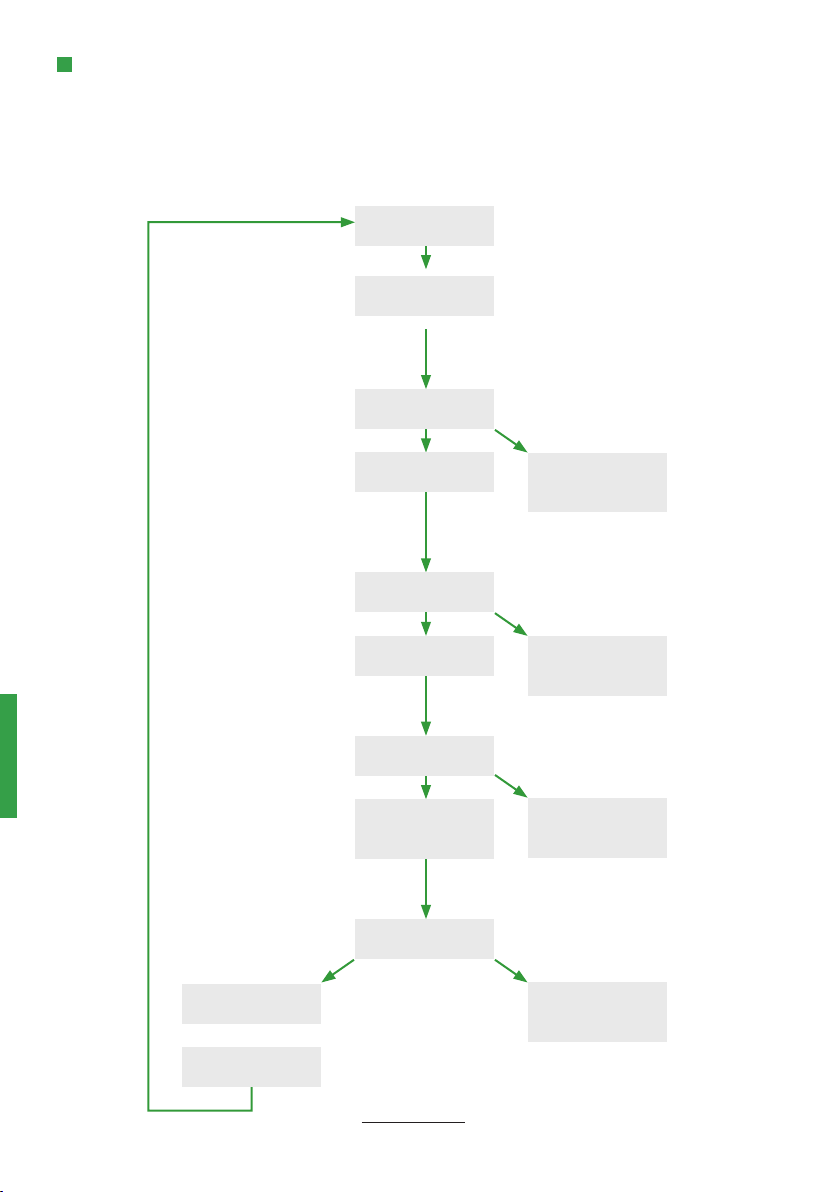
Volume, LED-brightness and node-ID are configured with the buttons on the back of the unit. If no selection
has been made after a couple of seconds the unit will leave the “Settings-menu* and return to normal mode.
Do not change Node-ID! Correct node-ID is set at delivery.
Press up/down
to set
message volume
Press up/down
to set
button volume
Press up/down to
set LED-brightness
Press up/down to
set FD4-CAN
Press both buttons
simultaneously
Hold both buttons
for 2 seconds
Press both buttons
simultaneously
Hold both buttons a
couple of seconds
Mode to set
Node-ID
Press both buttons
simultaneously
Unit will reboot
Mode to set
message volume
FD4-CAN
normal mode
Mode to set
button volume
Mode to set
LED-brightness
9© 2014 SafeLine and all the SafeLine products and accessories are copyrighted by law.
1
2
FD4-CAN v1.06 EN
Configuration
FD4-AX with one button (AX-FD4-VW-B1) is by default delivered with the button directing down.
To turn it around, and have the button directing up instead, do the following:
FD4-AX, DIRECTION OF THE BUTTON
Take out the lens/display and the circuite board.
Disassemble the two parts.
10
© 2014 SafeLine and all the SafeLine products and accessories are copyrighted by law.
3
4
5
FD4-CAN v1.06 EN
Configuration
Disassemble the button.
Turn the button around, so that it directs up.
Place it back in the circuit borad with an angle, and turn it to its correct position.
Reassemble the components by doing the steps in reverse order (i.e., step 3, step 2
and step 1).