Sakar DV366/38009 User manual

Quick Start Guide
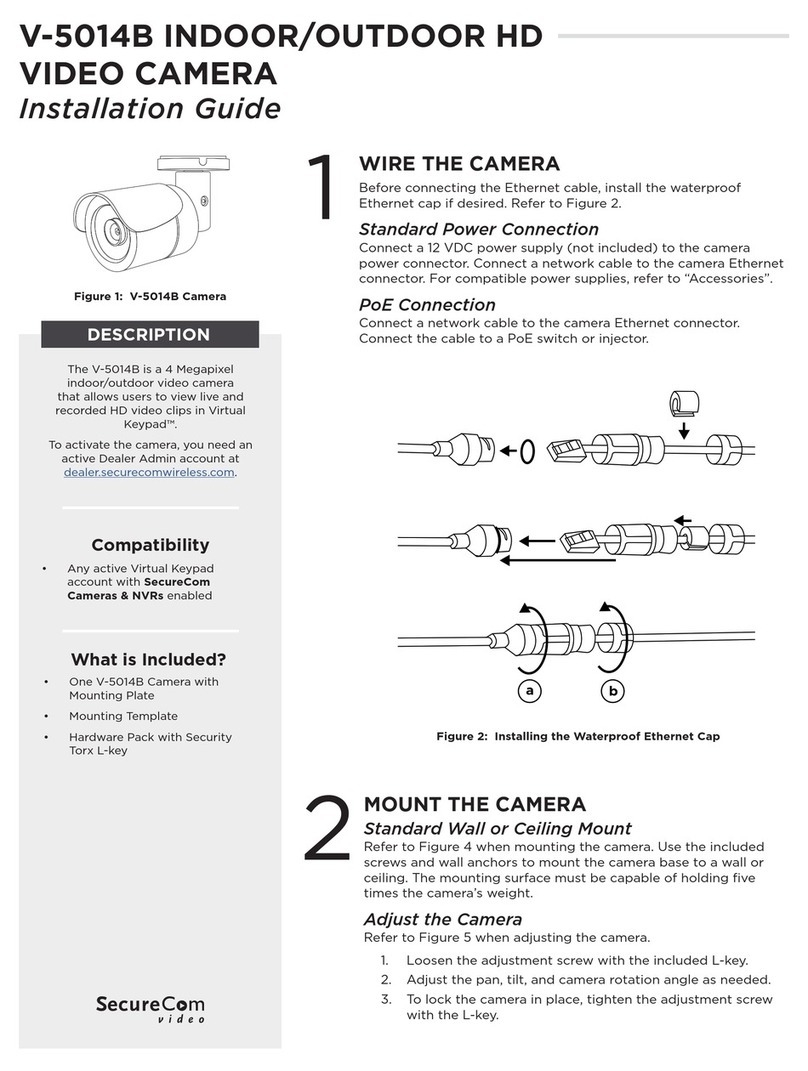
DV366/38009
Digital Video Camera

2
Getting to know your camera
1. Power Button 12. USB Connector
2. Delete Button 13. TV Out Port
3. Menu Button 14. Wrist Strap Hole
4. Mode Button 15. Tripod socket
5. Shutter 16. USB ejector
6. Up/Zoom In 17. LED Light
7. Down/Zoom Out 18. Lens
8. Left 19. Speaker
9. Right 20. Microphone
10. Flip LCD Screen 21. Battery Cover
11. SD Card Slot
11
3
4
21 8
5
7
2
9
1
6
10
14
15
12
13
16
20
17
18
19
Mode
Menu

3
Power
on the
camera
1. Press the Power button to power on the
camera.
2. The camera will emit a startup sound and the
LCD preview screen will light up.
Mode
button Toggles between Video Capture Mode,
Photo Capture Mode and Playback Mode
Shortcut
buttons 1. Up: Zooms In when capturing videos and
photos. In Video Playback mode increases
volume during video playback. In Photo
Playback mode zooms into your selected
image and navigates through the enlarged
image.
2. Down: Zooms Out when capturing videos
and photos. In Playback mode decreases
volume during video playback and opens
and scrolls through images in Thumbnail
view.
3. Right: In Playback mode, displays NEXT
image and scrolls through Thumbnail
images.
4. Left: In Playback mode, displays PREVIOUS
image and scrolls through Thumbnail
images.
5. Shutter/OK:
Video Capture Mode- starts and stops your
video recording.
Photo Capture Mode – captures your photo.
Video Playback Mode- plays and stops the
selected video.
Photo Playback Mode- opens selected
image from Thumbnail display.
Menu Setting View – confirms your selected
camera setting.
Menu
Button 1. Press the Menu button to activate the setting
option icons on the LCD.

4
(camera
settings)
2. Press the Left or Right buttons to select the
specific menu.
3. Press the Up and Down buttons to highlight
your menu selection.
4. Press the Shutter/OK to confirm and save
your setting.
5. Press the Mode button to exit the menu.
6. Press the Shutter button to capture images
(photos and videos) with the selected
camera settings.
Camera
setting
options
Image Resolution, Language, Delete
Delete 1. To delete the last photo or video taken:
Press the Delete button.
2. In Playback mode, to delete all the images
on the memory card press the Menu button,
scroll down to the ‘Delete All Images’ option
and press the Shutter/Ok button.
Installing the Batteries
Slide open the battery cover on the
bottom of the camera and insert 2
AA alkaline batteries with the
correct polarity as appears on the
inside of the battery compartment.
Close the battery cover.

5
Installing the SD Memory Card
Insert SD Memory Card (up to 16GB)
in the direction as shown before you
begin using the camera.
Note: SD Memory Card not included.
You are now ready to capture images
1. Turn the camera on by pressing the “POWER” button.
2. Using the LCD display, aim the camera in the
direction of the object you wish to capture.
3. Hold the camera steady and press the “Shutter”
button to start and stop capturing your video or to
take a photo.
4. The video and photo images are automatically saved
to the SD memory card.
5. When you would like to include yourself in the photo
or video, simply flip the LCD display out and hold the
camera steady facing towards you at arm’s length
(30~45 cm).
Make sure you can see yourself on the LCD screen
and look at the camera lens.
Click the “Shutter” button to capture your image.
6. For instructions on how to use the other camera
features including the Video and Photo settings,
select the ‘Get Camera Manual’ option on the Main
Menu screen or in the Help menu of the Hello Kitty

6
Snap n’ Share software or select your camera model
online from www.sakar.com to download and open
the User Manual.
Installing and Using the Hello Kitty Snap n’ Share
software
Your computer must meet these minimum System
Requirements:
WINDOWS OS
•XP Service Pack 2, Vista or Windows 7
•Pentium® 4 processor (or above)
•150 MB available hard disk space
•512 MB of RAM
•16-bit Color display, 1024 X 768 pixels
•QuickTime® 6 or higher
•Microsoft® Internet Explorer 7 or higher
•Windows Media Player 10 or higher
MAC OS
•Intel processor
•150 MB available hard disk space
•At least 256 MB of RAM
•Mac OS X v10.5 or later
•QuickTime® 6 or higher

7
1. Insert the disc into the CD-ROM drive of your
computer to install and run the Hello Kitty Snap n’
Share software
2. Please review the license terms.
On PC and Macintosh: Click the “I accept the terms
of this license agreement” and then click “Next” to
continue.
3. On PC only: Let the “Hello Kitty Snap n’ Share”
installer create the folder to where the program will
be installed, and then click “Install”.
4. Please wait while the application continues the
installation process on your computer.
5. Follow all instructions.
6. On PC: Click the “Close” button when the installation
is complete.
On Macintosh: Click the “Quit” button when the
installation is complete.
The application automatically opens.

8
7. Click on the “Take a Tour” button on the application`s
main menu screen to learn how to:
•Get photos and videos from your camera.
•Manage and organize your images by creating
albums.
•Edit the images using automatic and manual tools.
•Upload and manage photos and videos to and
from the most popular photo sharing and social
networking sites: Facebook, Flickr, Picasa,
Photobucket and YouTube.
•Visit the Creative Corner to create and write your
own Diary or Book, create Scrapbooks, Frames,
Stickers and more…
We thank you for choosing the 38009 Digital Video
Camera.

9
If you would like more detailed instructions beyond
the quick start guide, the full camera manual is
available on the Home window or in the application’s
“Help” menu after software installation.
If you still require further assistance, please visit
www.sakar.com. For phone support including technical
support and warranty service, in the US please call
1-877-397-8200, in the UK call 0800 917 4831. If you
are calling from anywhere else, please visit
www.sakar.com for other support options.
Sakar Warranty Card
This warranty covers for the original consumer purchaser
only and is not transferable. Products that fail to function
properly UNDER NORMAL USAGE, due to defects in
material or workmanship will be repaired at no charge for
parts or labor for a period of one year from the time of
purchase.
What Is Not Covered By Warranty:
Damages or malfunctions not resulting from defects in
material or workmanship and damages or malfunctions
from other than normal use, including but limited to,
repair by unauthorized parties, tampering, modification or
accident.
What To Do When Service Is Required:

10
When returning your defective product (postage pre-paid)
for service, your package should include:
1) Copy of original bill of sale
2) A detailed written description of the problem.
3) Your return address and telephone number (Daytime)
MAIL TO ADDRESS BELOW:
WARNING:
DO NOT MIX OLD AND NEW BATTERIES.
DO NOT MIX ALKALINE, STANDARD (CARBON ZINC)
OR RECHARGEABLE (NICKEL CADMIUM) BATTERIES.
Sakar US
Sakar
International
Attention:
Service
Department
195 Carter Drive
Edison, NJ
08817
Sakar UK/Europe
Attention: Service
Department
2D, Siskin
Parkway East
4020
Middlemarch
Business Park
Coventry, CV3
4PE
Sakar Australia
Return faulty
camera to the
Refund
Counter at the
store where
purchased
Table of contents
Other Sakar Camcorder manuals