logo
Brands
  1. Home
  2. •
  3. Brands
  4. •
  5. Sylvania
  6. •
  7. Camcorder
  8. •
  9. Sylvania DV-1100 User manual

Sylvania DV-1100 User manual

Other Sylvania Camcorder manuals

Sylvania HD1Z User manual

Sylvania

Sylvania HD1Z User manual

Sylvania DV-3100 User manual

Sylvania

Sylvania DV-3100 User manual

Sylvania HD1Z User manual

Sylvania

Sylvania HD1Z User manual

Sylvania DV-2100 User manual

Sylvania

Sylvania DV-2100 User manual

Popular Camcorder manuals by other brands

JVC GR-FX16 null

JVC

JVC GR-FX16 null

Toshiba CAMILEO Z100 user guide

Toshiba

Toshiba CAMILEO Z100 user guide

Panasonic NV-VS40B operating instructions

Panasonic

Panasonic NV-VS40B operating instructions

Canon RC 260 instructions

Canon

Canon RC 260 instructions

Sony Handycam DCR-DVD7E operating guide

Sony

Sony Handycam DCR-DVD7E operating guide

Brinno TimeLapse TLC200 user manual

Brinno

Brinno TimeLapse TLC200 user manual

JVC GR-SXM68AC Schematic diagram

JVC

JVC GR-SXM68AC Schematic diagram

Panasonic AG-HMC152EN operating instructions

Panasonic

Panasonic AG-HMC152EN operating instructions

MYDLINK DCS-6100LH Quick installation guide

MYDLINK

MYDLINK DCS-6100LH Quick installation guide

Sony video Hi8 Handycam CCD-TR555 operating instructions

Sony

Sony video Hi8 Handycam CCD-TR555 operating instructions

SECURECOM V-5014B installation guide

SECURECOM

SECURECOM V-5014B installation guide

Sharper Image U-VIDEO instruction manual

Sharper Image

Sharper Image U-VIDEO instruction manual

JVC AA-V15EG instruction manual

JVC

JVC AA-V15EG instruction manual

Canon LEGRIA HV40 instruction manual

Canon

Canon LEGRIA HV40 instruction manual

Sony Handycam DCR-VX2000 Service manual

Sony

Sony Handycam DCR-VX2000 Service manual

RCA CC616 user guide

RCA

RCA CC616 user guide

Insignia NS-DCC5HB09 - Camcorder - 720p user guide

Insignia

Insignia NS-DCC5HB09 - Camcorder - 720p user guide

Panasonic NVM40 Service manual

Panasonic

Panasonic NVM40 Service manual

https://manuals.online logo
https://manuals.online logoBrands
  • About & Mission
  • Contact us
  • Privacy Policy
  • Terms and Conditions

Copyright 2025 Manuals.Online. All Rights Reserved.

User Manual
RoHS
COMPLIANT
Digital Camcorder
1
Introduction
Congratulations on your purchase of this digital video camera. Before using the camera,
please read this user manual carefully. With this digital video camera you can take both
video clips and still photos. The illustrations in this user manual are to visually detail the
operation of the digital video camera.
Noticeforuse
General:
1. Never open the housing of the digital video camera as some parts may cause an electrical
shock.
2. Moisture, extreme pressure and overheating may damage this digital video camera.
Memory and storage:
1. SD/MMC/SDHC cards are compatible with this camera, with a maximum capacity of
16GB.
2. When buying a SD/MMC/SDHC card, take the digital video camera with you to ensure
compatibility.
3. When a SD/MMC/SDHC card is inserted, the internal memory of the digital video camera
will not function.
4. The card slot has a write-protect switch, which can be used to prevent accidental deletion
of data. When this switch is pushed to the bottom and locked, the data in the card will be
prot ected. However, when the card is in write-protect state, it cannot be used for shooting or
deleting, etc.
5. W hen st oring doc uments using the int ernal memory or the mem ory card, make sure that
the size of the documents does not exceed the capacity of the memory.
2
Maintenance and care:
1. To clean the lens, first blow away dust on its surface, then use cloth or tissue to wipe the
lens. If necessary, use lens cleanser.
2. Avoid touching the lens with your fingers.
3. When left idle for long periods, remove the batteries from your digital video camera and
store in a dry and dark plac e.
Miscellaneous:
1. When switching video output between LCD display and video devices, be sure to exit from
the ‘play’or ‘record’state.
2. This digital video camera is suitable for environments between 0 °- 40 °C or 32 °-104 °F.
Never keep the digital video camera in extremely high temperatures, such as a car parked in
the sun. Never keep the digital video camera in damp or moist places. In order to prevent
the digital video camera from condensation, when moving from a cold to a warm place, be
sure to keep it in sealed plastic bag, and open the bag and take it out when the camera
reaches the indoor t emperature.
3. TV programs, movies, music, images and other resources may be protected by copyright;
therefore, without prior permission, the shooting/use of these resources may violate
copyright laws and regulations related. Please note that the resources under the protection
of copyright can be used within the permission of related laws and regulations.

3
Systemrequirements
When operating and using this digital video camera, be sure the computer you are using
meets some basic requirements. Doing so will allow you to operate the camera to its full
functionality. Below are the requirements:
Operation System Microsoft Windows 98, 2000,XP, Vista, Windows 7
CPU Above Intel PIII667 or CPU of equal performance
Memory Above 128 MB
Sound card and display card DirectX8 or above.
CD-ROM 4×speed or above
Hard Disk 1 GB space above useable
Other One standard USB 1.1 or USB 2.0 port
4
Gettingtoknow yourcamera
1. Appearance and Buttons
5
2. Basic operation
2.1 Installing the battery
Slide down the back cover and insert three new AAA alkaline batteries. Align with correct
polarit y of battery terminals. Close the back cover.
2.2 Using a SD/MMC/SDHC card
Turn your camcorder OFF before inserting / removing the SD Card.
Insert a memory card into the SD/MCC/SDHC card slot. Push it down until the card stays
latched. Do not force –check card’s position according to the position mark on the
camera.
Push and release inserted card if you wish to remove or replace the card.
1. Power Key
2. SD/MMC SDHC Card Slot
3.Microphone
4.Lens
5.Busy indicator
6.Speaker
7. USB Switch
8.USB Connector
9.LCD panel
10.Set Key
11.Mode Key
12. Right Key
13. Confirm/OK key
14.UP key
15.Down key
16.Left key
6
- Note that the SD Card has a tiny LOCK switch on the side. Set the
switch to the un-LOCK position to store recorded videos and still
pictures.
2.3 Powering on/off
In the power-off state, press and hold the power key to power on the
camera.
In the power-on state, press the power key to power off the camera.
In the power-on state, let the camera idle for 1 minutedefaultto power off the camera
automatic ally.
In power-on state, when the battery level is very low, the camera will turn off after several
seconds and you must replace the battery.
2.4 Menu Setting
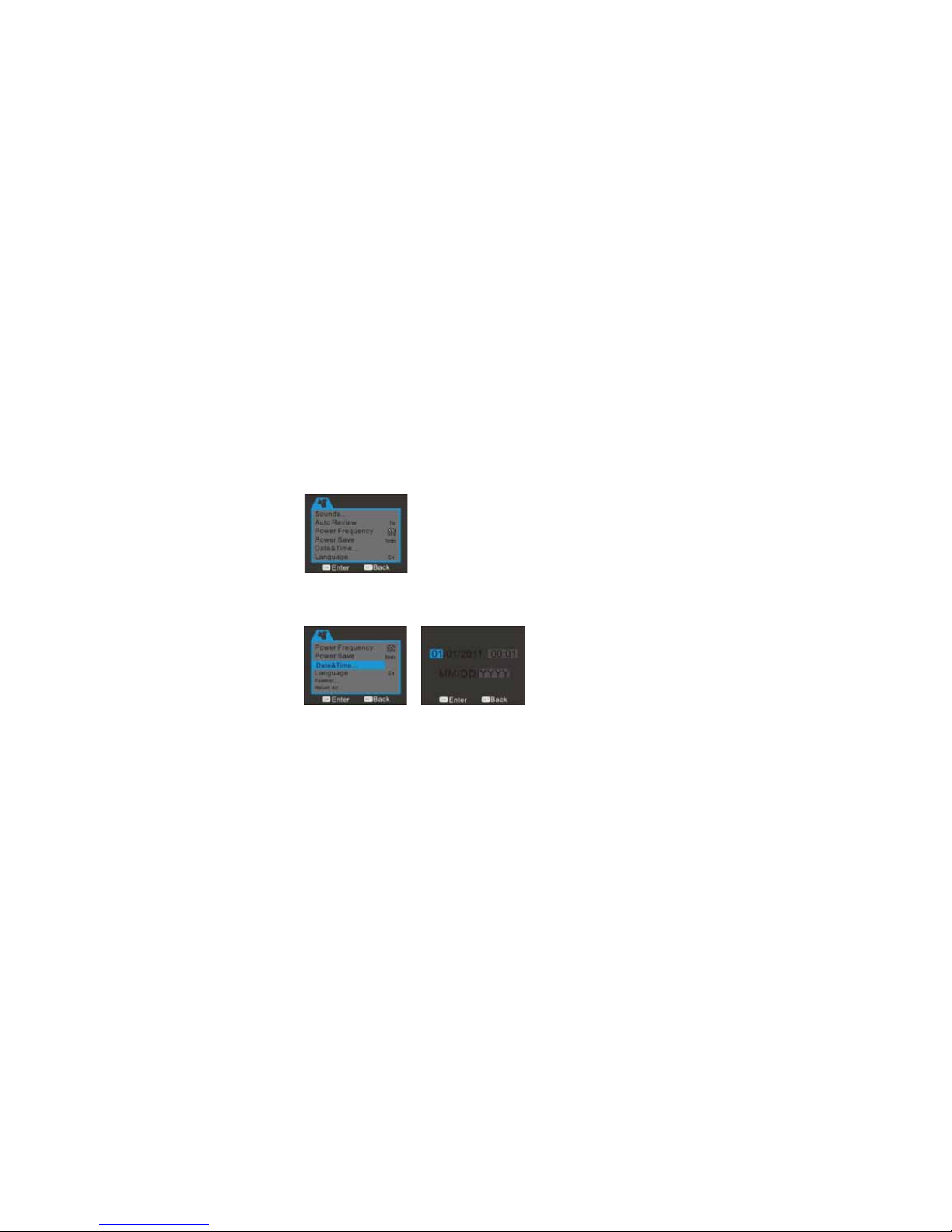
Under picture taking/recording mode,press "SET" key to open set menu and then press the
up/down/left/right key to select menu. Press OK or right key to enter the submenu. When
selecting menu, the background of the selected menu option will be displayed in blue.
7
Date and time setting
Press the SET key to open the menu and then press the left and right key to enter setting menu. Press the
down key to select “date and time”menu option and press OK key to enter setting window.
8
2.4 Change mode
After power on, it will enter video record mode, press "Mode" key to change mode among
video record, still camera and playback.
2.5 Video record
Your camera will power on in the video record mode. To record a video press the
Confirm/OK key to start video recording. Timing began to appear red words on the right
top of the screen.The time While recording, press the Confirm/OK key again to stop
recording.
9
In the video record modeyou can use the zoom feature by pressing the up or down key
zooms in or out on the image before you rec ord or while you are recording.W hile it is
zooming, you can find the zoom rate on the bottom of the screen.
2.7 Still camera
Press the Mode key to switch from video mode to still camera mode. In still camera mode,
press Confirm/OK key to take a picture, by pressing the up or down key you can zoom in
or out on the image.