Setup Menu Instructions
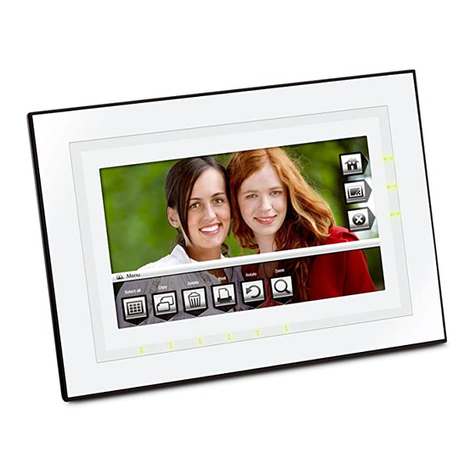
1. Turn on the Digital Photo Frame, insert a memory card into the card reader and press the
“MENU” button on the Digital Photo Frame to display the OSD menu.
2. Select the desired function menu, by pressing “<< “or “>>“ button and press the “ ” button
to enter the function.
Note: You must exit the slideshow you have playing in order to access the Setup Menu.
Image Display You may set the image display to: Stretch, Crop or Original format.
Slideshow Effect
Allows you to set the effect of how the photos transition in the
slideshow. You may set the effect to: All, 3D Flip, 3D Circle, 3D Float,
3D Cube, Shutter, Boxing Shutter, Cross Comb, Insert, News, Plus
Sign, Flabellate, Fade and Shrink.
Slideshow Interval You may set the time it will take to advance from one picture to the
next. You may set the interval to: 3 seconds, 10 seconds,
1 minute or 2 hours.
Color Allows you to adjust the Brightness, Contrast, Saturation and Hue
settings of the Digital Photo Frame.
OSD Languages Allows you to set OSD menu language of the Digital Photo Frame. You
may set the language to: English, French, Spanish, Italian, Dutch,
German and Portuguese.
Reset Settings Resets the settings to the manufacturer default settings.
Firmware Version Display the Firmware version of the Digital Photo Frame.
9