16 17
7. Internet connection
7.1 Connecting to a local network
Contact your Internet
service provider for more
information about the setting
of IP and DNS.
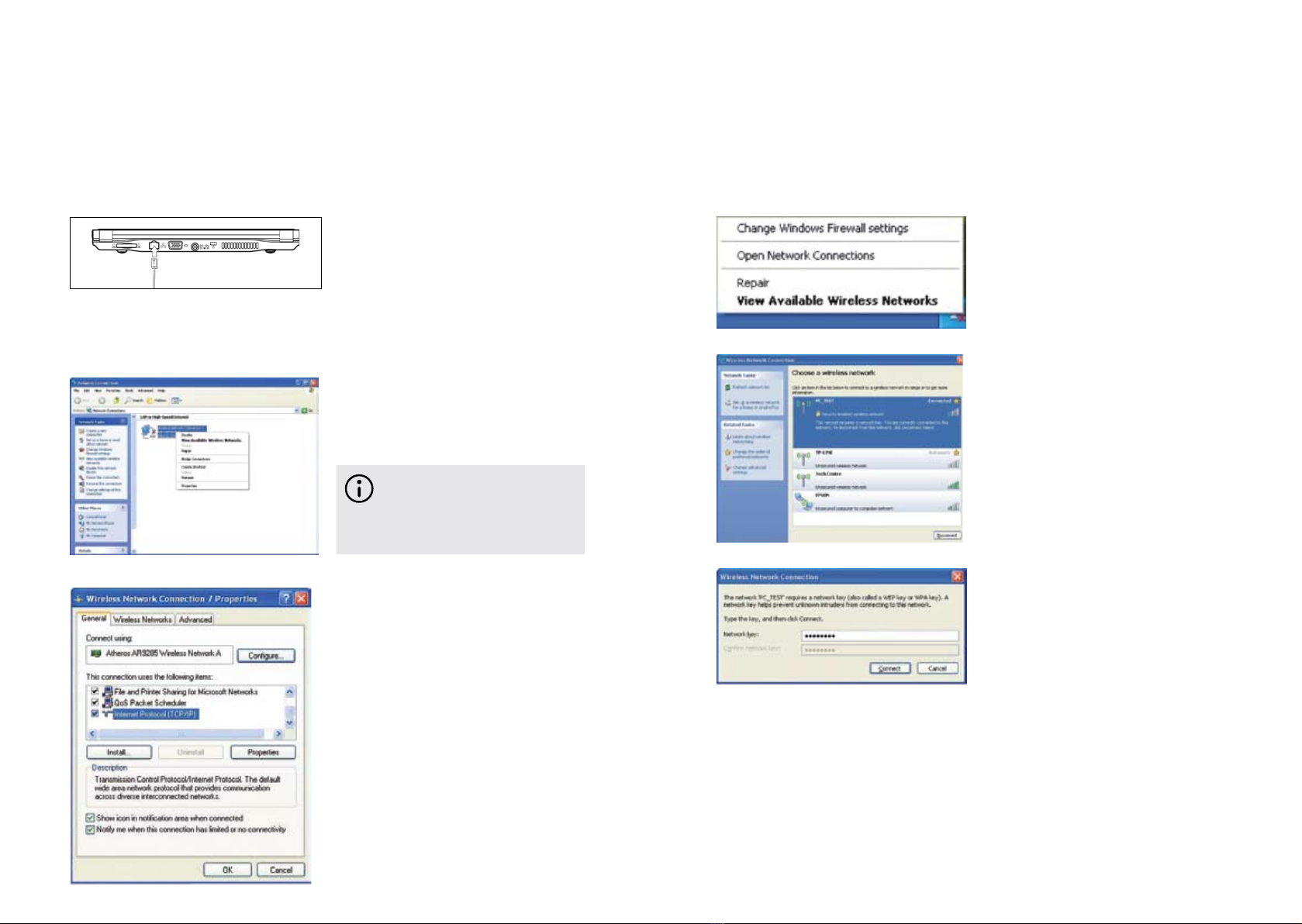
Right-click on ‘Local Area•
Connections’ then left click
on ‘Properties’ to display the
menu of ‘Local Area Connection
Properties’, as shown left.
On the ‘Local Connections•
Properties’ menu, left click on
‘Internet Protocol (TCP/IP)’, then
left click on ‘Properties’ to enter
the ‘Internet Protocol TCP/IP
Properties’ window.
Select ‘General’ and enter the•
address of your IP and DNS
(Domain Name), or select ‘Obtain
an IP address automatically’.
7.2 Setting the network system
Click on ‘My Network Places’,•
then left click on ‘Properties’ to
enter the ‘Network Connections’
window, as shown left.
When connecting to a network,•
make sure the network system is set
up first, before connecting the LAN
line to your Freedom Mini-laptop.
7.3 Wireless LAN
To see the available wireless•
networks, simply left click
on ‘Refresh’ and a list will be
displayed. You can find out
more about each of the wireless
networks shown by selecting
them with your mouse. Some
networks are likely to ask you
for a password before you can
connect to them.
Click <Fn>+<F2> to switch your•
wireless network on or off. When
your wireless network is on, the
Wi-Fi indicator turns green and
the Wi-Fi icon is displayed on the
bottom right of the desktop.
Right click your mouse on the•
Wi-Fi icon, then left click on ‘View
Available Wireless Networks’ on
the pop-up menu or double left
click on the Wi-Fi icon to enter the
‘Wireless Network Connection’
window as shown left.