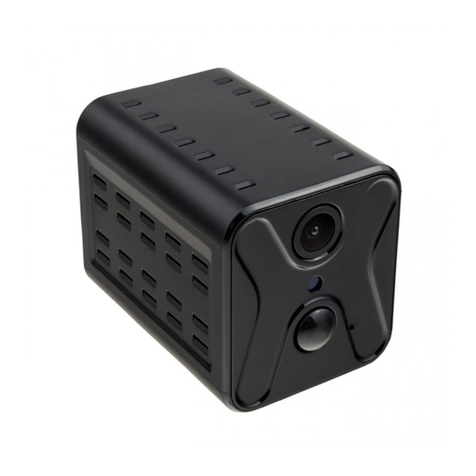
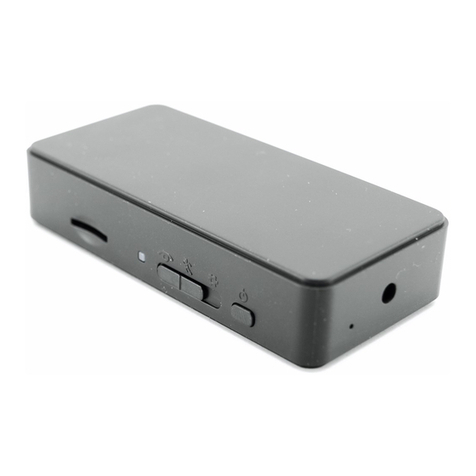
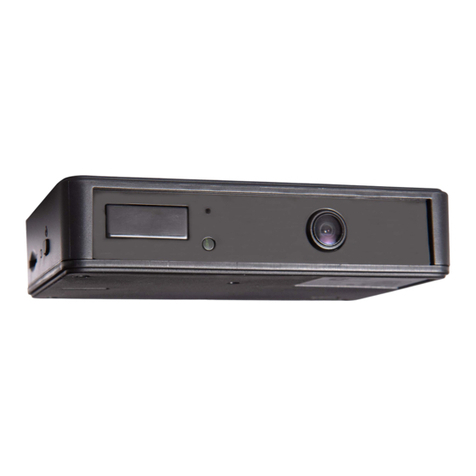
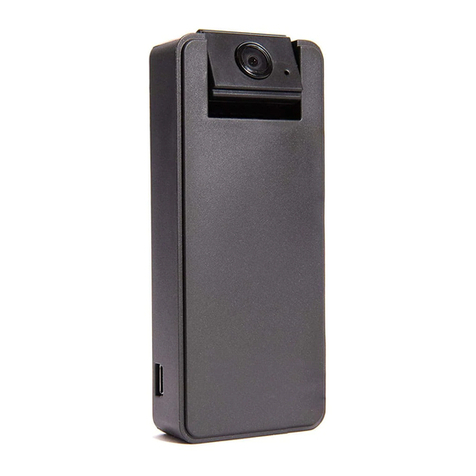
Zetta Z18 HD Security Camcorder Quick Start Guide
www.zetta.com.hk
FCC Regulation
FCC Regulation
This device complies with part 15 of the FCC Rules.
Operation is subject to the following two conditions:
1. This device may not cause harmful interference, and
2. This device must accept any interference received, including interference that may cause undesired
operation.
Any changes or modications not expressly approved by the party responsible for compliance could void
user’s authority to operate the equipment.
FCC Radiation Exposure Statement
This equipment complies with FCC radiation exposure limits set forth for an uncontrolled environment. This
transmitter must not be co-located or operating in conjunction with any other antenna or transmitter.
This equipment has been tested and found to comply with the limits for a Class B digital device, pursuant
to Part 15 of the FCC Rules. These limits are designed to provide reasonable protection against harmful
interference in a residential installation. This equipment generates, uses, and can radiate radio frequency
energy and, if not installed and used in accordance with the instructions, may cause harmful interference
to radio communications. However, there is no guarantee that interference will not occur in a particular
installation. If this
equipment does cause interference to radio or television reception, which can be determined by turning
the equipment off and then on, the user is encouraged to try to correct the interference by one or more of
the following measures:
1. Increase the separation between the equipment and Z18.
2. Connect the equipment to a different outlet so that the equipment and Z18 are on different branch
circuits.
3. Consult the dealer or an experienced radio / TV technician for help.
Conguration Tool (Zetta Widget)
To customize conguration, please use the conguration tool “Zetta Widget” to change the settings. The
widget can be downloaded from http://www.zetta.com.hk or on Andriod play store (search: Zetta Z18) or
Apple app store (search: Zetta Z18).
Connecting to computer
To connect the camcorder to your computer, follow these instructions:
1 Connect the larger end of USB cable into an available USB port on the computer.
2 Connect the smaller end of the cable into the USB port of the camcorder.
3 The camcorder will appear in My Computer as a removable drive.
REMARK: If the time shown is year 2026 or beyond due to loss of Real Time Clock,
please use the widget to resync the time and delete les of year 2026 or beyond!
Firmware upgrade
Zetta will from time to time release new rmware for enhancement or adding new features. Check out in
www.zetta.com.hk.
Custom (default)
Video Quality* (High) / Medium / Low
Resolution* (1280x720) / 640x360
Frame Rate* (High) / Low
Indoor Lighting
Condition
(50Hz) / 60Hz / Outdoor
Day / Night Mode (Day mode) / Night mode / Auto
switching
Orientation (Normal) / Up-side-down
Time Stamp (Enable) / Disable
Circular Recording (Enable) / Disable
Split File Time (min) 10 / (15) / 20
Mic (Enable) / Disable
LED On / Off (On) / Off
Voice-Trigger
Sensitivity***
High / Medium / Low / (Disable)
Vibration-Trigger
Sensitivity***
High / Medium / Low / (Disable)
Vibration Standby Mode Fast Wake Up / (Power Saving)
Motion-Trigger
Sensitivity***
High / (Medium) / Low / Disable
Auto On / Off Car-activate Recording /
Car-stop Recording /
Car-activate and Car-stop Re-
cording / Schedule Recording /
(Disable)
Wake-on-Bluetooth Enable / (Disable)
When Z18 is connected to the lighter through the 5V car adapter and the auto on /off mode is selected:
Car-activate Recording: Auto start recording once car is started, auto stop recording when car is stopped.
Car-stop Recording: Auto start recording when car is stopped, auto stop recording once car is started.
Car-activate and Car-stop Recording: Auto start recording once car is started and continue to record
even when car is stopped. Need to turn off the camcorder manually.
* For the longest recording time, set Video Quality to Low, Resolution to 640x360 and Frame Rate to Low,
Z18 can act as a digital voice recorder.
** If recording is started, you cannot switch between modes.
*** If triggering is enabled, Z18 will record for 10 seconds after power-up. Then it will standby. If there
is a trigger, it will keep recording until no further trigger. After that, it will record for 2 more minutes and
then standby again.
version: 1.0
Environmental Requirements
Storage temperature: 32˚ to 113˚F (0˚ to 45˚C); Operating temperature: 32˚ to 113˚F (0˚ to 45˚C)
Minimum System Requirements
Windows 2000, XP, Vista, 7, 8, 10, Mac OS X (mass storage class)
Windows Media Player 9
Andriod 4.3 / iOS 8.3 with Bluetooth 4.0
USB 2.0 port for hi-speed transfers and charging
Technical Support
Before contacting us, please visit the “Support” section in http://www.zetta.com.hk.
Bluetooth License
The Bluetooth® word mark and logos are owned by Bluetooth SIG, Inc and use of such marks by ZETTA
TECHNOLOGIES LIMITED is under license. Other trademarks and trade names are those of their respective owners.
Features, specications and appearance are subject to change without notice.
Manufacturer
ZETTA TECHNOLOGIES LIMITED
Unit 513, No.8, Science Park west avenue, Shatin , Hong Kong